Generate images with AI
Este conteúdo ainda não está disponível no seu idioma.
The Generate with AI tab of the Media storage creates an image from a text description and saves it to your library with the AI badge.
To generate images, you need the Modify applications permission for the project.
If the project has a Brand book, Pushwoosh adds its colors and tone of voice to the description, so generated images follow your brand style.
Generate an image
Anchor link toTo generate an image from a description:
-
In the Media storage, open the Generate with AI tab.
-
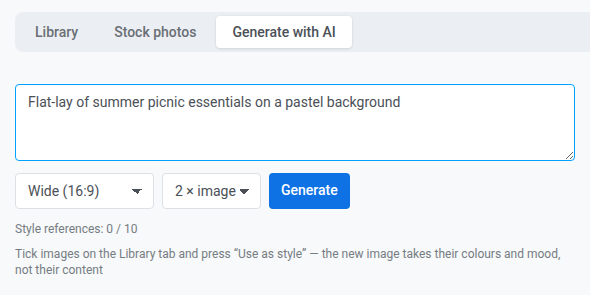
Describe the image, for example
flat-lay of summer picnic essentials on a pastel background. -
Select an aspect ratio.
-
Select how many images to generate: 1 × image, 2 × image, or 4 × image.
-
Click Generate.
When you open the tab from an editor, the list of aspect ratios shows only the ratios that fit the field, so it can be shorter or missing.
Every generated image is saved to the library with the AI badge, whether or not you use it. To get a new result for the same description, click Generate again.
Generate an image for a push notification
Anchor link toTo generate an image that fits the message of a push:
-
In a push preset that already has a title or text, open the image picker for Banner URL, Icon, or the inbox image.
-
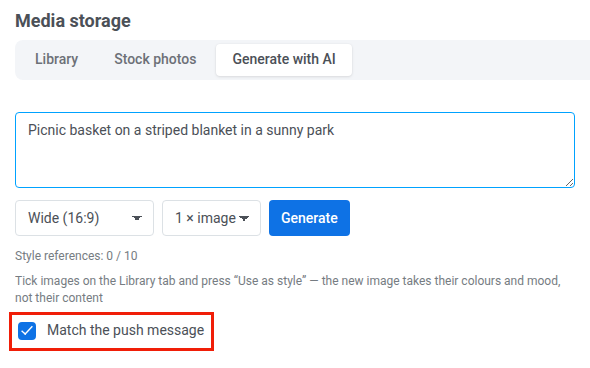
Open the Generate with AI tab. Leave Match the push message selected.
-
Describe the image.
-
Click Generate.
With the checkbox selected, Pushwoosh generates an image that illustrates the message. To put the message text into the picture, ask for it in your description. In a multi-language preset, the title and text are taken from the default language, or from the first language that has them filled in.
Use your images as a style reference
Anchor link toA style reference is an image from your library that tells the AI which look you want. The AI takes the colors, lighting, rendering technique, and mood from the references, and the subject comes from your description. It doesn’t copy people, faces, logos, lettering, or scenes from the references.
- Open the Library tab.
- Select the checkbox on each image you want to use as a reference. You can use up to 10 references.
- Click Use as style. The Generate with AI tab opens and shows the selected images under Style references.
- Describe the image and click Generate.
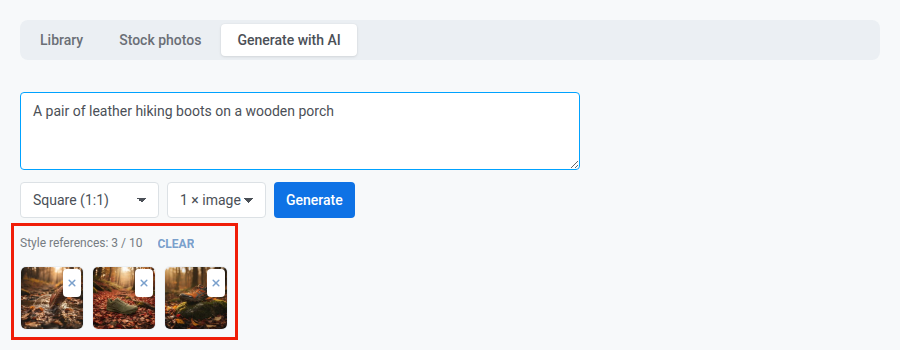
To change the references before you generate:
- To remove one reference, click the cross on its thumbnail.
- To remove all of them, click Clear.
- To add more, select images on other library pages until the total reaches 10. Pushwoosh adds images up to 10 and ignores the rest.
Use only original images from this project’s library as references, not crops.
Daily limit for AI images
Anchor link toTwo limits apply per account each day. By default:
| Limit | Paid plans | Free plans |
|---|---|---|
| Generated images | 10 | 2 |
| Requests with style references | 50 | 10 |
How the limits count
Anchor link toThe limits count as follows:
- Each generated image counts toward the image limit, so 4 × image uses four.
- If fewer images are left than you requested, Pushwoosh generates as many as the limit allows.
- A request with references counts once, however many references and images it has.
- The request limit is five times the image limit.
When a limit is reached
Anchor link toGeneration fails and shows a message:
| Situation | Message |
|---|---|
| The image limit is reached | daily limit of N AI images reached, try again tomorrow |
| The request limit is reached | too many generations with style references today, try again tomorrow |
| Your plan doesn’t include AI images | AI images and stock photos are not available on your plan |
When the request limit is reached, generation without references keeps working. If your plan doesn’t include AI images, stock photo search fails too. To change a limit, contact your Pushwoosh account manager.