Silent hours
Este conteúdo ainda não está disponível no seu idioma.
Silent hours stop marketing messages from reaching users at inconvenient times, such as late at night. Set a silence period for each channel once, and it applies to every one-time campaign, API send, RSS feed, and geozone campaign in the project.
Pushwoosh checks the period in each recipient’s own time zone. Then it either holds the message until the period ends or doesn’t send it at all.
Set up silent hours
Anchor link to-
Go to Settings > Message delivery settings > Silent hours.
-
In Time zone for recipients without a device time zone, select the time zone to use for recipients whose own time zone is unknown. See Which time zone is used for each recipient.

-
Turn on the switch for each channel you want to silence: Push notifications, In-apps (in-app messages sent through the API), Emails, SMS, WhatsApp, LINE, Kakao, or Telegram.
-
In Pause sending, set the start and end of the silence period, for example 10:00 PM – 08:00 AM. The period can cross midnight. A channel you turn on for the first time starts with 22:00 – 08:00.
-
In Message behavior, choose what happens to a message that falls into the silence period: Send after the silence period ends (default) or Do not send. See What happens to a message during silent hours.

-
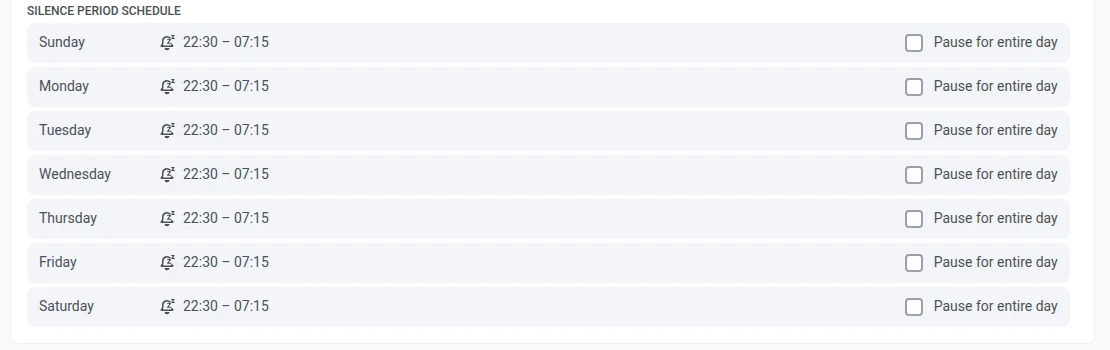
In Silence period schedule, select Pause for entire day for each day of the week when the channel shouldn’t send marketing messages at all, for example Sunday. On that day, the channel is silent from 00:00 to 23:59.
-
Click Apply changes.
Which time zone is used for each recipient
Anchor link toPushwoosh checks silent hours against each recipient’s local time:
- App and web push subscribers (iOS, Android, Huawei, Amazon, macOS, Windows, and web browsers): the time zone the Pushwoosh SDK reports from the device.
- Email, SMS, and messenger recipients who also have your app or website subscription under the same User ID: the time zone of that app device. If the user has several, the easternmost one is used.
- Everyone else, such as email and SMS contacts with no app installed: the time zone selected in Time zone for recipients without a device time zone. If you don’t select one, Pushwoosh uses UTC.
What happens to a message during silent hours
Anchor link toThe result depends on the Message behavior you chose for the channel:
-
Send after the silence period ends (default): the message is held and sent as soon as the period ends.
If the day is set to Pause for entire day, the message waits for the next day without a pause. With a night period such as 22:00–08:00, it goes out at 08:00 that day. With a daytime period such as 10:00–12:00, it goes out at 00:00.
-
Do not send: recipients inside the silence period don’t get the message. To see how many were skipped, check the silent hours statistics.
If you select Pause for entire day for all seven days, Pushwoosh ignores these checkboxes and uses only the Pause sending period.
Silent hours in one-time campaigns
Anchor link toA one-time campaign follows the channel’s global silent hours from Settings > Message delivery settings. To check or change this for one campaign:
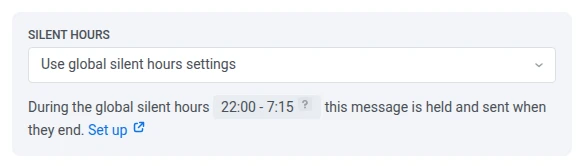
- On the Sending time step, find the Silent hours block in Sending options.
- To follow the global silent hours, leave Use global silent hours settings. This is the default.
- To send the campaign even during the silence period, for example an urgent service announcement, select Send messages without global silent hours.
Choose the option before you schedule the campaign. When you edit a scheduled campaign, the Silent hours option can’t be changed.
To change the global settings, click Set up in the block. Message delivery settings open in a new tab.
When silent hours don’t apply to a campaign
Anchor link toA campaign is sent without silent hours in these cases:
- Silent hours aren’t set up for the channel.
- The message type is Transactional. Transactional messages are never held by silent hours, so the campaign has no Silent hours block. See Marketing vs. transactional messages.
- The campaign goes to a High Speed Delivery segment. The message is sent right away, and the Silent hours block says so.
Silent hours in the API
Anchor link toMessages sent through the API follow silent hours too. To send a message without them, set the silent_hours field in Messaging API v2.
Messages that ignore silent hours
Anchor link toSilent hours don’t apply to:
- Customer Journey messages. Journeys use their own Silence period, set in the journey settings.
- Transactional messages, sent from the Control Panel or through the API.
- Viber messages, as Viber has no silent hours setting.
- Instant in-apps created in the Control Panel. They’re shown by the app right when the trigger event happens.
- Silent push notifications and Live Activity updates.
- Messages to High Speed Delivery segments.
View silent hours statistics
Anchor link toTo see how many recipients were skipped by Do not send, check the message statistics:
- Overview tab: Excluded: silent hours in the Audience stage.
- Errors tab: the Silent Hours (1041) row. It isn’t a delivery failure: it counts recipients skipped by Do not send.
Messages held by Send after the silence period ends aren’t reported separately. They’re counted as sent once they go out after the silence period.