Criar uma geozona
Crie uma geozona para definir onde sua campanha é acionada e o que acontece quando um usuário entra nessa área: uma mensagem push, um evento da Customer Journey ou ambos.
Vá para Campanhas → Campanhas geográficas. Clique em Criar geozona para começar.
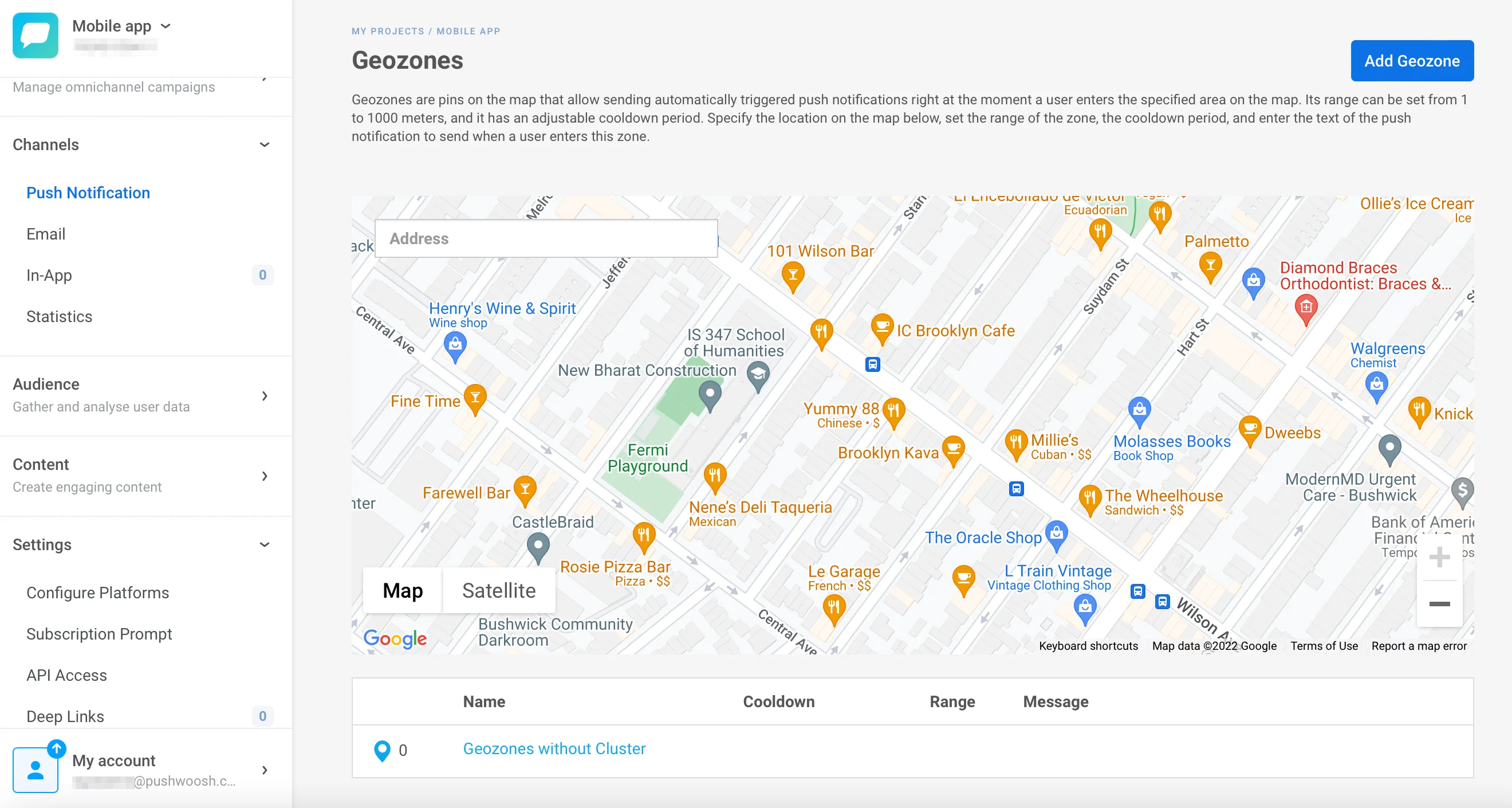
Defina o nome da campanha e as estatísticas agregadas
Anchor link toNo campo Nome da campanha, insira um rótulo de até 64 caracteres. Mantenha-o curto e reconhecível, por exemplo, Promoção de primavera nas lojas do centro.
Opcionalmente, selecione uma campanha existente no campo Estatísticas agregadas. Os pushes da campanha geográfica serão então contados juntamente com outros pontos de contato nas estatísticas de mensagens agregadas dessa campanha.
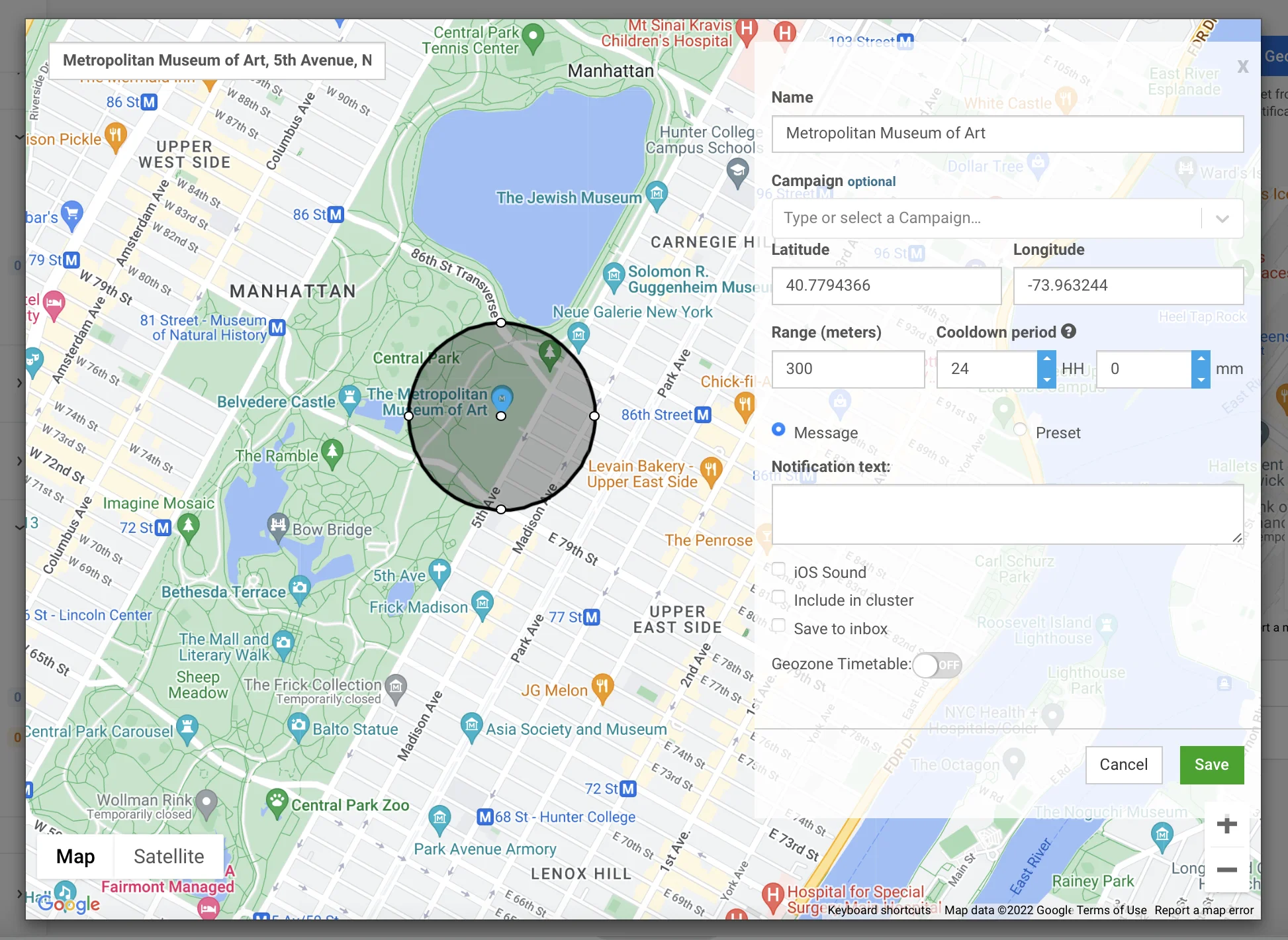
Escolha as ações de entrada
Anchor link toNa seção Ações de entrada, ative qualquer combinação destas ações. Mantenha pelo menos uma ativada e dê a cada ação baseada em evento um nome de evento diferente quando mais de uma estiver ativada.
Use esta comparação para decidir quais ações ativar:
| Ação | Escolha quando | Exemplo de campanha | Combina bem com |
|---|---|---|---|
| Enviar push | Você quer que as pessoas vejam uma mensagem no momento em que chegam, sem necessidade de uma jornada | Push de “20% de desconto hoje” no momento em que um cliente entra na loja | Disparar evento de permanência, para que você também possa marcar as pessoas que ficaram por lá, para uma mensagem de acompanhamento posterior |
| Disparar evento | Você quer iniciar um fluxo automatizado mais longo (várias mensagens ao longo do tempo), não apenas um push | PW_GeozoneEntered inicia uma Jornada: mensagem de boas-vindas → esperar 1 dia → lembrete do cartão de fidelidade | Disparar evento de saída, para que a Jornada só termine quando você tiver certeza de que a pessoa realmente saiu |
| Disparar evento de saída | Você quer ter certeza de que a pessoa saiu. Essa confirmação pode chegar tarde, o que é bom para um acompanhamento enviado bem depois da visita | PW_GeozoneExited aciona uma pesquisa “Como foi sua visita?” assim que a visita for confirmada | Disparar evento, para que a mesma Jornada que os recebeu na entrada também seja concluída corretamente quando eles saírem |
| Disparar evento de permanência | Você só se importa com as pessoas que realmente passaram um tempo lá, não com as que apenas passaram por perto | PW_GeozoneDwell (Tempo dentro = 15 min) marca visitantes “genuinamente interessados” para um e-mail de acompanhamento | Assumir saída após silêncio, para que você receba ambos os sinais no seu CRM sem nunca enviar mensagens para a pessoa durante a visita |
| Assumir saída após silêncio | O rastreamento de sua localização muitas vezes perde o sinal (locais, aplicativos em segundo plano), então uma saída confirmada não é confiável. Este dispara de qualquer maneira, com um temporizador | PW_GeozoneExitedByTimeout (Silêncio = 2 horas) encerra visitas em um estádio com sinal fraco | Disparar evento de permanência, para que você possa encerrar a visita de forma confiável e ainda saber se eles realmente se engajaram enquanto estavam lá |
Enviar push
Anchor link toEnvia a notificação push que você configura em Compor a mensagem push abaixo. Por exemplo, um dispositivo que entra na zona às 10:00 da manhã recebe o push imediatamente, desde que o cooldown permita a entrega. Desative-o se desejar apenas uma ação baseada em evento. As configurações da mensagem desaparecem e você não precisa preenchê-las.

Disparar evento
Anchor link toDispara um evento personalizado quando o dispositivo entra na zona. Use-o como uma Entrada baseada em gatilho em uma Customer Journey. Por exemplo, um dispositivo que entra na zona às 14:00 dispara PW_GeozoneEntered às 14:00. A entrada e o evento acontecem no mesmo momento.
- Ative Disparar evento.
- Defina o Nome do evento. Deixe em branco para usar o evento padrão do sistema
PW_GeozoneEntered, ou insira seu próprio nome (até 128 caracteres).
O evento carrega seis atributos: geozone_code, geozone_name, lat, lng, range e distance. Se a geozona for atribuída a um cluster, ela também carrega cluster_code e cluster_name.

Disparar evento de saída
Anchor link toEste evento não é disparado no momento em que alguém sai da zona. O dispositivo detecta a saída primeiro. Em seguida, ele relata a saída na próxima vez que contata o Pushwoosh: um check-in periódico em segundo plano que envia a localização do dispositivo, não uma conexão ao vivo e constante.
A rapidez com que esse contato acontece depende do sistema operacional do dispositivo e das configurações de segundo plano, não do Pushwoosh, então o atraso entre a saída real e o evento pode variar de alguns segundos a várias horas. Por exemplo, um dispositivo que sai às 15:00, mas não contata o Pushwoosh novamente até as 15:45, dispara o evento às 15:45, não às 15:00.
O cooldown restringe as ações de entrada, não esta. Se um dispositivo entrar, sair e reentrar na mesma geozona dentro de uma janela de cooldown, a entrada repetida é suprimida, mas cada saída real ainda dispara seu próprio evento, então você pode acabar com mais eventos de saída do que entradas restritas para a mesma sequência de visitas.
- Ative Disparar evento de saída.
- Defina o Nome do evento de saída. Deixe em branco para usar o evento padrão do sistema
PW_GeozoneExited, ou insira seu próprio nome.

Disparar evento de permanência
Anchor link toDispara um evento personalizado assim que o dispositivo permanecer dentro da zona pela duração que você definir em Tempo dentro, contado a partir da entrada.
- Ative Disparar evento de permanência.
- Defina o Tempo dentro para um valor de 1 a 1440 minutos.
- Defina o Nome do evento de permanência. Deixe em branco para usar o evento padrão do sistema
PW_GeozoneDwell, ou insira seu próprio nome.

Assumir saída após silêncio
Anchor link toDispara um evento personalizado assim que um dispositivo, confirmado pela última vez dentro da zona, fica quieto (para de enviar atualizações de localização para o Pushwoosh) pela duração definida em Silêncio antes de assumir.
- Ative Assumir saída após silêncio.
- Defina o Silêncio antes de assumir para um valor de 5 a 1440 minutos.
- Defina o Nome do evento de saída assumida. Deixe em branco para usar o evento padrão do sistema
PW_GeozoneExitedByTimeout, ou insira seu próprio nome.

Compor a mensagem push
Anchor link toCom a opção Enviar push ativada, escolha como compor a notificação:
- Escrever uma mensagem: insira o texto do push diretamente no formulário (até 1024 caracteres). Use esta opção para uma mensagem rápida e única em uma única geozona.
- Usar um preset existente: escolha um preset salvo para modelagem completa com título, deep link, som personalizado e payloads específicos da plataforma. Para alterar a ordem dos presets, clique no botão de ordenação ao lado do campo. O padrão é Nome A→Z, e a ordem escolhida também se aplica a outros menus suspensos de presets de push, como pushes únicos e o elemento Push em journeys.
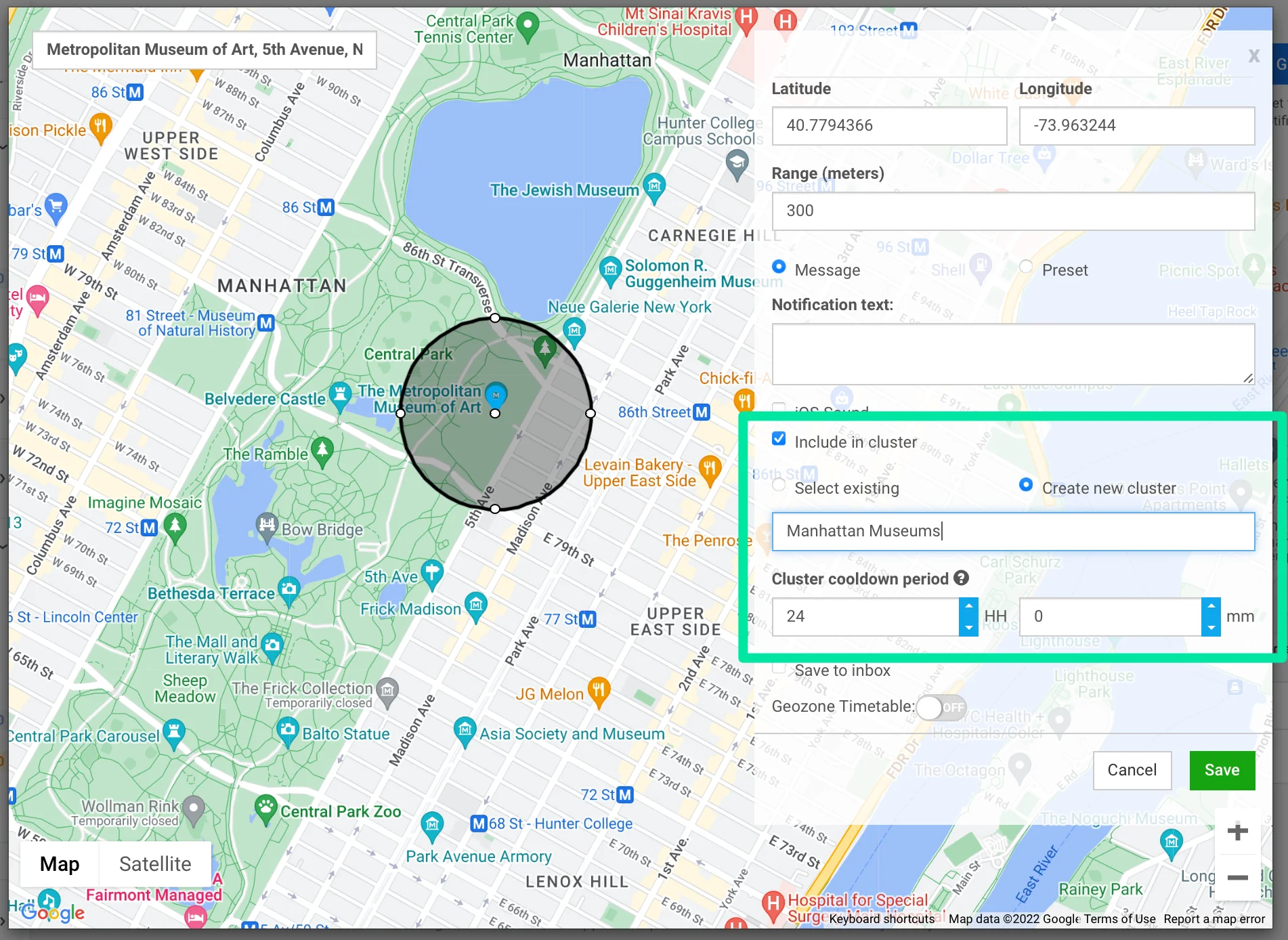
Configure as configurações opcionais da mensagem:
- Tocar som padrão no iOS: usa o som de push do sistema em dispositivos iOS.
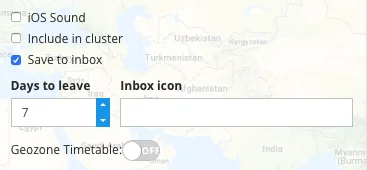
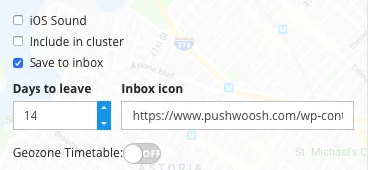
- Salvar na caixa de entrada: mantém uma cópia do push no inbox do aplicativo após a entrega, para que o usuário possa abri-lo mais tarde. Quando ativado, defina a Expiração da caixa de entrada (1–30 dias) e, opcionalmente, um URL do ícone da caixa de entrada. Opções completas do Save to Inbox: Salvar um push no inbox.
Definir o local do gatilho
Anchor link toEscolha uma forma para o local do gatilho:
- Círculo: pesquise um endereço, cole coordenadas brutas na barra de pesquisa ou clique em qualquer lugar no mapa para soltar um marcador. Arraste a alça no círculo para definir o Raio. O raio pode ser definido entre 50 m e 100 km. O padrão é 200 m.
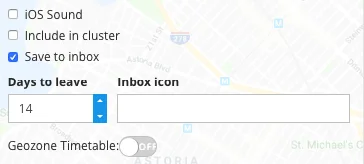
- Polígono: clique no mapa para soltar os cantos, um de cada vez, traçando o contorno da área, por exemplo, a planta de um shopping ou o perímetro de um local. Arraste um canto para movê-lo, clique com o botão direito em um canto para excluí-lo. Um polígono precisa de 3 a 100 cantos distintos. Você não precisa fechar a forma clicando no primeiro canto novamente.
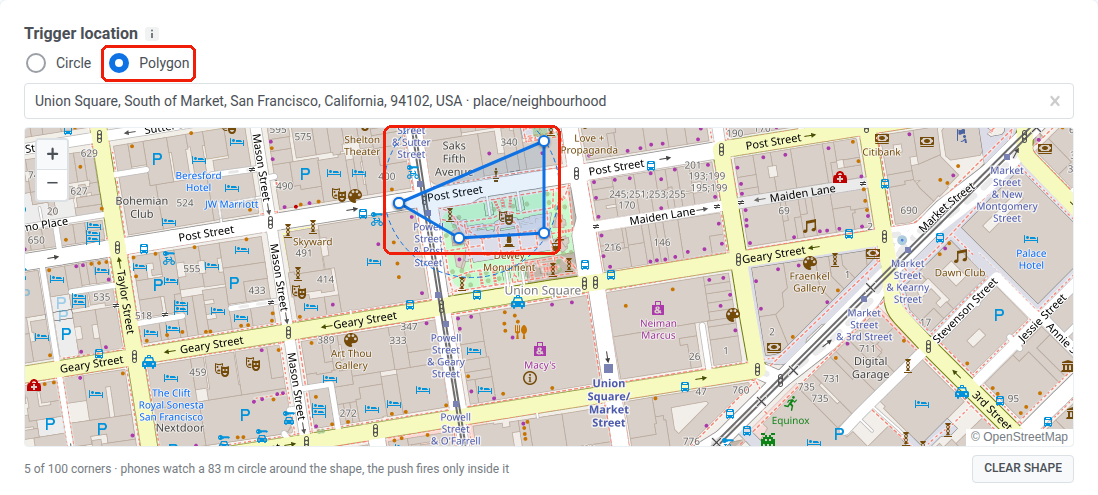
Você pode trocar a forma ao editar uma geozona salva:
- Para converter uma geozona de polígono em um círculo, selecione Círculo e defina um centro e um raio como de costume.
- Para converter uma geozona de círculo em um polígono, selecione Polígono e desenhe novos cantos.
- Limpar todos os cantos de um polígono (Limpar forma) também o reverte para um círculo.
Escolha um cluster e um cooldown
Anchor link toUm cooldown é um período de silêncio após o envio de um push. Para uma geozona autônoma, o mesmo dispositivo não receberá outra notificação dela até que o cooldown expire, mesmo que saia e entre novamente. Se a geozona pertencer a um cluster, o cooldown se aplica a todo o cluster: o dispositivo permanece em silêncio para todas as geozonas nesse cluster, não apenas para a que enviou o push.
No campo Cooldown, escolha um dos três modos:
| Modo | Como o cooldown é definido | Comportamento |
|---|---|---|
| Autônomo | Defina dias, horas e minutos diretamente para esta geozona. O mínimo é 1 minuto. O máximo é 41 dias. | O cooldown se aplica apenas a esta geozona. |
| Usar cluster existente | Aplique o cooldown de um cluster existente. | O cooldown do cluster substitui o cooldown próprio desta geozona. |
| Novo cluster | Crie um novo cluster e defina seu cooldown. Veja Criar um cluster. | O cooldown do cluster substitui o cooldown próprio desta geozona. |
Programe quando a campanha pode ser disparada
Anchor link toA seção Programação da campanha limita quando as ações de entrada podem ser disparadas. Um push ou evento de entrada é executado apenas se a geozona estiver ativa naquele momento e o cooldown permitir a entrega.
Limite a campanha a um intervalo de datas
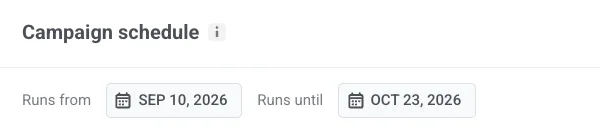
Anchor link toEstes campos são opcionais. Defina-os quando quiser que toda a campanha seja executada dentro de um intervalo de datas específico, por exemplo, uma promoção de feriado de 10 de setembro a 23 de outubro, ou a inauguração de uma loja por tempo limitado.
- Executa de: o primeiro dia em que a geozona pode ser disparada.
- Executa até: o último dia em que a geozona pode ser disparada.
Escolha como a geozona é executada
Anchor link toSelecione Sempre ativa para executar 24 horas por dia, ou Em dias e horas selecionados para restringir o disparo a janelas de tempo específicas por dia da semana.
Sempre ativa
Anchor link toA campanha é disparada 24 horas por dia, 7 dias por semana. Nenhuma configuração de programação adicional é necessária.

Em dias e horas selecionados
Anchor link toA campanha só é disparada dentro das janelas que você definir aqui:
- Ative cada dia da semana em que deseja que a campanha seja disparada.
- Defina um horário de início e término para esse dia.
Clique em Salvar para finalizar, independentemente do modo que você escolheu. A geozona é ativada imediatamente. Se você definir uma programação, os pushes serão disparados apenas durante as janelas configuradas.
Quais ações seguem a programação
Anchor link to- Enviar push, Disparar evento e outras ações que são disparadas quando um dispositivo entra na zona são executadas apenas durante uma janela de programação ativa e quando o cooldown permite a entrega.
- Disparar evento de saída, Disparar evento de permanência e Assumir saída após silêncio seguem a visita, não a programação. Se um dispositivo entrou enquanto a programação estava ativa, essas ações ainda podem ser disparadas após o fechamento da janela diária.