Navegação e controles do canvas
O painel Configurações do canvas controla como você desloca, amplia e seleciona elementos no canvas da Customer Journey. Abra-o clicando no ícone de engrenagem no canto inferior direito do canvas.
Quais esquemas de controle estão disponíveis
Anchor link toUm esquema de controle é um conjunto predefinido de comportamentos do canvas: o que o arrastar com o botão esquerdo faz, o que a roda de rolagem faz e se os novos passos se ajustam a uma grade. Escolha um no menu suspenso Esquema de controle na parte superior do painel.
| Moderno (recomendado) | Clássico | |
|---|---|---|
| Arrastar com o botão esquerdo no canvas | Seleciona uma área | Move o canvas |
| Roda de rolagem e trackpad | O trackpad desloca o canvas, a roda do mouse o amplia (detecta automaticamente o dispositivo) | A roda de rolagem amplia o canvas |
| Zoom | Ctrl/⌘ + rolagem, gesto de pinça no trackpad, roda do mouse | Roda de rolagem |
| Ajustar à grade | Ativado | Desativado |
As contas existentes mantêm o esquema que já estavam usando; as novas contas começam no Moderno. Alterar qualquer configuração individual abaixo do menu suspenso (modo de arrastar, modo da roda, qualquer um dos botões de inversão ou ajustar à grade) muda o menu suspenso para Configuração personalizada. Escolha uma predefinição novamente para redefinir todas essas configurações para seus padrões.
Como configurar o deslocamento e o zoom
Anchor link toDois menus suspensos abaixo de Esquema de controle permitem que você ajuste o deslocamento e o zoom independentemente da predefinição:
- Arrastar com o botão esquerdo no canvas: escolha se arrastar com o botão esquerdo do mouse desenha um retângulo de seleção (Seleciona uma área) ou desloca o canvas (Move o canvas).
- Roda de rolagem e trackpad: escolha Detecção automática (a rolagem do trackpad desloca o canvas, a roda do mouse o amplia), Mover canvas (trackpad) para sempre deslocar, independentemente do dispositivo, ou Ampliar canvas (roda do mouse) para sempre ampliar.
Dois botões de alternância invertem a direção padrão para as preferências de “rolagem natural” do macOS:
- Inverter rolagem inverte a direção do deslocamento do trackpad/roda.
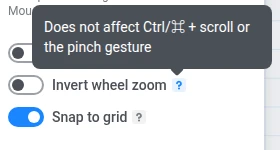
- Inverter zoom inverte a direção apenas do zoom simples da roda do mouse. Não afeta a rolagem com
Ctrl/⌘ou o gesto de pinça do trackpad, pois são vínculos separados e nenhum sistema operacional inverte um gesto de pinça.
Independentemente do esquema, você sempre pode deslocar com Espaço + arrastar, arrastar com o botão direito do mouse ou com o botão do meio do mouse, e ampliar no cursor com Ctrl/⌘ + rolagem ou um gesto de pinça no trackpad.
Ajustar à grade se aplica tanto ao arrastar um passo quanto ao adicionar um novo: o passo se ajusta à célula livre mais próxima para que os passos nunca se sobreponham. Desative-o para posicionar os passos livremente.
Atalhos de teclado do canvas
Anchor link toA seção Mouse e teclado do painel lista todos os atalhos do canvas, agrupados em três abas: Canvas, Seleção e Ações. Os atalhos se ajustam às suas configurações atuais de arrastar e da roda e ao seu sistema operacional (⌘/⇧/⌫ no macOS, Ctrl/Shift/Del em outros lugares).
Atalhos comuns do canvas:
| Ação | Atalho |
|---|---|
| Ampliar / Reduzir | Ctrl/⌘ + / Ctrl/⌘ − |
| Zoom para 100% | Ctrl/⌘ 0 |
| Ajustar à tela | Shift 1 |
| Alternar minimapa | Shift M |
| Mostrar/Ocultar UI | Ctrl/⌘ \ |
| Selecionar tudo / Desselecionar | Ctrl/⌘ A / Esc |
| Duplicar um passo | Ctrl/⌘ D |
Como usar o minimapa
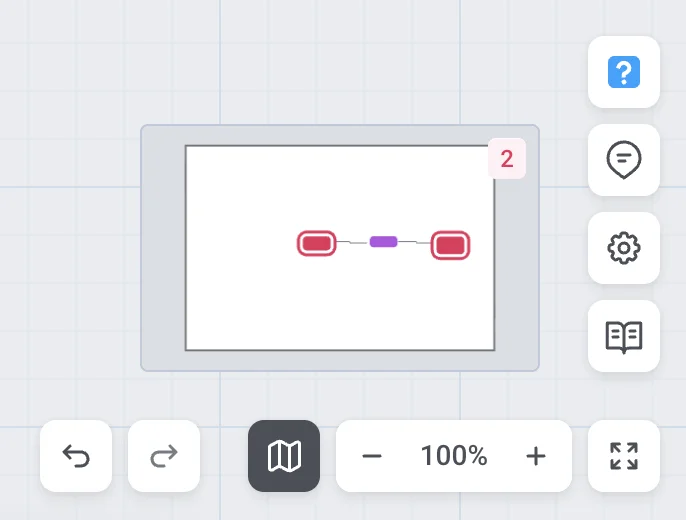
Anchor link toO minimapa oferece uma visão geral de toda a jornada e uma maneira rápida de ir para qualquer parte dela. Ele fica no canto inferior direito do canvas, acima dos controles de zoom, e mostra cada passo como um ponto colorido (colorido pelo seu grupo), com cada conexão desenhada como uma seta ao longo de sua rota real. Um retângulo marca a área atualmente visível no canvas. Ele permanece visível no modo Ocultar UI.
Alterne o minimapa com o botão ao lado dos controles de zoom ou com o atalho Shift + M; sua escolha é lembrada neste navegador.
- Clique em qualquer lugar no minimapa para centralizar o canvas nesse ponto.
- Arraste o retângulo da área de visualização para deslocar o canvas.
- Role sobre o minimapa para ampliar e reduzir o canvas — isso respeita a configuração de inverter zoom.
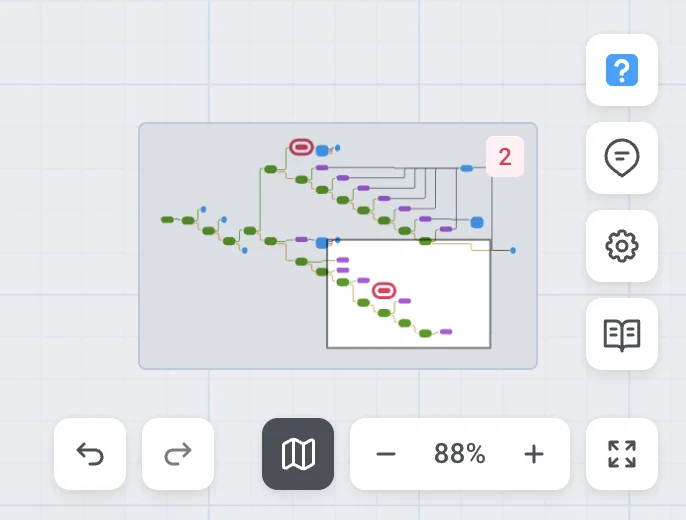
Um emblema vermelho no minimapa mostra quantos passos ainda precisam de configuração; é apenas informativo e não é clicável.
Em uma jornada maior, o emblema e os pontos circulados facilitam a identificação de quais passos precisam de atenção sem precisar rolar pelo canvas para encontrá-los:
O que Mostrar/Ocultar UI faz
Anchor link toPressione Ctrl/⌘ + \ para ocultar o cabeçalho, a barra lateral e todos os botões, deixando um canvas limpo para apresentações ou capturas de tela. Pressione a mesma combinação novamente, pressione Esc ou clique no botão no canto do canvas para trazer a UI de volta. Recarregar a página também a restaura, pois o modo de canvas limpo não é lembrado entre os carregamentos da página.
Como mostrar métricas no canvas
Anchor link toPara uma campanha lançada ou finalizada, um botão de alternância Mostrar métricas fica na parte inferior do painel de Configurações do canvas. Ative-o para manter as estatísticas ao vivo exibidas sob cada passo de uma vez; independentemente do botão, passar o mouse sobre um único elemento também mostra suas estatísticas.
Enquanto as métricas estão ativadas e a campanha não é um rascunho ou está pausada, um botão seletor de metas aparece na barra superior. Se a campanha tiver mais de uma meta, Todas as metas é o item superior nesse menu; se tiver apenas uma meta, essa meta é selecionada automaticamente e Todas as metas não é mostrado. Para mais informações sobre a leitura dessas estatísticas, consulte Estatísticas da Customer Journey.