Crie conteúdo de push a partir de um catálogo ou feed
Crie um push uma vez e deixe o Pushwoosh preenchê-lo com produtos ou artigos ao vivo no momento do envio.
- Use Recomendações de produtos para promover itens do seu Catálogo de Produtos, como novidades ou mais vendidos.
- Use Feed de notícias para compartilhar os artigos mais recentes ou em alta de um feed registrado.
Pré-requisitos
Anchor link to- Recomendações de produtos: um Catálogo de Produtos com produtos para extrair.
- Feed de notícias: pelo menos um feed registrado em Conteúdo > Feeds de Notícias. O editor de predefinições apenas seleciona um feed. Ele não registra um.
Como criar a predefinição
Anchor link to- Abra Conteúdo > Predefinições de Push.
- Clique em Criar conteúdo.
- Escolha Recomendações de produtos ou Feed de notícias. Consulte Criar predefinições de push.
Compor a mensagem
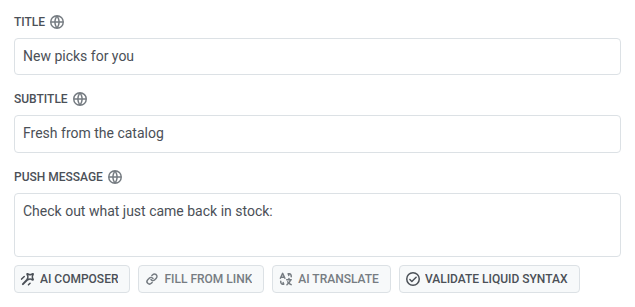
Anchor link to- Insira o título do push, por exemplo,
Novas escolhas para você. Ele é enviado uma vez. - Opcionalmente, insira um subtítulo, por exemplo,
Novidades do catálogo. Ele só aparece no iOS. - Insira a mensagem do push como a introdução antes das linhas, por exemplo,
Confira o que acabou de voltar ao estoque:. - Em Fonte de conteúdo mais abaixo, preencha o Modelo de item (uma vez por linha) e a Conclusão (uma vez após as linhas). Consulte Preencher o modelo de item e a conclusão.
Configurar a fonte de conteúdo
Anchor link toEm Fonte de conteúdo, defina a regra para o tipo que você escolheu ao criar a predefinição.
Recomendações de produtos
Anchor link to- Defina Itens para quantos produtos extrair, de 1 a 3. O padrão é 3.
- Defina Categoria para filtrar de quais produtos a regra pode escolher, ou deixe como Qualquer categoria.
- Defina Estratégia para como os produtos são escolhidos.
- Defina Ordenar por (Mais recentes, Preço, menor primeiro, Preço, maior primeiro ou Título) para ordenar as linhas que a regra retorna.

Dados do catálogo vs. eventos do seu backend
Anchor link toAlgumas estratégias funcionam imediatamente. O Pushwoosh lê seu catálogo de produtos e classifica automaticamente. Outras precisam de dados de compra e navegação do seu backend antes que possam classificar qualquer coisa.
Funcionam imediatamente: apenas dados do catálogo
| Estratégia | Como classifica |
|---|---|
| Mais recentes | Por data de adição ao catálogo, os mais recentes primeiro |
| De volta ao estoque | Por quando o produto voltou ao estoque, o mais recente primeiro |
| Queda de preço | Pela data em que o preço caiu recentemente |
Nenhuma configuração é necessária além de manter seu catálogo sincronizado com o Pushwoosh.
Requerem eventos de produtos
Essas estratégias classificam com base no comportamento real do usuário: compras, histórico de navegação, padrões de co-compra. Elas não funcionarão até que o Pushwoosh receba os eventos corretos do seu aplicativo, site ou backend. Consulte Como configurar recomendações de produtos em e-mail para saber o que enviar.
| Estratégia | Como classifica | O que precisa |
|---|---|---|
| Mais vendidos, 7 dias | Produtos com mais unidades vendidas nos últimos 7 dias | Eventos PW_OrderCreated e PW_OrderUpdated, cada um com um array items listando o que foi comprado |
| Mais vendidos, 30 dias | O mesmo, em uma janela de 30 dias | O mesmo que acima |
| Comprados juntos | Produtos que outros usuários visualizaram, adicionaram ao carrinho ou compraram junto com um produto âncora específico nos últimos 30 dias | Eventos de atividade do produto, mais uma tag de dispositivo contendo o ID do produto âncora, definida no campo Tag âncora. Sem uma tag, o Pushwoosh ignora essa estratégia e recorre a Categoria e Ordenar por. |
| Vistos recentemente | Produtos com os quais outros usuários interagiram junto com os últimos 10 produtos com os quais este destinatário interagiu, com base nos últimos 30 dias. Produtos com os quais o destinatário já interagiu ficam de fora. | Qualquer evento enviado pelo SDK ou pela API com um userId e um ID de produto em product_id, productId, item_id ou sku, ou em um array products. O ID deve corresponder ao id do produto no seu catálogo. Sem esses eventos para o destinatário, o Pushwoosh ignora essa estratégia e recorre a Categoria e Ordenar por. |
Feed de notícias
Anchor link to- Defina Artigos para quantos artigos extrair, de 1 a 3. O padrão é 3.
- Defina Rubrica para filtrar de quais artigos a regra pode escolher, ou deixe como Qualquer rubrica.
- Defina Classificação:
- Mais recentes: os últimos artigos por data de publicação.
- Em alta: os artigos com as aberturas mais recentes em seu site e cliques em seus e-mails.
- Defina Feed para um dos feeds registrados da sua conta, ou Todos os feeds para extrair de todos os feeds. Este painel apenas seleciona um feed. Ele não registra um; se ainda não existir nenhum, registre um na página Feeds de notícias primeiro.

Preencher o modelo de item e a conclusão
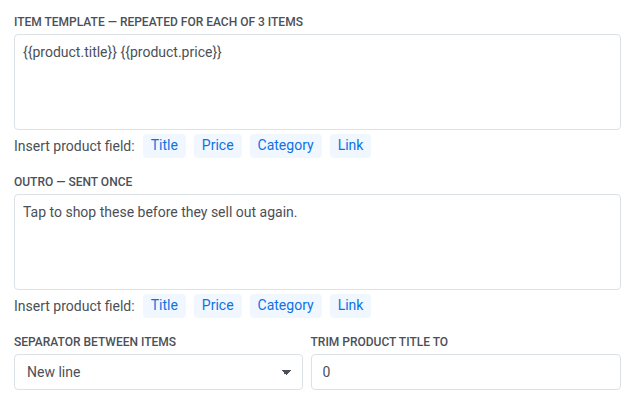
Anchor link to- Preencha o Modelo de item. Para Recomendações de produtos, clique em Título, Preço, Categoria ou Link para inserir um placeholder Liquid como
{{product.title}}no cursor. Para Feed de notícias, clique em Título, Resumo, Categoria, Autor ou Link para inserir o campo do artigo correspondente. Este bloco se repete uma vez por linha. - Escolha o Separador entre itens: Vírgula coloca as linhas em uma única linha, Nova linha coloca cada linha em sua própria linha.
- Preencha a Conclusão. Os mesmos botões de inserção estão disponíveis aqui. Este bloco é enviado uma vez, após as linhas.
- Opcionalmente, defina Cortar título do produto para (ou Cortar título do artigo para) uma contagem de caracteres. Deixe em 0 para não cortar.
Mostrar a imagem do item principal como banner
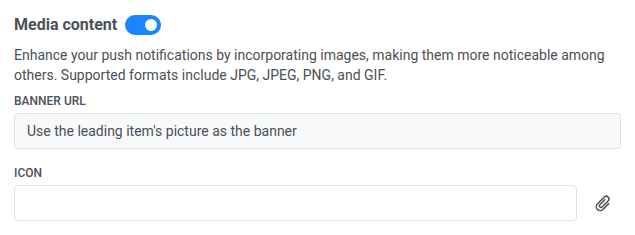
Anchor link to- Ative Usar a imagem do item principal como banner para que o push use a imagem do primeiro produto ou artigo que o feed retorna.
- Deixe a URL do banner como está. Você não precisa abrir Conteúdo de mídia ou colar uma URL. O Pushwoosh define o link do banner quando você salva.

Uma vez ativado, a URL do banner em Conteúdo de mídia mostra o próprio nome do botão de alternância em vez de um campo editável.
Definir um fallback para quando não houver nada para enviar
Anchor link toEm Se o feed não retornar nada, escolha o que acontece quando a regra não encontra nenhuma linha:
- Não enviar para este destinatário: O Pushwoosh pula o envio para esse destinatário em vez de entregar um push vazio.
- Enviar este texto em vez disso: envie o texto de fallback que você digita no campo que aparece.

Apontar a ação de clique para o item principal
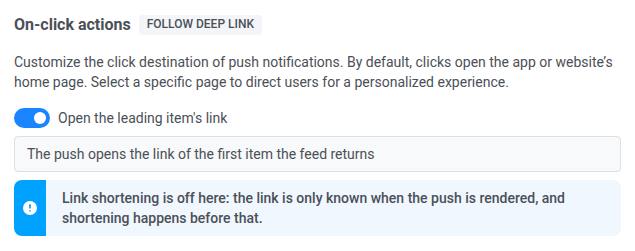
Anchor link toEm Ações de clique, use Abrir o link do item principal:
- Deixe ativado: o push abre o link do primeiro produto ou artigo que o feed retorna.
- Desative: defina uma ação manual você mesmo (deep link ou página da web).
Visualizar o push
Anchor link toVerifique a visualização. Ela preenche as linhas de itens com produtos ou artigos reais, buscados da mesma forma que um envio os buscaria — ela não mostra o texto de introdução ou conclusão.
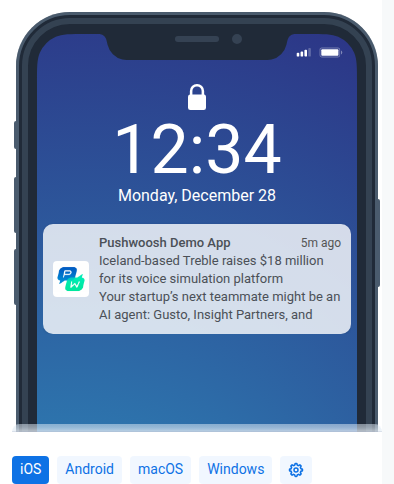
Se a visualização estiver vazia, leia a nota no painel:
- Para Comprados juntos ou Vistos recentemente, isso é esperado. O Pushwoosh escolhe produtos por destinatário, então não há nada para visualizar no editor.
- Se o Pushwoosh não conseguir acessar o catálogo ou o feed, corrija essa conexão antes de enviar.
- Se a regra não retornou nenhum produto ou artigo, verifique Se o feed não retornar nada. A visualização ainda pode dizer que nada é enviado, mesmo quando você escolheu Enviar este texto em vez disso. Nesse caso, o texto de fallback ainda é enviado. Apenas Não enviar para este destinatário pula o envio.
Salvar a predefinição
Anchor link toClique em Salvar. O Pushwoosh verifica se cada placeholder no título, subtítulo e mensagem é válido. Se um não for, o salvamento é bloqueado e o Pushwoosh aponta para o campo e o idioma que precisam de correção.
Depois de salvar, abra a predefinição na lista de conteúdo de push disponível.