Manage user data with tags
Tags are one of the most useful tools we offer. A lot of sophisticated Pushwoosh functionality is based on this feature. Using tags, you can segment your audience and send push notifications to some users, but not others.
Tags contain any arbitrary data that you associate with a particular user or device. This includes username, ID, city, favorite football team, preferred news categories, or any other piece of information about your users. Let’s take a closer look.
Tag values
Anchor link toTag values can help you make your push campaigns smarter. Each tag is capable of storing nearly limitless number of values. Basically, this means that one tag would be enough to record a specific type of information about each end-user in your database.
Types of tags
Anchor link to- Integer — used for the integer data (amount of in-game cash acquired, level achieved, age).
- String — used for string values (username, e-mail, identifiers).
- List — the same as String type, but each user may have multiple values set simultaneously (music preferences, news categories, cuisine preferences).
- Boolean — true / false type of Tag.
- Date — used for calendar dates. Basically, this is an integer type tag which stores Unix Epoch timestamps (automatically converted from/into Gregorian date).
- Price — allows to set values according to specified currency in the “*.XX” format (https://en.wikipedia.org/wiki/ISO_4217).
- Version — used for versioning. The example of allowed format is w.x.y.z (Major.Minor.Patch.Build). Max value for each version part is 9999, so the max version number cannot be greater than 9999.9999.9999.9999.
Tag operators
Anchor link toEach Tag type has a specific set of operators applicable. Tag operators define the relationship between the Tag and its values for segmentation purposes.
- Integer Tag operators:
is,is not,greater or equals,less or equals,between,in,not in,not set,any - String Tag operators:
is,is not,starts with,ends with,contains,in,not in,not set,any - List Tag operators:
in,not in,not set,any - Boolean Tag operators:
is(true/false),not set,any - Date Tag operators:
during the last N days,exactly N days ago,N or more days ago,between N and M days ago,between N and M days ahead,is today,is in N days,is N days past,on a specific date,on or after a specific date,on or before a specific date,between dates,not set,any - Price Tag operators:
is,is not,greater or equals,less or equals,between,in,not in,not set,any - Version Tag operators:
is,is not,greater or equals,less or equals,between,in,not in,not set,any
Tag scope: General vs User-specific
Anchor link toWhen creating a tag, you choose how its values are stored:
- General: the tag value is stored per device (HWID). Each device of the same user can hold a different value independently.
- User-specific (selected by default when you create a tag in the Control Panel): the tag value is stored per user (UserID). When set via UserID, the value is applied to all of the user’s devices at once. Useful for attributes that belong to the person, not a particular device: subscription tier, loyalty points, preferred language.
Default tags
Anchor link toThese tags are available by Pushwoosh out-of-the-box, so you don’t have to (and, in fact, should not) set them manually. Most of them are set from the application and sent over to our server via registerDevice and other API calls, and some are set by the server itself. SMS Marketing Consent and Viber Marketing Consent are an exception. Your developers set them with setTags when a person agrees to or declines marketing messages.
| Name | Type | Where it’s set | Description |
|---|---|---|---|
| Application Version | Version | SDK | Current version of the app installed on a device |
| Browser Type | String | SDK | When a device is registered for your web project, its type – mobile or desktop – is tracked automatically |
| City | String | Server | Latest registered geographical location of a device |
| Country | String | Server | Latest registered geographical location of a device |
| Device Model | String | SDK | Indicates the device model whereon the app is installed |
| First Install | Date | Server | Indicates the time when a device was registered for notifications for the first time |
| In-app Product | List | SDK | The in-app products purchased by a user of the app |
| Last In-app Purchase date | Date | SDK | The date of the latest in-app purchase made on a device |
| Language | String | SDK | Two-letter lowercase abbreviation of a device’s locale according to ISO-639-1; taken from device settings |
| Last Application Open | Date | Server | The time of the most recent app launch on a device |
| Last Email Open | Date | Server | The date when the device’s email address most recently registered an email open event |
| Last Email Open Message Code | String | Server | Message code of the most recently opened email (format XXXX-XXXXXXXX-XXXXXXXX). Updated on each PW_EmailOpen event. Use it to segment recipients of a specific email campaign by who opened it |
| Last Email Click | Date | Server | The date when the device’s email address most recently registered an email link click |
| Last Email Click Message Code | String | Server | Message code of the most recent email in which a link was clicked (format XXXX-XXXXXXXX-XXXXXXXX). Updated on each PW_EmailLinkClicked event. Use it to segment recipients of a specific email campaign by who clicked |
| Last Email Confirm | Date | Server | The date of the most recent Double Opt-In subscription confirmation for the device’s email address |
| Bounced Email | Date | Server | The date when a hard bounce occurred for this email address. Stored as Date to enable time-based segmentation, for example, to exclude users with recent bounces. |
| Unsubscribed Emails | Boolean | SDK | Indicates whether a user has unsubscribed from receiving emails from your app |
| SMS Marketing Consent | Boolean | Server, setTags | Whether the SMS subscriber agreed to marketing SMS: true agreed, false opted out, no value unknown. Learn more |
| Viber Marketing Consent | Boolean | Server, setTags | Whether the Viber subscriber agreed to marketing Viber messages: true agreed, false opted out, no value unknown. Learn more |
| OS Version | Version | SDK | The version of an operating system running on a device |
| Platform | String | SDK | The platform on which the user is using your project. |
| Push Alerts Enabled | Boolean | SDK | Indicates whether push alerts are allowed in device settings |
| Push Permission Status | String | SDK | State of the push permission on a device, such as not_determined, provisional, granted_explicit, or denied. Reserved: you can’t create a custom tag with this name. Learn more |
| SDK Version | Version | SDK | The version of the Pushwoosh SDK implemented on a device |
| Live Activity ID | List | SDK | Used to manage live activities by associating a Live Activity ID with the device. Automatically cleaned up after 12 hours. Reserved: you can’t create a custom tag with this name. |
| WhatsApp Session Expires At | Date | Server | Holds the current 24-hour customer service window opened by the customer’s last inbound WhatsApp message. Set automatically on each inbound message. Reserved: you can’t create a custom tag with this name. Stores only the current window, no history. |
| WhatsApp Ad Click ID | String | Server | The Click-to-WhatsApp ad click ID (ctwa_clid) from the referral of an inbound WhatsApp message. Meta sends it once, on the message that opens the conversation. A newer click overwrites it together with WhatsApp Ad Click Date. A replayed or out-of-order webhook doesn’t roll it back. |
| WhatsApp Ad Click Date | Date | Server | The time of the click recorded in WhatsApp Ad Click ID. Updated together with it: a newer click overwrites the previous date. |
Custom Tags
Anchor link toThis is where your creativity comes in to achieve your specific business goals. Custom tags can be created based on the segmentation logic or targeting pattern that is appropriate for your unique business needs.
How to set up a custom tag
Anchor link toCreating a tag here is optional. Pushwoosh also creates a tag automatically the first time your developers send its name from the app or API, and infers its type (Integer, Price, String, Date, List, or Boolean) from the value. An auto-created tag is always User-specific. Create the tag here first if you need a Version tag, which auto-creation can’t infer, or a General tag.
Tag auto-creation is enabled by default for the vast majority of accounts. If a tag your developers send doesn’t show up automatically, contact Pushwoosh Support to check whether auto-creation is turned off for your account.
To begin, create and configure tags in the Pushwoosh Control Panel:
- Go to the Tags page of your Control Panel and click Create tag.
- Enter the tag name and pick the value type.
- Choose the tag scope. The User-specific checkbox is selected by default, which stores the value per user. Clear it to make a General tag that stores the value per device.
- Click Create.
Using the default City tag
Anchor link toDevice’s location is determined based on its IP address at the moment your app was launched on that device for the last time. GeoIP submits the location data to Pushwoosh, and Pushwoosh saves the location received from GeoIP as a City tag value for a particular device.
In some cases, the location submitted by the GeoIP differs from the city name — for example, when it refers to an area of a city or other administrative unit. Please be careful when using the default City tag for segmentation purposes: make sure to select the proper values.
For example, if you’re going to target users from Munich, you have to cover it with a bunch of City tag values, including “Munich” itself (with all the corresponding values, such as different variants of spelling which could be returned by GeoIP and saved as tag values) and several nearby areas.
Tags statistics
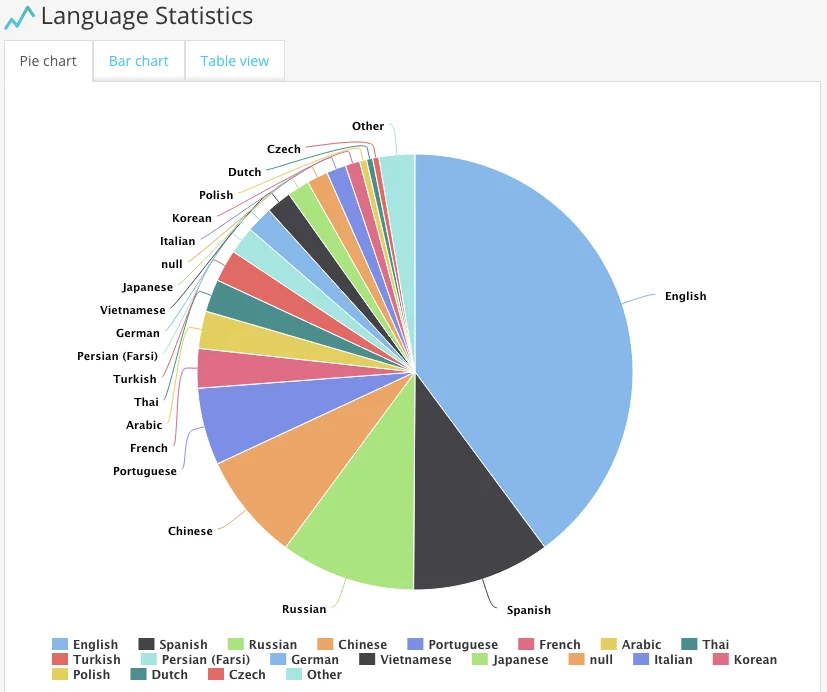
Anchor link toOnce your application sets Tag values, you can view and analyze the statistics about these values, presented in the Control Panel using either a pie chart, bar chart, or table view.
Delete tags
Anchor link toTo delete several tags at once:
- In the Tags section, click Bulk actions → Delete….
- Select the tags.
- Click the Delete button above the list.
The dialog lists the tags that will be deleted and skips the ones still used in segments, journeys, messages, presets, or other content, as well as tags the platform uses. Deleted tags and their values can’t be restored.