Integração com o Canva
A integração com o Canva vincula sua conta do Canva ao Armazenamento de mídia dos seus aplicativos do Pushwoosh. Importe páginas dos seus designs do Canva como imagens, abra uma imagem armazenada no editor do Canva ou comece um novo design no tamanho de uma imagem de push, in-app ou e-mail. Quando você termina no Canva, o resultado é salvo de volta no Armazenamento de mídia.
Visão geral da integração
Anchor link toTipo de integração
Anchor link toOrigem: As imagens vêm dos seus designs do Canva e são salvas no Armazenamento de mídia do Pushwoosh.
Pré-requisitos
Anchor link to- A permissão Modificar aplicativos para o aplicativo em cujo Armazenamento de mídia você importa. Veja Gerenciar acesso e permissões de usuário.
- Uma conta do Canva.
Como funciona a integração?
Anchor link toCada usuário do Pushwoosh conecta a própria conta do Canva. A conexão funciona para todos os aplicativos que você pode modificar e vê apenas os designs da sua conta do Canva. Colegas de equipe que querem importar do Canva conectam as próprias contas.
O Pushwoosh exporta as páginas que você seleciona no Canva e as armazena no Armazenamento de mídia como qualquer outra imagem. Uma imagem editada no Canva é salva como uma nova versão do original, então você não acaba com duplicatas.
Conectar o Canva
Anchor link toConecte o Canva na página Integrações de terceiros ou diretamente pelo Armazenamento de mídia.
Conectar pelas Integrações de terceiros
Anchor link to-
Acesse Configurações > Integrações de terceiros.
-
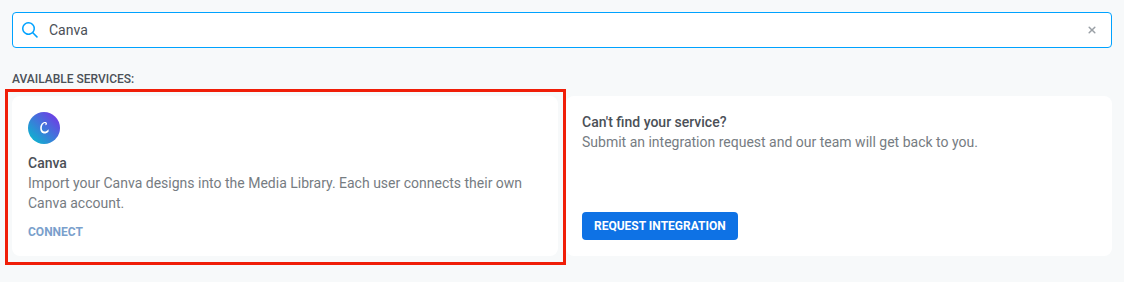
No cartão Canva em Serviços disponíveis, clique em Conectar.
-
Na janela pop-up, entre no Canva e permita o acesso ao Pushwoosh.
Conectar pelo Armazenamento de mídia
Anchor link to- Acesse Conteúdo > Armazenamento de mídia.
- Clique em Importar do Canva.
- Clique em Conectar Canva.
- Na janela pop-up, entre no Canva e permita o acesso ao Pushwoosh.
Se a janela do Canva não abrir
Anchor link toSe o seu navegador bloquear a janela do Canva, permita pop-ups para o Control Panel e tente novamente.
Importar designs para o Armazenamento de mídia
Anchor link to- Acesse Conteúdo > Armazenamento de mídia.
- Clique em Importar do Canva ao lado da área de envio.
- Encontre o design: digite em Pesquisar designs ou clique em Carregar mais abaixo da lista para ver mais designs.
- Clique no design.
- Se o design tiver várias páginas, selecione as páginas a importar. Você pode importar até 10 páginas por vez. A primeira página vem selecionada por padrão.
- Em Formato, selecione PNG ou JPG.
- Clique em Importar.
Quando a importação termina, as imagens aparecem no Armazenamento de mídia com o selo Canva.
Cada imagem recebe o nome do design. Quando você importa várias páginas, o número da página é adicionado ao nome, por exemplo Summer sale, page 2.
Enquanto a importação está em andamento:
- Permaneça na página do Armazenamento de mídia. Se você sair dela, a importação para.
- Você pode fechar o painel Importar do Canva.
Se a importação parou, as páginas salvas antes disso continuam no Armazenamento de mídia. Importe as páginas restantes novamente.
Editar uma imagem no Canva
Anchor link toVocê pode abrir qualquer imagem do Armazenamento de mídia no editor do Canva: imagens importadas do Canva, enviadas do seu dispositivo ou adicionadas de outras fontes.
- Acesse Conteúdo > Armazenamento de mídia.
- Na imagem, clique no ícone Editar no Canva. O editor do Canva abre em uma nova aba.
- Edite o design no Canva.
- Em até 24 horas, volte do Canva para o Pushwoosh. Veja Voltar ao Pushwoosh a tempo.
Aguarde a mensagem Salvo do Canva. A imagem editada é armazenada como uma nova versão do original e mantém o formato do original.
O que você vê no Canva:
- Uma imagem que você importou do Canva: o design original do Canva abre, na página que você importou.
- Qualquer outra imagem, ou um design do Canva ao qual você não tem mais acesso: o Pushwoosh copia a imagem para um novo design na sua conta do Canva, e o Control Panel mostra uma mensagem informando que você está editando uma cópia.
Versões após a edição
Anchor link toCada edição no Canva salva uma nova versão da imagem:
- O Armazenamento de mídia mostra a versão mais recente. Um selo como 2 vers. mostra quantas versões a imagem tem.
- Cada versão tem sua própria URL.
- O conteúdo que usa a URL anterior continua mostrando a versão anterior. Para trocar a imagem nesse conteúdo, copie a nova URL e atualize o conteúdo.
Veja De onde veio uma imagem.
Voltar ao Pushwoosh a tempo
Anchor link toQuando terminar no Canva, clique no botão Return to na barra superior do editor do Canva, ao lado de Share. Só então o Pushwoosh salva seu design no Armazenamento de mídia. Isso funciona da mesma forma quando você edita uma imagem e quando cria um novo design.
O design é salvo se:
- Você voltar em até 24 horas. Depois disso, o link de retorno expira e suas alterações ficam apenas no Canva. Para salvá-las, abra a imagem no Canva novamente.
- Você estiver conectado ao Pushwoosh com o mesmo usuário que abriu o Canva.
Depois que você volta, a página do Armazenamento de mídia é aberta, mesmo que você tenha aberto o Canva pelo seletor de imagens de um editor.
Criar um novo design no Canva
Anchor link toPara começar um design do zero em um tamanho adequado ao seu conteúdo:
- Acesse Conteúdo > Armazenamento de mídia.
- Clique em Criar no Canva.
- Selecione um tamanho:
- Imagem grande de push · 1024×512
- In-app / Rich Media · 1080×1920
- Cabeçalho de e-mail · 600×300
- Crie a imagem na aba do Canva que abrir.
- Em até 24 horas, volte do Canva para o Pushwoosh. Veja Voltar ao Pushwoosh a tempo.
O design é salvo no Armazenamento de mídia como uma nova imagem PNG com o selo Canva. A imagem recebe o nome do tamanho, por exemplo Pushwoosh 1024×512.
Criar no Canva e Editar no Canva só aparecem depois que você conecta o Canva.
Limites de imagem e erros
Anchor link toLimites de imagem
Anchor link toToda imagem salva do Canva segue os limites do Armazenamento de mídia, seja ela importada, editada ou criada no Canva.
| Limite | O que acontece quando uma imagem o excede | Mensagem no Control Panel |
|---|---|---|
| 10 MB | Um PNG é salvo como JPG, e suas áreas transparentes ficam brancas. Um JPG não é salvo. | file too large (max 10 MB) para um JPG |
| 25 megapixels | A imagem não é salva. | image resolution exceeds limit (max 25 MP) |
Para salvar uma imagem que excede um limite, reduza o tamanho dela no Canva e importe-a novamente.
Se uma importação falhar
Anchor link toSe uma página de uma importação falhar, a importação para nessa página:
- As páginas salvas antes dela continuam no Armazenamento de mídia.
- As páginas depois dela não são importadas.
Outras mensagens
Anchor link toEstas mensagens podem aparecer quando você conecta o Canva ou importa e edita designs.
| Mensagem | Causa | O que fazer |
|---|---|---|
| Não foi possível conectar o Canva | Você recusou o acesso na janela do Canva, ou a conexão não foi concluída. Se você fechar a janela do Canva sem responder, nada muda. | Conecte o Canva novamente. |
| the Canva connection is no longer valid, connect Canva again | O Canva não aceita mais sua conexão. | Conecte o Canva novamente. |
| the design is not found or no longer shared with you | O design foi excluído, ou o proprietário deixou de compartilhá-lo com você. | Escolha outro design. |
| Canva rate limit, retry in… | O Canva está limitando temporariamente as solicitações. | Aguarde o tempo indicado e tente novamente. |
Para conectar o Canva novamente, clique em Conectar no cartão Canva ou em Conectar Canva no painel Importar do Canva.
Desconectar o Canva
Anchor link to- Acesse Configurações > Integrações de terceiros.
- No cartão Canva em Serviços conectados, clique em Desconectar.
Você também pode clicar em Desconectar ao lado do nome da sua conta do Canva no painel Importar do Canva do Armazenamento de mídia.
Desconectar remove apenas a sua própria conexão. As imagens que você já importou continuam no Armazenamento de mídia, e as conexões de outros usuários continuam funcionando.
Se o cartão Canva mostrar Reconexão necessária, o Canva não aceita mais sua conexão. Clique em Conectar e permita o acesso novamente.
Posso importar do Canva com um token de API?
Anchor link toNão. O Canva é conectado por usuário do Pushwoosh, então a importação e a edição só funcionam quando você está conectado ao Control Panel.
Quais formatos posso importar?
Anchor link toPNG ou JPG, até 10 MB e 25 megapixels por imagem. Uma imagem editada no Canva mantém o formato do original: um JPG continua JPG, e qualquer outro formato é salvo como PNG.
Meus colegas de equipe podem usar minha conexão com o Canva?
Anchor link toNão. Cada colega de equipe conecta a própria conta do Canva e vê apenas os próprios designs.