Configuração da plataforma Telegram
Conecte seu bot do Telegram ao Pushwoosh para executar o Telegram como parte de suas jornadas omnicanal de um só lugar e acompanhar os resultados de entrega na análise de Jornada.
Pré-requisitos
Anchor link toAntes de configurar o Telegram, certifique-se de que os seguintes requisitos sejam atendidos:
- Conta do Telegram: Use uma conta ativa do Telegram que possa acessar o @BotFather.
- Bot do Telegram: Crie um bot do Telegram no BotFather.
Copie o token da API do seu bot do Telegram
Anchor link toPara obter um token de API para um bot existente:
- No Telegram, abra o @BotFather.
- Envie
/mybotse selecione seu bot. - Toque em API Token e copie o token.
Se você não tiver um bot, crie um no @BotFather seguindo o guia oficial do Telegram.
Configure a plataforma Telegram no Pushwoosh
Anchor link toPara configurar a plataforma Telegram, siga estes passos:
-
Navegue para Configurações > Configurar plataformas e abra Telegram.
-
Se você já tem um bot, clique em Adicionar token. Se não, clique em Criar um bot.
Quando você clica em Criar um bot, o Pushwoosh abre as instruções para criar o bot no Telegram via @BotFather. Conclua a criação do bot no Telegram, depois retorne ao Pushwoosh e conecte o token do bot.
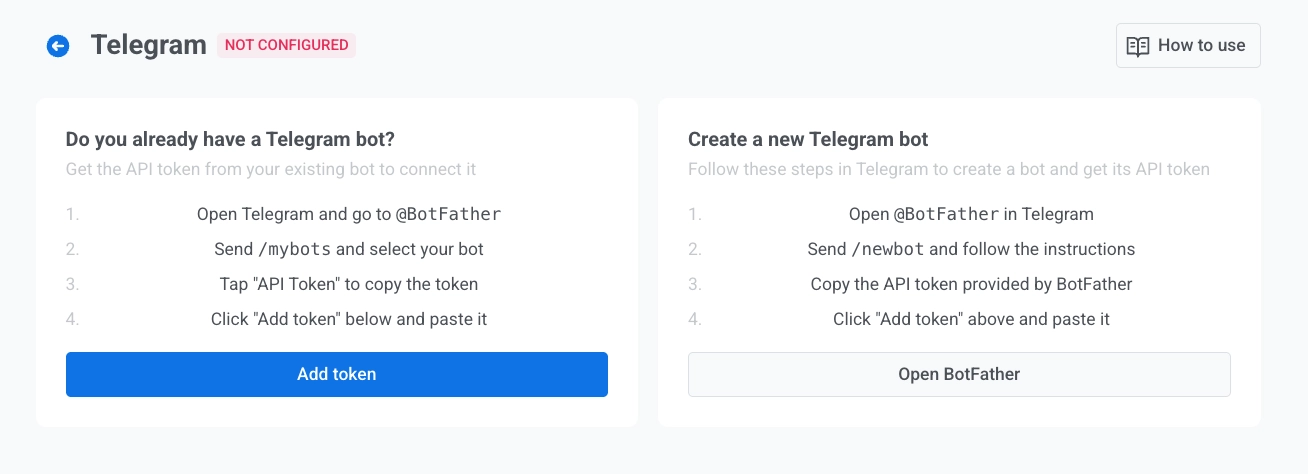
- Na caixa de diálogo Conectar bot do Telegram, insira o token da API que você copiou do BotFather. Saiba como obter o token.
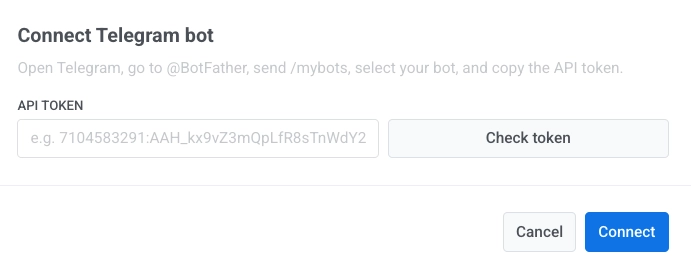
- Clique em Verificar token para validar o token.
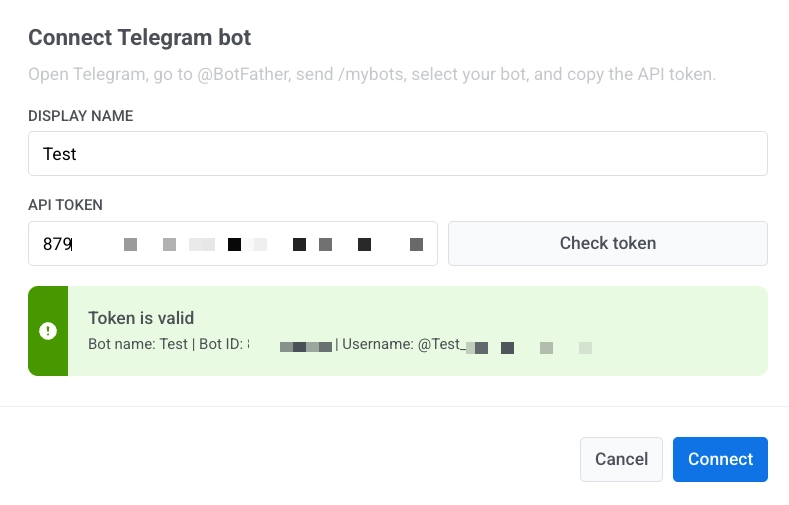
- Clique em Conectar para salvar. Para descartar as alterações, clique em Cancelar.
Gerenciar tokens de bot do Telegram
Anchor link toAdicionar um novo token
Anchor link to- Nas configurações do Telegram, clique em Adicionar token.
- Na caixa de diálogo Conectar bot do Telegram, insira o novo token da API.
- Clique em Verificar token.
- Clique em Conectar.
Excluir um token
Anchor link to- Clique no menu de três pontos ao lado do token do bot.
- Clique em Excluir.
A exclusão de um token pausa todas as jornadas ativas do Telegram.
Enviar mensagens do Telegram
Anchor link toApós a configuração, você pode enviar mensagens do Telegram no Construtor de Jornada do Cliente.