iOS 推送故事
推送故事 (Push stories) 可将展开的 iOS 推送通知转变为全屏、Instagram 风格的故事体验:全出血图像、自动前进的页面,以及每个页面上的按钮。
前提条件
Anchor link to在发送推送故事之前,您的 iOS 团队需要:
- 使用
PushwooshNotificationUI模块向应用添加通知内容扩展 (Notification Content Extension)。请将 iOS 推送故事分享给他们。 - 发布包含该扩展的应用更新。
创建推送故事内容
Anchor link to在推送预设中构建用户展开通知后显示的页面。请参阅构建推送故事内容。
发送包含推送故事的一次性推送
Anchor link to- 前往 Campaigns → One-time messages → Send message → One-time push。
- 选择或创建 Push stories 内容。
- 按照与普通一次性推送相同的方式设置受众、计划和其他设置。
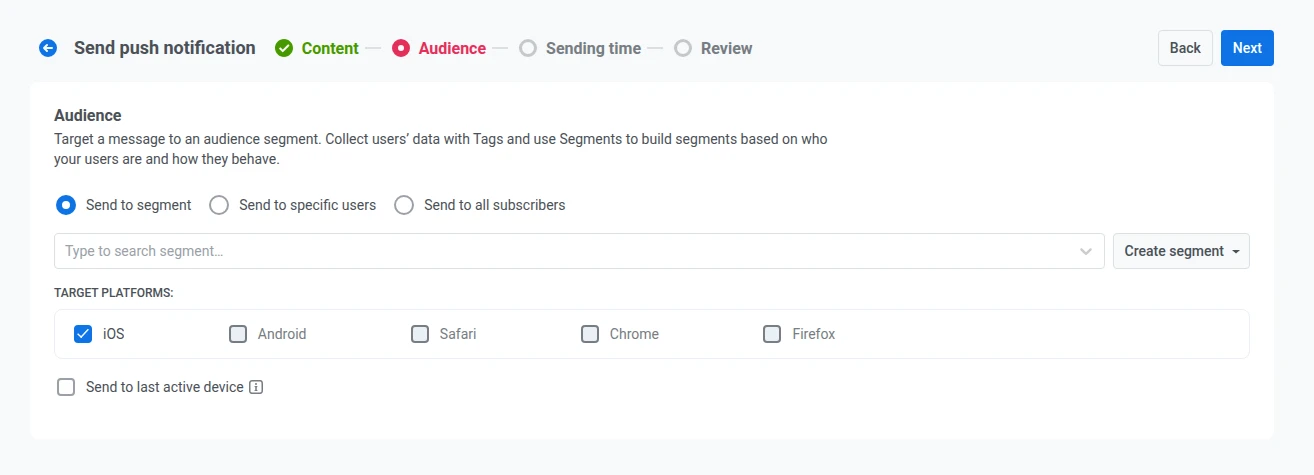
由于故事仅在 iOS 上播放,Audience 步骤中的 目标平台 列表会锁定为 iOS,其他平台在此次发送中不可用。
在 journey 中发送推送故事
Anchor link to在 journey 的推送元素中选择 Push stories 内容。该元素会在横幅中显示推送故事对应用的要求。
参考资料
Anchor link to iOS 推送故事(开发者指南) 向您的 iOS 应用添加 Notification Content Extension 和 PushwooshNotificationUI 模块。
构建推送故事内容 推送预设中 Stories 页面的逐字段设置。
一次性推送 发送一次性推送通知,选择内容、受众和计划。