通过 Customer Journey 发送 Facebook Messenger 消息
通过 Pushwoosh Customer Journey 发送 Facebook Messenger 消息,当用户与您连接的 Facebook 主页互动时自动触发。
先决条件
Anchor link to在构建 Journey 之前,请在 Facebook Messenger 平台配置中连接您的 Facebook 主页。否则,将无法发送 Facebook Messenger 消息。实时发送还需要您的 Meta App 的 Messenger 权限获得 Meta App Review 的批准。
创建 Facebook Messenger Journey
Anchor link to-
前往 Campaigns → Customer Journey Builder,然后点击 Build a journey from scratch。
-
添加一个 Trigger-based Entry。选择:
PW_FBMessengerReceived,如果 Journey 应在用户发送消息时开始,或者PW_FBMessengerStarted,如果 Journey 应在用户点击菜单项、快速回复或打开推荐链接时开始(每个用户可能发生多次)。
-
添加一个 Facebook Messenger 元素并将其连接到入口触发器。

-
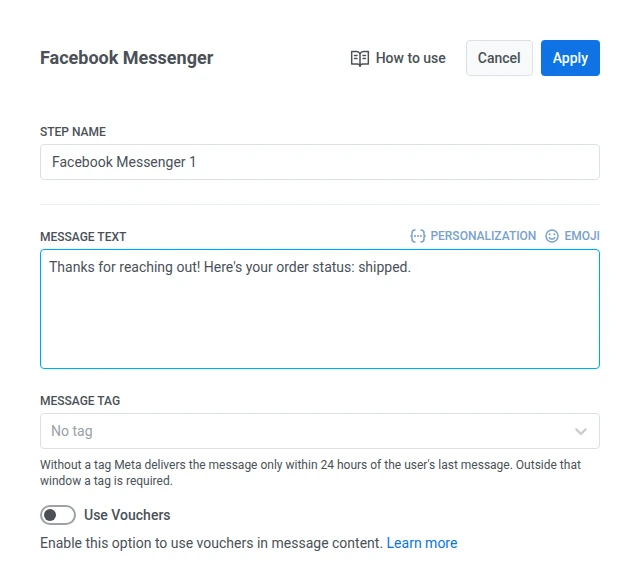
点击 Facebook Messenger 元素以打开其设置面板。
-
输入您的 Message Text。
-
如果您需要在 24 小时窗口之外发送消息,请设置 Message tag。在该窗口内发送时,将 Message tag 设置为 No tag。
在该窗口之外,Meta 要求标签匹配其批准的用例之一:
- CONFIRMED_EVENT_UPDATE:关于接收者计划参加的活动的提醒或更新。
- POST_PURCHASE_UPDATE:与接收者已进行的购买相关的更新。
- ACCOUNT_UPDATE:关于接收者账户变更的非经常性更新。
- HUMAN_AGENT:来自人工客服回复接收者的消息。
选择与消息真实原因匹配的标签。了解更多关于消息标签的信息
-
(可选)要附加优惠券代码,请在您的消息文本中包含
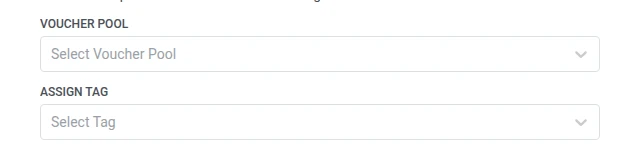
{{voucher}},然后:- 将 Use Vouchers 切换为 ON。
- 在 Voucher Pool 中,选择包含您代码的池。请提前添加该池。了解更多关于优惠券的信息
- (可选)在 Assign Tag 中,为收到优惠券的用户应用一个标签。
-
点击 Apply 保存元素设置。
-
(可选)使用 退出元素 完成 Journey。没有下一步的步骤也会结束该路径。
-
准备就绪后,点击 Launch journey 以激活它。
- 仅支持纯文本,不含模板、按钮或媒体附件。
- 在由入站消息开启的 24 小时窗口之外,您需要一个消息标签,否则 Meta 会拒绝发送。
- 您无法确认 Journey 中的某条特定 Messenger 消息是否已被阅读。
- 只有在 Meta 批准了您连接主页的 Meta App 的 Messenger 权限后,该渠道才能发送消息。