Salesforce:创建或更新记录
使用 Salesforce:创建或更新记录 从 Journey 步骤中更新插入 (upsert) 一条 Salesforce 记录,通过外部 ID 字段进行匹配:当值已存在时,它会更新记录;当值不存在时,它会创建记录。Salesforce 没有静态 API 令牌,因此该节点通过为整个账户注册一次的连接应用程序进行身份验证。节点本身没有令牌字段。
典型用途:
- 保持 Salesforce 同步: 当用户在 Journey 中移动时,创建或更新联系人 (Contact) 或潜在客户 (Lead),以便销售人员看到最新数据。
- 将 Journey 活动同步到 CRM: 当用户达到一个里程碑时设置一个字段,以便销售人员可以对其进行筛选或报告。
- 避免重复记录: 通过外部 ID 匹配意味着再次通过此节点的用户会更新同一条记录,而不是创建新记录。
开始之前
Anchor link to在您的 Salesforce 组织中创建一个连接的应用程序,并在 设置 > 第三方集成 > Salesforce 下进行连接:
- 在 Salesforce 中,创建一个启用了 OAuth 并具有 通过 API 管理用户数据 (api) 范围的 外部客户端应用程序(或经典的连接应用程序)。
- 在其上启用 客户端凭据流 并选择运行身份用户。该节点将以该用户身份写入,因此其配置文件决定了它可以接触哪些对象和字段。
- 在 Pushwoosh 的 我的域主机 中,输入您组织的域名,不带
https://,例如acme.my.salesforce.com。 - 在 消费者密钥 和 消费者密钥 中,粘贴应用程序的凭据。密钥是只写存储的:Pushwoosh 不会再次显示它,因此要替换它,请粘贴一个新的。
- 点击 连接 Salesforce。
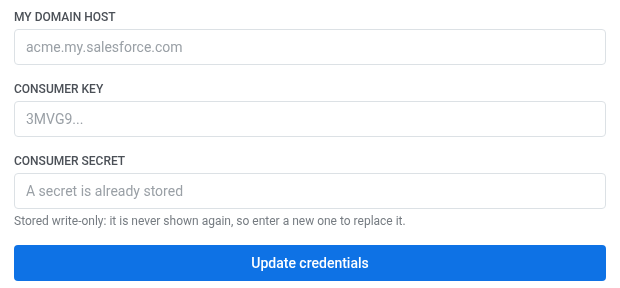
连接 Salesforce 后,安装集成,以便该节点出现在 Journey 构建器中。
在 Salesforce 方面,还需要满足两件事:
- 您匹配的字段必须在该对象上标记为 外部 ID。一个纯文本字段,即使是
Email,也是不够的——当字段不是外部 ID 时,Salesforce 会以NOT_FOUND拒绝请求。 - 连接应用程序的运行身份用户需要对该字段具有字段级访问权限。通过设置或 API 创建的字段本身不授予任何权限,没有该权限,Salesforce 会以相同的
NOT_FOUND: Field name provided ... does not match an External ID进行响应——该字段对该用户不可见,因此从 API 的角度来看它不存在。将其添加到分配给运行身份用户的权限集中。
配置节点
Anchor link to- 将 Salesforce:创建或更新记录 从左侧面板的 集成 部分拖到画布上。
- 双击该节点并输入一个 步骤名称。
- 在 我的域主机 中,输入连接应用程序所在的相同主机。
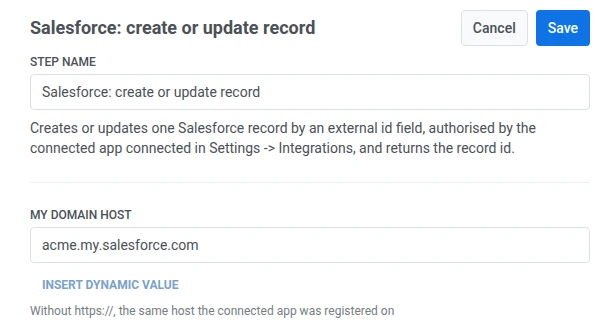
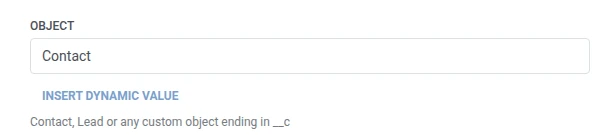
- 在 对象 中,输入对象的 API 名称——
Contact、Lead或以__c结尾的自定义对象。
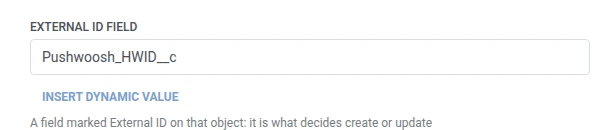
- 在 外部 ID 字段 中,输入标记为“外部 ID”的字段的 API 名称。
- 在 外部 ID 值 中,输入要匹配的值,通常是像
{{device:hwid}}这样的宏。
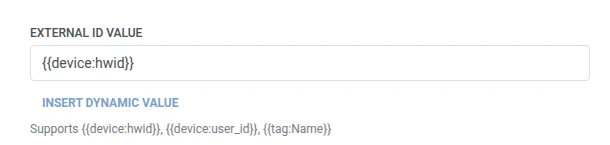
- 在 字段 中,为每个要设置的 Salesforce 字段添加一行。输入字段的 API 名称和值。名称必须非空且唯一。对象的必填字段必须在其中,否则 Salesforce 会拒绝创建新记录。值可以是固定文本或用户宏,例如
{{device:hwid}},与 Webhook 主体中的宏相同。或者点击 插入动态值 来选择此 Journey 中先前步骤产生的属性,例如 LLM 响应或映射的 Webhook 值。

- 点击 保存。
用户将继续到您在画布上连接的下一个步骤。
步骤运行后的属性
Anchor link to| 属性 | 包含内容 |
|---|---|
salesforce_record_id | 记录的 ID |
如何在后续步骤中使用
Anchor link to无论此属性如何,用户都已继续到下一步。如果您以后需要引用此特定记录,例如通过 Salesforce 自己的 API,请使用 更新用户配置文件 将其保存到标签中。
失败和意外响应
Anchor link to在节点的抽屉中打开 调用日志 并检查响应:
- 401 — 连接应用程序的凭据错误,或者未在其上启用客户端凭据流。
- 主体中的 NOT_FOUND — 对象名称或外部 ID 字段与该组织上的任何内容都不匹配。检查该字段是否确实标记为“外部 ID”。
- 主体中的 REQUIRED_FIELD_MISSING — 创建新记录需要一个节点未发送的字段。在 字段 中添加它。
- 主体中的 INVALID_FIELD — 字段 中的名称不是该对象上的 API 名称。自定义字段的 API 名称以
__c结尾。
失败的请求会将用户从 Journey 中移除。请参阅 错误和失败的请求。
示例场景:将应用内咨询请求路由给销售
Anchor link to一个健康应用允许用户在应用内点击 与顾问交谈。团队希望该请求成为一个 Salesforce 联系人,销售代表可以跟进。
- 添加一个 基于触发器的入口 元素,并将其设置为在
AdvisorCallRequested事件上触发。 - 紧接着添加 Salesforce:创建或更新记录。将 对象 设置为
Contact,外部 ID 字段 设置为Pushwoosh_HWID__c,外部 ID 值 设置为{{device:hwid}}。在 字段 中,将Email设置为{{tag:Email}}。 - 点击 保存。
一旦运行,每个应用内顾问请求都会作为联系人进入 Salesforce,通过设备进行匹配,因此重复点击会更新同一个联系人,而不是创建重复的。