在 Customer Journey 中发送 Telegram 消息
使用本指南在 Customer Journey Builder 中发送 Telegram 消息。
通过 Pushwoosh 使用 Telegram 有助于您在一个地方将 Telegram 作为全渠道旅程、细分和分析的一部分来运行。
开始之前
Anchor link to- 在 @BotFather 中创建一个 Telegram 机器人或使用现有机器人。
- 在 设置 > 配置平台 中配置 Telegram 并验证令牌。 了解更多
创建 Journey
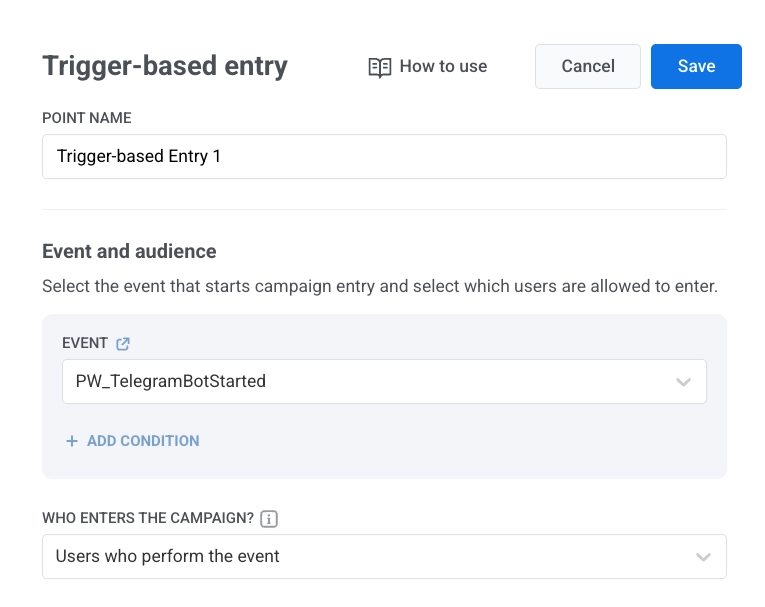
Anchor link to- 添加 Trigger-based entry 元素。
- 选择 TelegramBotStarted 作为事件。
- 将 Telegram 元素添加到画布。
配置消息内容
Anchor link to在 Telegram 元素中:
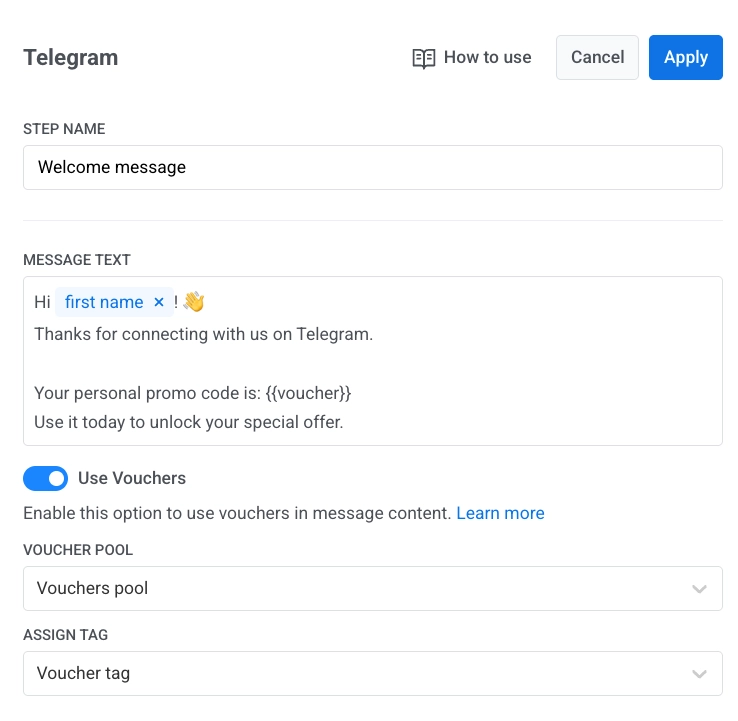
- 输入元素名称。
- 在 消息文本 中输入您的消息。消息应仅为文本,且长度在 4096 个字符以内。
- 可选。添加标签或 Liquid 占位符以个性化内容。 Journey 中的动态内容和 Liquid
- 可选。开启 使用优惠券,选择 优惠券池,并设置 分配标签。 了解更多
- 点击 应用。
完成并启动 Journey
Anchor link to完成 Journey,每个分支都以 Exit 元素 结束,或者不设置传出连接。 当营销活动准备就绪后,点击 启动营销活动。
可达性与统计数据
Anchor link to如果因临时网络问题导致发送失败,Pushwoosh 会自动重试。
如果 Telegram 返回 bot blocked 或 chat not found,Pushwoosh 会将该用户标记为 Telegram 不可达:
bot blocked在 统计数据 中显示为 跳过已屏蔽机器人的用户。chat not found在 统计数据 中显示为 跳过聊天未找到的用户。
在 User Explorer 中查看用户数据
Anchor link to当用户与您的机器人开始对话时,Pushwoosh 会在 User Explorer 中创建一个用户档案,其中平台为 Telegram,并包含该用户的 Telegram ID。
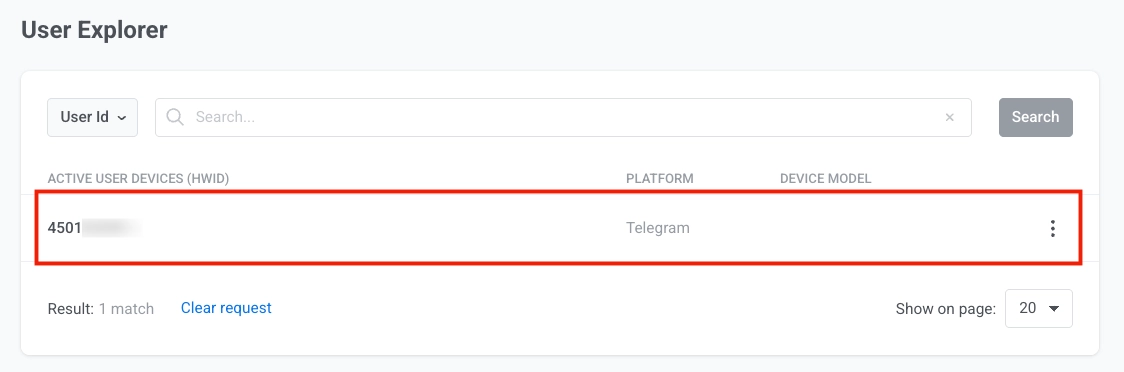
该档案包括:
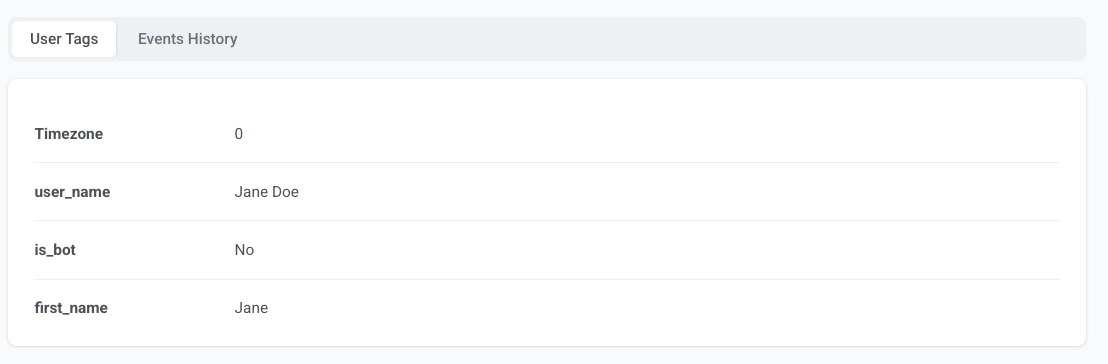
- 从 Telegram 接收的用户标签
- 诸如
PW_TelegramBotStarted之类的事件。