跳到内容

Inbound webhook integration

此内容尚未提供您的语言版本。

Inbound webhooks let external services send events directly to Pushwoosh. When a third-party system triggers a webhook, Pushwoosh authenticates the request, identifies the subscriber, and fires the mapped event. The event can then start or advance a journey.

Use inbound webhooks to connect tools like CRMs, e-commerce platforms, or analytics services without building or maintaining your own server. Each inbound webhook triggers one Pushwoosh event when a matching request is received and processed successfully.

Before you start

Anchor link to

Prepare the following before you open the webhook setup.

  1. Decide which Pushwoosh event the webhook should fire. Pick an existing event from your project that you want to trigger from the third-party service. For example, CheckoutSuccess. If you don’t have a suitable event yet, create one with the attributes you want to fill from the incoming data.

  2. Make sure your third-party service can send webhooks. The service must be able to send an HTTP POST request to an external URL when the event you care about happens, for example a new order or a form submission.

  3. Get a sample JSON payload from your third-party service. This is a small example of the data the service sends on each event. You will need it to map payload fields to Pushwoosh event attributes.

Create a webhook

Anchor link to
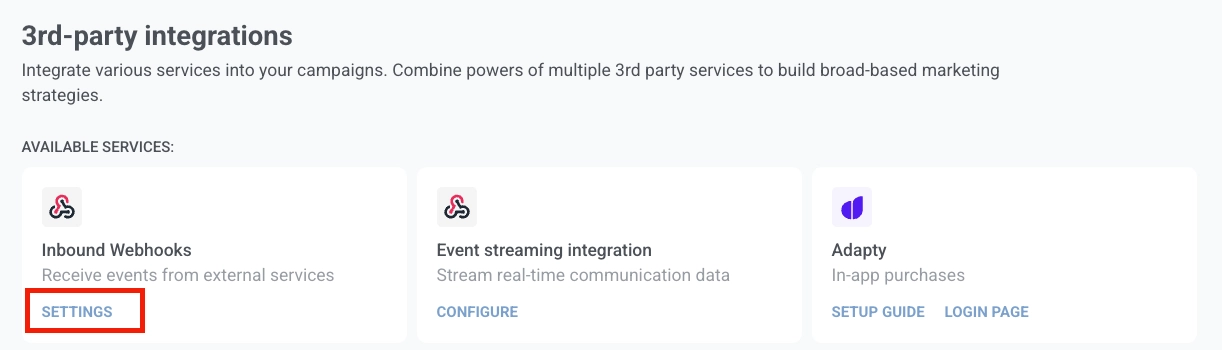
  1. In your Pushwoosh account, go to SettingsIntegrationsInbound webhooks and click Settings.
Integrations page with Inbound webhooks card and Settings button to open webhook configuration
  1. Click Create webhook to open the setup flow.
Create webhook screen with name, event, sample payload, and user identifier mapping
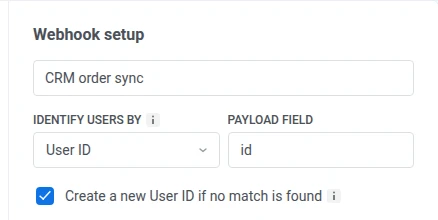
  1. Enter a webhook name so you can identify the webhook in the list later.

  2. Select the Pushwoosh event that should fire when the webhook receives a valid request. You can choose from events that already exist in your project. If you need to create an event first, see Events.

Webhook setup screen with Pushwoosh event dropdown for selecting the event to fire on incoming request
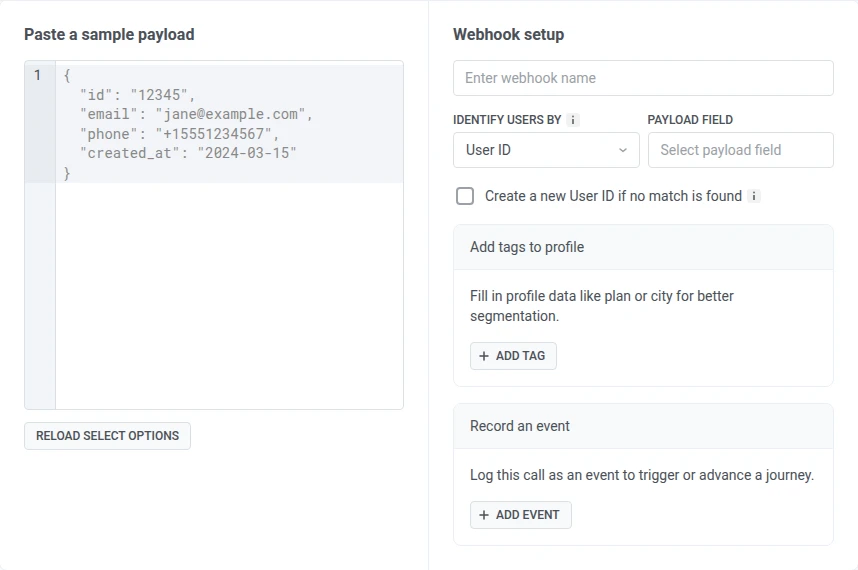
  1. In Match incoming data, paste a sample JSON payload from your third-party service. Pushwoosh loads the payload fields into the dropdowns automatically.

Sample payload:

{
"user_id": "12345",
"email_address": "jane@example.com",
"mobile": "+15551234567",
"purchase_date": "2024-03-15",
"order_number": "ORD-001",
"price": 99.99,
"payment_state": "success"
}
  1. In Identify users by, select how Pushwoosh should match the incoming request to a user:
  • User ID: matches by the internal user ID in Pushwoosh.
  • Email: matches by email address.
  • Phone: matches by phone number.
  • HWID: matches by device, browser, or email identifier.

In Payload field, select the field that contains the matching value.

Identify users by and Payload field dropdowns with User ID and HWID tooltip on Match incoming data screen
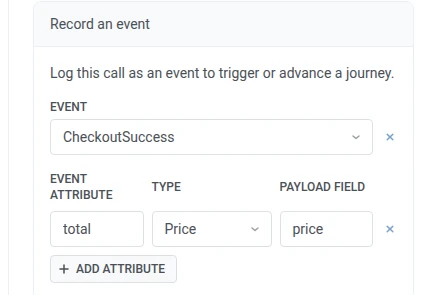
  1. Map each event attribute to a payload field. In each mapping row:
  • Event attribute: the attribute name in Pushwoosh. Select from the attributes defined for this event.
  • Payload field: the field from the incoming payload that contains the value.

For example, map email to email_address, total to price, and order_id to order_number.

Event attribute and Payload field mapping rows with sample payload and Reload select options button

Click + Add attribute to add a row. Click × to remove one.

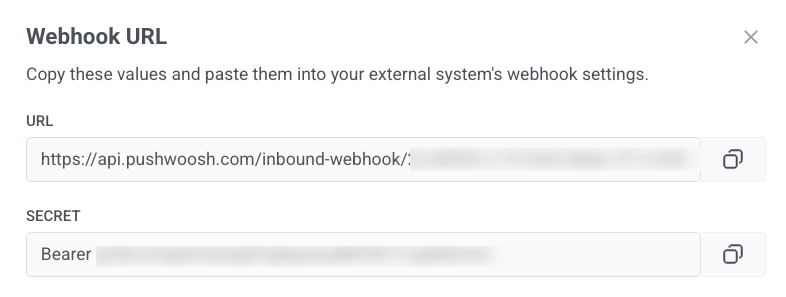
  1. When configuration is complete, click Enable. The Webhook URL window opens.

Copy the values and paste them into your external system’s webhook settings:

  • Copy the URL and set it as the webhook destination in your third-party service.
  • Copy the Secret and paste it into your external service as the Authorization header value. The value includes the Bearer prefix, so use it as-is. Pushwoosh rejects any request where this header is missing or does not match.
Webhook URL window showing URL and Secret fields with copy buttons for external system configuration
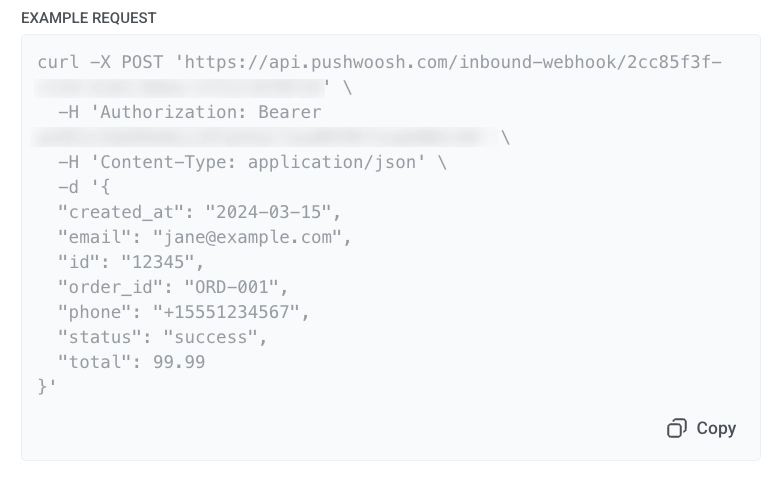
  1. The window also shows an Example request with a sample POST request. Click Copy in the example block to copy the full request. Use it to send a test request and confirm that Pushwoosh accepts the webhook, or share it with your team as a template for the integration.
Webhook URL window with URL, Secret, and Example request curl command for external system setup

After you enable the webhook, it appears in the Webhooks list with an enabled status and starts accepting requests.

Webhooks list

Anchor link to

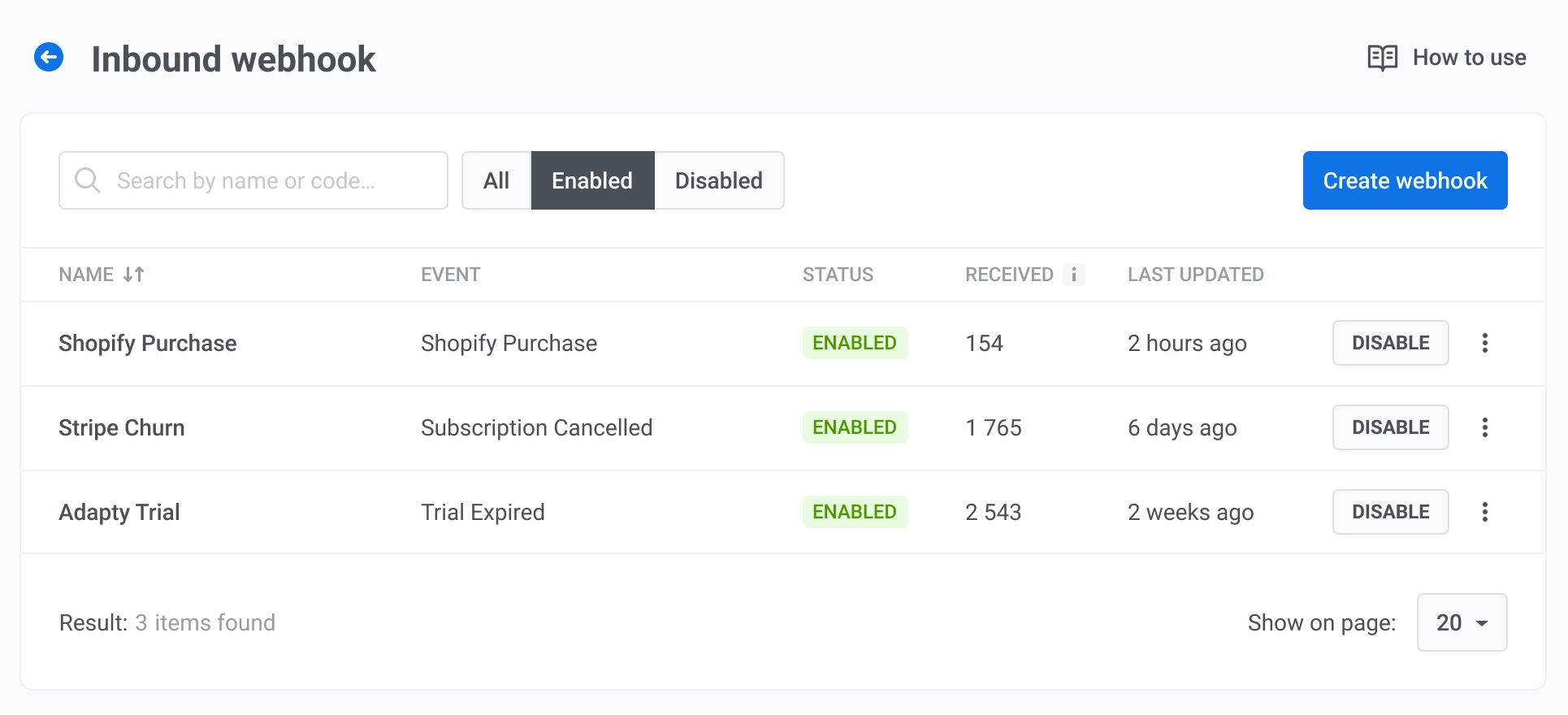
The inbound webhook list shows every webhook in your project.

Each row shows:

  • Name: webhook name.
  • Event: the Pushwoosh event that fires when the webhook receives a valid request.
  • Status: Enabled or Disabled.
  • Received: number of requests received by the webhook.
  • Last updated: when the webhook was last changed.
Inbound webhook list with search, status filters, table columns, and row action menu open

Manage webhooks

Anchor link to

Open the row menu to:

  • Edit settings: opens the webhook configuration so you can change the name, event, field mapping, and user identification.
  • Copy URL: opens the Webhook URL window with the URL and Secret so you can copy them again.
  • Activity log: opens the request log for this webhook.
  • Delete: removes the webhook from the list.

For an enabled webhook, click Disable to deactivate it without deleting the configuration. For a disabled webhook, click Enable to start accepting requests again.

View the activity log

Anchor link to

The activity log shows all incoming requests for the selected webhook.

Summary panel

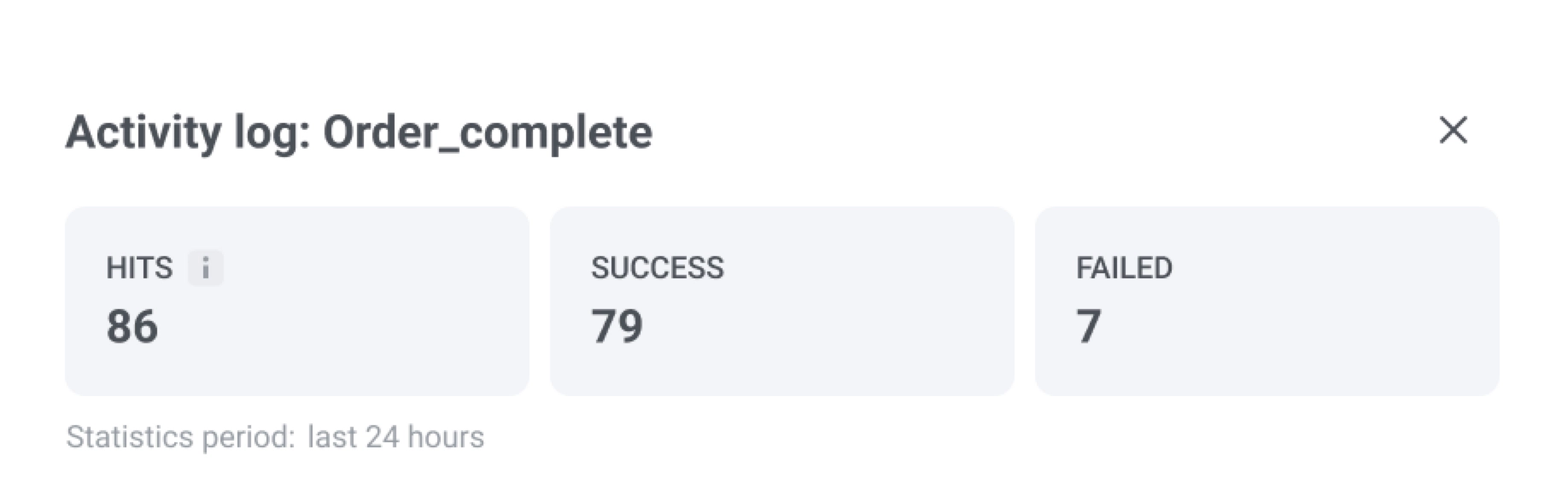
At the top, review the summary for the last 24 hours:

  • Hits: total number of incoming requests received.
  • Success: requests where authentication passed, the user was found, and the event fired.
  • Failed: requests that were not processed. A failed request does not stop the webhook. Pushwoosh continues to accept and process later requests.
Failure reasonWhat it means
Auth rejectedThe shared secret does not match the webhook configuration. If five consecutive requests fail with this error, Pushwoosh sends you a notification. Update the secret to resume. No reactivation needed.
User identifier field missingThe payload field mapped for user identification is not present in the request.
Activity log with Hits Success Failed summary and request entries showing status badge and JSON payload

Request entries

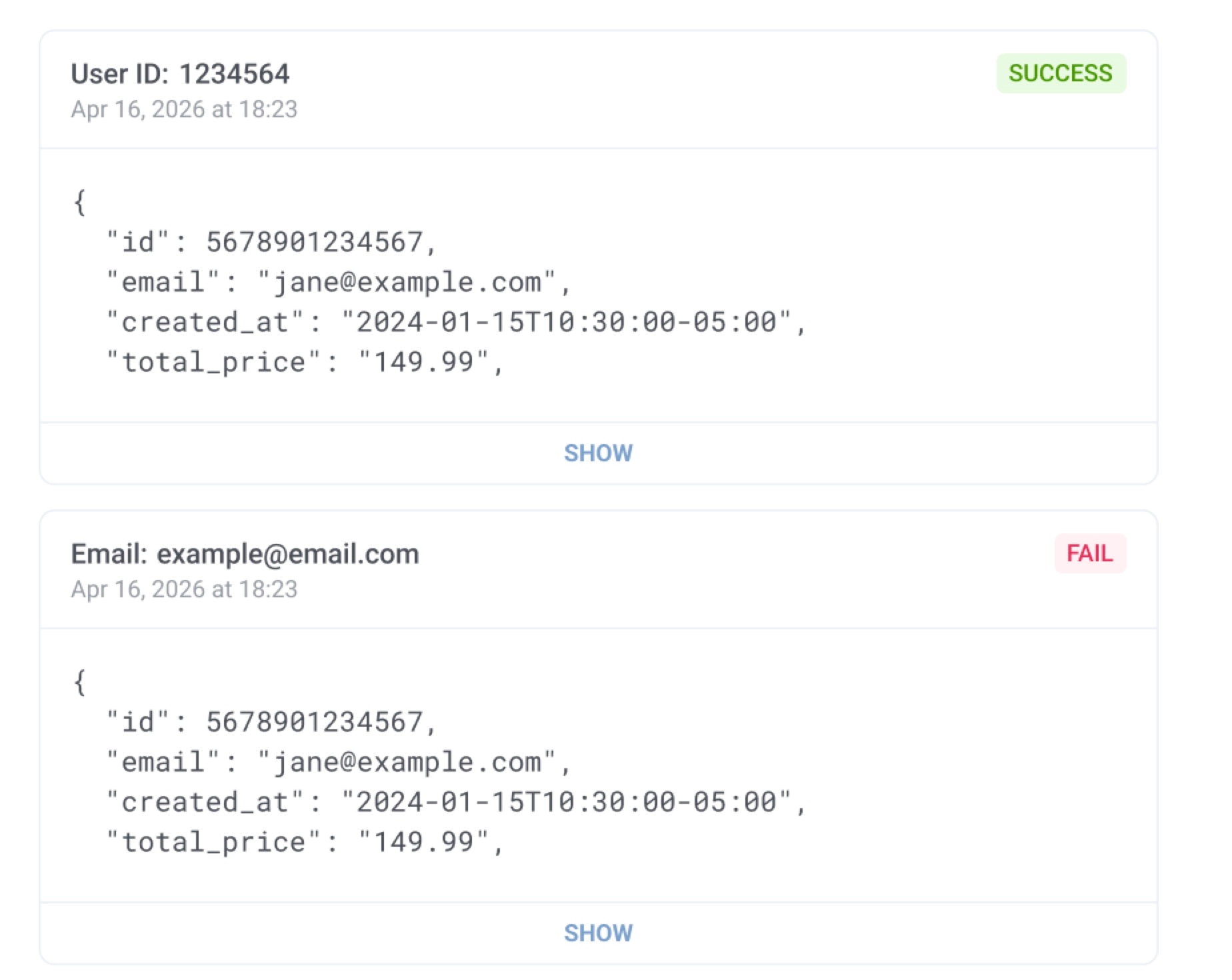
Each entry shows the user identifier (for example, User ID or Email), a Success or Failed badge, the request timestamp, and a preview of the received JSON payload. Click Show to expand the full request details.

Activity log request entry with user identifier, Success or Failed badge, timestamp, JSON payload, and Show button

View webhook-fired events in User Explorer

Anchor link to

When a webhook request is processed successfully, Pushwoosh records the event in User Explorer. Where it appears depends on how you identified the user:

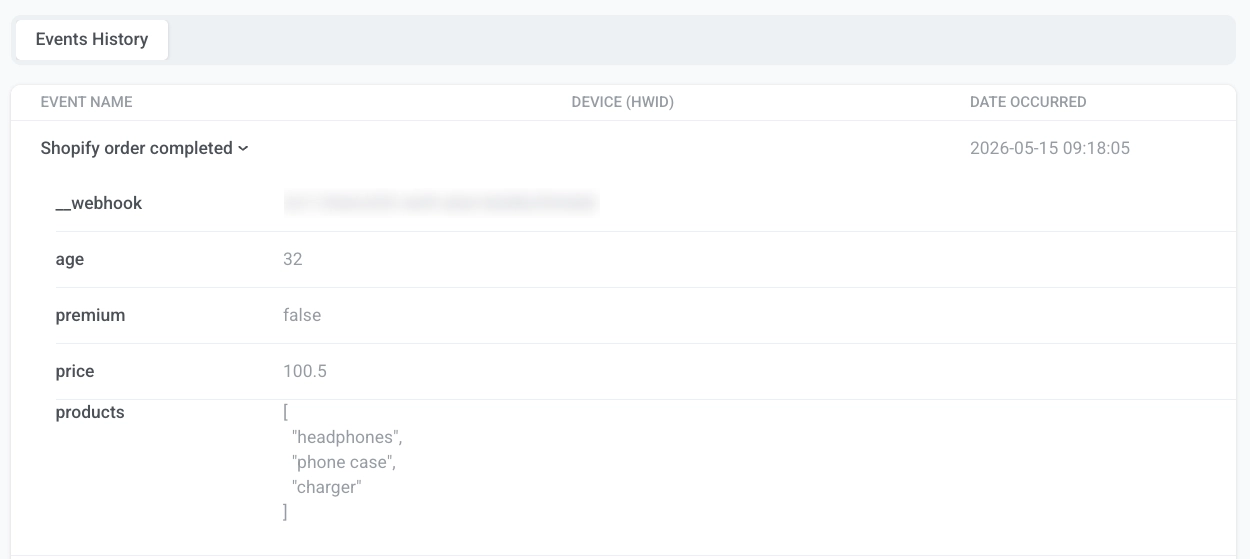
  • User ID, Email, or Phone: the event is recorded on the user profile. Open the user and go to Events history.
  • HWID: the event is recorded on the matching device. Open the user, find the device in Active user devices, and go to its Events history tab.

Find the event by name and expand it to see the mapped attributes (for example, price or products) and the __webhook attribute with the webhook ID.

User Explorer Events history tab showing inbound webhook event with expanded attributes including __webhook ID and mapped payload fields

Use inbound webhooks with journeys

Anchor link to

After a webhook is enabled and firing events successfully, use the selected event as a trigger-based journey entry. When the webhook receives a valid request, Pushwoosh fires the mapped event. Any journey that uses this event as an entry trigger starts automatically for the matched user.