iOS 推送故事
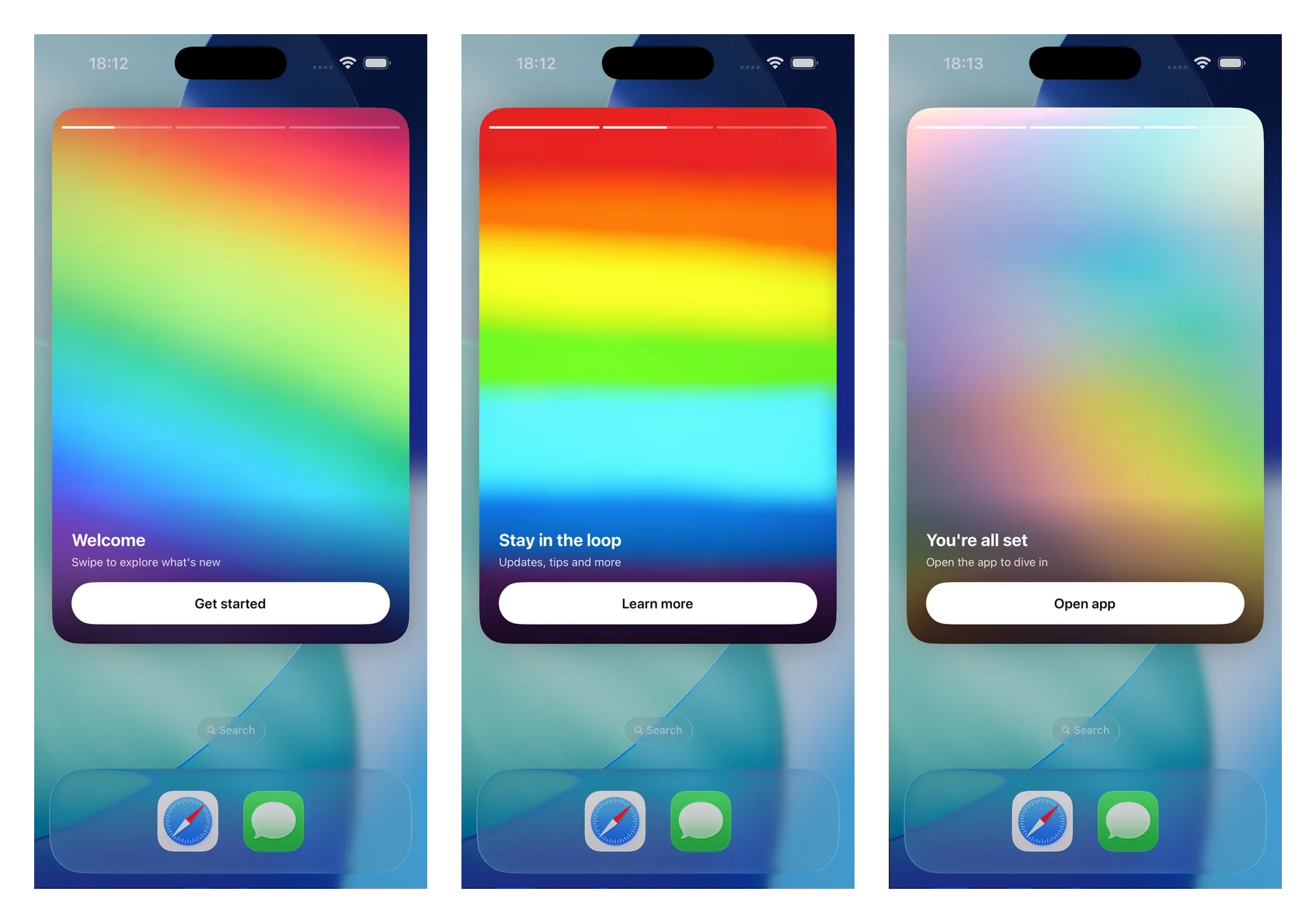
推送故事 (Push stories) 可将展开的推送通知转变为全屏、Instagram 风格的故事体验:全出血图像、顶部进度条、自动前进页面、点击导航以及带有深层链接的按钮。它们由通知内容扩展 (Notification Content Extension) 使用独立的 PushwooshNotificationUI 模块呈现——您只需子类化一个视图控制器,SDK 就会处理解析、图像加载、进度、计时、导航和深层链接。
自 7.0.46 版本起可用。
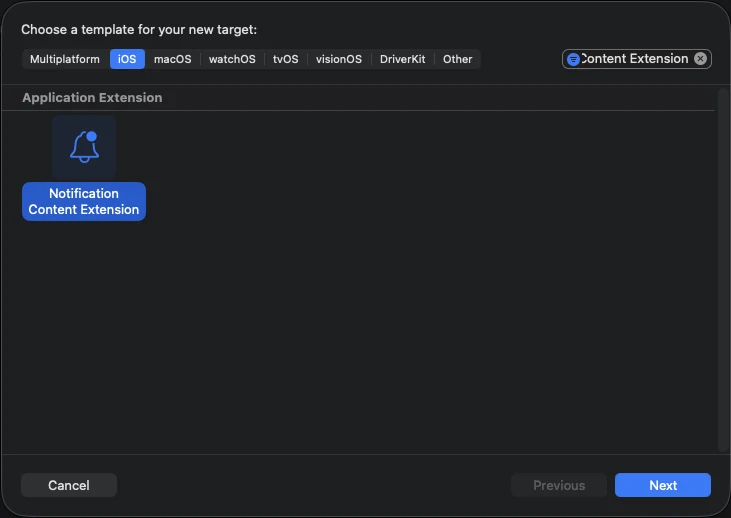
1. 添加通知内容扩展 (Notification Content Extension)
Anchor link to在 Xcode 中,选择 File > New > Target…,选择 Notification Content Extension,并为其命名(例如 StoriesContentExtension)。
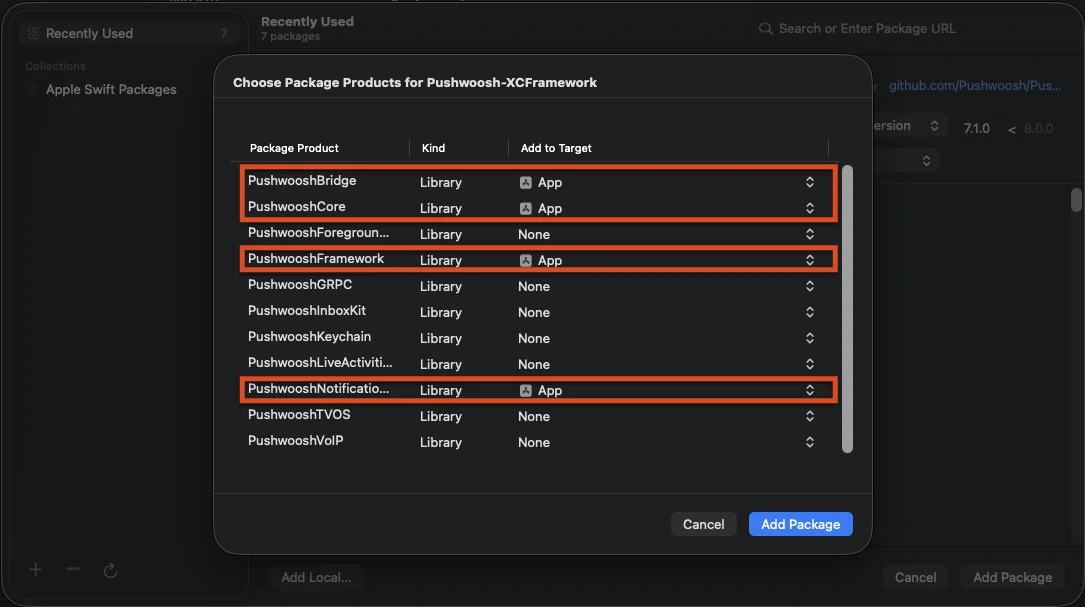
2. 添加 PushwooshNotificationUI 模块
Anchor link toPushwooshNotificationUI 是一个独立的模块,没有其他 Pushwoosh 依赖项,因此在扩展进程中保持较小体积。请将其添加到内容扩展目标(而不是应用目标)。
Swift Package Manager
CocoaPods
target 'StoriesContentExtension' do  use_frameworks!
  pod 'PushwooshXCFramework/PushwooshNotificationUI'end
3. 子类化故事视图控制器
Anchor link to将生成的 NotificationViewController 主体替换为 PushwooshStoriesViewController 的子类。这就是整个集成过程。
import PushwooshNotificationUI
class NotificationViewController: PushwooshStoriesViewController {}
4. 配置扩展的 Info.plist
Anchor link to在内容扩展的 Info.plist 中,在 NSExtension > NSExtensionAttributes 下设置以下键:
<key>UNNotificationExtensionCategory</key><string>PW_STORIES</string><key>UNNotificationExtensionUserInteractionEnabled</key><true/><key>UNNotificationExtensionDefaultContentHidden</key><true/><key>UNNotificationExtensionInitialContentSizeRatio</key><real>1.5</real>5. 发送推送故事通知
Anchor link to发送一个类别为 PW_STORIES 且自定义数据中包含 pw_stories 块的通知。使用专用的 ios_category_custom 字段表示类别,使用 data 字段表示故事的有效负载。
{ "request": { "application": "APPLICATION_CODE", "auth": "API_ACCESS_TOKEN", "notifications": [ { "send_date": "now", "content": "Tap to explore", "ios_title": "Push Stories", "ios_category_custom": "PW_STORIES", "ios_root_params": { "aps": { "mutable-content": 1 } }, "data": { "pw_stories": { "pages": [ { "image": "https://example.com/story-1.jpg", "duration": 5.0, "link": "yourapp://page1", "button_title": "Get started", "title": "Welcome", "subtitle": "Swipe to explore what's new" }, { "image": "https://example.com/story-2.jpg", "duration": 4.0, "link": "yourapp://page2", "button_title": "Learn more", "title": "Stay in the loop", "subtitle": "Updates, tips and more" } ] } } } ] }}每个页面支持以下字段。只有 image 是必需的;其余都是可选的。
| 字段 | 描述 |
|---|---|
image | 页面的全屏图像 URL。 |
duration | 页面在自动前进前在屏幕上停留的秒数。默认为约 5 秒。 |
link | 点击页面按钮时打开的深层链接。 |
button_title | 页面按钮的标题。 |
title | 叠加在页面上的标题文本。 |
subtitle | 叠加在页面上的副标题文本。 |
在您的子类上重写属性以调整体验。所有属性都有合理的默认值。
import PushwooshNotificationUI
class NotificationViewController: PushwooshStoriesViewController { override var storyAspectRatio: CGFloat { 1.5 } // keep in sync with InitialContentSizeRatio override var hapticsEnabled: Bool { true } override var longPressToPauseEnabled: Bool { true } override var crossfadesBetweenPages: Bool { true } override var loopsAfterLastPage: Bool { false }}| 属性 | 默认值 | 描述 |
|---|---|---|
storyAspectRatio | 1.5 | 故事区域的宽高比(高 ÷ 宽)。请使其与 UNNotificationExtensionInitialContentSizeRatio 保持同步。 |
hapticsEnabled | false | 在点击区域导航时播放轻微的触觉反馈。 |
longPressToPauseEnabled | false | 按住可暂停当前页面;松开则恢复。 |
crossfadesBetweenPages | false | 在页面之间使用交叉溶解效果,而不是硬切换。当“减少动态效果”开启时,会回退到即时切换。 |
loopsAfterLastPage | false | 在最后一页播放完毕后从第一页重新开始。 |
appGroupIdentifier | nil | 与通知服务扩展 (Notification Service Extension) 共享的 App Group,用于媒体预缓存(见下文)。 |
您还可以重写 showDefaultContent(for:) 来自定义当有效负载缺失或格式错误时显示的回退内容(默认情况下显示警报正文)。
媒体预缓存
Anchor link to为了实现即时、离线的首帧加载,请在您的内容扩展 (Content Extension) 和通知服务扩展 (Notification Service Extension) 之间共享一个 App Group。在故事控制器上重写 appGroupIdentifier,然后从您的服务扩展的 didReceive(_:withContentHandler:) 中预下载媒体:
import PushwooshNotificationUI
PushwooshStoriesMediaPrefetcher.prefetch(    userInfo: request.content.userInfo,    appGroupIdentifier: "group.com.example.app") {    contentHandler(bestAttemptContent)}
在两个扩展上启用 App Groups 功能并使用相同的组标识符,并发送 mutable-content: 1 以便服务扩展运行。如果没有 App Group,媒体将被缓存在扩展的 tmp 目录中。
生命周期和分析回调
Anchor link to设置 storiesDelegate 以观察故事事件——页面展示、按钮点击、完成和回退。遵循 PushwooshStoriesDelegate 协议;每个方法都是可选的,因此只需实现您需要的方法。
import PushwooshNotificationUI
class NotificationViewController: PushwooshStoriesViewController, PushwooshStoriesDelegate {    override func viewDidLoad() {        super.viewDidLoad()        storiesDelegate = self    }
func storiesViewController(_ controller: PushwooshStoriesViewController, didStartWithPageCount pageCount: Int) {} func storiesViewController(_ controller: PushwooshStoriesViewController, didShow page: StoryPage, at index: Int) {} func storiesViewController(_ controller: PushwooshStoriesViewController, didTapActionFor page: StoryPage, at index: Int) {} func storiesViewControllerDidFinish(_ controller: PushwooshStoriesViewController) {} func storiesViewControllerDidShowFallback(_ controller: PushwooshStoriesViewController) {}}| 回调 | 触发时机 |
|---|---|
didStartWithPageCount: | 解析了有效的故事有效负载,即将开始播放。 |
didShow:at: | 一个页面变得可见。用它来统计每页的展示次数。 |
didTapActionFor:at: | 用户点击了行为召唤按钮。 |
storiesViewControllerDidFinish: | 最后一页播放完毕。 |
storiesViewControllerDidShowFallback: | 有效负载缺失或格式错误,并显示了回退内容。 |
传递给回调的 StoryPage 对象公开了页面的 imageURL、duration、link、buttonTitle、title 和 subtitle。
点击屏幕右侧三分之一区域可前往下一页,点击左侧三分之一区域可返回上一页。我们特意不使用水平滑动,因为它与系统的通知关闭手势冲突。点击页面按钮会打开其深层链接并关闭通知。