Create image crops
此内容尚未提供您的语言版本。
A crop is a resized, cropped copy of an original image at a specific aspect ratio. Crops are useful when the same image needs different proportions for different channels or placements. GIF images can’t be cropped.
To create or delete crops, you need the Modify applications permission for the project.
Create a crop
Anchor link toTo create a crop:
-
Hover over an image and click the Create crops button. The Create crop panel opens.
-
Choose an Aspect ratio that fits the placement where you will use the image. For example, use 2:1 for an Android big picture banner and 3:1 for an Apple Wallet strip or logo image. A frame of that aspect ratio, as large as the image allows, appears in the center of the image.
-
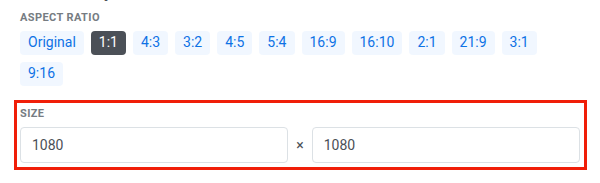
Under Size, enter the width or the height in pixels. Pushwoosh fills in the other field from the selected aspect ratio.
-
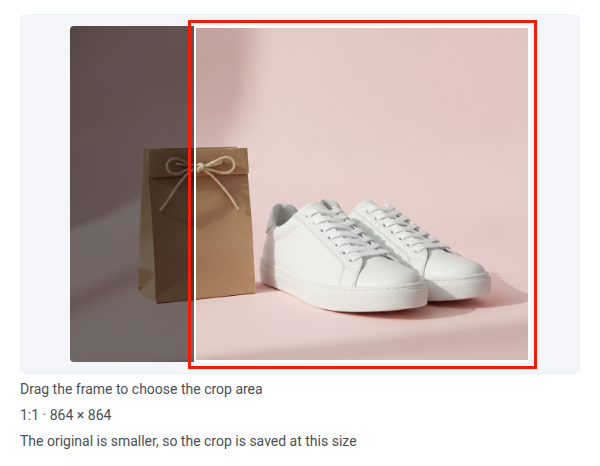
Move the frame over the part of the image you want to keep. Drag it with the mouse or on a touchscreen, or click a point on the image to center the frame there.
To move the frame with the keyboard, press Tab until it is focused, then press the arrow keys. The frame stops at the edges of the image.
-
For JPEG images, set the JPEG quality value from 1 to 100. A higher value keeps more detail but produces a larger file.
-
Click Create crop.
Pushwoosh cuts the crop exactly inside the frame, saves it next to the original, and switches the preview to it. If you choose another aspect ratio, the frame returns to the center.
These rules apply to the saved crop:
- Size: a crop is never larger than the original. If the size you set needs more pixels than the original has at that aspect ratio, Pushwoosh saves the crop at the largest size the original allows. For example, a 1:1 crop with a width of 1080 from a 1184×864 image is saved at 864×864. In that case, the panel shows the size it will save and the note
The original is smaller, so the crop is saved at this size. - Several crops: you can create several crops with the same aspect ratio if their sizes or frame positions differ.
- No duplicates: if the aspect ratio, the final size, and the frame position are all the same as in an existing crop, the Create crop button is unavailable and the panel shows
A crop with this aspect ratio and size already exists. To open that crop, click it under Existing crops. The final size is the size after it’s reduced to fit the original.
View existing crops
Anchor link toThe Existing crops list at the bottom of the Create crop panel shows every crop of the image. To view a crop:
- Hover over the image and click the Create crops button.
- Under Existing crops, click the crop. The preview shows the stored crop with its aspect ratio and size, for example 2:1 · 1024×512.
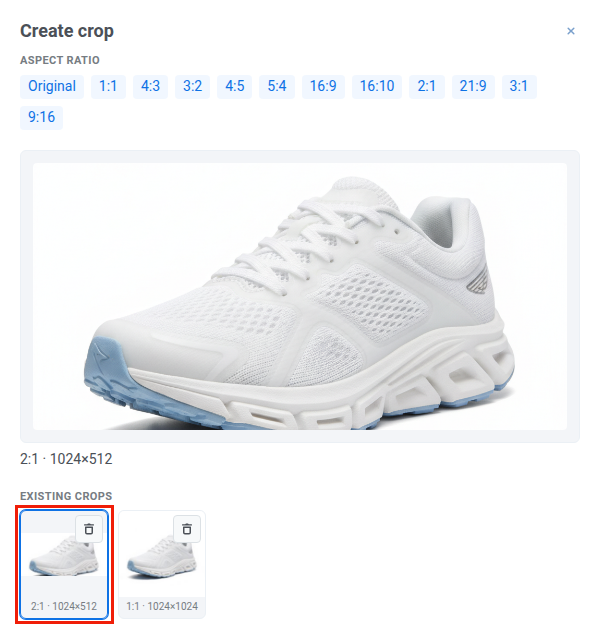
To go back to the original, click Original under Aspect ratio.
To delete a crop, see Delete a single crop without removing the original.