ส่งข้อความถึงผู้ถือพาส Apple Wallet
เมื่อผู้ใช้เพิ่มพาส Apple Wallet ของคุณ Pushwoosh จะลงทะเบียนเป็นสมาชิกแพลตฟอร์ม Apple Wallet ที่ผูกกับ User ID นั้น พาสจะอยู่บน iPhone และ Apple Watch
คุณสามารถเข้าถึงผู้ถือพาสได้หลายวิธี: ส่ง push แบบครั้งเดียว, ส่งการอัปเดตพาส, ส่งข้อความอัตโนมัติจาก Customer Journey, หรือแจ้งเตือนผู้ถือพาสที่ระบุผ่าน API
ส่ง push แบบครั้งเดียวถึงผู้ถือพาส
Anchor link toส่ง push แบบสแตนด์อโลนไปยังผู้ถือพาสคนเดียวหรือไปยังกลุ่มเป้าหมายที่กว้างขึ้น ข้อความจะปรากฏเป็นข้อความบนหน้าจอล็อกบนพาส
-
เปิดตัวสร้าง push แบบครั้งเดียว โดยคลิก Send message ใน Campaigns → Wallet Passes → Apple Wallet หรือไปที่ Campaigns → One-Time Messages แล้วคลิก Send message → One-time push
-
ในขั้นตอน Content ให้เขียนข้อความหรือเลือก preset
-
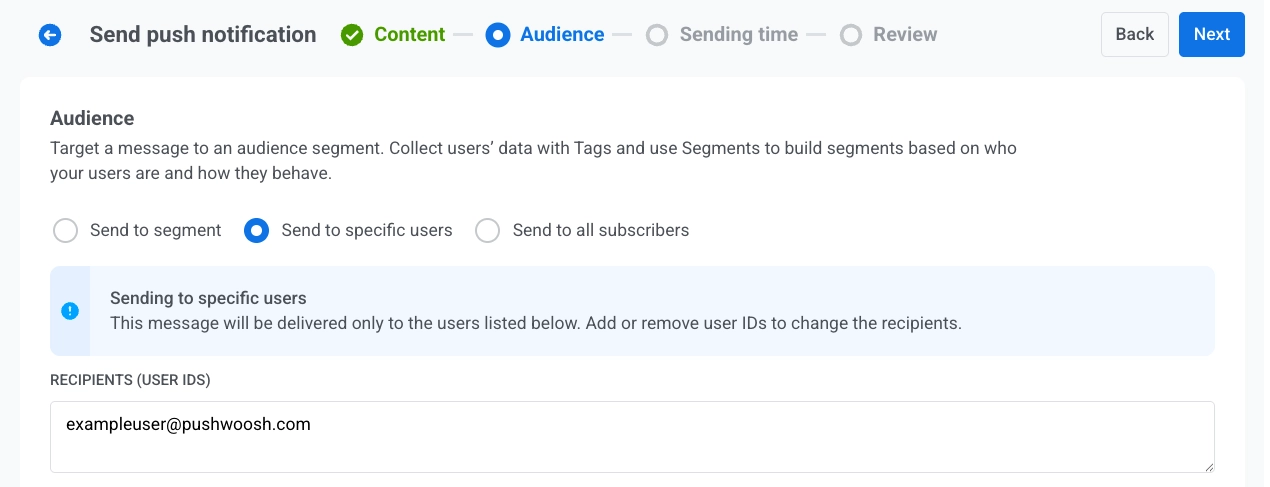
ในขั้นตอน Audience ให้ตั้งค่าผู้รับข้อความ ค่าเริ่มต้นจะขึ้นอยู่กับว่าคุณเปิดตัวสร้างจากที่ใด:
- จาก Send message บนพาส: Send to specific users จะถูกเลือกไว้ และ Recipients (User IDs) จะแสดงรายการ User ID ของผู้ถือพาสนั้นอยู่แล้ว ส่งตามที่เป็นอยู่เพื่อเข้าถึงผู้ถือพาสคนนั้น หรือเปลี่ยนกลุ่มเป้าหมาย:
- เพิ่ม User IDs เพิ่มเติมใน Recipients (User IDs)
- เปลี่ยนเป็น Send to segment
- เลือก Send to all subscribers
- จาก One-Time Messages: ตั้งค่ากลุ่มเป้าหมายเหมือนกับ push แบบครั้งเดียว ทั่วไป: Send to specific users, Send to segment, หรือ Send to all subscribers
- จาก Send message บนพาส: Send to specific users จะถูกเลือกไว้ และ Recipients (User IDs) จะแสดงรายการ User ID ของผู้ถือพาสนั้นอยู่แล้ว ส่งตามที่เป็นอยู่เพื่อเข้าถึงผู้ถือพาสคนนั้น หรือเปลี่ยนกลุ่มเป้าหมาย:
- ใต้ Target platforms ให้เลือก Apple Wallet
- ส่งหรือตั้งเวลาส่งข้อความ
ส่งการอัปเดตพาส
Anchor link toการแก้ไขพาสและบันทึกจะเป็นการลงนามใหม่อีกครั้งและแจ้งเตือนทุกอุปกรณ์ที่เพิ่มพาสนั้น iOS จะดึงเวอร์ชันใหม่ในเบื้องหลัง หากต้องการแจ้งเตือนผู้ถือพาสเกี่ยวกับการเปลี่ยนแปลงที่เฉพาะเจาะจง ให้ตั้งค่า Change message บนฟิลด์เพื่อให้ iOS แสดงบนหน้าจอล็อก
- ใน Campaigns → Wallet Passes → Apple Wallet ค้นหาพาสและคลิก Edit ในเมนูการดำเนินการ
- เปลี่ยนฟิลด์ที่คุณต้องการ และเพิ่มข้อความการเปลี่ยนแปลงในฟิลด์ใดๆ ที่คุณต้องการให้ผู้ถือพาสได้รับการแจ้งเตือน
- คลิก Save
ทุกอุปกรณ์ที่เพิ่มพาสจะได้รับการอัปเดต ฟิลด์ที่ไม่มีข้อความการเปลี่ยนแปลงจะอัปเดตอย่างเงียบๆ
ส่งข้อความอัตโนมัติจาก Customer Journey
Anchor link toส่งข้อความอัตโนมัติตาม event หรือ segment
Journey ที่เริ่มต้นตาม Trigger
Anchor link to- สร้าง Customer Journey และเพิ่ม Trigger-based entry
- เลือก event ที่ควรจะเริ่มต้น Journey สร้าง custom event ใน Control Panel ก่อนหากคุณยังไม่ได้สร้าง เช่น
RewardAvailable - เพิ่มและกำหนดค่าองค์ประกอบ push เปิดใช้งาน Send by User ID เพื่อให้ push เข้าถึงทุกอุปกรณ์ที่ผูกกับผู้ใช้ รวมถึงพาสที่บันทึกไว้
- กำหนดค่าให้เสร็จสิ้นและเปิดใช้งาน Journey
เมื่อ entry event ทำงาน Pushwoosh จะส่ง push ไปยังทุกอุปกรณ์ที่ผูกกับผู้ใช้ ผู้ถือพาสจะได้รับเป็นข้อความบนหน้าจอล็อกบนพาส ผู้ใช้ที่ไม่มีพาส Apple Wallet จะได้รับบนอุปกรณ์อื่นๆ ของพวกเขา
ตัวอย่าง: แจ้งเตือนผู้ใช้ว่ามีรางวัลพร้อมให้รับ
POST https://api.pushwoosh.com/json/1.3/postEvent
{ "request": { "application": "XXXXX-XXXXX", "userId": "u12345", "event": "RewardAvailable", "attributes": { "reward": "Free coffee", "expires": "2026-07-01" } }}ชื่อ event ต้องตรงกับ event ที่สร้างขึ้นใน Control Panel ของคุณ
วิธีอื่นๆ ในการสร้าง journey
Anchor link toโฟลว์ที่ใช้ trigger ข้างต้นเป็นเพียงหนึ่งตัวเลือก คุณสามารถเลือก entry element อื่นได้ ขึ้นอยู่กับว่าอะไรควรจะเริ่มต้น journey:
- Audience-based entry: เริ่มต้น journey สำหรับทั้ง segment แทนที่จะเป็น event เดียว ทำงานครั้งเดียว, ตามกำหนดเวลา, หรือเป็นระยะๆ (เช่น ทุกสัปดาห์สำหรับทุกคนที่ถือพาสที่ใช้งานอยู่) โดยผู้ใช้ใหม่จะเข้ามาเมื่อพวกเขาเข้าร่วม segment
- API-based entry: เริ่มต้น journey จาก business event ที่เกิดขึ้นนอกแอป เช่น เที่ยวบินล่าช้าหรือการเปลี่ยนประตูขึ้นเครื่อง ระบบภายนอกของคุณจะเรียก request template ของ entry element และส่ง filter เพื่อกำหนดเป้าหมายผู้ใช้ที่ถูกต้อง เช่น ทุกคนที่มี tag
flightNumber = SU1234ที่ตั้งค่าไว้เมื่อออกพาส เหมาะสำหรับบัตรโดยสารขึ้นเครื่องและตั๋วงานอีเวนต์
แจ้งเตือนผู้ถือพาสที่ระบุผ่าน API
Anchor link toหากต้องการส่งข้อความถึงทุกคนที่บันทึกพาสที่ระบุไว้ ให้เรียกใช้ Update a pass ซึ่งจะอัปเดตพาสและแจ้งเตือนอุปกรณ์ต่างๆ