पुश स्टोरीज़ कंटेंट बनाएँ
एक पुश प्रीसेट बनाएँ जिसका विस्तारित iOS नोटिफिकेशन एक फ़ुल-स्क्रीन, इंस्टाग्राम-स्टाइल स्टोरीज़ अनुभव के रूप में चलता है: फ़ुल-ब्लीड इमेजेज़, ऑटो-एडवांसिंग पेज, और हर पेज पर एक बटन।
पूर्वापेक्षाएँ
Anchor link toपुश स्टोरीज़ भेजने से पहले, आपकी iOS टीम को ये करना होगा:
PushwooshNotificationUIमॉड्यूल का उपयोग करके ऐप में एक Notification Content Extension जोड़ें। उनके साथ iOS पुश स्टोरीज़ डेवलपर गाइड साझा करें।- एक्सटेंशन वाला ऐप अपडेट रिलीज़ करें।
उस एक्सटेंशन के बिना प्राप्तकर्ताओं को क्या दिखता है, यह जानने के लिए iOS पुश स्टोरीज़ देखें।
प्रीसेट बनाएँ
Anchor link to- Content → Push Presets खोलें।
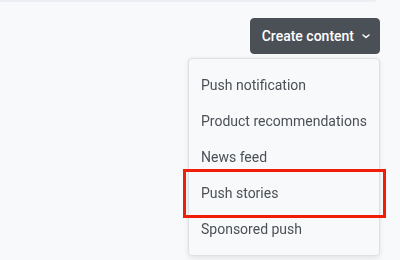
- Create content पर क्लिक करें।
- ड्रॉपडाउन से Push stories चुनें।
संदेश लिखें
Anchor link toपुश शीर्षक, उपशीर्षक और संदेश उसी तरह लिखें जैसे एक सामान्य पुश प्रीसेट के लिए लिखते हैं।
स्टोरीज़ पेज बनाएँ
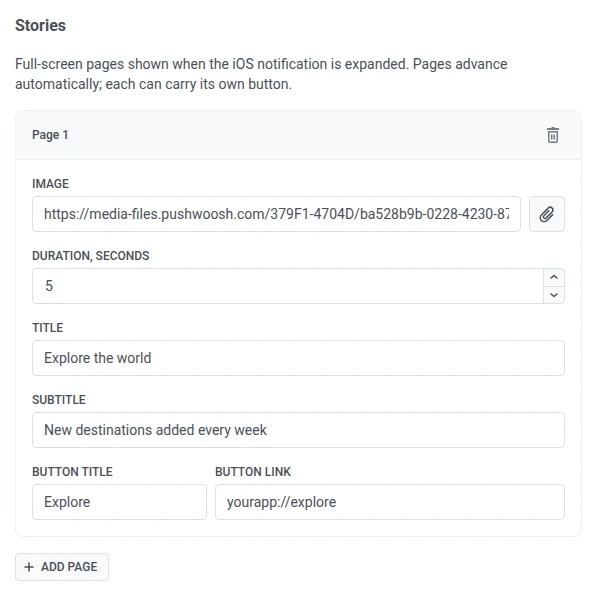
Anchor link toStories में, हर पेज के लिए फ़ील्ड भरें:
| फ़ील्ड | विवरण |
|---|---|
| Image | पेज की फ़ुल-स्क्रीन इमेज का URL। URL पेस्ट करने के बजाय Media storage से इमेज चुनने के लिए पेपरक्लिप पर क्लिक करें। |
| Duration, seconds | ऑटो-एडवांस होने से पहले पेज कितनी देर स्क्रीन पर रहता है, 1 से 30 सेकंड तक। डिफ़ॉल्ट रूप से 5 सेकंड। |
| Title | पेज की इमेज के निचले हिस्से पर दिखने वाला बड़ा टेक्स्ट। |
| Subtitle | शीर्षक के नीचे छोटा टेक्स्ट। |
| Button title | पेज के कॉल-टू-एक्शन बटन का लेबल। |
| Button link | बटन पर टैप करने पर खुलने वाला URL या ऐप डीप लिंक। |
और पेज जोड़ने के लिए Add page पर क्लिक करें, कुल 10 तक। हर पेज क्रम से चलता है और उसकी अपनी इमेज, टाइमिंग और बटन होते हैं।
प्रीव्यू जाँचें

Anchor link toभेजने से पहले हर पेज जाँचने के लिए दाईं ओर के प्रीव्यू पैनल का उपयोग करें। इसमें दो टैब हैं:
- Push: संक्षिप्त (collapsed) नोटिफिकेशन।
- Story: वह पेज जिसे आप एडिट कर रहे हैं, उसकी इमेज और बटन सहित। कई पेज होने पर प्रीव्यू उन्हें बारी-बारी से चलाता है, और सबसे ऊपर का प्रोग्रेस बार हर पेज के लिए एक सेगमेंट दिखाता है।
पुश स्टोरीज़ भेजें
Anchor link toप्रीसेट भेजने के लिए, इसे एक वन-टाइम पुश के कंटेंट के रूप में चुनें। तब ऑडियंस iOS तक सीमित हो जाती है। पुश स्टोरीज़ के साथ वन-टाइम पुश भेजें देखें।