कस्टमर जर्नी में टेलीग्राम संदेश भेजें
कस्टमर जर्नी बिल्डर में टेलीग्राम संदेश भेजने के लिए इस गाइड का उपयोग करें।
पुशवूश के माध्यम से टेलीग्राम का उपयोग करने से आपको एक ही स्थान पर अपनी ओमनीचैनल जर्नी, सेगमेंटेशन और एनालिटिक्स के हिस्से के रूप में टेलीग्राम चलाने में मदद मिलती है।
शुरू करने से पहले
Anchor link to- @BotFather में एक टेलीग्राम बॉट बनाएं या किसी मौजूदा बॉट का उपयोग करें।
- सेटिंग्स > प्लेटफ़ॉर्म कॉन्फ़िगर करें में टेलीग्राम को कॉन्फ़िगर करें और टोकन को सत्यापित करें। और जानें
एक जर्नी बनाएं
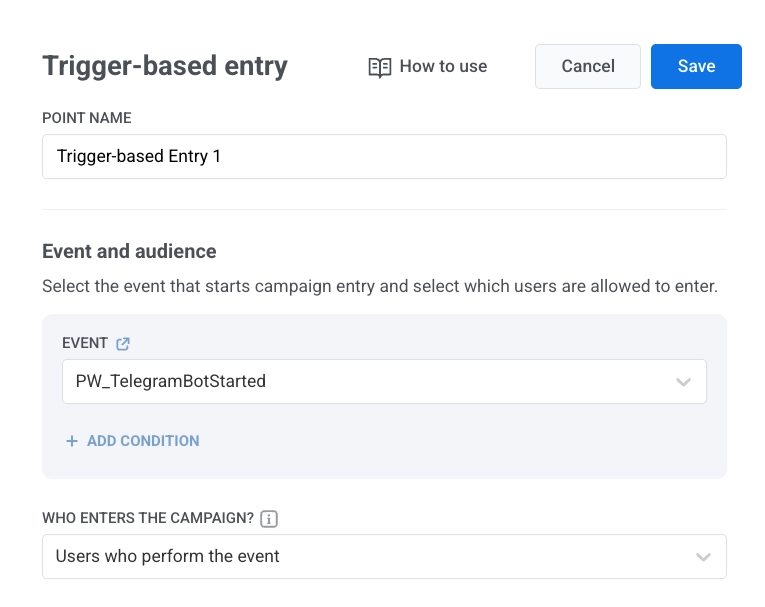
Anchor link to- ट्रिगर-आधारित एंट्री एलिमेंट जोड़ें।
- इवेंट के रूप में TelegramBotStarted चुनें।
- कैनवास में टेलीग्राम एलिमेंट जोड़ें।
संदेश सामग्री कॉन्फ़िगर करें
Anchor link toटेलीग्राम एलिमेंट में:
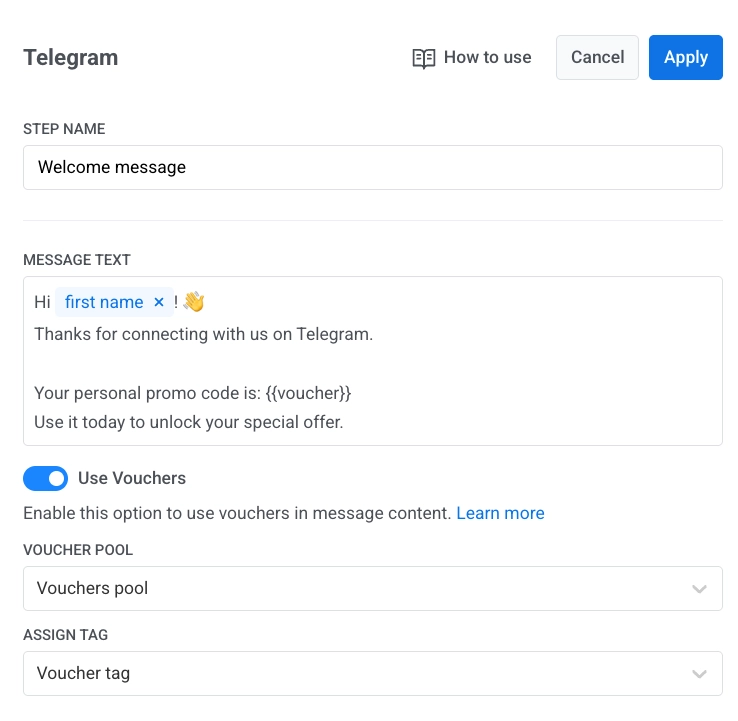
- एलिमेंट का नाम दर्ज करें।
- संदेश टेक्स्ट में अपना संदेश दर्ज करें। संदेश को केवल-टेक्स्ट रखें और 4096 वर्णों के भीतर रखें।
- वैकल्पिक। सामग्री को वैयक्तिकृत करने के लिए टैग या लिक्विड प्लेसहोल्डर जोड़ें। जर्नी में डायनेमिक सामग्री और लिक्विड
- वैकल्पिक। वाउचर का उपयोग करें चालू करें, वाउचर पूल चुनें, और टैग असाइन करें सेट करें। और जानें
- लागू करें पर क्लिक करें।
जर्नी को अंतिम रूप दें और लॉन्च करें
Anchor link toजर्नी को पूरा करें, प्रत्येक शाखा को एग्जिट एलिमेंट के साथ समाप्त करें या इसे बिना किसी आउटगोइंग कनेक्शन के छोड़ दें। जब अभियान तैयार हो, तो अभियान लॉन्च करें पर क्लिक करें।
पहुंच और आँकड़े
Anchor link toयदि किसी अस्थायी नेटवर्क समस्या के कारण भेजना विफल हो जाता है, तो पुशवूश स्वचालित रूप से पुनः प्रयास करता है।
यदि टेलीग्राम bot blocked या chat not found लौटाता है, तो पुशवूश उपयोगकर्ता को टेलीग्राम के लिए अप्राप्य के रूप में चिह्नित करता है:
bot blockedआँकड़ों में उन लोगों को छोड़ दिया गया जिन्होंने बॉट को ब्लॉक किया के रूप में दिखाई देता है।chat not foundआँकड़ों में उन लोगों के लिए छोड़ दिया गया जिनकी चैट नहीं मिली के रूप में दिखाई देता है।
टेलीग्राम आँकड़ों के बारे में और जानें
यूज़र एक्सप्लोरर में उपयोगकर्ता डेटा देखें
Anchor link toजब कोई उपयोगकर्ता आपके बॉट के साथ बातचीत शुरू करता है, तो पुशवूश यूज़र एक्सप्लोरर में एक प्रोफ़ाइल बनाता है जिसमें प्लेटफ़ॉर्म के रूप में टेलीग्राम और टेलीग्राम उपयोगकर्ता आईडी होती है।
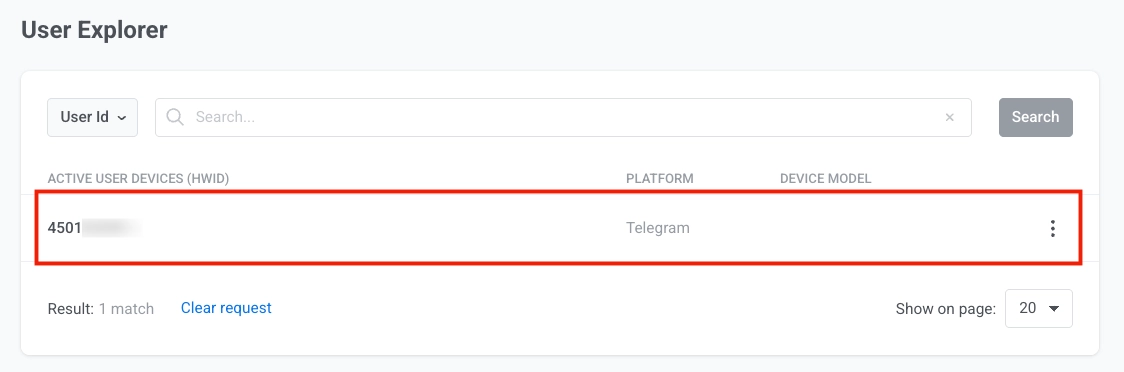
प्रोफ़ाइल में शामिल हैं:
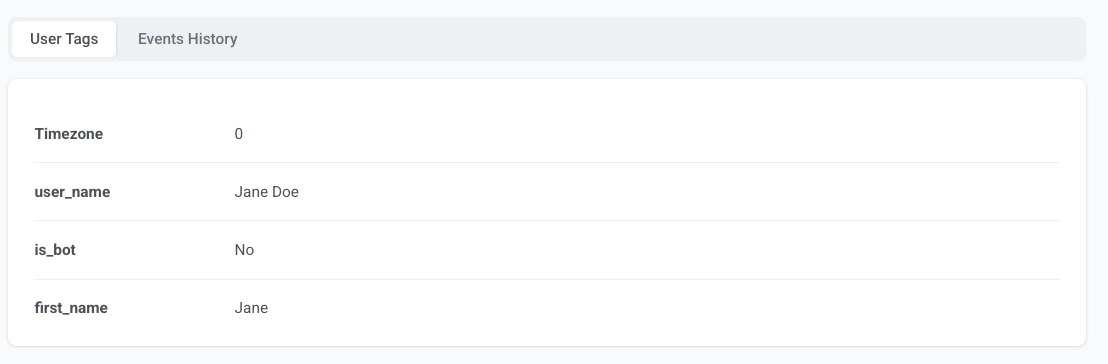
- टेलीग्राम से प्राप्त उपयोगकर्ता टैग
PW_TelegramBotStartedजैसे इवेंट।