पुश सब्सक्राइबर्स इम्पोर्ट करें
यदि आप किसी अन्य पुश प्रदाता से माइग्रेट कर रहे हैं, तो आप अपने मौजूदा पुश सब्सक्राइबर बेस को एक CSV फ़ाइल से Pushwoosh में इम्पोर्ट कर सकते हैं। टोकन तब तक काम करते रहते हैं जब तक ऐप उसी APNs की, Firebase प्रोजेक्ट, या HMS क्रेडेंशियल्स का उपयोग करता है। यूज़र्स को ऐप को फिर से इंस्टॉल करने या फिर से अनुमति देने की आवश्यकता नहीं है।
यह इम्पोर्ट पुश टोकन के साथ डिवाइस को रजिस्टर करता है। यह एक सेगमेंट नहीं बनाता है। इम्पोर्ट किए गए डिवाइस को एक CSV import टैग मिलता है जिसका उपयोग आप बाद में एक सेगमेंट बनाने के लिए कर सकते हैं। इसके बजाय, पहले से रजिस्टर्ड User IDs या Hardware IDs की सूची को एक सेगमेंट में इम्पोर्ट करने के लिए, एक सेगमेंट इम्पोर्ट करें देखें।
समर्थित प्लेटफॉर्म्स
Anchor link toPushwoosh केवल नीचे सूचीबद्ध प्लेटफॉर्म्स के लिए पुश टोकन इम्पोर्ट करता है।
device_type कॉलम दो अलग-अलग फॉर्मेट स्वीकार करता है, यह इस पर निर्भर करता है कि आपकी फ़ाइल कहाँ से आई है:
- एक नंबर, यदि आपका एक्सपोर्ट OneSignal के अपने प्लेटफॉर्म कोड का उपयोग करता है।
- एक शब्द, यदि यह एक Amazon Pinpoint एक्सपोर्ट है या आपके द्वारा हाथ से बनाई गई फ़ाइल है।
एक फ़ाइल में दो फॉर्मेट को न मिलाएं, क्योंकि एक ही नंबर का मतलब हर सिस्टम में एक अलग प्लेटफॉर्म होता है। किसी गैर-OneSignal स्रोत से एक नंबर पेस्ट करने से डिवाइस गलत प्लेटफॉर्म के तहत चुपचाप इम्पोर्ट हो सकते हैं।
| प्लेटफॉर्म | OneSignal device_type नंबर | स्वीकृत प्लेटफॉर्म नाम |
|---|---|---|
| iOS | 0 | ios, apns, apns_sandbox, apns_voip |
| Android | 1 | android, gcm, fcm |
| Amazon | 2 | amazon, adm, fireos |
| Windows | 6 | windows, wns |
| macOS | 9 | macos, osx |
| Huawei (HMS) | 13 | huawei, hms |
किसी भी अन्य वैल्यू वाली पंक्तियों को छोड़ दिया जाता है (देखें एक पंक्ति क्यों छोड़ी जाती है), जिनमें शामिल हैं:
- OneSignal के अपने वेब पुश, ईमेल, और SMS डिवाइस प्रकार।
- प्लेटफॉर्म्स जिन्हें Pushwoosh सपोर्ट नहीं करता, जैसे कि बंद हो चुके Windows Phone या Baidu पुश।
वेब पुश सब्सक्रिप्शन किसी भी प्रदाता से ट्रांसफर नहीं किए जा सकते। उन यूज़र्स को आपकी वेबसाइट पर Pushwoosh SDK के माध्यम से फिर से सब्सक्राइब करने की आवश्यकता है।
एक CSV फ़ाइल तैयार करें
Anchor link toआपकी CSV 100 MB से कम होनी चाहिए। कॉलम के नाम बिल्कुल नीचे दिखाए अनुसार रखें। अक्षर केस कोई मायने नहीं रखता। आप UI में कॉलम मैप नहीं कर सकते, इसलिए किसी भी हेडर का नाम बदलें जो मेल नहीं खाता हो:
| हेडर | इससे मैप होता है |
|---|---|
identifier | पुश टोकन (आवश्यक) |
device_type | प्लेटफॉर्म (आवश्यक) |
external_id or external_user_id | यूज़र आईडी |
language | डिवाइस की भाषा |
tags | कस्टम टैग वैल्यू का एक JSON ऑब्जेक्ट |
invalid_identifier | OneSignal का “अनसब्सक्राइब्ड” फ्लैग। यहां फ्लैग की गई पंक्तियाँ छोड़ दी जाती हैं |
एक टाइमज़ोन कॉलम, यदि मौजूद है, तो इम्पोर्ट नहीं किया जाता है, क्योंकि इसका फॉर्मेट एक्सपोर्ट संस्करणों के बीच भिन्न होता है।
उदाहरण CSV
Anchor link toयहाँ एक subscribers.csv है जिसमें दो डिवाइस हैं, एक प्लेटफॉर्म नाम का उपयोग कर रहा है और दूसरा OneSignal न्यूमेरिक कोड का उपयोग कर रहा है:
| identifier | device_type | external_id | language | tags |
|---|---|---|---|---|
ios-token-0001 | ios | user-1001 | en | {"plan":"pro"} |
android-token-0002 | 1 | user-1002 | en | {"plan":"free"} |
subscribers.csv का सादे टेक्स्ट फॉर्मेट में प्रतिनिधित्व:
identifier,device_type,external_id,language,tagsios-token-0001,ios,user-1001,en,"{""plan"":""pro""}"android-token-0002,1,user-1002,en,"{""plan"":""free""}"कैसे इम्पोर्ट करें
Anchor link to-
Audience → Import CSV पर जाएं और Import push subscribers कार्ड चुनें।

-
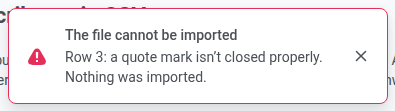
अपनी CSV फ़ाइल चुनें।
-
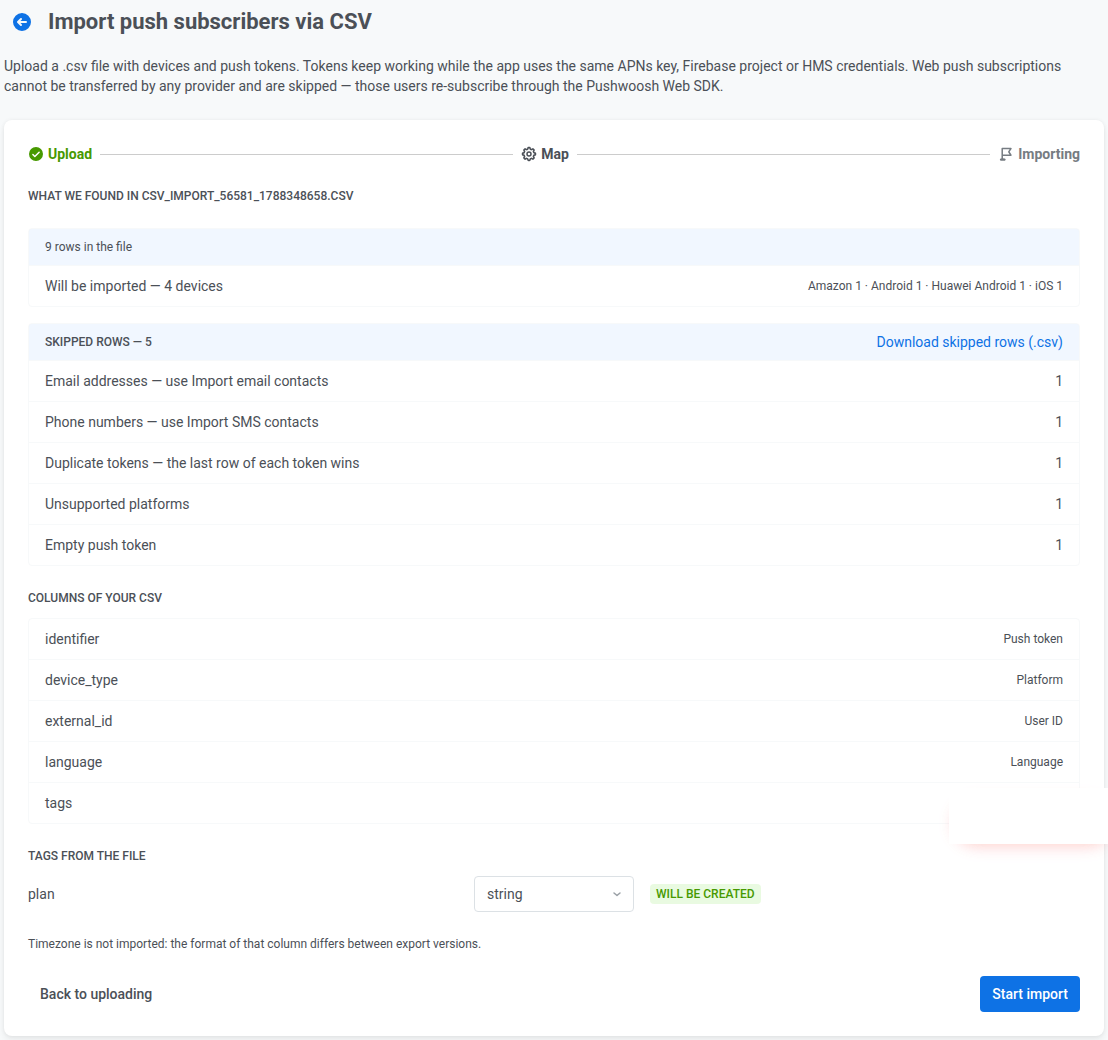
सारांश की समीक्षा करें:
- फ़ाइल में कुल पंक्तियाँ, और उनमें से कितनी इम्पोर्ट करने योग्य हैं, प्लेटफॉर्म के अनुसार विभाजित।
- छोड़ी गई पंक्तियाँ, कारण के अनुसार विभाजित, छोड़ी गई पंक्तियों को CSV के रूप में डाउनलोड करने के लिए एक लिंक के साथ (मूल कॉलम और एक
skip_reasonकॉलम)। tagsकॉलम में पाए गए कस्टम टैग, प्रत्येक के लिए Pushwoosh द्वारा अनुमानित प्रकार (string,integer,boolean, याdate) के साथ। यदि आपके खाते में पहले से ही एक अलग प्रकार के साथ एक टैग नाम मौजूद है, तो इसे एक कॉन्फ्लिक्ट के रूप में फ्लैग किया जाता है। आप इस इम्पोर्ट के लिए प्रकार बदल सकते हैं या उस टैग को छोड़ सकते हैं।
-
Start import पर क्लिक करें।
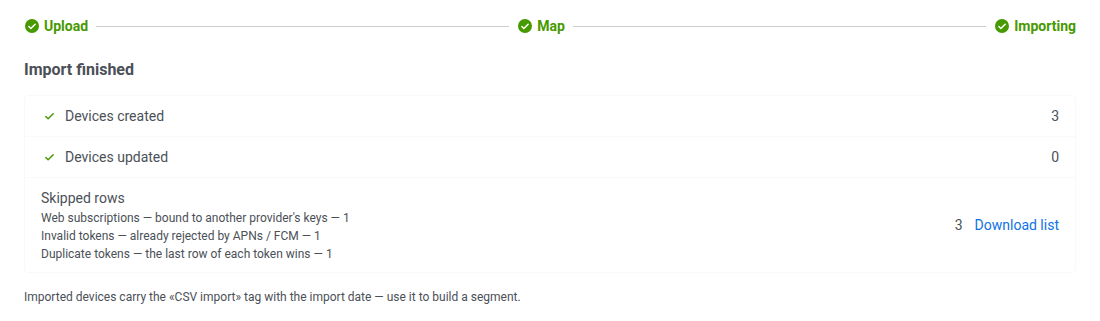
जब इम्पोर्ट समाप्त हो जाए, तो गिनतियाँ जाँचें:
- Devices created: नए डिवाइस।
- Devices updated: वे डिवाइस जो पहले से मौजूद थे।
- Skipped rows: मैप स्टेप (स्टेप 3) में छोड़ी गई पंक्तियाँ, कारण के अनुसार विभाजित, डाउनलोड लिंक के साथ।
एक पंक्ति क्यों छोड़ी जाती है
Anchor link toये वे कारण हैं जो मैप सारांश और छोड़ी गई-पंक्तियों वाली CSV में दिखाए गए हैं।
| कारण | वजह |
|---|---|
| वेब सब्सक्रिप्शन | किसी अन्य प्रदाता की कीज़ से बंधे हैं। ट्रांसफर नहीं किए जा सकते |
| अमान्य टोकन | APNs / FCM द्वारा पहले ही अस्वीकार कर दिए गए (OneSignal का invalid_identifier फ्लैग) |
| ईमेल पते | इसके बजाय संपर्क इम्पोर्ट करें का उपयोग करें |
| फ़ोन नंबर | इसके बजाय संपर्क इम्पोर्ट करें का उपयोग करें |
| डुप्लिकेट टोकन | एक ही पुश टोकन फ़ाइल में एक से अधिक बार दिखाई देता है। पहली पंक्ति को प्राथमिकता दी जाती है और बाद की पंक्तियों को छोड़ दिया जाता है |
| असमर्थित प्लेटफॉर्म | प्लेटफॉर्म वह नहीं है जिसे Pushwoosh सपोर्ट करता है (जैसे Windows Phone, Baidu) |
| अज्ञात प्लेटफॉर्म | प्लेटफॉर्म वैल्यू को बिल्कुल भी पहचाना नहीं गया है |
| खाली पुश टोकन | पुश टोकन कॉलम में कोई वैल्यू नहीं है |
एक ही फ़ाइल को फिर से इम्पोर्ट करना
Anchor link toPushwoosh प्रत्येक इम्पोर्ट किए गए डिवाइस की Hardware ID (HWID) को उसके पुश टोकन से उत्पन्न करता है, और एक ही टोकन हमेशा एक ही HWID उत्पन्न करता है। इसलिए एक ही फ़ाइल को फिर से इम्पोर्ट करने से डुप्लिकेट बनाने के बजाय उन मौजूदा डिवाइस को अपडेट किया जाता है। मैपिंग समस्या को ठीक करने के बाद इम्पोर्ट को फिर से चलाना, या समय-समय पर एक नए एक्सपोर्ट से टैग वैल्यू को फिर से सिंक करना सुरक्षित है।
इम्पोर्ट के बाद
Anchor link toइम्पोर्ट किए गए डिवाइस को CSV import के साथ टैग किया जाता है, जिसकी वैल्यू इम्पोर्ट की तारीख और समय होती है। इसी टैग का उपयोग सेगमेंट इम्पोर्ट द्वारा किया जाता है। इसका उपयोग इम्पोर्ट किए गए डिवाइस से एक सेगमेंट बनाने के लिए करें, या उन्हें यूज़र एक्सप्लोरर में व्यक्तिगत रूप से खोजें।