Inbox में सिर्फ़ एक मैसेज भेजें
App Inbox सिर्फ़ इन-ऐप inbox में मैसेज भेजता है। यह push नहीं भेजता।
मैसेज तब दिखाई देता है जब यूज़र ऐप खोलता है, इसलिए वे इसे बाद में भी पढ़ सकते हैं, भले ही उन्होंने कभी नोटिफ़िकेशन न देखा हो। App Inbox का उपयोग तब करें जब आप अकेले inbox कंटेंट चाहते हों, या जब यूज़र push मिस या नज़रअंदाज़ कर सकते हों।
यूज़र Inbox मैसेज पाने से पहले, ऐप को Message Inbox SDK मॉड्यूल की ज़रूरत होती है।
एक one-time Inbox मैसेज भेजने के लिए:
- Campaigns > One-time messages पर जाएं।
- Send message पर क्लिक करें।
- Inbox message चुनें।
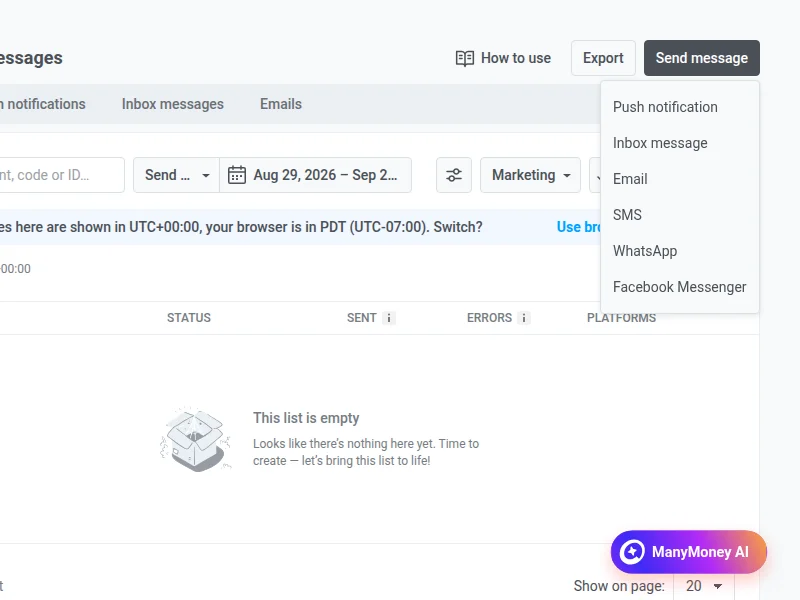
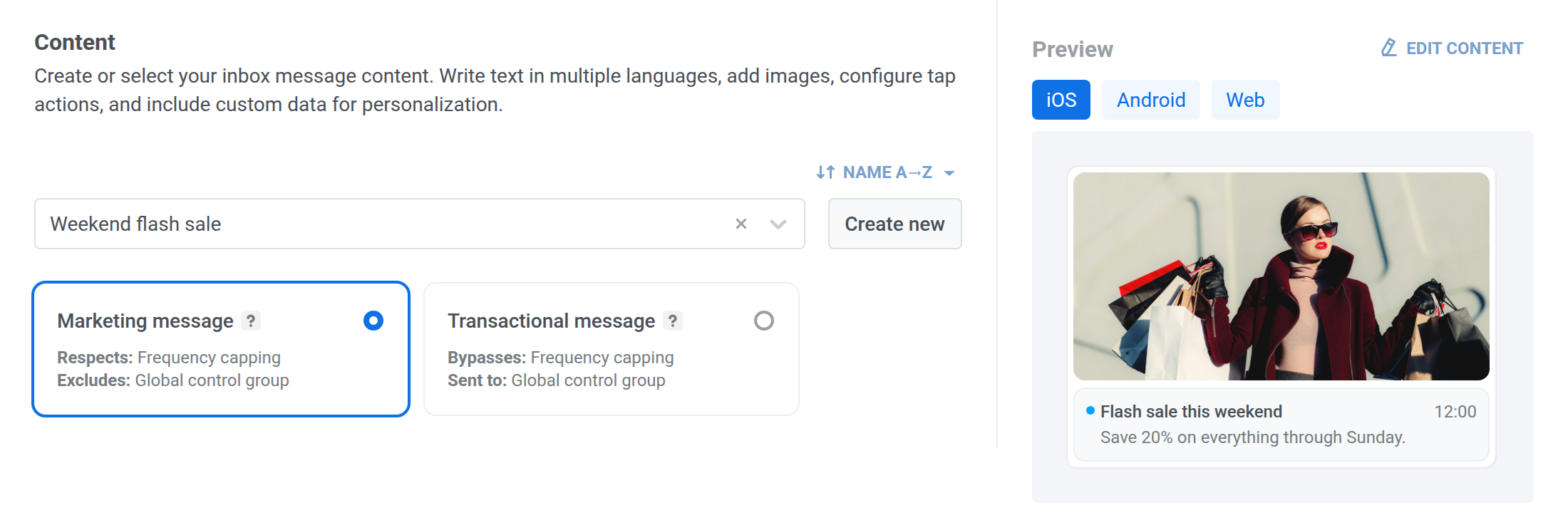
Content
Anchor link toApp Inbox कंटेंट चुनें या बनाएं
Anchor link toकिसी मौजूदा App Inbox प्रीसेट को खोजें, या इनलाइन कंटेंट बनाने के लिए Create new पर क्लिक करें। दोनों ही तरीकों में, वही कंटेंट एडिटर उपयोग होता है जो App Inbox प्रीसेट के लिए इस्तेमाल होता है। एक लेआउट टाइप चुनें, फिर उस लेआउट के फ़ील्ड भरें।
ड्रॉपडाउन में प्रीसेट का क्रम बदलने के लिए, उसके ऊपर सॉर्ट बटन पर क्लिक करें। जब तक आप कोई दूसरा क्रम नहीं चुनते, ड्रॉपडाउन नाम A→Z के अनुसार सॉर्ट रहता है, और Pushwoosh आपका चुना हुआ क्रम याद रखता है और उसे हर App Inbox प्रीसेट ड्रॉपडाउन में इस्तेमाल करता है, चाहे वह वन-टाइम मैसेज हो या journey।
मैसेज का प्रीव्यू देखें
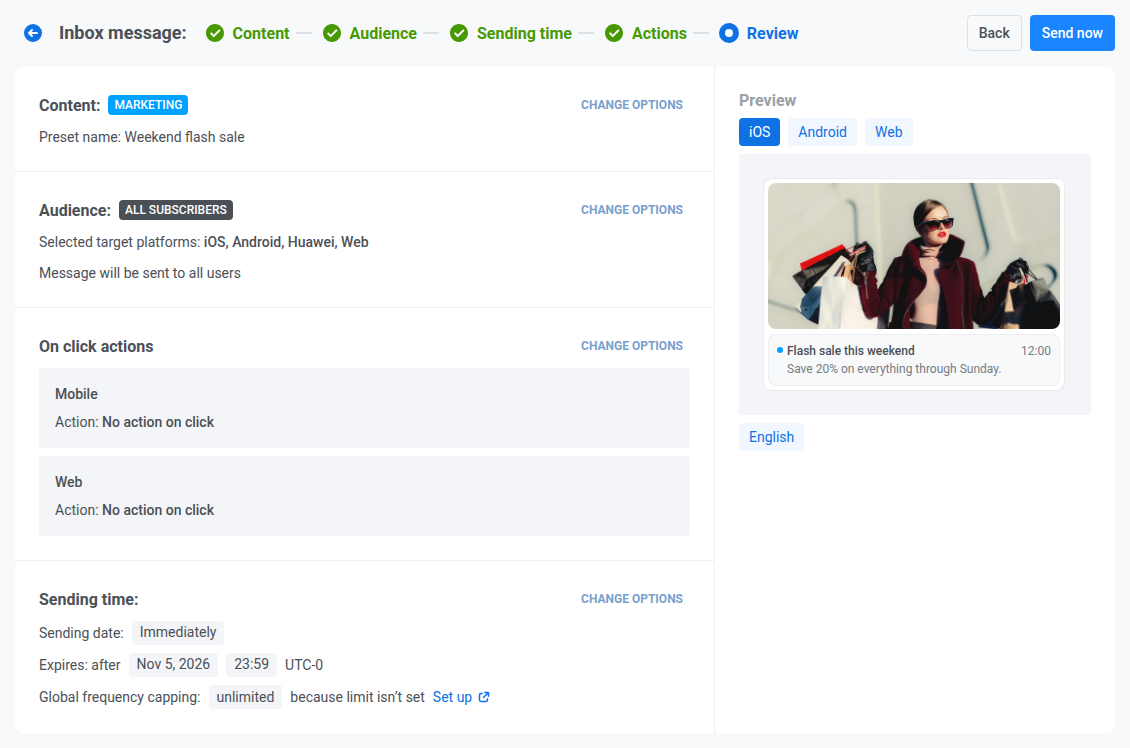
Anchor link toफ़ॉर्म के बगल में मौजूद Preview पैनल मैसेज को एक इनबॉक्स सेल के रूप में दिखाता है। यह देखने के लिए कि वह उस प्लेटफ़ॉर्म पर कैसा दिखता है, सेल के ऊपर iOS, Android, या Web चुनें। Web सेल को वैसे दिखाता है जैसे Web SDK इनबॉक्स विजेट उसे आपकी साइट पर दिखाता है। Huawei का कोई विकल्प नहीं है, क्योंकि Huawei डिवाइस Pushwoosh Android SDK का उपयोग करते हैं। उनका प्रीव्यू देखने के लिए Android चुनें।
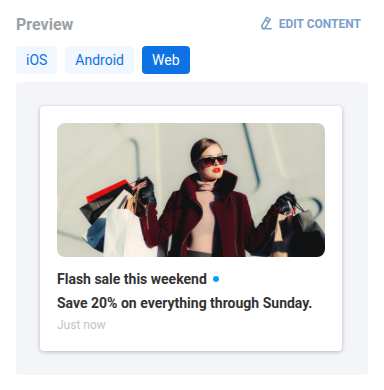
प्रीव्यू प्लेटफ़ॉर्म इस बात पर असर नहीं डालता कि मैसेज किसे मिलता है। इसे पाने वाले प्लेटफ़ॉर्म Audience स्टेप पर लक्ष्य प्लेटफॉर्म में सेट किए जाते हैं।
अगर कंटेंट में कई भाषाएं हैं, तो उनके बीच स्विच करने के लिए Review स्टेप पर सेल के नीचे के चिप्स का उपयोग करें।
मैसेज टाइप चुनें
Anchor link toMarketing message या Transactional message चुनें:
- Marketing message: frequency capping का पालन करता है। ग्लोबल कंट्रोल ग्रुप को बाहर रखता है।
- Transactional message: frequency capping को बायपास करता है। ग्लोबल कंट्रोल ग्रुप को भी भेजा जाता है।
Audience
Anchor link toInbox मैसेज के लिए ऑडियंस चुनें
Anchor link toचुनें कि मैसेज किसे मिलेगा:
- Send to segment: सेव किए गए सेगमेंट में यूज़र।
- Send to specific users: नामित User ID या HWID।
- Send to all subscribers: चुने गए प्लेटफ़ॉर्म के लिए रजिस्टर्ड डिवाइस वाले सभी लोग।
लक्ष्य प्लेटफॉर्म में, iOS, Android, Huawei, और Web को चुना हुआ छोड़ दें, या लिस्ट को अपनी ज़रूरत के प्लेटफ़ॉर्म तक सीमित करें।
Sending time
Anchor link toभेजने का समय चुनें
Anchor link to- Immediately: भेजते ही मैसेज inbox में रख दिया जाता है।
- On chosen date: मैसेज को किसी खास तारीख़ और समय के लिए शेड्यूल करें।

Timezone for campaign schedule में, वह टाइमज़ोन चुनें जो On chosen date को समझने के लिए इस्तेमाल होगा।

एक्सपायरी सेट करें
Anchor link toExpires में, चुनें कि मैसेज inbox में कितनी देर रहेगा:
- After 7 / 14 / 30 / 90 days, या कोई खास तारीख़।
- अगर आपको छोटी या लंबी विंडो न चाहिए, तो After 30 days ही रहने दें।
डिफ़ॉल्ट Save to Inbox टॉगल पर रिटेंशन (अधिकतम 30 दिन) से लंबा है, क्योंकि Inbox मैसेज को यूज़र के अगले ऐप ओपन तक टिके रहना होता है, न कि सिर्फ़ अगले दिन तक।

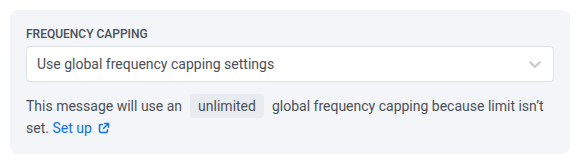
Frequency capping सेट करें
Anchor link toFrequency capping में, चुनें कि यह यूज़र कितनी बार App Inbox मैसेज पा सकता है। सीमाएं App Inbox frequency capping चैनल पर लागू होती हैं, जो push, email, और अन्य चैनल से अलग है।
- Use global frequency capping settings: प्रोजेक्ट-वाइड App Inbox सीमा लागू करें।
- Send messages without global frequency capping: भले ही यूज़र पहले से उस सीमा तक पहुंच चुका हो, फिर भी भेजें। सावधानी से उपयोग करें।
- Use custom frequency capping: सिर्फ़ इस मैसेज के लिए एक सीमा सेट करें।
Actions
Anchor link toActions स्टेप पर, हर प्लेटफ़ॉर्म के लिए On click actions सेट करें।
Mobile:
- No action on click: यूज़र के टैप करने पर कुछ नहीं खुलता।
- Open Deep link: ऐप में एक डीप लिंक खोलें।
- Open URL in browser: डिवाइस के ब्राउज़र में URL खोलें।
- Show in-app content: आपके चुने हुए in-app मैसेज को दिखाएं। in-app सूची पुराने पहले के अनुसार सॉर्ट रहती है, जब तक आप इसके सॉर्ट बटन से कोई दूसरा क्रम नहीं चुनते।
Web:
- No action on click: यूज़र के टैप करने पर कुछ नहीं खुलता।
- Open URL in browser: ब्राउज़र में URL खोलें।
- Show web pop-up: आपके चुने हुए web popup को दिखाएं। सूची हाल ही में अपडेट किए गए से शुरू होती है, जब तक आप इसके सॉर्ट बटन से कोई दूसरा क्रम नहीं चुनते।
Review
Anchor link toरिव्यू करें और भेजें
Anchor link to-
सारांश की समीक्षा करें।
-
Send now पर क्लिक करें। अगर आपने Sending time में कोई खास तारीख़ सेट की है, तो यह बटन इसके बजाय Schedule send दिखाएगा।
-
खुलने वाले डायलॉग में (Confirm sending, या Confirm scheduling अगर आपने शेड्यूल किया है), Campaign name सेट करें: इस एक मैसेज के लिए एक फ्री-टेक्स्ट लेबल। यह Inbox प्रीसेट के अपने टाइटल से पहले से भरा होता है, या अगर प्रीसेट का कोई टाइटल नहीं है तो उसके प्रीसेट नाम से। इसे साफ़ करने पर Message History उसी डिफ़ॉल्ट पर वापस चला जाता है। इसे 255 या उससे कम कैरेक्टर तक रखें। सीमा से आगे टाइप करने पर बिना चेतावनी के टेक्स्ट कट जाता है।
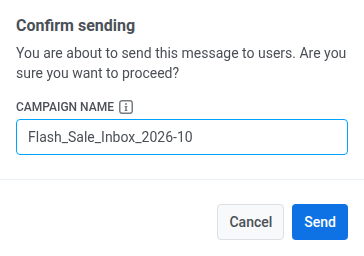
एक बार सेट होने के बाद, कैंपेन नेम Message History और उसके CSV एक्सपोर्ट में, प्रीसेट टाइटल की जगह इस मैसेज का बोल्ड टाइटल बन जाता है।
-
पुष्टि के लिए Send पर क्लिक करें, या शेड्यूल कर रहे हों तो Schedule send पर।
कैंपेन नेम बदलने या साफ़ करने के लिए, या अभी भी शेड्यूल्ड किसी मैसेज को कैंसिल करने के लिए, Campaigns → One-time messages या Message History खोलें। वहां का एक्शन मेन्यू (⋮) अन्य चैनल की तरह ही Inbox भेजने को भी कवर करता है।
किसी journey से भेजें
Anchor link toजब Inbox मैसेज को किसी ट्रिगर, वेट, या दूसरे चैनल के बाद आना हो, तो journey का उपयोग करें। अगर आपको सिर्फ़ one-time भेजना है, तो journey छोड़ दें।
- Customer Journey Builder में एक journey खोलें।
- Channels से, App Inbox को कैनवास पर उस जगह खींचें जहां आप मैसेज चाहते हैं।
- एलिमेंट खोलें और ऊपर दिए गए one-time फ़्लो की तरह ही कंटेंट, मैसेज टाइप, ऑन-क्लिक एक्शन, एक्सपायरी, और frequency capping सेट करें।
पूरा सेटअप: App Inbox journey एलिमेंट।