iOS पुश स्टोरीज़
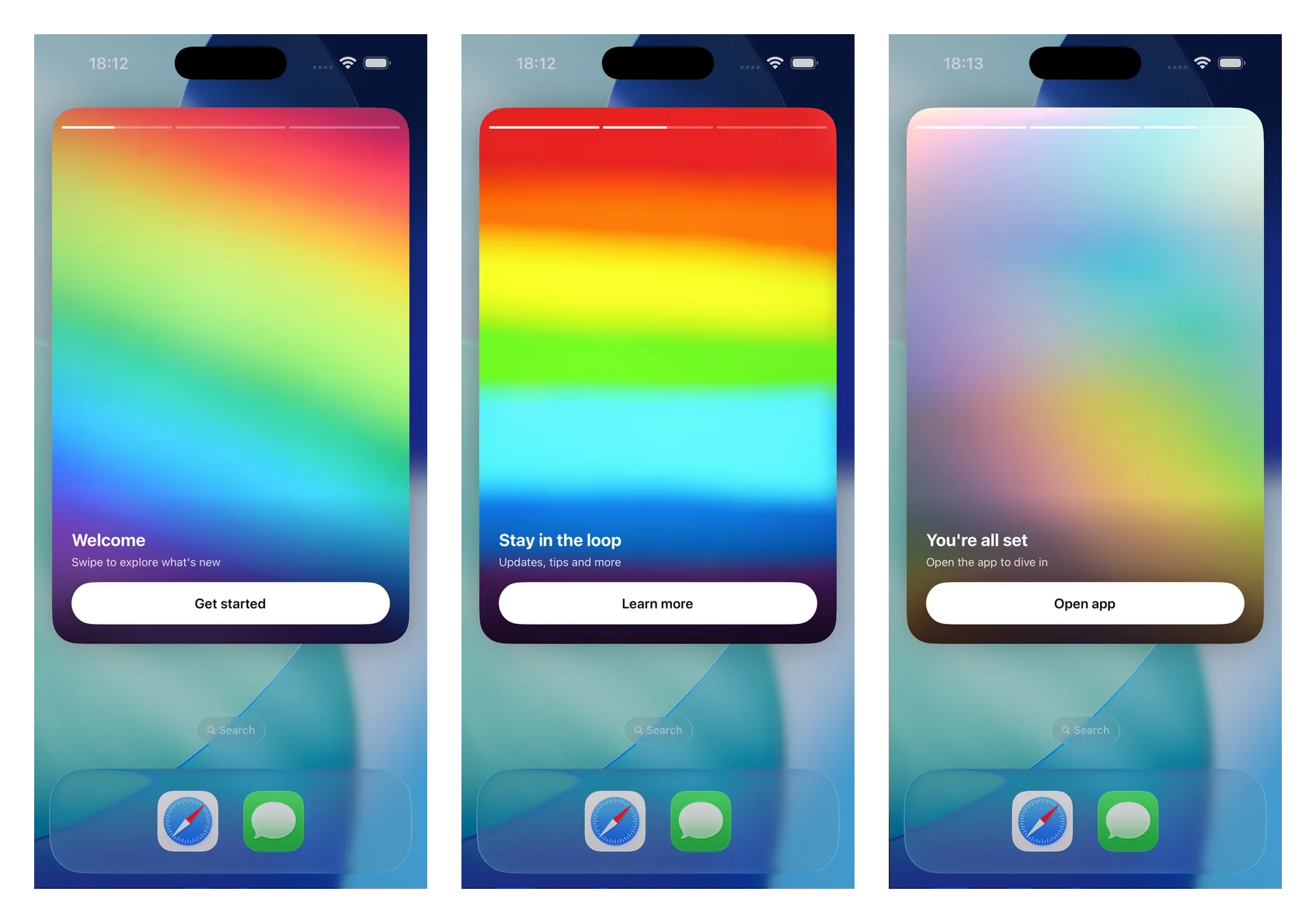
पुश स्टोरीज़ एक विस्तारित पुश नोटिफिकेशन को एक फ़ुल-स्क्रीन, इंस्टाग्राम-स्टाइल स्टोरीज़ अनुभव में बदल देती हैं: फ़ुल-ब्लीड इमेजेज़, टॉप प्रोग्रेस बार, ऑटो-एडवांसिंग पेज, टैप-टू-नेविगेट, और एक डीप लिंक वाला बटन। इन्हें एक Notification Content एक्सटेंशन द्वारा स्टैंडअलोन PushwooshNotificationUI मॉड्यूल का उपयोग करके रेंडर किया जाता है — आप एक व्यू कंट्रोलर को सबक्लास करते हैं और SDK पार्सिंग, इमेज लोडिंग, प्रोग्रेस, टाइमिंग, नेविगेशन और डीप लिंक्स को संभालता है।
संस्करण 7.0.46 से उपलब्ध है।
1. एक Notification Content एक्सटेंशन जोड़ें
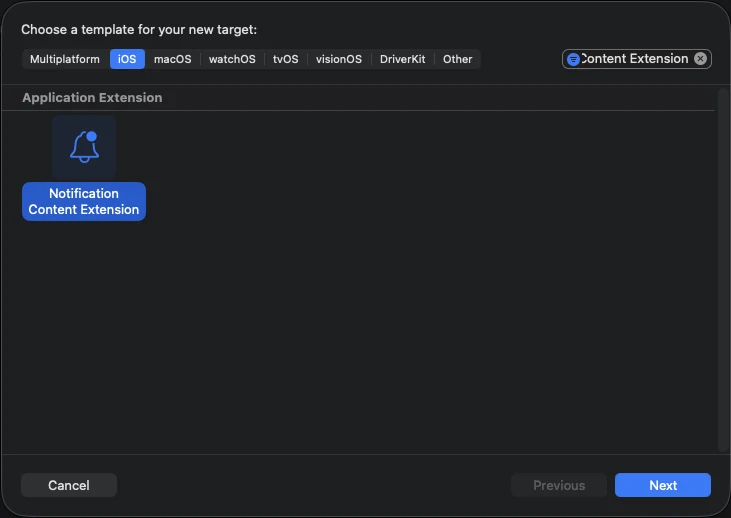
Anchor link toXcode में, File > New > Target… चुनें, Notification Content Extension चुनें, और इसे एक नाम दें (उदाहरण के लिए StoriesContentExtension)।
2. PushwooshNotificationUI मॉड्यूल जोड़ें
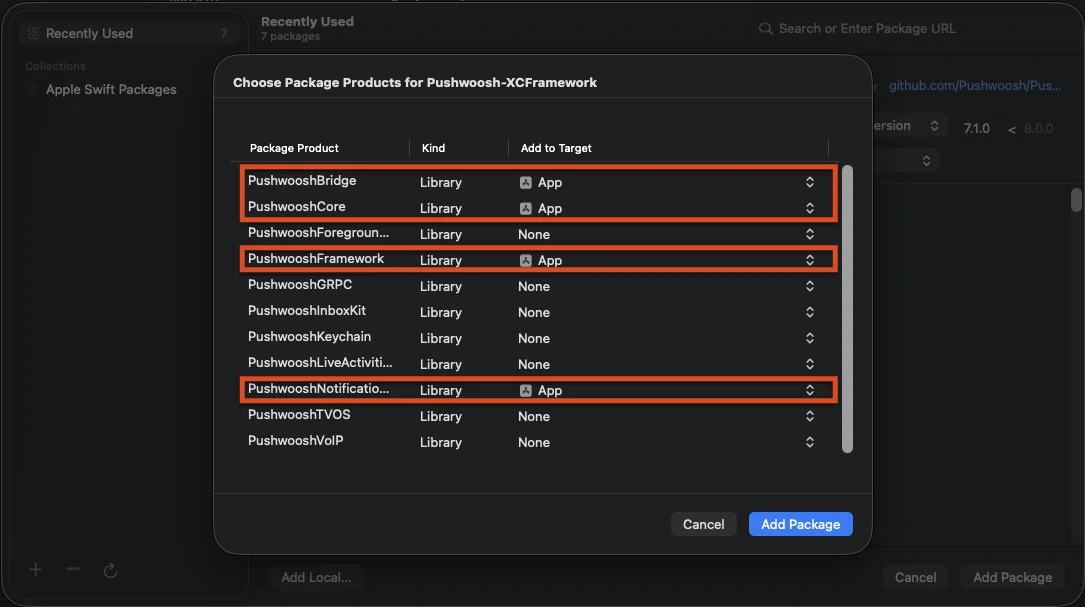
Anchor link toPushwooshNotificationUI एक स्टैंडअलोन मॉड्यूल है जिसकी कोई अन्य Pushwoosh निर्भरता नहीं है, इसलिए यह एक्सटेंशन प्रक्रिया के अंदर छोटा रहता है। इसे कंटेंट एक्सटेंशन टारगेट में जोड़ें (ऐप टारगेट में नहीं)।
Swift Package Manager
CocoaPods
target 'StoriesContentExtension' do  use_frameworks!
  pod 'PushwooshXCFramework/PushwooshNotificationUI'end
3. स्टोरीज़ व्यू कंट्रोलर को सबक्लास करें
Anchor link toजेनरेट किए गए NotificationViewController बॉडी को PushwooshStoriesViewController के सबक्लास से बदलें। यही पूरा इंटीग्रेशन है।
import PushwooshNotificationUI
class NotificationViewController: PushwooshStoriesViewController {}
4. एक्सटेंशन Info.plist को कॉन्फ़िगर करें
Anchor link toकंटेंट एक्सटेंशन के Info.plist में, NSExtension > NSExtensionAttributes के तहत निम्नलिखित कीज़ सेट करें:
<key>UNNotificationExtensionCategory</key><string>PW_STORIES</string><key>UNNotificationExtensionUserInteractionEnabled</key><true/><key>UNNotificationExtensionDefaultContentHidden</key><true/><key>UNNotificationExtensionInitialContentSizeRatio</key><real>1.5</real>5. एक पुश स्टोरीज़ नोटिफिकेशन भेजें
Anchor link toएक नोटिफिकेशन भेजें जिसकी श्रेणी PW_STORIES हो और जिसके कस्टम डेटा में pw_stories ब्लॉक हो। श्रेणी के लिए समर्पित ios_category_custom फ़ील्ड और स्टोरीज़ पेलोड के लिए data फ़ील्ड का उपयोग करें।
{ "request": { "application": "APPLICATION_CODE", "auth": "API_ACCESS_TOKEN", "notifications": [ { "send_date": "now", "content": "Tap to explore", "ios_title": "Push Stories", "ios_category_custom": "PW_STORIES", "ios_root_params": { "aps": { "mutable-content": 1 } }, "data": { "pw_stories": { "pages": [ { "image": "https://example.com/story-1.jpg", "duration": 5.0, "link": "yourapp://page1", "button_title": "Get started", "title": "Welcome", "subtitle": "Swipe to explore what's new" }, { "image": "https://example.com/story-2.jpg", "duration": 4.0, "link": "yourapp://page2", "button_title": "Learn more", "title": "Stay in the loop", "subtitle": "Updates, tips and more" } ] } } } ] }}प्रत्येक पेज निम्नलिखित फ़ील्ड्स का समर्थन करता है। केवल image आवश्यक है; बाकी वैकल्पिक हैं।
| फ़ील्ड | विवरण |
|---|---|
image | पेज के लिए फ़ुल-स्क्रीन इमेज का URL। |
duration | ऑटो-एडवांसिंग से पहले पेज स्क्रीन पर कितने सेकंड रहता है। डिफ़ॉल्ट रूप से लगभग 5 सेकंड। |
link | पेज बटन टैप करने पर खुलने वाला डीप लिंक। |
button_title | पेज बटन का शीर्षक। |
title | पेज पर ओवरले किया गया शीर्षक टेक्स्ट। |
subtitle | पेज पर ओवरले किया गया उपशीर्षक टेक्स्ट। |
कस्टमाइज़ेशन
Anchor link toअनुभव को समायोजित करने के लिए अपनी सबक्लास पर प्रॉपर्टीज़ को ओवरराइड करें। सभी में समझदार डिफ़ॉल्ट हैं।
import PushwooshNotificationUI
class NotificationViewController: PushwooshStoriesViewController { override var storyAspectRatio: CGFloat { 1.5 } // keep in sync with InitialContentSizeRatio override var hapticsEnabled: Bool { true } override var longPressToPauseEnabled: Bool { true } override var crossfadesBetweenPages: Bool { true } override var loopsAfterLastPage: Bool { false }}| प्रॉपर्टी | डिफ़ॉल्ट | विवरण |
|---|---|---|
storyAspectRatio | 1.5 | स्टोरीज़ क्षेत्र का आस्पेक्ट रेशियो (ऊंचाई ÷ चौड़ाई)। इसे UNNotificationExtensionInitialContentSizeRatio के साथ सिंक में रखें। |
hapticsEnabled | false | टैप-ज़ोन नेविगेशन पर एक हल्का टैक्टाइल टैप चलाएं। |
longPressToPauseEnabled | false | दबाकर रखने से वर्तमान पेज रुक जाता है; उठाने पर फिर से शुरू हो जाता है। |
crossfadesBetweenPages | false | पेजों के बीच हार्ड कट करने के बजाय क्रॉस-डिज़ॉल्व करें। जब रिड्यूस मोशन चालू होता है तो यह तत्काल परिवर्तन पर वापस आ जाता है। |
loopsAfterLastPage | false | अंतिम पेज समाप्त होने के बाद पहले पेज से पुनः आरंभ करें। |
appGroupIdentifier | nil | मीडिया प्री-कैश के लिए एक Notification Service Extension के साथ साझा किया गया App Group (नीचे देखें)। |
आप पेलोड के गुम या गलत प्रारूप में होने पर दिखाए जाने वाले फ़ॉलबैक को कस्टमाइज़ करने के लिए showDefaultContent(for:) को भी ओवरराइड कर सकते हैं (डिफ़ॉल्ट रूप से यह अलर्ट बॉडी दिखाता है)।
मीडिया प्री-कैश
Anchor link toएक तत्काल, ऑफ़लाइन पहले फ्रेम के लिए, अपने Content Extension और एक Notification Service Extension के बीच एक App Group साझा करें। स्टोरीज़ कंट्रोलर पर appGroupIdentifier को ओवरराइड करें, फिर अपने Service Extension के didReceive(_:withContentHandler:) से मीडिया को प्री-डाउनलोड करें:
import PushwooshNotificationUI
PushwooshStoriesMediaPrefetcher.prefetch(    userInfo: request.content.userInfo,    appGroupIdentifier: "group.com.example.app") {    contentHandler(bestAttemptContent)}
दोनों एक्सटेंशन पर समान ग्रुप आइडेंटिफ़ायर के साथ App Groups क्षमता को सक्षम करें, और mutable-content: 1 भेजें ताकि Service Extension चले। App Group के बिना, मीडिया को एक्सटेंशन की tmp डायरेक्टरी में कैश किया जाता है।
लाइफ़साइकल और एनालिटिक्स कॉलबैक
Anchor link toस्टोरी इवेंट्स — पेज इंप्रेशन, बटन टैप, समापन, और फ़ॉलबैक — का निरीक्षण करने के लिए storiesDelegate सेट करें। PushwooshStoriesDelegate के अनुरूप; हर मेथड वैकल्पिक है, इसलिए केवल उन्हीं को लागू करें जिनकी आपको आवश्यकता है।
import PushwooshNotificationUI
class NotificationViewController: PushwooshStoriesViewController, PushwooshStoriesDelegate {    override func viewDidLoad() {        super.viewDidLoad()        storiesDelegate = self    }
func storiesViewController(_ controller: PushwooshStoriesViewController, didStartWithPageCount pageCount: Int) {} func storiesViewController(_ controller: PushwooshStoriesViewController, didShow page: StoryPage, at index: Int) {} func storiesViewController(_ controller: PushwooshStoriesViewController, didTapActionFor page: StoryPage, at index: Int) {} func storiesViewControllerDidFinish(_ controller: PushwooshStoriesViewController) {} func storiesViewControllerDidShowFallback(_ controller: PushwooshStoriesViewController) {}}| कॉलबैक | यह कब फायर होता है |
|---|---|
didStartWithPageCount: | एक वैध स्टोरीज़ पेलोड पार्स किया गया था और प्लेबैक शुरू होने वाला है। |
didShow:at: | एक पेज दिखाई देने लगा। इसे प्रति-पेज इंप्रेशन के लिए उपयोग करें। |
didTapActionFor:at: | उपयोगकर्ता ने कॉल-टू-एक्शन बटन पर टैप किया। |
storiesViewControllerDidFinish: | अंतिम पेज का प्लेबैक समाप्त हो गया। |
storiesViewControllerDidShowFallback: | पेलोड गुम या गलत प्रारूप में था और फ़ॉलबैक कंटेंट दिखाया गया था। |
कॉलबैक को पास किया गया StoryPage पेज के imageURL, duration, link, buttonTitle, title, और subtitle को उजागर करता है।
नेविगेशन
Anchor link toअगले पेज पर जाने के लिए स्क्रीन के दाएं तीसरे हिस्से पर टैप करें और वापस जाने के लिए बाएं तीसरे हिस्से पर। हॉरिजॉन्टल स्वाइप का जानबूझकर उपयोग नहीं किया जाता है, क्योंकि यह सिस्टम के नोटिफिकेशन-डिस्मिस जेस्चर से टकराता है। पेज बटन पर टैप करने से उसका डीप लिंक खुल जाता है और नोटिफिकेशन खारिज हो जाता है।