मिक्सपैनल: इवेंट ट्रैक करें
मिक्सपैनल: इवेंट ट्रैक करें का उपयोग जर्नी स्टेप से मिक्सपैनल प्रोजेक्ट में एक इवेंट भेजने के लिए करें, इंपोर्ट API के माध्यम से, आपके द्वारा सूचीबद्ध प्रॉपर्टीज़ के साथ। यह पॉइंट अपने स्वयं के मिक्सपैनल सर्विस अकाउंट के साथ प्रमाणित होता है। यह सेटिंग्स में कहीं और कॉन्फ़िगर किए गए किसी भी अकाउंट-स्तरीय मिक्सपैनल इंटीग्रेशन का उपयोग नहीं करता है।
Pushwoosh आपके लिए यात्री से मिक्सपैनल का $insert_id सेट करता है। इसका मतलब है कि एक ही यात्री इस सटीक पॉइंट से दो बार गुजरता है, उदाहरण के लिए एक लूपिंग जर्नी के दूसरे लैप पर, मिक्सपैनल में एक डी-डुप्लीकेटेड इवेंट के रूप में लैंड होता है, दो के रूप में नहीं। डी-डुप्लीकेशन को इंसर्ट आईडी और इवेंट नाम के साथ स्कोप किया जाता है, इसलिए कैनवास पर हर ट्रैक इवेंट पॉइंट को अपना इवेंट नाम दें: दो अलग-अलग पॉइंट पर एक का पुन: उपयोग करने से एक यात्री का इवेंट दूसरे के डुप्लीकेट के रूप में ड्रॉप हो सकता है।
विशिष्ट उपयोग:
- जर्नी माइलस्टोन लॉग करें: जब कोई यात्री किसी स्टेप पर पहुँचता है तो एक इवेंट भेजें, ताकि यह मिक्सपैनल फ़नल में आपके उत्पाद इवेंट के बगल में दिखाई दे।
- एक क्रॉस-चैनल फ़नल फ़ीड करें: मिक्सपैनल में एक फ़नल व्यू के लिए इन-ऐप इवेंट के साथ पुश, ईमेल या SMS माइलस्टोन लॉग करें।
- एक लूपिंग जर्नी को सुरक्षित रूप से ट्रैक करें: अंतर्निहित डी-डुप्लीकेशन का मतलब है कि एक यात्री जो इस स्टेप के माध्यम से वापस लूप करता है, वह अभी भी एक इवेंट के रूप में लैंड होता है, जब तक कि प्रत्येक ट्रैक इवेंट पॉइंट का अपना इवेंट नाम हो।
पॉइंट को कॉन्फ़िगर करें
Anchor link to- इंटीग्रेशन सेक्शन से मिक्सपैनल: इवेंट ट्रैक करें को कैनवास पर खींचें।
- पॉइंट पर डबल-क्लिक करें और एक स्टेप का नाम दर्ज करें।
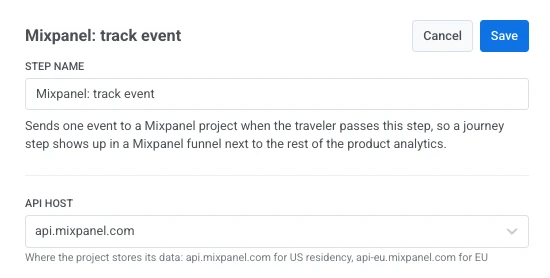
- API होस्ट में, उस क्षेत्र को चुनें जिसमें मिक्सपैनल प्रोजेक्ट अपना डेटा संग्रहीत करता है: यूएस प्रोजेक्ट के लिए
api.mixpanel.com, ईयू प्रोजेक्ट के लिएapi-eu.mixpanel.com।
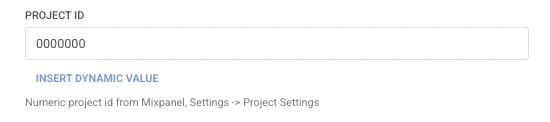
- प्रोजेक्ट आईडी में, मिक्सपैनल से न्यूमेरिक प्रोजेक्ट आईडी दर्ज करें: सेटिंग्स > प्रोजेक्ट सेटिंग्स।
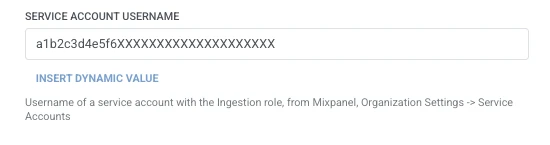
- सर्विस अकाउंट यूज़रनेम में, इंजेशन भूमिका वाले मिक्सपैनल सर्विस अकाउंट का यूज़रनेम दर्ज करें, ऑर्गनाइज़ेशन सेटिंग्स > सर्विस अकाउंट्स से।
- सर्विस अकाउंट सीक्रेट में, उस सर्विस अकाउंट का सीक्रेट दर्ज करें। Pushwoosh आपके लिए यूज़रनेम और सीक्रेट को अनुरोध के बेसिक ऑथराइज़ेशन हेडर में मिलाता है। सीक्रेट को मास्क्ड रूप में संग्रहीत किया जाता है, जैसे एक वेबहुक सीक्रेट हेडर, और मिक्सपैनल इसे केवल एक बार दिखाता है, जब सर्विस अकाउंट बनाया जाता है। इसे तब कॉपी करें।

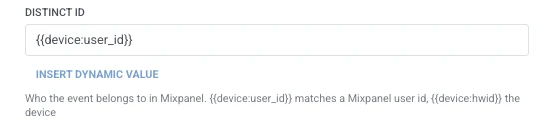
- डिस्टिंक्ट आईडी में, दर्ज करें कि मिक्सपैनल में इवेंट किसका है। डिफ़ॉल्ट रूप से
{{device:user_id}}; डिवाइस द्वारा इवेंट को की करने के लिए इसके बजाय{{device:hwid}}का उपयोग करें।
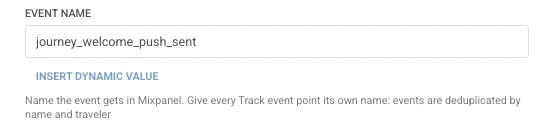
- इवेंट का नाम में, वह इवेंट नाम दर्ज करें जिसे मिक्सपैनल को दिखाना चाहिए, उदाहरण के लिए
journey_welcome_push_sent।
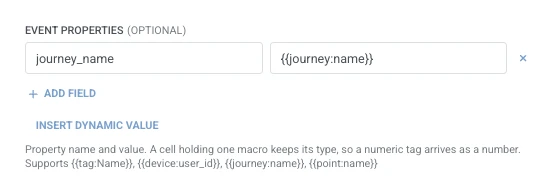
- इवेंट प्रॉपर्टीज़ में, इवेंट के साथ भेजने के लिए प्रति प्रॉपर्टी एक पंक्ति जोड़ें। प्रॉपर्टी का नाम और मान दर्ज करें। नाम गैर-रिक्त और अद्वितीय होने चाहिए। एक मान जो एक एकल यात्री मैक्रो है, मिक्सपैनल में अपना प्रकार रखता है (
{{tag:Age}}एक संख्या के रूप में आता है,{{tag:Trial Ends}}एक तारीख के रूप में)। कोई भी अन्य टेक्स्ट एक स्ट्रिंग के रूप में भेजा जाता है। मैक्रोज़ वेबहूक बॉडी के समान सिंटैक्स का उपयोग करते हैं। या इस जर्नी में पहले के स्टेप द्वारा उत्पादित एक एट्रिब्यूट चुनने के लिए डायनामिक मान डालें पर क्लिक करें, उदाहरण के लिए एक LLM प्रतिक्रिया या एक मैप किया गया वेबहुक मान।
- सहेजें पर क्लिक करें।
प्रतिक्रिया
Anchor link toयात्री उस स्टेप पर आगे बढ़ता है जिसे आप कैनवास पर आगे कनेक्ट करते हैं।
स्टेप चलने के बाद एट्रिब्यूट्स
Anchor link toयह पॉइंट किसी भी प्रतिक्रिया डेटा को जर्नी में वापस मैप नहीं करता है।
विफलताएं और अप्रत्याशित प्रतिक्रियाएं
Anchor link toएक असफल अनुरोध यात्री को जर्नी से हटा देता है। त्रुटियाँ और असफल अनुरोध देखें।
उदाहरण परिदृश्य: मिक्सपैनल फ़नल में जर्नी सेंड्स को लॉग करना
Anchor link toएक टीम चाहती है कि एक वेलकम पुश सेंड उनके अन्य उत्पाद इवेंट के साथ उसी मिक्सपैनल फ़नल में दिखाई दे।
- वेलकम पुश भेजने वाले स्टेप के ठीक बाद मिक्सपैनल: इवेंट ट्रैक करें जोड़ें। डिस्टिंक्ट आईडी को
{{device:user_id}}और इवेंट का नाम कोjourney_welcome_push_sentपर सेट करें। इवेंट प्रॉपर्टीज़ में,journey_nameको{{journey:name}}पर सेट करें। - सहेजें पर क्लिक करें।
एक बार यह चलने के बाद, सेंड मिक्सपैनल में अन्य उत्पाद इवेंट के बगल में दिखाई देता है, इसलिए फ़नल पूरी तस्वीर को दर्शाता है बजाय एक गैप के जहां जर्नी स्टेप रिपोर्ट नहीं करता है।