Google Sheets: पंक्ति जोड़ें
Google Sheets: पंक्ति जोड़ें का उपयोग Google स्प्रेडशीट में एक पंक्ति जोड़ने के लिए करें जब कोई ट्रैवलर इस स्टेप पर पहुंचता है। ट्रैवलर के मानों को सेलों में मैप करें ताकि जर्नी चलने पर शीट अपडेट हो जाए, और आपको खुद से वेबहूक अनुरोध बनाने की आवश्यकता न हो।
विशिष्ट उपयोग:
- एक सरल लॉग रखें: हर बार जब कोई किसी स्टेप पर पहुंचता है, तो उनकी आईडी और कुछ टैग के साथ एक नई पंक्ति जोड़ें। टीम यह देखने के लिए शीट खोलती है कि कौन-कौन इससे गुजरा।
- दूसरी टीम को लीड्स पास करें: नाम, ईमेल और अन्य टैग एक साझा शीट में लिखें ताकि बिक्री या सहायता टीम फॉलो-अप कर सके।
- डेटाबेस के बिना पूर्णता को ट्रैक करें: जब एक स्प्रेडशीट पर्याप्त हो, तो एक लाइव सूची बनाएं कि किसने एक ब्रांच या कैंपेन पूरा किया है।
शुरू करने से पहले
Anchor link toसेटिंग्स > तृतीय-पक्ष एकीकरण > Google के तहत एक Google खाता कनेक्ट करें। Google कनेक्ट करने के बाद, एकीकरण इंस्टॉल करें ताकि यह पॉइंट जर्नी बिल्डर में दिखाई दे।
पॉइंट को कॉन्फ़िगर करें
Anchor link to- बाएं पैनल के एकीकरण अनुभाग से Google Sheets: पंक्ति जोड़ें को कैनवास पर खींचें।
- पॉइंट पर डबल-क्लिक करें और एक स्टेप का नाम दर्ज करें।
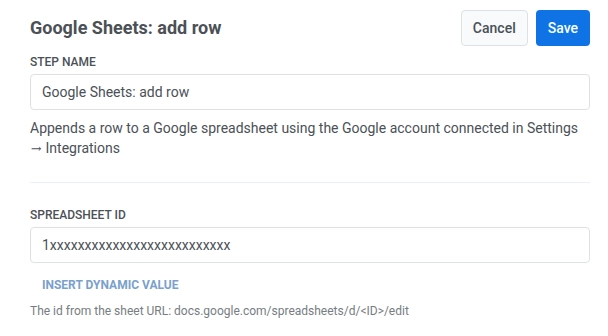
- स्प्रेडशीट आईडी में, शीट के URL से आईडी दर्ज करें:
docs.google.com/spreadsheets/d/<ID>/edit।
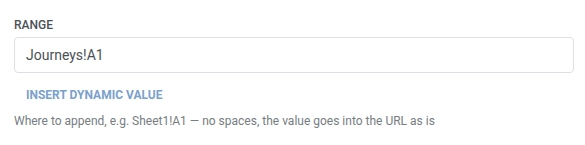
- रेंज में, दर्ज करें कि पंक्ति कहाँ जोड़नी है, उदाहरण के लिए
Sheet1!A1। स्पेस शामिल न करें। Pushwoosh अनुरोध में मान का ज्यों का त्यों उपयोग करता है। डिफ़ॉल्ट रूप सेSheet1!A1होता है।
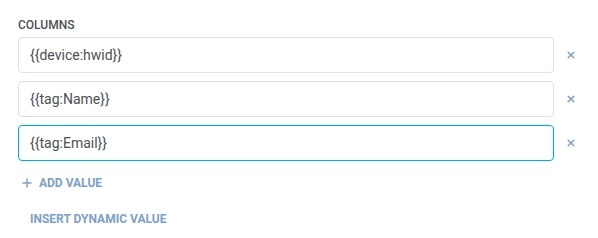
- कॉलम में, दर्ज करें कि नई स्प्रेडशीट पंक्ति के प्रत्येक सेल में बाएं से दाएं क्या लिखना है। पहला मान कॉलम A में, दूसरा B में, और इसी तरह आगे जाएगा। प्रत्येक अगले सेल के लिए + मान जोड़ें पर क्लिक करें। निश्चित टेक्स्ट या ट्रैवलर मैक्रो का उपयोग करें जैसे
{{device:hwid}},{{tag:Name}}, या{{tag:Email}}(वेबहूक बॉडी के समान मैक्रो)। या इस जर्नी में पहले के किसी स्टेप द्वारा उत्पादित एक एट्रिब्यूट चुनने के लिए डायनामिक मान डालें पर क्लिक करें, उदाहरण के लिए एक एलएलएम प्रतिक्रिया या एक मैप किया गया वेबहूक मान। कम से कम एक गैर-खाली मान रखें।
- सहेजें पर क्लिक करें।
प्रतिक्रिया
Anchor link toट्रैवलर उस स्टेप पर आगे बढ़ता है जिसे आप कैनवास पर आगे कनेक्ट करते हैं।
स्टेप चलने के बाद के एट्रिब्यूट्स
Anchor link toयह पॉइंट किसी भी प्रतिक्रिया डेटा को वापस जर्नी में मैप नहीं करता है।
विफलताएं और अप्रत्याशित प्रतिक्रियाएं
Anchor link toएक विफल अनुरोध ट्रैवलर को जर्नी से हटा देता है। त्रुटियाँ और विफल अनुरोध देखें।
उदाहरण परिदृश्य: एक ऑप्स स्प्रेडशीट के लिए जर्नी गतिविधि लॉग करना
Anchor link toएक टीम हर उच्च-मूल्य वाले ऑर्डर का एक हल्का लॉग चाहती है जिसे एक जर्नी प्रोसेस करती है, बिना रिपोर्टिंग पाइपलाइन बनाए।
- एक ट्रिगर-आधारित एंट्री तत्व जोड़ें और इसे
HighValueOrderPlacedइवेंट पर फायर करने के लिए सेट करें। - इसके ठीक बाद Google Sheets: पंक्ति जोड़ें जोड़ें। स्प्रेडशीट आईडी को ऑप्स शीट की आईडी पर और रेंज को
Sheet1!A1पर सेट करें। कॉलम में, ट्रैवलर की डिवाइस आईडी, नाम और ऑर्डर मान जोड़ें:{{device:hwid}},{{tag:Name}},{{tag:Order Value}}। - सहेजें पर क्लिक करें।
एक बार यह चलने के बाद, हर उच्च-मूल्य वाला ऑर्डर शीट में एक पंक्ति जोड़ता है जैसे ही यह होता है, जो टीम के लिए Pushwoosh खोले बिना स्कैन करने के लिए तैयार होता है।