AppsFlyer: ईवेंट भेजें
AppsFlyer: send event पॉइंट टेम्पलेट प्रत्येक यात्री के लिए AppsFlyer को एक सर्वर-टू-सर्वर इन-ऐप ईवेंट भेजता है जो इस चरण से गुजरता है। ईवेंट में इंस्टॉल का एट्रिब्यूशन होता है, इसलिए यात्रा चरण AppsFlyer रिपोर्ट में दिखाई देता है और इसे विज्ञापन नेटवर्क को एक कन्वर्ज़न के रूप में सौंपा जा सकता है।
पॉइंट को कॉन्फ़िगर करें
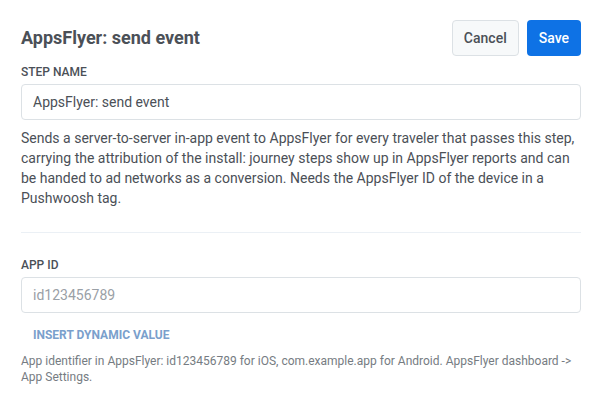
Anchor link to- Integrations सेक्शन से AppsFlyer: send event को कैनवास पर खींचें।
- पॉइंट पर डबल-क्लिक करें और एक Step Name दर्ज करें।
- App ID में, AppsFlyer से ऐप आइडेंटिफ़ायर दर्ज करें: App Settings, iOS के लिए
id123456789या Android के लिएcom.example.app।
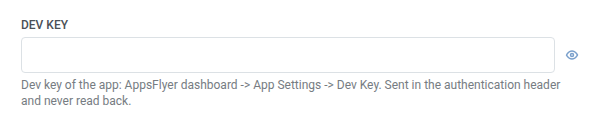
- Dev key में, App Settings > Dev Key से ऐप की dev key दर्ज करें। यह एक वेबहुक सीक्रेट हेडर की तरह मास्क्ड स्टोर होता है — Pushwoosh इसे एक बार सहेजने के बाद कभी भी प्रदर्शित या वापस नहीं करता है, और यह कभी भी पॉइंट के संग्रहीत अनुरोध में या Calls log में दिखाई नहीं देता है।
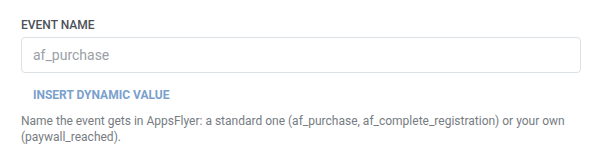
- Event name में, वह नाम दर्ज करें जो ईवेंट को AppsFlyer में मिलना चाहिए, एक मानक नाम (
af_purchase,af_complete_registration) या आपका अपना (paywall_reached)।
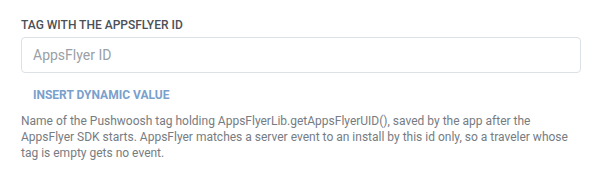
- Tag with the AppsFlyer ID में, उस Pushwoosh टैग का नाम टाइप करें जहाँ ऐप AppsFlyer SDK शुरू होने के बाद AppsFlyer ID को सहेजता है (ऊपर डेवलपर नोट देखें)। टैग का नाम सादे टेक्स्ट के रूप में दर्ज करें। पॉइंट टेम्प्लेट में वह टैग पिकर नहीं होता है जिसका उपयोग Push या Email करते हैं। AppsFlyer केवल इस ID द्वारा एक सर्वर ईवेंट को एक इंस्टॉल से मिलाता है, इसलिए टैग का नाम बिल्कुल सही रखें।
- वैकल्पिक। Customer user ID में, Pushwoosh यूज़र आईडी भेजने के लिए डिफ़ॉल्ट
{{device:user_id}}रखें, या AppsFlyer में मिलान करने के लिए अपना स्वयं का आइडेंटिफ़ायर दर्ज करें।
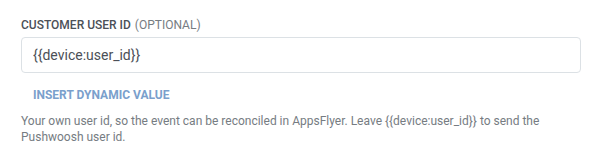
- वैकल्पिक। Currency में, डिफ़ॉल्ट
USDरखें या कोई अन्य ISO 4217 कोड दर्ज करें। इसेeventCurrencyके रूप में भेजा जाता है।
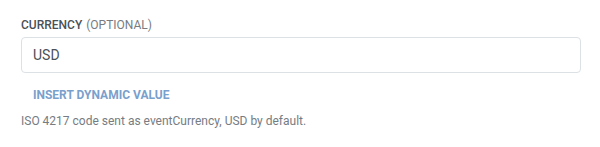
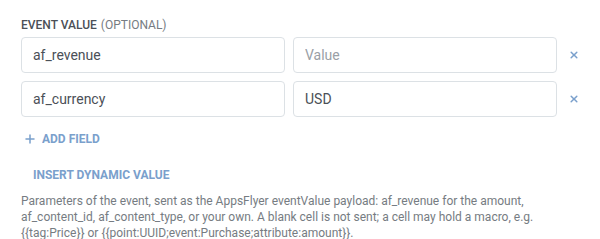
- वैकल्पिक। Event value में, AppsFlyer के
eventValueपेलोड के रूप में भेजने के लिए पैरामीटर जोड़ें — की/वैल्यू फ़ील्ड्स देखें। तालिका एकaf_revenueऔर एकaf_currencyपंक्ति के साथ पहले से भरी हुई शुरू होती है; जिसकी आपको आवश्यकता नहीं है उसे साफ़ करें। राशि के लिएaf_revenueका उपयोग करें, और अपने स्वयं के लिएaf_content_idयाaf_content_typeका उपयोग करें। कोई अलग संख्यात्मक राजस्व फ़ील्ड नहीं है:af_revenueइस तालिका में एक स्ट्रिंग सेल है, किसी भी अन्य पैरामीटर के समान, और यह{{tag:Price}}जैसा मैक्रो लेता है। एक खाली सेल नहीं भेजा जाता है।
- Save पर क्लिक करें।
जब कोई अनुरोध नहीं भेजा जाता है
Anchor link toPushwoosh अनुरोध को छोड़ देता है (और यात्री अगले चरण पर जारी रहता है) जब Tag with the AppsFlyer ID में टैग उस यात्री के लिए खाली होता है। यह एक विफल अनुरोध नहीं है। AppsFlyer के पास ईवेंट से मिलान करने के लिए कुछ भी नहीं होगा।
एक विफल अनुरोध (जिसमें AppsFlyer ID था) इसके बजाय यात्री को यात्रा से हटा देता है। त्रुटियाँ और विफल अनुरोध देखें।
उदाहरण परिदृश्य: AppsFlyer को एक पूर्ण खरीद की रिपोर्ट करना
Anchor link toएक ऐप चाहता है कि यात्रा में बाद में की गई खरीदारी AppsFlyer में इंस्टॉल का एट्रिब्यूशन ले जाए, ताकि इसे विज्ञापन नेटवर्क को एक कन्वर्ज़न के रूप में सौंपा जा सके। यह मानता है कि डेवलपमेंट टीम ने पहले ही AppsFlyer ID को एक Pushwoosh टैग में सहेज लिया है, जैसा कि ऊपर वर्णित है।
- AppsFlyer: send event को उस चरण के ठीक बाद जोड़ें जो खरीद की पुष्टि करता है। Event name को
af_purchaseपर सेट करें। Event value में,af_revenueको{{tag:LastPurchaseAmount}}पर सेट करें। - Save पर क्लिक करें।
एक बार यह चलने के बाद, खरीद AppsFlyer की रिपोर्ट में इंस्टॉल के एट्रिब्यूशन के साथ दिखाई देती है, जो विज्ञापन नेटवर्क को एक कन्वर्ज़न के रूप में सौंपने के लिए तैयार है।