Viber
Customer Journey में Viber संदेश भेजने के लिए Viber एलिमेंट का उपयोग करें। Viber को कैनवास पर खींचें, फिर नीचे कंटेंट और डिलीवरी सेटिंग्स चुनें।
संदेश कंटेंट चुनें
Anchor link toचुनें कि संदेश कंटेंट को कैसे परिभाषित किया जाए।
Template
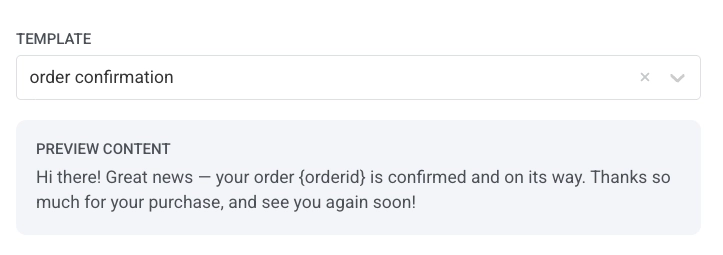
Anchor link toएक स्वीकृत Viber संदेश टेम्प्लेट चुनें। Viber टेम्प्लेट सीधे Rakuten Viber द्वारा बनाए और स्वीकृत किए जाते हैं, Pushwoosh में नहीं। स्वीकृत टेम्प्लेट के साथ भेजे गए संदेशों को कम Transactional दर पर बिल किया जाता है।
टेम्प्लेट सूची में, एक स्वीकृत टेम्प्लेट संलग्न रखने के लिए Transactional template चुनें, या इसके टेक्स्ट, इमेज, और बटन को संपादन योग्य Freeform कंटेंट के रूप में लोड करने के लिए Promo template चुनें। प्रोमो टेम्प्लेट लोड होने के बाद, एक इमेज और एक बटन जोड़ें के तहत इमेज और बटन सेट करें।
Freeform
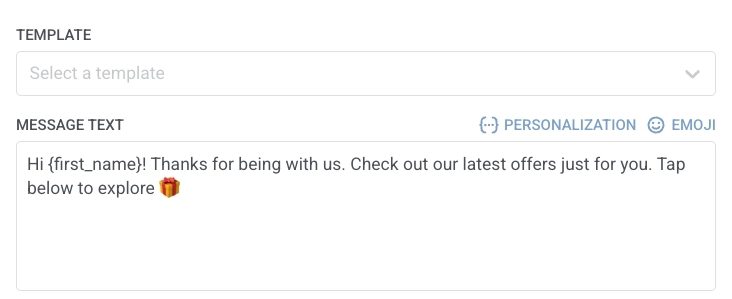
Anchor link toसादा टेक्स्ट कंटेंट सीधे संदेश फ़ील्ड में दर्ज करें। Freeform संदेशों को टेम्प्लेट स्वीकृति की आवश्यकता नहीं होती, लेकिन Promotional दर पर बिल किया जाता है।
ट्रांजैक्शनल और OTP संदेशों के लिए, Rakuten Viber को एक स्वीकृत टेम्प्लेट की आवश्यकता होती है। इन संदेशों के लिए भेजे गए Freeform कंटेंट को Promotional दर पर बिल किया जाता है।
एक इमेज और एक बटन जोड़ें
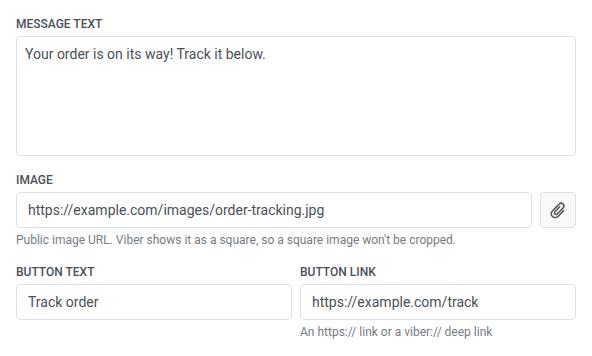
Anchor link toFreeform कंटेंट पर (शुरू से टाइप किया गया या प्रोमो टेम्प्लेट से लोड किया गया), यदि आपको उनकी आवश्यकता है तो एक इमेज और एक बटन जोड़ें:
- Image:
http://याhttps://से शुरू होने वाला एक सार्वजनिक इमेज URL दर्ज करें, या अपनी मीडिया लाइब्रेरी से JPG या PNG चुनने के लिए फ़ील्ड के बगल में अटैचमेंट आइकन पर क्लिक करें (10 MB तक, लाइब्रेरी की अपनी सीमा)। Viber इमेज को एक वर्ग के रूप में दिखाता है, इसलिए एक वर्गाकार इमेज को क्रॉप नहीं किया जाएगा। - Button text: 30 वर्णों तक दर्ज करें। इसके लिए संदेश टेक्स्ट और एक बटन लिंक की आवश्यकता होती है। एक बटन अकेला दिखाई नहीं दे सकता।
- Button link: एक
http://याhttps://URL, एकviber://डीप लिंक, या एक Omni टोकन (एक प्लेसहोल्डर जिसे आपका Viber प्रदाता भेजते समय हल करता है, उदाहरण के लिए{lp-100}) दर्ज करें।
इवेंट एट्रिब्यूट के साथ संदेश को पर्सनलाइज़ करें
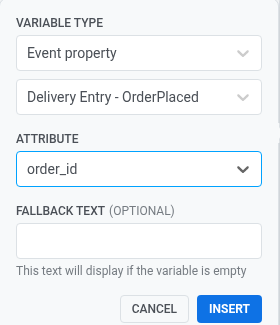
Anchor link toजब आपके Template में प्लेसहोल्डर शामिल हों (उदाहरण के लिए एक ऑर्डर ID या एक सत्यापन कोड), तो प्रत्येक को मैप करें ताकि हर प्राप्तकर्ता अपने खुद के मान देखे।
वेरिएबल पिकर खोलने के लिए एक प्लेसहोल्डर पर क्लिक करें। Variable type को Event property पर सेट करें, इवेंट चुनें, फिर वह Attribute चुनें जो मान प्रदान करता है। वैकल्पिक रूप से मान गायब होने पर के लिए Fallback text जोड़ें। आप API-आधारित journey एंट्री पर एट्रिब्यूट से भी प्लेसहोल्डर मैप कर सकते हैं। अधिक जानें
संदेश प्रकार सेट करें
Anchor link toMarketing message या Transactional message चुनें। संदेश प्रकार डिलीवरी नियम सेट करता है। यह Template या Freeform से Viber दर नहीं बदलता।
- Marketing message: कैंपेन और प्रोमो के लिए उपयोग करें। फ्रीक्वेंसी कैपिंग लागू होती है। कंट्रोल ग्रुप में उपयोगकर्ताओं को संदेश प्राप्त नहीं होता।
- Transactional message: ऑपरेशनल या सर्विस संदेशों के लिए उपयोग करें। फ्रीक्वेंसी कैपिंग लागू नहीं होती। कंट्रोल ग्रुप में उपयोगकर्ता फिर भी संदेश प्राप्त करते हैं।
कोई भी संदेश प्रकार पहले से चुना नहीं होता है। जब तक आप कोई एक प्रकार नहीं चुनते, एलिमेंट पर संदेश प्रकार चयनित नहीं है चेतावनी दिखाई देती है। यदि एलिमेंट तक केवल ऑडियंस-आधारित एंट्री से ही पहुँचा जाता है, तो Marketing message एक डिफ़ॉल्ट बैज के साथ दिखाया जाता है। यदि संदेश सर्विस संदेश है, तो Transactional message चुनें।
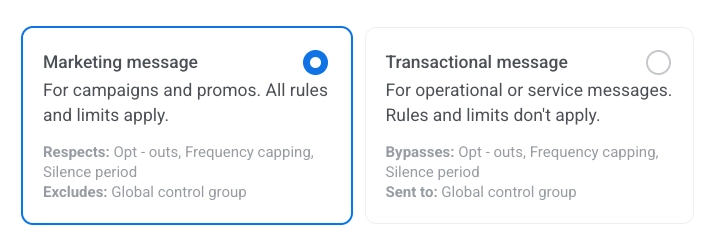
जानें कि संदेश प्रकार डिलीवरी को कैसे प्रभावित करता है।
फ्रीक्वेंसी कैपिंग सेट करें
Anchor link toउपयोगकर्ताओं को Viber संदेश मिलने की आवृत्ति सीमित करने के लिए Frequency capping का उपयोग करें, जिससे अत्यधिक मैसेजिंग को रोका जा सके और churn कम हो। निम्नलिखित विकल्पों में से एक चुनें:
-
Use Global frequency capping settings
अपनी Global frequency capping सेटिंग्स में कॉन्फ़िगर की गई प्रोजेक्ट-व्यापी सीमाएं लागू करें।
उदाहरण के लिए, यदि ग्लोबल सीमा 9 दिनों में 3 Viber संदेशों पर सेट है, तो इस सीमा से अधिक अतिरिक्त संदेशों को छोड़ दिया जाएगा।
-
Ignore Global frequency capping
उपयोगकर्ता को यह संदेश प्राप्त होगा भले ही उसने चैनल की संदेश सीमाओं को पार कर लिया हो। अत्यधिक मैसेजिंग से बचने के लिए इस विकल्प का सावधानी से उपयोग करें।
-
Use custom frequency capping
इस संदेश के लिए एक कस्टम संदेश सीमा सेट करें। यदि उपयोगकर्ता इस कस्टम सीमा को पार करता है, तो संदेश छोड़ दिया जाएगा, और उपयोगकर्ता अगले चरण पर आगे बढ़ेगा।
इस कस्टम सीमा के लिए एक गिनती मोड चुनें: रोलिंग विंडो या कैलेंडर दिन।
डिलीवरी स्टेटस के अनुसार फ्लो विभाजित करें
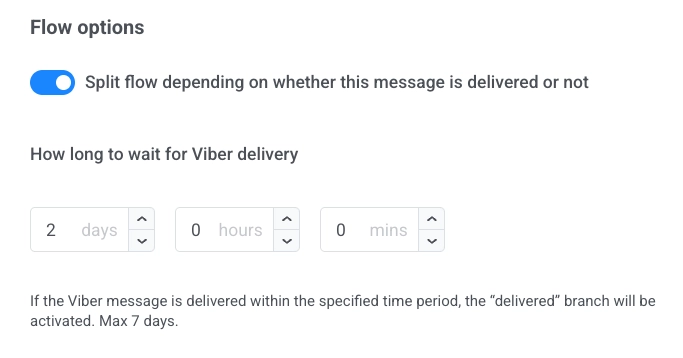
Anchor link toViber डिलीवरी स्टेटस के अनुसार journey को विभाजित करने के लिए:
- Split flow depending on whether this message is delivered or not सक्षम करें।
- डिलीवरी के लिए कितना इंतजार करना है (अधिकतम 7 दिन) सेट करें।
यदि प्रतीक्षा अवधि के भीतर संदेश डिलीवर हो जाता है, तो उपयोगकर्ता delivered शाखा का अनुसरण करते हैं। अन्यथा, वे not delivered शाखा का अनुसरण करते हैं।
वाउचर का उपयोग करें
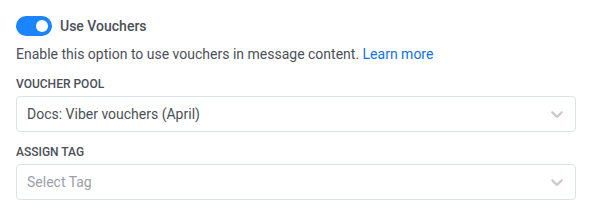
Anchor link toViber संदेश में पूल से एक अद्वितीय वाउचर कोड शामिल करने के लिए:
- सुनिश्चित करें कि आपके Viber संदेश कंटेंट में
{{voucher}}प्लेसहोल्डर शामिल है। - Viber संदेश चरण में, Use Vouchers को ON पर टॉगल करें।
- उपयुक्त Voucher Pool चुनें जिसमें आपके वाउचर कोड हैं। सुनिश्चित करें कि पूल पहले से बनाया गया है।
- (वैकल्पिक) वाउचर प्राप्त करने वाले उपयोगकर्ताओं पर एक टैग लागू करने के लिए Assign Tag फ़ील्ड का उपयोग करें। यह सेगमेंटेशन और रिपोर्टिंग में मदद करता है।
Viber एलिमेंट को कॉन्फ़िगर करने के बाद, अपनी सेटिंग्स लागू करने के लिए Save पर क्लिक करें।