Push notification settings
यह सामग्री अभी तक आपकी भाषा में उपलब्ध नहीं है।
Notification settings in Push presets allow you to customize how users receive and interact with notifications. You can define badge count, sound preferences, and delivery priority to align notifications with your app’s requirements.
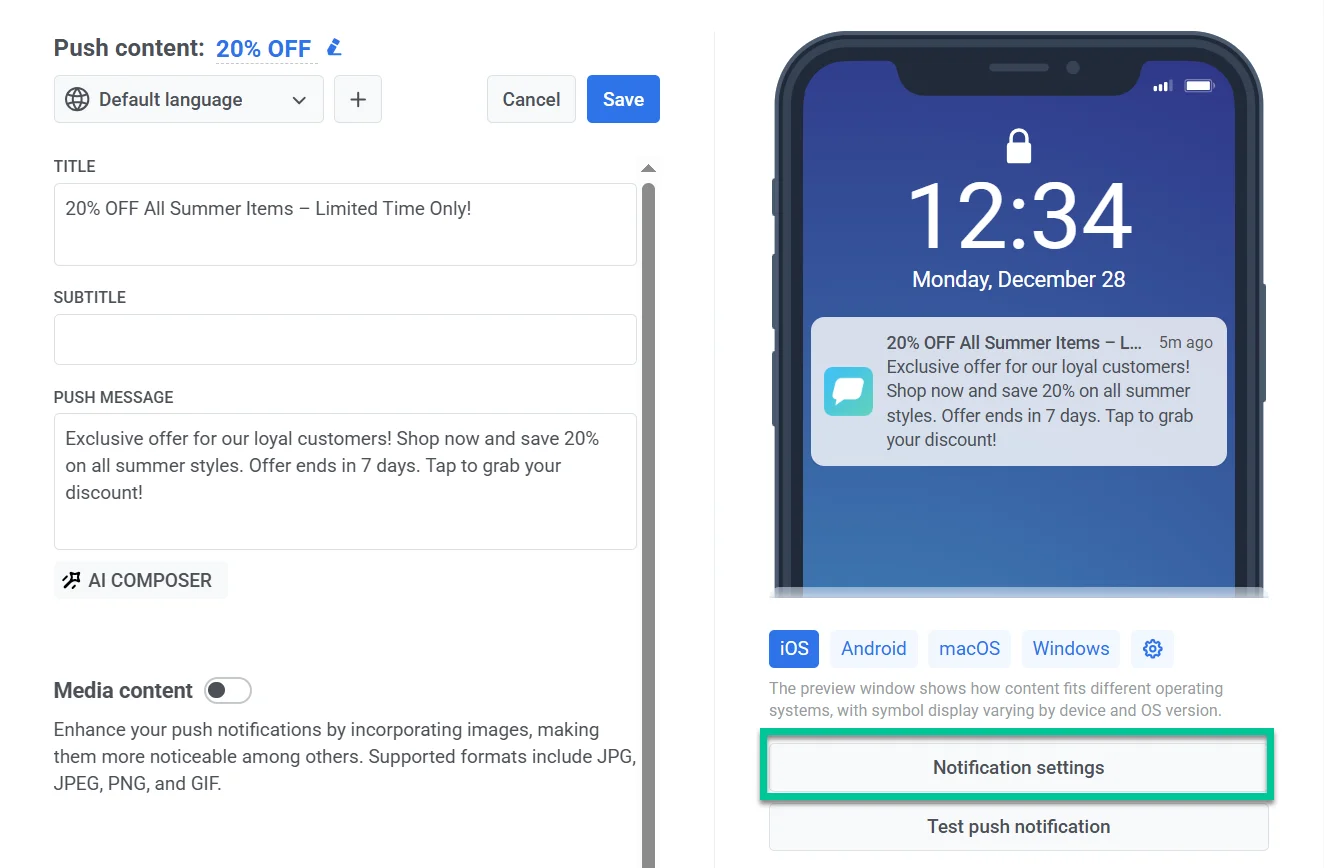
To configure these settings, click Notification settings under the push preview.
Set badge count
Anchor link toThe badge count is the number displayed on an app icon, typically indicating unread messages or notifications. Using badge count in Push Presets ensures that notifications consistently update the app icon badge, helping users keep track of unread messages, tasks, or alerts.
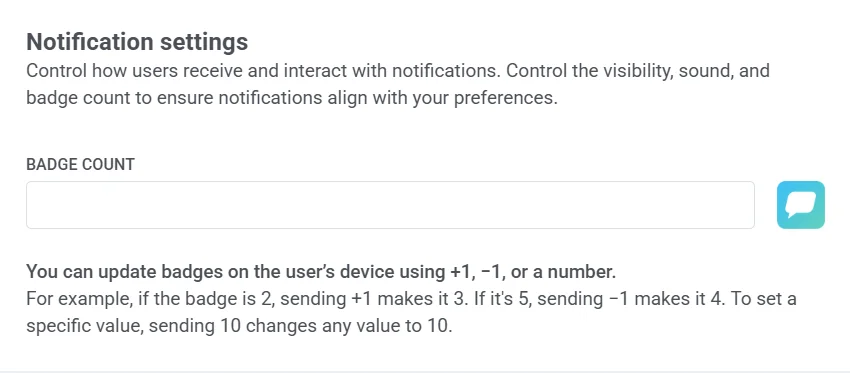
Increase (+1): Adds 1 to the current badge count.
Example: A push notification for a new message increases the badge count from 2 to 3, indicating 3 unread messages.
Decrease (-1): Subtracts 1 from the current badge count.
Example: A push notification confirms a completed task, reducing the badge count from 5 to 4, showing 4 pending tasks.
Set a specific number: Assigns an exact badge count.
Example: A push notification from a news app sets the badge count to 10 when 10 unread articles are available.
Platform-specific settings
Anchor link toYou can configure notification settings separately for iOS, Android, and Huawei platforms by switching between the respective tabs.
iOS notification settings
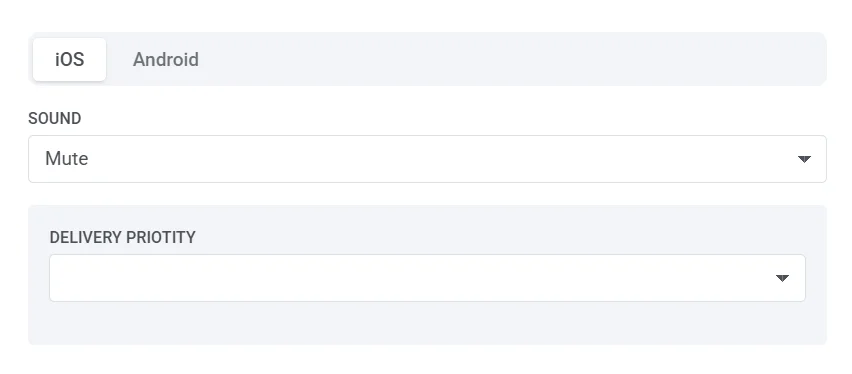
Anchor link toOpen the iOS tab to set these options:
Sound
Anchor link toSelect a notification sound from the dropdown menu.
- Default: Plays the system’s default notification sound.
- Mute: Disables sound for this notification.
- bubble.wav: Plays a short bubble sound.
Delivery priority
Anchor link toDelivery priority determines how push notifications are handled on the user’s device, ensuring important messages are delivered appropriately based on urgency. You can select from the following priority levels:
- Critical: Delivered immediately, even when Do Not Disturb is enabled. These notifications light up the screen, bypass the mute switch, and play a sound. Requires Apple-approved entitlement and should be used for emergency alerts (e.g., severe weather, safety warnings).
- Active: Standard push notifications that appear instantly, light up the screen, and play sounds or vibrations. Blocked by Focus mode, meaning users won’t receive them if their device settings restrict notifications. Best for chat messages or important updates.
- Time-sensitive: Delivered immediately even if Focus mode is enabled, with a yellow “Time-Sensitive” banner. Users can disable this interruption level. Ideal for urgent alerts like account security warnings or package delivery updates.
- Passive: Added to the notification center without lighting up the screen or playing a sound. These notifications do not bypass Focus mode and are best for non-urgent updates, recommendations, or promotional offers.
Root params
Anchor link toRoot params are raw key-value pairs merged directly into the iOS payload, for advanced settings the preset UI doesn’t expose. Add them as JSON, for example {"key": "value"}.
Android notification settings
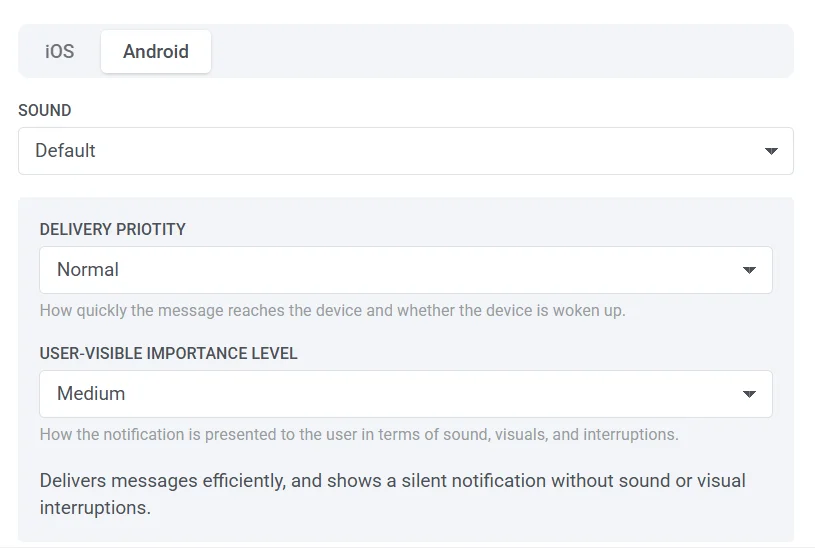
Anchor link toOpen the Android tab to set these options:
Sound settings
Anchor link toChoose how notifications play sounds when received:
- Default: Uses the system’s default notification sound.
- Mute: Delivers the notification silently without sound.
Delivery priority
Anchor link toDelivery priority determines how push notifications are handled on the user’s device, ensuring important messages are delivered appropriately based on urgency. You can select from the following priority levels:
- High: Ensures the notification is delivered immediately with sound and visual alerts. Suitable for time-sensitive messages like chat notifications or alerts.
- Normal: Delivers notifications efficiently without overriding system settings. Standard priority for most notifications.
User-visible importance level
Anchor link toThe user-visible importance level controls how notifications appear to users, including sound, visuals, and interruptions. Choose the appropriate level to match the urgency of your notifications:
- None: Delivered silently with no sound or visual alerts.
- Low: No sound; does not appear in the status bar.
- Medium: No sound; appears in the status bar.
- High: Plays a sound and appears in the status bar.
- Urgent: Plays a sound and appears as a heads-up notification.
Root params
Anchor link toRoot params are raw key-value pairs merged directly into the Android payload, for advanced settings the preset UI doesn’t expose. Add them as JSON, for example {"key": "value"}.
Huawei notification settings
Anchor link toOpen the Huawei tab to set these options:
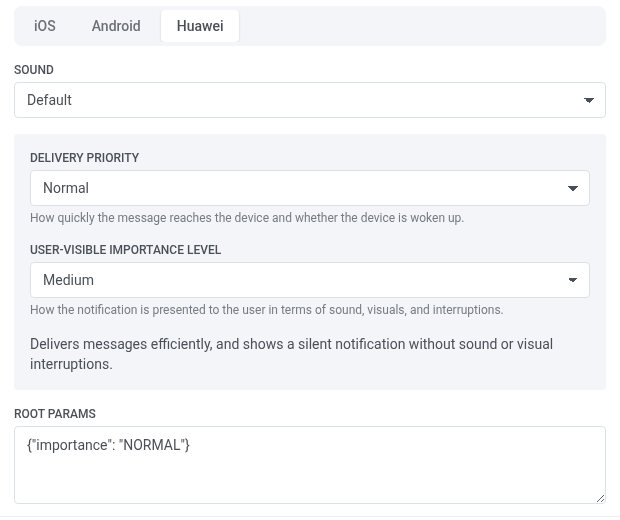
Sound settings
Anchor link toChoose how notifications play sounds when received:
- Default: Uses the system’s default notification sound.
- Mute: Delivers the notification silently without sound.
Delivery priority
Anchor link toDelivery priority determines how push notifications are handled on the user’s device, ensuring important messages are delivered appropriately based on urgency. You can select from the following priority levels:
- High: Ensures the notification is delivered immediately with sound and visual alerts. Suitable for time-sensitive messages like chat notifications or alerts.
- Normal: Delivers notifications efficiently without overriding system settings. Standard priority for most notifications.
User-visible importance level
Anchor link toThe user-visible importance level controls how notifications appear to users, including sound, visuals, and interruptions. Choose the appropriate level to match the urgency of your notifications:
- None: Delivered silently with no sound or visual alerts.
- Low: No sound; does not appear in the status bar.
- Medium: No sound; appears in the status bar.
- High: Plays a sound and appears in the status bar.
- Urgent: Plays a sound and appears as a heads-up notification.
Root params
Anchor link toRoot params are raw key-value pairs merged directly into the Huawei payload, for advanced settings the preset UI doesn’t expose. Add them as JSON, for example {"key": "value"}.