How to show flight status on the lock screen
यह सामग्री अभी तक आपकी भाषा में उपलब्ध नहीं है।
Show each checked-in passenger gate, status, and timing on the lock screen until the flight lands. This guide builds that journey with the Live Activity element.
Prerequisites
Anchor link to- Your iOS app supports Live Activities. See the iOS SDK Live Activities guide.
- A flight widget schema is published for this app. See iOS Live Activity schemas configuration.
Create the events
Anchor link toThese are example event names for this guide. When your app or backend sends a name for the first time, Pushwoosh creates that event automatically. Create the events in the Control Panel first only if you want to set attribute types yourself before the first send.
Create (or reuse) the events CheckInCompleted, FlightStatusChanged, and FlightLanded.
Learn more about creating events
Build the journey
Anchor link toOpen Customer Journey Builder, create a campaign, and build everything below on one canvas.
- Go to Campaigns → Customer Journey Builder.
- Click Create campaign.
- Click Build a journey from scratch.
Set the entry
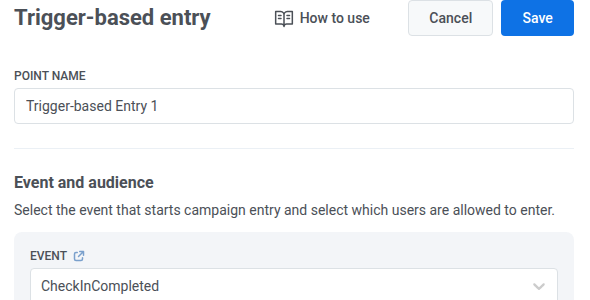
Anchor link to- Add a Trigger-based entry element to the canvas.
- Set it to
CheckInCompleted.
Start the flight card
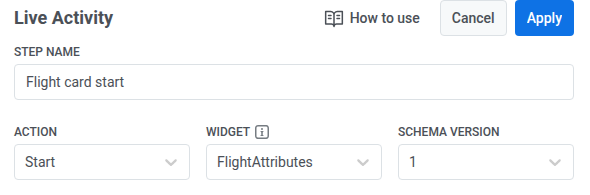
Anchor link to- Add a Live Activity element after the entry.
- Name it
Flight card start. - Set Action to Start.
- Select the flight Widget and Schema version.
- Set Card key: event to
CheckInCompleted.

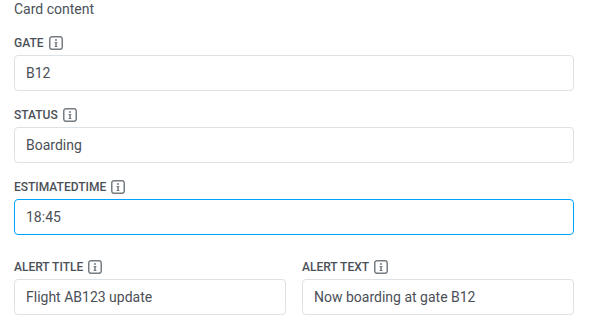
- Fill Card content (
gate,status,estimatedTime) and the alert fields.
- Click Apply.
Wait and update the card
Anchor link toContinue on the same canvas after the Start element.
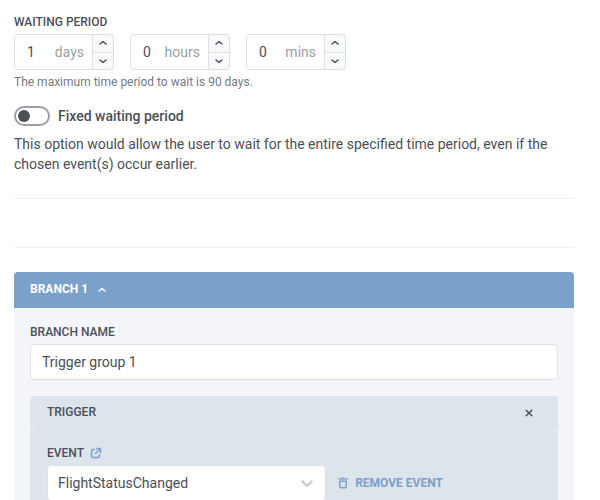
- Add a Wait for Trigger element.
- Wait for
FlightStatusChanged. - Set a waiting period that fits your flight updates.
- On the branch that fires when the event happens, add a Live Activity element.
- Name it
Flight card update. - Set Action to Update.
- Choose the same Widget and Schema version.

- Select
Flight card startin Card created by.

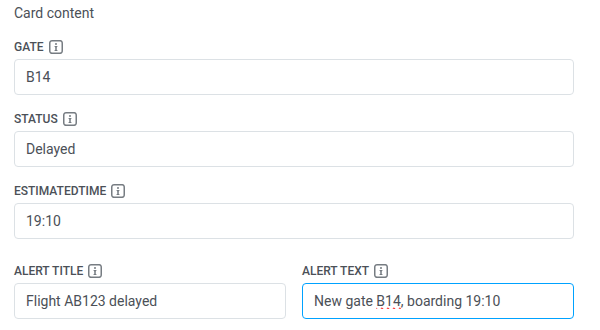
- Update Card content.
- Click Apply.
Wait and end the card
Anchor link toContinue on the same canvas after the Update element.
- Add another Wait for Trigger element.
- Wait for
FlightLanded.
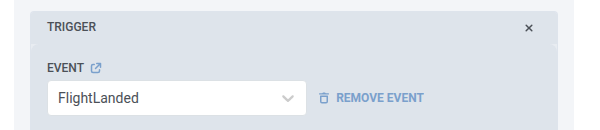
- On the branch that fires when the event happens, add a Live Activity element.
- Name it
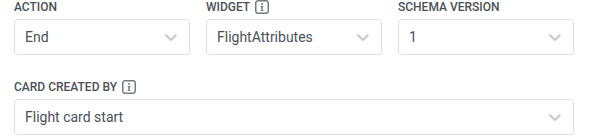
Flight card end. - Set Action to End.
- Choose the same Widget and Schema version.
- Select
Flight card startin Card created by.
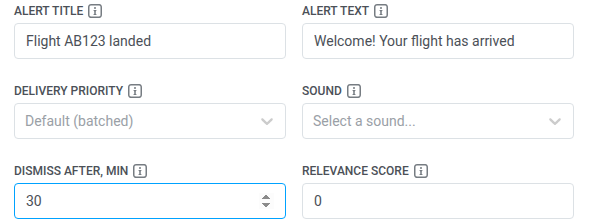
- Set alert and Dismiss after, min if needed.
- Click Apply.

What the passenger sees
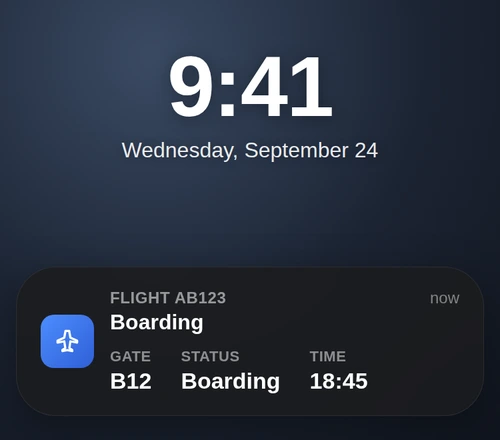
Anchor link toOn the lock screen, the passenger gets one Live Activity card that changes as the flight progresses. For example:
Gate B12, status Boarding, estimated time 18:45.
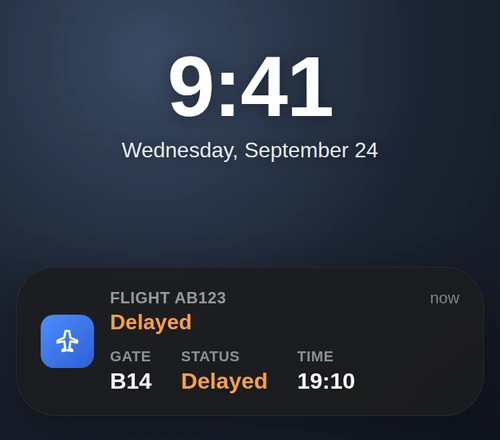
The same card updates, for example gate B14, status Delayed, estimated time 19:10.
The card closes and leaves the lock screen.