Live Activity
A Live Activity is a card that updates in real time so the user sees progress without opening the app (flight status, delivery, ride, and similar). On iOS it’s a small card on the lock screen and Dynamic Island. On Android 16 and later, it’s the same kind of card shown as an ongoing notification with a progress bar.
Use the Live Activity element in a journey to start, update, or end that card, on iOS, Android, or both.
Each element does one action:
- Start: create the card.
- Update: change an existing card.
- End: close the card.
To change or close the same card later, add another Live Activity element and point it back at the one that created the card with Card created by.
Example use cases
Anchor link toUse this element whenever the user should see a status that keeps changing, without opening the app.
- Flight status: Show the card after check-in. Keep gate, status, and time up to date during the flight. Remove the card after landing.
- Food delivery: Show the card when the order is placed. Keep courier name, ETA, and distance up to date on the way. Remove the card on delivery.
- Ride-hailing: Show the card when the ride is requested. Keep driver, ETA, and plate number up to date while the driver approaches. Remove the card when the ride completes.
- Order or appointment: Show the card when the order or booking is confirmed. Keep status up to date as it progresses. Remove the card when it is fulfilled or the visit is over.
- Live event: Show the card when the event begins. Keep score, period, or schedule up to date while it runs. Remove the card when the event finishes.
Prerequisites
Anchor link toBefore you set up this element, check what each platform needs.
For the iOS card:
- iOS Live Activity support: your app must support Live Activities. See the iOS SDK Live Activities guide.
- A published widget schema: Ask your development team to publish the schema that matches the Live Activity type in the app under Applications → Configure → Live Activity schemas. They can also publish via the API. For what belongs in a schema, see Writing a schema.
- Widget in the list: After the schema is published, select it under Widget in this element. If the Widget list is empty, the schema is not published yet.
For the Android notification:
- Android Live Updates support: your app needs SDK 6.11+ and the
pushwoosh-liveupdatesmodule. No schema is needed for Android. Ask your Android developer to confirm the module is in the build.
Set up the element
Anchor link to-
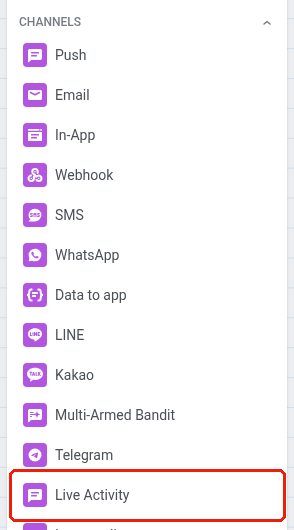
Drag the Live Activity element onto the canvas.
-
Double-click the element to open its settings.
-
Enter a name in Step name.
-
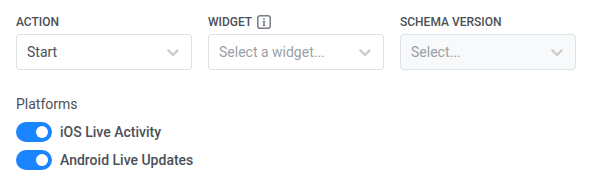
In Action, choose one of the following:
- Start: create the Live Activity card.
- Update: change the content of an existing card.
- End: close the card.
-
Under Platforms, turn on iOS Live Activity, Android Live Updates, or both. At least one platform must stay on, so you can’t turn off the last one. On Update and End, Platforms shows the platforms from the linked Start element and is read-only.
-
On Start only, set the card key so later Update and End steps can find this card:
- In Card key: event, select the event that identifies the card (for example the journey entry event).
- In Card key: attribute, select the attribute that makes the key unique per traveler. This is required once you set Card key: event. Leaving it unset makes the event selection a no-op, the same as leaving both fields empty: one card per traveler, addressed by the default user ID.

Link Update and End to the right card
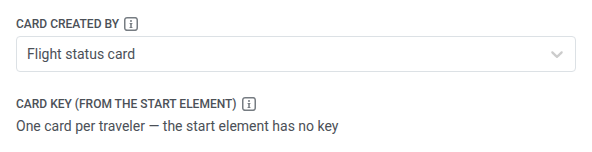
Anchor link toWhen Action is Update or End, use Card created by to point to the exact Start element that created this card. Otherwise Update or End won’t reach it.
- In Card created by, select the Step name of that Start element (for example
Order card start).
After you pick Card created by, Card key (from the start element) shows the Card key: event and Card key: attribute values from that Start. It is read-only and confirms which card this points to.
Choose the card language
Anchor link toCard language applies to both the iOS card and the Android notification.
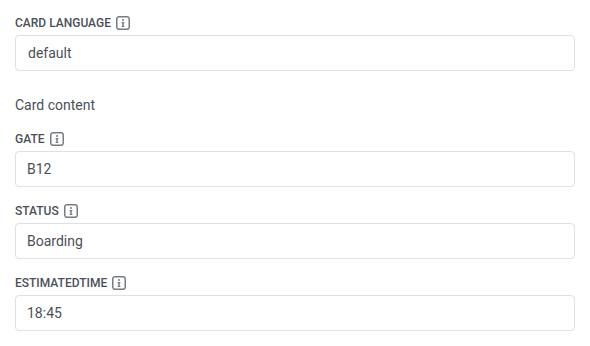
Set Card language to default or a specific language code. Content under default is the fallback for any language you don’t fill in separately.
Set up the iOS card
Anchor link toSkip this section if only Android Live Updates is on.
Choose the widget and schema version
Anchor link to-
In Widget, select the published Live Activity type for this card. The content fields below come from that choice. On Update or End, Widget is read-only, inherited from the Card created by element.
-
In Schema version, select which published version of that widget’s schema to use. The Card content fields come from this version. On Update and End, Schema version stays a picker: you can pick a different published version of the same inherited widget than the linked Start used.

Set the card’s fixed attributes (Start only)
Anchor link toOn Start, under Card attributes, add the fields that stay fixed for the card’s whole life, set once and never changed again, like a flight number or an order ID. These are separate from the Card content fields below. Those values can change on Update.
Ask your iOS developer for the exact Field name list. Those names stay fixed for the card’s whole life (the app’s ActivityAttributes). Do not use the changing Card content names (the app’s ContentState).
- Click Add attribute.
- Set Field name and Value for each attribute you need.
Update and End don’t set attributes. Whatever Start set for this card stays fixed.
Fill in the card content
Anchor link toUnder Card content, type a literal value or a personalization placeholder into each field. One field appears per property in the selected schema version.
Prefill on Update and End
Anchor link toOn Update or End, if Card content for the current Card language is empty (including a language you just added), Pushwoosh prefills the fields from the linked Start element when you open the settings:
- Same language as Start, if that language has content.
- Otherwise Start’s
defaultcontent. - If Start has neither, leave the fields empty and fill them yourself.
Prefill values stay editable. Click Apply only when you want to keep the edits. Opening the element alone does not change a running journey.
Fields you leave empty on Update or End aren’t sent. What the card then shows in those fields depends on your app: it may keep the previous value, clear it, or do something else. Ask your developers how your app handles this.
On End, Card content is optional. A field you fill in becomes the last value shown before the card closes.
Set delivery priority and timing
Anchor link to-
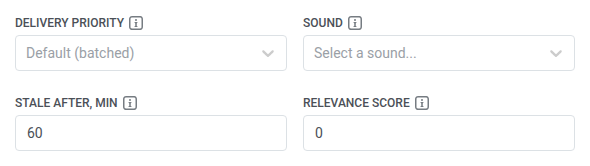
In Delivery priority, pick when iOS should deliver this update:
- Immediate: iOS delivers right away and can wake the phone (and play the sound, if you set one).
- Quiet: iOS may deliver later with other updates and does not wake the phone right away.
- Default (batched): iOS uses its own default batched delivery and does not wake the phone right away.
-
In Sound, select a sound from the list. Your development team adds sound files to the iOS app bundle. See Custom push sound. Sound only plays together with Alert title or Alert text, same as the banner.
-
Depending on the Action you set for this element (Start, Update, or End), fill one of the following:
- Start or Update: set Stale after, min to how many minutes the data on the card should stay looking fresh. When that time ends, iOS dims the numbers as outdated. The card stays on the lock screen. To keep the numbers looking current, send another Update before the time ends.
- End: set Dismiss after, min to how long the closed card stays on the lock screen before iOS removes it. Leave it at
0and the card keeps showing its final Card content until iOS retires it on its own, within up to 4 hours.
-
Optionally set Relevance score to a number from 1 to 100. When a person has more than one active Live Activity from your app at once, iOS shows the one with the higher score first. Leave it at
0to not set a preference. Pushwoosh doesn’t send a0score to Apple at all. See Multiple activities per device for the full picture.
Fill in the Android notification
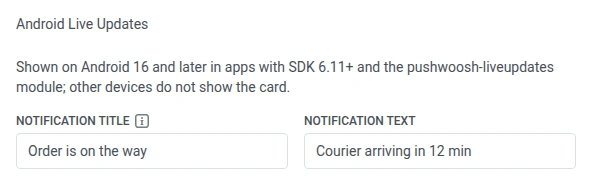
Anchor link toFill in the Android notification’s title, text, progress bar, and header time. This section appears only when Android Live Updates is on. It uses the same Card language as the iOS card.
-
Set Notification title for every language you fill in for Android. On Start and Update, the journey can’t run until each of those languages has a title. A language without a title shows a reminder in the form.
-
Set Notification text.
-
Set up the progress bar:
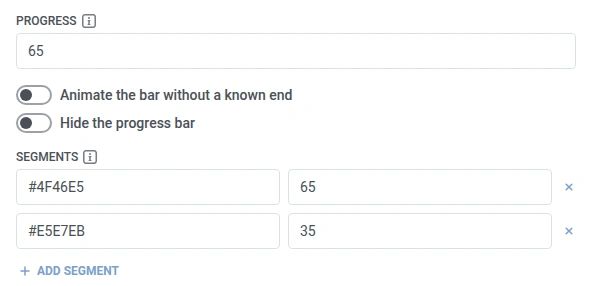
- Progress: type a number or a placeholder in the
{name}form (optionally{name|format}or{name|format|default}) for where the bar should sit, in the same units as the segment lengths. - Segments: click Add segment for each colored piece of the bar, and set a hex Color (
#RRGGBBor#AARRGGBB) and a Length for each. Segment lengths add up to the full bar. - Animate the bar without a known end: turn on to show a moving bar instead of the Progress value.
- Hide the progress bar: turn on to show the card with no bar.
- Progress: type a number or a placeholder in the
-
Set the header time:
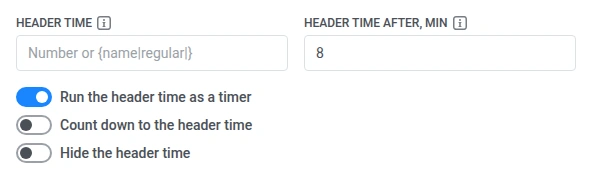
- Header time: type a Unix timestamp in seconds (not milliseconds), or a placeholder, for the moment the card’s header clock should show. For example,
1735689600means 2025-01-01 00:00 UTC. If both this and Header time after, min are set, Header time is used. - Header time after, min: set how many minutes after send the header time should show.
- Run the header time as a timer: turn on to show Header time as a running clock instead of a fixed value. This reveals Count down to the header time.
- Count down to the header time: turn it on to count down toward Header time instead of counting up from send.
- Hide the header time: turn on to show the card without the header time.
- Header time: type a Unix timestamp in seconds (not milliseconds), or a placeholder, for the moment the card’s header clock should show. For example,
Any field above can carry a placeholder, resolved the same way as the iOS Card content fields: from the journey event or personalized with an event attribute.
Tapping the notification opens the app, the same as a regular push.
Set the alert banner
Anchor link toThis section applies only when iOS Live Activity is on. If only Android Live Updates is on, these fields are hidden and nothing is sent.
For all three actions (Start, Update, and End):
- In Alert title, set the banner title shown on the lock screen.
- In Alert text, set the banner text.

Choose which device gets the card
Anchor link toAddressing is set once, on Start. Leave both switches off to send the card to the device the traveler entered the journey on. Turning one switch on turns the other off:
- Send to all devices of this user: send to every device registered under that traveler’s User ID, not just the one they entered on.
- Send to the last active device only: send to the single device that User ID used most recently, instead of every device or the entry device.
On Update and End, check Delivery (from the start element). It names the addressing mode from the linked Start. The update can only reach the same card, so it goes out the same way.
Personalize the content
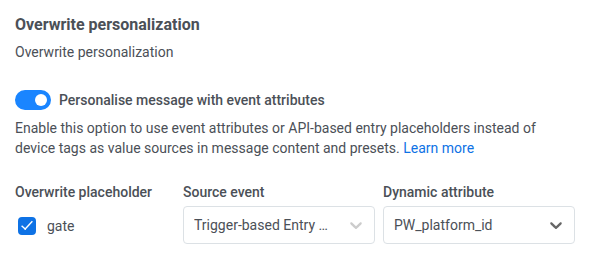
Anchor link toUse this when placeholders in Alert title, Alert text, Card content, or the Android Notification title, Notification text, Progress, or Header time should take values from the journey event or API-based entry instead of device tags.
- Under Overwrite personalization, turn on Personalise message with event attributes.
- Check the Overwrite placeholder box next to each placeholder you want to remap.
- Map that placeholder to an event attribute.
Save the element
Anchor link toClick Apply to save the element settings. Apply saves this element in the journey. It does not confirm that the card appeared on the device. After the journey is running, check Total entries and drop-offs on this step, and verify the card on a test iPhone, a test Android 16-and-later device, or both, depending on the platforms you turned on.
Limitations
Anchor link to- Element statistics: On this step, check Total entries, the Delivery row (addressing mode), and drop-offs (No recipient for the card, Live Activity send failed). Use No recipient for the card to see that messaging found no device for the enabled platforms under that mode, not that the device lacked a Live Activity token. This step does not report whether the device showed the card or whether the user opened it.
- Sound isn’t guaranteed on every update: iOS rate-limits Live Activity alerts on its own. An identical update can play a sound one time and arrive silently the next.
- Many Start actions in a row during testing: If you send about ten Start actions for the same person in a short time (for example while testing the journey), Apple may stop showing new cards and not return an error. In the journey the person can still look delivered. Leave a gap between test runs.