প্রোডাক্ট ক্যাটালগ
প্রোডাক্ট ক্যাটালগ Pushwoosh-এ আপনার প্রোডাক্টের ডেটা এক জায়গায় রাখে: শিরোনাম, মূল্য, ছবি, স্টক এবং লিঙ্ক। একটি ফিড কানেক্ট করুন, একটি CSV ইম্পোর্ট করুন, বা হাতে প্রোডাক্ট যোগ করুন, তারপর প্রতিটি মেসেজে একই বিবরণ কপি করার পরিবর্তে আপনার ইমেল জুড়ে প্রোডাক্টস ব্লক-এ ব্যবহার করুন। যখন আপনার ফিড সিঙ্ক হয়, তখন মূল্য এবং প্রাপ্যতা স্বয়ংক্রিয়ভাবে আপডেট হয়, তাই আপনার ক্যাম্পেইনগুলি ম্যানুয়াল সম্পাদনা ছাড়াই বর্তমান থাকে।
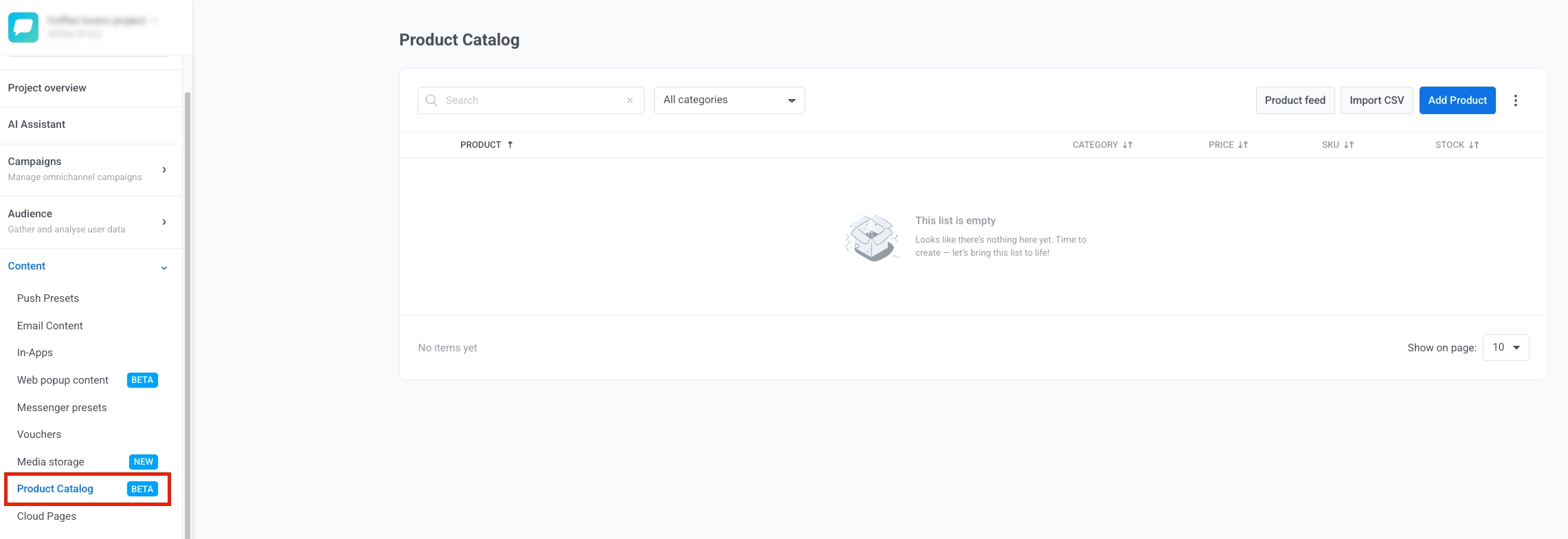
ক্যাটালগটি প্রতিটি অ্যাপ্লিকেশনের জন্য আলাদা। এটি খুলতে, Pushwoosh কন্ট্রোল প্যানেলে অ্যাপ্লিকেশনের জন্য Content → Product Catalog-এ যান।
আপনার ক্যাটালগ পূরণ করার উপায়
Anchor link toক্যাটালগে প্রোডাক্ট আনার চারটি উপায় আছে। আপনার সেটআপের সাথে যা খাপ খায় তা ব্যবহার করুন, অথবা সেগুলি একত্রিত করুন:
- Shopify অ্যাপ ইনস্টল করুন: যদি আপনার স্টোর Shopify-তে চলে, তাহলে Pushwoosh অ্যাপ ইনস্টল করলে আপনার স্টোরের প্রোডাক্ট ফিড স্বয়ংক্রিয়ভাবে ক্যাটালগের সাথে কানেক্ট হয়ে যায় — কোনো ফিড URL প্রবেশ করার প্রয়োজন নেই। এই ফিডটি Shopify-এর পাবলিক
products.json, যেখানে কখনও স্টকের সংখ্যা অন্তর্ভুক্ত থাকে না, তাই প্রতিটি প্রোডাক্ট currentStock-এর অধীনে বর্ণিত আনট্র্যাকড/আনলিমিটেড প্লেসহোল্ডার সহ আসে। - একটি ফিড কানেক্ট করুন: Pushwoosh-কে আপনার বিদ্যমান Google Merchant Center, YML, বা JSON প্রোডাক্ট ফিড URL-এ পয়েন্ট করুন এবং এটি স্বয়ংক্রিয়ভাবে সিঙ্ক হবে। এটি সবচেয়ে ভালো যদি আপনি ইতিমধ্যে অন্য কোনো চ্যানেলের (Google Shopping, Yandex Market, অন্য ESP, ইত্যাদি) জন্য একটি ফিড রক্ষণাবেক্ষণ করেন।
- CSV ইম্পোর্ট করুন: একটি এককালীন বা পুনরাবৃত্তিযোগ্য বাল্ক আপলোড, যা আপনার লাইভ ফিড না থাকলে উপযোগী।
- ম্যানুয়ালি প্রোডাক্ট যোগ করুন: সরাসরি কন্ট্রোল প্যানেলে পৃথক প্রোডাক্ট তৈরি করুন।
একটি ফিড কানেক্ট করুন
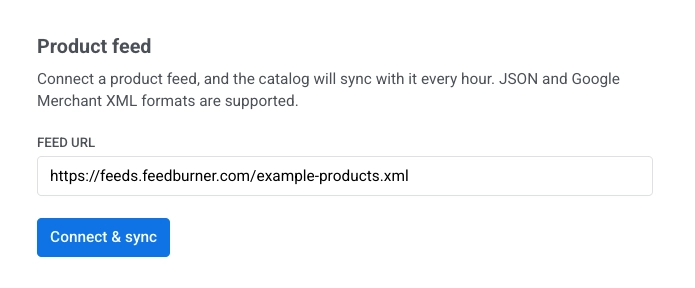
Anchor link to- Connect feed-এ ক্লিক করুন।
- Feed URL-এ আপনার ফিড URL লিখুন।
- Check feed-এ ক্লিক করুন। Pushwoosh কিছু ইম্পোর্ট না করেই URLটি পড়ে এবং যা খুঁজে পায় তা রিপোর্ট করে।
- একবার চেক প্রোডাক্ট খুঁজে পেলে, Connect & sync-এ ক্লিক করুন। Pushwoosh ফিডের ফিল্ডগুলিকে ক্যাটালগে ম্যাপ করে (নিচে দেখুন) এবং কতগুলি প্রোডাক্ট যোগ, আপডেট বা সরানো হয়েছে তা রিপোর্ট করে।
প্যানেলটি এইভাবে খোলে, আপনি একটি ফিড URL প্রবেশ করার আগে:
চেক নিম্নলিখিতগুলির মধ্যে একটি রিপোর্ট করে:
- গণনা এবং প্রিভিউ: তিনটি পর্যন্ত প্রোডাক্টের শিরোনাম এবং মূল্য সহ একটি প্রোডাক্ট গণনা, উদাহরণস্বরূপ “8 products read, 1 skipped।”
- নিম্ন-সীমা গণনা: চেকটি শুধুমাত্র একটি পেজিনেটেড ফিডের প্রথম পৃষ্ঠা পড়ে — উদাহরণস্বরূপ, Shopify-এর ডিফল্ট প্রোডাক্ট ফিডে “more than 250 products read”, যা একটি পৃষ্ঠাকে 250 আইটেমে সীমাবদ্ধ করে। ফিড কানেক্ট করলে এখনও প্রতিটি পৃষ্ঠা ইম্পোর্ট হয়।
- খালি ফিড: URLটি সাড়া দেয়, কিন্তু এতে এমন কিছু নেই যা একটি প্রোডাক্ট হিসাবে পার্স হয় — উদাহরণস্বরূপ, এটি একটি পাসওয়ার্ড-সুরক্ষিত বা খালি স্টোর, বা ভুল এক্সপোর্টের দিকে নির্দেশ করে। URL বা ফিডের বিষয়বস্তু ঠিক করুন, তারপর আবার চেক করুন। এই ধরনের একটি ফিড কানেক্ট করা যাবে না, কারণ এটি কিছুই ইম্পোর্ট করবে না।
- পড়ার ত্রুটি: URLটি পৌঁছানো যাচ্ছে না, একটি লগইন প্রয়োজন যা ফিড প্রদান করতে পারে না, বা বৈধ ফিড ডেটা ফেরত দেয় না।
একবার কানেক্ট হয়ে গেলে, ফিডটি প্রতি ঘন্টায় স্বয়ংক্রিয়ভাবে সিঙ্ক হয়। আপনি যেকোনো সময় একটি তাৎক্ষণিক সিঙ্ক ট্রিগার করতে Sync now-এ ক্লিক করতে পারেন। উদাহরণস্বরূপ, একটি ফ্ল্যাশ সেলের জন্য আপনার ফিড আপডেট করার ঠিক পরেই একটি সিঙ্ক চালান। যদি শেষ সিঙ্কের পর থেকে ফিডটি পরিবর্তিত না হয়, Pushwoosh এটি পুনরায় প্রক্রিয়াকরণ এড়িয়ে যায় এবং নিশ্চিত করে যে কিছুই পরিবর্তিত হয়নি।
প্রতিটি সিঙ্ক রিপোর্ট করে:
- ইম্পোর্ট করা হয়েছে: নতুন বা আপডেট করা প্রোডাক্ট।
- সরানো হয়েছে: ক্যাটালগ থেকে সরানো প্রোডাক্ট কারণ সেগুলি আর ফিডে নেই।
- এড়িয়ে যাওয়া হয়েছে: ফিড এন্ট্রি যা ম্যাপ করা যায়নি (প্রয়োজনীয় ফিল্ড অনুপস্থিত, ইত্যাদি)।
সিঙ্ক করা বন্ধ করতে Disconnect feed-এ ক্লিক করুন। ইতিমধ্যে ইম্পোর্ট করা প্রোডাক্টগুলি ক্যাটালগে থেকে যায় — ডিসকানেক্ট করলে সেগুলি সরানো হয় না।
Google Merchant XML ফিল্ড ম্যাপিং
Anchor link toযদি আপনি একটি Google Merchant ফিড কানেক্ট করেন, তবে এর স্ট্যান্ডার্ড g: ট্যাগগুলি ক্যাটালগ ফিল্ডগুলিতে এইভাবে ম্যাপ হয়:
| ফিড ফিল্ড | ক্যাটালগ ফিল্ড |
|---|---|
g:id | Product ID (id) |
title | Title |
description | Description |
g:image_link | Image URL |
link | Product URL |
g:price | Price + currency |
g:sale_price | Sale price |
g:product_type | Category |
g:mpn / g:gtin | SKU |
g:availability | Stock |
একটি JSON ফিড হয় প্রোডাক্টগুলির একটি বেয়ার অ্যারে অথবা একটি products অ্যারে সহ একটি অবজেক্ট হওয়া উচিত, যা নীচের CSV স্ট্রাকচার-এর মতো একই ফিল্ডের নাম ব্যবহার করে (image_url, sale_price, stock, ইত্যাদি) — ক্যাটালগ ফিল্ড-এর অধীনে দেখানো ক্যাটালগ ফিল্ডের নাম নয়, যা একটি ভিন্ন নামকরণের নিয়ম ব্যবহার করে।
YML ফিল্ড ম্যাপিং
Anchor link toযদি আপনি একটি YML (Yandex Market Language) ফিড কানেক্ট করেন, তবে এর <offer> ফিল্ডগুলি ক্যাটালগ ফিল্ডগুলিতে এইভাবে ম্যাপ হয়:
| ফিড ফিল্ড | ক্যাটালগ ফিল্ড |
|---|---|
offer/@id | Product ID (id) |
name, অথবা typePrefix + vendor + model যদি name অনুপস্থিত থাকে | Title |
description | Description |
url | Product URL |
price | মূল্য — যখন oldprice অনুপস্থিত থাকে বা price-এর চেয়ে বেশি না হয় |
oldprice | মূল্য, যদি এটি price-এর চেয়ে বেশি হয়; price তখন বিক্রয় মূল্য হয়ে যায়, যা স্ট্রাইক-থ্রু করা আসল মূল্যের পাশে দেখানো হয় |
currencyId | Currency |
categoryId | ক্যাটাগরি, এর সম্পূর্ণ পাথে সমাধান করা হয় (Parent > Child) |
প্রথম picture | Image URL |
vendorCode বা barcode | SKU |
available="false" | স্টক (0)। একটি অনুপস্থিত available অ্যাট্রিবিউট মানে অফারটি স্টকে আছে। |
CSV ইম্পোর্ট করুন
Anchor link to- আপনার CSV প্রস্তুত করুন। নীচের কলামগুলি সহ একটি ফাইল তৈরি করুন।
CSV ফাইলের কাঠামো
| কলাম | প্রয়োজনীয় | নোট |
|---|---|---|
id | হ্যাঁ | অনন্য প্রোডাক্ট শনাক্তকারী |
title | হ্যাঁ | প্রোডাক্টের নাম |
description | না | সংক্ষিপ্ত প্রোডাক্ট বিবরণ |
image_url | না | প্রোডাক্টের ছবির সরাসরি লিঙ্ক |
url | না | প্রোডাক্ট পেজের লিঙ্ক |
price | না | আসল মূল্য, ডেসিমেল ফরম্যাট (উদাহরণস্বরূপ, 22.00) |
sale_price | না | ছাড়ের মূল্য, যদি না থাকে তবে খালি রাখুন |
currency | না | ৩-অক্ষরের কোড: USD, EUR, ইত্যাদি |
category | না | প্রোডাক্টের ক্যাটাগরি |
sku | না | স্টক কিপিং ইউনিট |
stock | না | স্টকে থাকা আইটেমের সংখ্যা। শুধুমাত্র সেইসব প্রোডাক্টের জন্য খালি রাখুন যা সত্যিই স্টক আউট — নীচের সতর্কতা দেখুন। |
প্রথম সারিটি একটি হেডার হতে হবে। UTF-8 এনকোডিং এবং কমা-সেপারেটেড ভ্যালু ব্যবহার করুন। ফাইলটিতে এই তালিকার বাইরের কোনো কলাম থাকতে পারবে না — একটি অপরিচিত কলাম শুধুমাত্র সেই কলামটি নয়, পুরো ইম্পোর্টটি ব্যর্থ করে দেয়।
- Import CSV-এ ক্লিক করুন, যদি আপনার সঠিক হেডারগুলির প্রয়োজন হয় তবে টেমপ্লেটটি ডাউনলোড করুন এবং আপনার ফাইলটি আপলোড করুন।
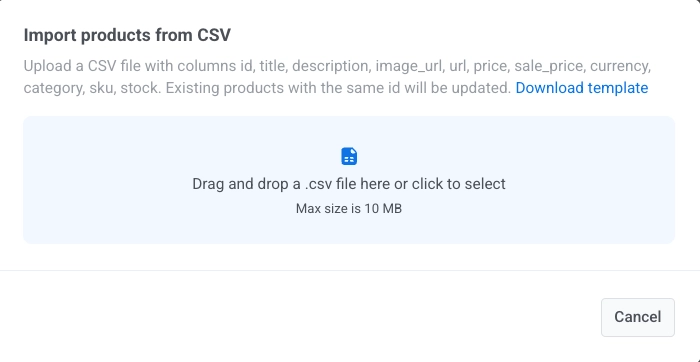
প্রোডাক্টগুলি তাদের id কলাম দ্বারা মেলানো এবং আপডেট করা হয়, তাই পরিবর্তিত মান সহ একই ফাইল পুনরায় আপলোড করলে বিদ্যমান প্রোডাক্টগুলি আপডেট হয়, ডুপ্লিকেট হয় না।
ম্যানুয়ালি প্রোডাক্ট যোগ করুন
Anchor link toযখন আপনার কোনো ফিড বা CSV-এর প্রয়োজন নেই তখন একবারে একটি প্রোডাক্ট যোগ করুন।
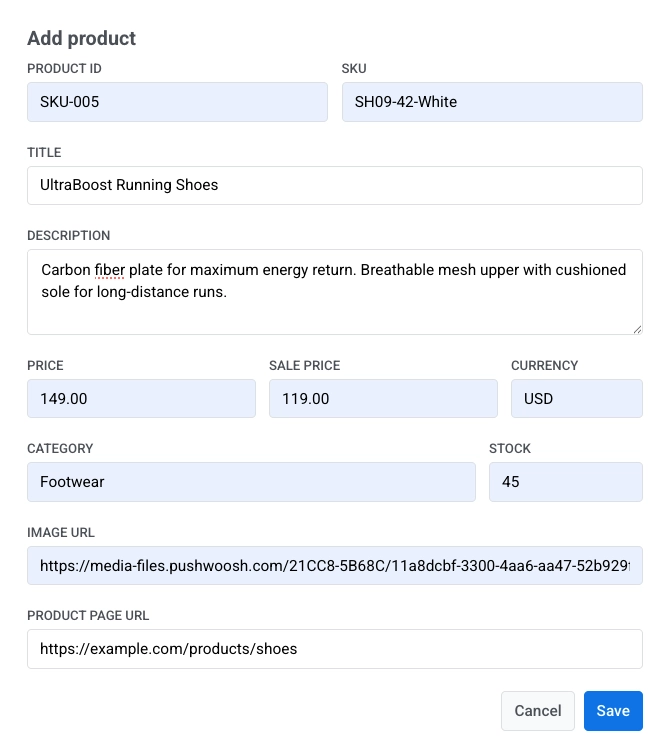
- Add Product-এ ক্লিক করুন।
- প্রোডাক্টের বিবরণ পূরণ করুন। প্রতিটি ফিল্ডের অর্থ জানতে ক্যাটালগ ফিল্ড দেখুন।
- Save-এ ক্লিক করুন।
আপনার ক্যাটালগ পরিচালনা করুন
Anchor link toআপনি প্রোডাক্ট যোগ বা ইম্পোর্ট করার পরে, সেগুলি একটি ক্যাটালগ তালিকায় প্রদর্শিত হয় যেখানে আপনি সেগুলি পর্যালোচনা এবং পরিচালনা করতে পারেন।
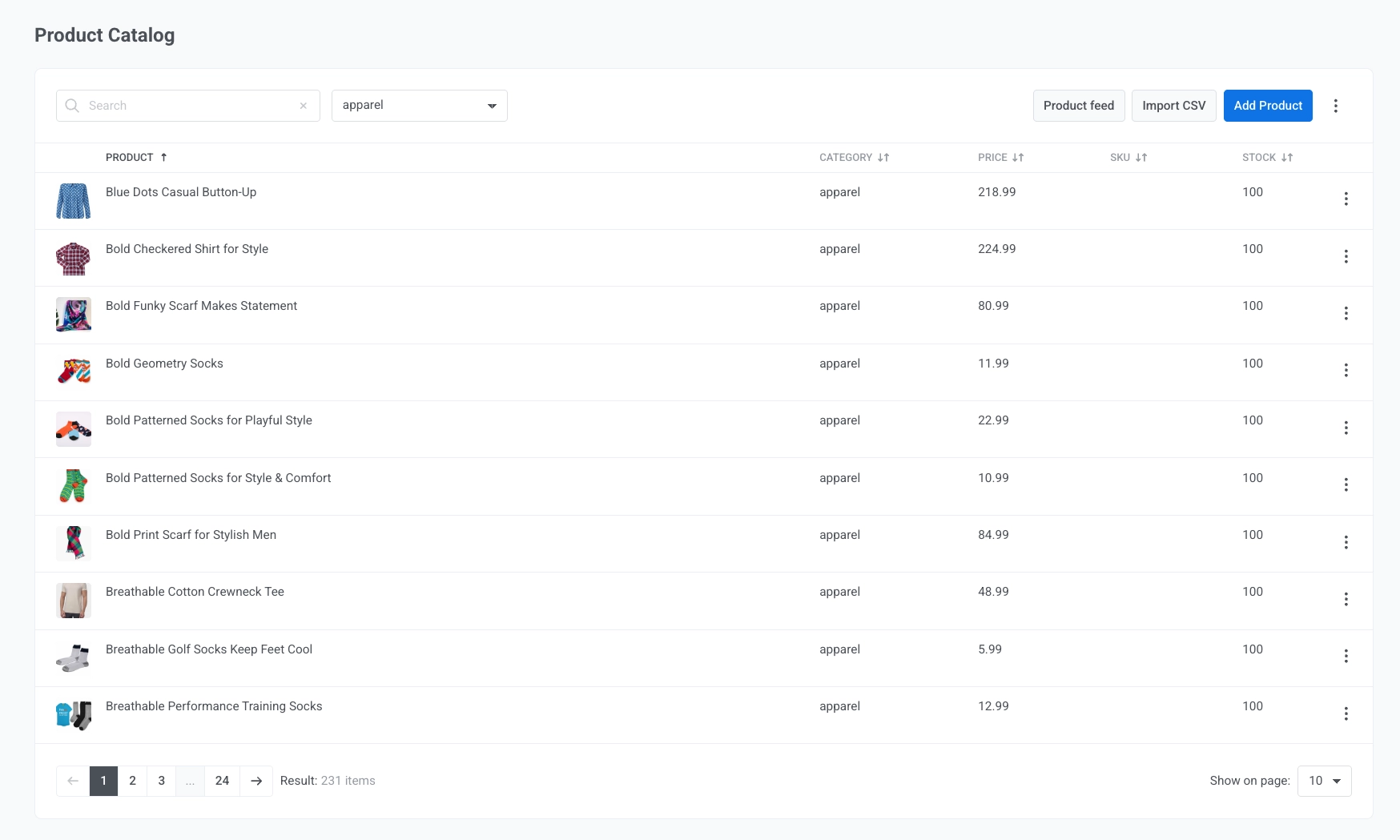
ক্যাটালগ তালিকাটি ব্যবহার করুন:
- নাম অনুসারে প্রোডাক্ট অনুসন্ধান করুন।
- ক্যাটাগরি অনুসারে ফিল্টার করুন।
- ক্যাটাগরি, মূল্য, SKU, এবং স্টকের মতো প্রোডাক্টের বিবরণ পর্যালোচনা করুন।
- একটি প্রোডাক্ট সারিতে ⋮ মেনু খুলুন এবং Edit বা Delete-এ ক্লিক করুন।
- টপ বারে ⋮ মেনু খুলুন এবং ক্যাটালগ থেকে প্রতিটি প্রোডাক্ট সরাতে Delete all products-এ ক্লিক করুন।
ক্যাটালগ ফিল্ড
Anchor link toক্যাটালগের প্রতিটি প্রোডাক্টের এই ফিল্ডগুলি থাকে, সেগুলি যেভাবে যোগ করা হোক না কেন:
| ফিল্ড | বিবরণ |
|---|---|
| id | স্থিতিশীল প্রোডাক্ট শনাক্তকারী। একটি ফিড বা CSV থেকে আপডেট মেলানোর জন্য এবং একটি প্রোডাক্টস ব্লক থেকে প্রোডাক্ট রেফারেন্স করার জন্য ব্যবহৃত হয়। |
| title | প্রোডাক্টের নাম। |
| description | প্রোডাক্টের বিবরণ। |
| imageUrl | প্রোডাক্টের ছবির URL। |
| url | প্রোডাক্ট পেজের লিঙ্ক। |
| price | নিয়মিত মূল্য। |
| salePrice | ছাড়ের মূল্য, যদি থাকে। প্রোডাক্টস ব্লকগুলিতে স্ট্রাইক-থ্রু করা আসল মূল্যের পাশে বিক্রয় মূল্য হিসাবে দেখানো হয়। |
| currency | মূল্য এবং salePrice-এর জন্য মুদ্রা কোড। |
| category | প্রোডাক্টের ক্যাটাগরি, ফিল্টারিং এবং প্রোডাক্টস ব্লকে ক্যাটাগরি-ভিত্তিক নিয়মের জন্য ব্যবহৃত হয়। |
| sku | স্টক-কিপিং ইউনিট / প্রোডাক্ট কোড। |
| currentStock | স্টকে থাকা পরিমাণ। 0 মানে প্রোডাক্টটি স্টক আউট হিসাবে গণ্য করা হয়: এটি ক্যাটালগে থাকে কিন্তু ক্যাটালগ নিয়ম থেকে টানা প্রোডাক্টস ব্লকগুলিতে প্রদর্শিত হবে না। একটি আনট্র্যাকড বা সীমাহীন পরিমাণের জন্য, একটি উচ্চ মান (99999 বা তার বেশি) সেট করুন — ক্যাটালগ তালিকাটি এটিকে ∞ হিসাবে দেখায়। |
আপনার ক্যাটালগ আপ টু ডেট রাখুন
Anchor link toআপনি যখন প্রোডাক্ট যোগ করতে বা বিদ্যমানগুলি রিফ্রেশ করতে চান তখন ক্যাটালগ পূরণ করার জন্য আপনি যে পদ্ধতিটি বেছে নিয়েছিলেন সেটিই ব্যবহার করুন:
- ফিড: Pushwoosh প্রতি ঘন্টায় স্বয়ংক্রিয়ভাবে কানেক্ট করা ফিড সিঙ্ক করে। Connect feed খুলুন এবং অবিলম্বে রিফ্রেশ করতে Sync now-এ ক্লিক করুন। নতুন প্রোডাক্ট যোগ করা হয়, পরিবর্তিত ফিল্ডগুলি আপডেট করা হয়, এবং ফিড থেকে সরানো প্রোডাক্টগুলি ক্যাটালগ থেকে মুছে ফেলা হয়। যদি একটি সিঙ্ক পরিবর্তে শূন্য প্রোডাক্ট পড়ে (উদাহরণস্বরূপ, ফিড ডাউন হয়ে যায় বা এর URL একটি খালি প্রতিক্রিয়া ফেরাতে শুরু করে), Pushwoosh আপনার ক্যাটালগ পরিষ্কার করার পরিবর্তে সেই সিঙ্কটি এড়িয়ে যায় — বিদ্যমান প্রোডাক্টগুলি থেকে যায়, এবং Last sync Sync failed দেখায় যতক্ষণ না পরবর্তী সিঙ্ক সফল হয়। দেখুন একটি ফিড কানেক্ট করুন।
- CSV: Import CSV-এর মাধ্যমে একটি আপডেট করা ফাইল আপলোড করুন। প্রোডাক্টগুলি id-তে মেলে, তাই নতুন সারি প্রোডাক্ট যোগ করে এবং পরিবর্তিত সারিগুলি ডুপ্লিকেট তৈরি না করে বিদ্যমানগুলি আপডেট করে। দেখুন CSV ইম্পোর্ট করুন।
- ম্যানুয়াল: একটি নতুন আইটেম তৈরি করতে Add Product-এ ক্লিক করুন, বা একটি বিদ্যমান সারিতে একটি প্রোডাক্ট আপডেট করতে Edit-এ ক্লিক করুন। দেখুন ম্যানুয়ালি প্রোডাক্ট যোগ করুন।
যদি আপনি একটি প্রোডাক্টস ব্লক-এ ক্যাটালগ প্রোডাক্ট হাতে-বাছাই করেন, তবে আপনার ইমেলে সর্বশেষ শিরোনাম, বিবরণ, মূল্য এবং ছবি টানতে ব্লক সেটিংসে Refresh from catalog-এ ক্লিক করুন।
আপনি আপনার ক্যাটালগ দিয়ে কী করতে পারেন
Anchor link toএকবার আপনার ক্যাটালগে প্রোডাক্ট থাকলে, সেগুলি একটি প্রোডাক্টস ব্লকে ব্যবহার করুন: হাতে আইটেম বাছাই করুন, অথবা একটি ক্যাটালগ নিয়ম দিয়ে সেগুলি টানুন। আপনার ক্যাটালগ থেকে প্রোডাক্ট সহ একটি ইমেল কীভাবে পাঠাবেন একটি নির্দিষ্ট বাছাই থেকে একটি সর্বদা-তাজা নিয়ম পর্যন্ত সম্পূর্ণ প্রবাহের মধ্য দিয়ে যায়।
প্রতিটি ক্রেতাকে তাদের পরিত্যক্ত কার্ট দেখানোর জন্য, প্রোডাক্টস ব্লকের উৎস কার্ট-এ সেট করুন এবং কীভাবে একটি পরিত্যক্ত কার্ট ক্যাম্পেইন সেট আপ করবেন অনুসরণ করুন।
আপনার ওয়েবসাইটে ক্যাটালগের প্রোডাক্ট দেখাতে, আপনার ডেভেলপারদের Web SDK দিয়ে অন-সাইট রেকমেন্ডেশন যোগ করতে বলুন। প্রথমে, ক্যাটালগে On-site recommendations-এর অধীনে Show recommendations on my website চালু করুন, যেমনটি অন-সাইট রেকমেন্ডেশন চালু করুন-এ বর্ণনা করা হয়েছে।