ওয়েব পপআপ বোঝা
ভিজিটররা আপনার সাইট ব্রাউজ করার সময় ওয়েব ক্যাম্পেইন তাদের আপনার ওয়েব কন্টেন্ট দেখায়। একটি Popup ক্যাম্পেইন পেজের উপরে প্রদর্শিত হয়, এবং একটি Inline ক্যাম্পেইন পেজের একটি এলিমেন্টের ভিতরে একটি ব্লক হিসেবে প্রদর্শিত হয়। প্রচার, অনবোর্ডিং ইঙ্গিত, ইমেল সাইনআপ এবং অন্যান্য লক্ষ্যের জন্য এগুলো ব্যবহার করুন।
কখন ওয়েব ক্যাম্পেইন ব্যবহার করবেন
Anchor link toসাধারণ ব্যবহারের ক্ষেত্র:
- প্রচার এবং বিক্রয়: ডিসকাউন্ট, কুপন, বা ব্রাউজিং বা ক্যাটাগরি URL-এ মৌসুমী অফার যেখানে মেসেজটি সেই পৃষ্ঠায় ভিজিটর যা করছে তার সাথে খাপ খায়।
- স্বাগত বা প্রথম-ক্রয়ের অফার: হোম পেজ, সাইনআপ ফ্লো, বা একটি ডেডিকেটেড ল্যান্ডিং পাথে নতুন ভিজিটর (বা একটি বিস্তৃত দর্শক)।
- পণ্য বা ফিচার ঘোষণা: সাইটের সেই বিভাগগুলিতে মনোযোগ আকর্ষণ করুন যেখানে খবরটি প্রাসঙ্গিক (উদাহরণস্বরূপ একটি পণ্য এলাকা বা চেঞ্জলগ পৃষ্ঠা)।
- লিড ক্যাপচার: এমন পৃষ্ঠাগুলিতে একটি ফর্ম, ডেমো, বা ডাউনলোডের দিকে নির্দেশ করুন যা ইতিমধ্যে অফারের সাথে মেলে (মূল্য, সংস্থান, যোগাযোগ)।
- অনবোর্ডিং বা নির্দেশিকা: ক্যাম্পেইন অডিয়েন্স সেটিংসে আপনার টার্গেট করা নির্দিষ্ট পৃষ্ঠাগুলিতে সংক্ষিপ্ত টিপস, যেমন মূল্য, সহায়তা, বা অ্যাকাউন্ট সেটিংস।
ওয়েব পপআপ নিয়ে কাজ শুরু করুন
Anchor link toআপনার ওয়েবসাইটে ওয়েব ক্যাম্পেইন দেখানোর আগে, নিম্নলিখিত ধাপগুলো সম্পূর্ণ করুন:
-
ওয়েব পুশ SDK ইন্টিগ্রেট করুন
আপনার ডেভেলপমেন্ট টিমকে আপনার সাইটে ওয়েব পুশ SDK যোগ করতে হবে। SDK ইনিশিয়ালাইজড হয়ে গেলে ওয়েব ক্যাম্পেইন ডিফল্টভাবে লোড হয়, তাই সেগুলো চালু করার জন্য কোনও অতিরিক্ত সেটআপের প্রয়োজন নেই।
-
ওয়েব কন্টেন্ট বা একটি ওয়েব ফর্ম তৈরি করুন
Content → Web content খুলুন, Create-এ ক্লিক করুন এবং টাইপ বেছে নিন:
- Web content: একটি মেসেজ দেখায়, উদাহরণস্বরূপ একটি অফার বা একটি ঘোষণা।
- Web form: একটি ইমেল ঠিকানা এবং ভিজিটরের উত্তর সংগ্রহ করে।
আপনি ক্যাম্পেইন কনফিগার করার সময় এই কন্টেন্টটি বেছে নেন।
-
একটি ওয়েব ক্যাম্পেইন তৈরি করুন
Campaigns → Web campaigns-এ যান, Create campaign-এ ক্লিক করুন, Popup বা Inline বেছে নিন এবং কন্টেন্ট, অডিয়েন্স ও ডিসপ্লে সেটিংস কনফিগার করুন।
ক্যাম্পেইন দেখুন এবং পরিচালনা করুন
Anchor link toসমস্ত Popup এবং Inline ক্যাম্পেইন এক জায়গায় পরিচালনা করতে Campaigns → Web campaigns-এ যান। একটি নতুন উইজার্ড শুরু করতে Create campaign ব্যবহার করুন।
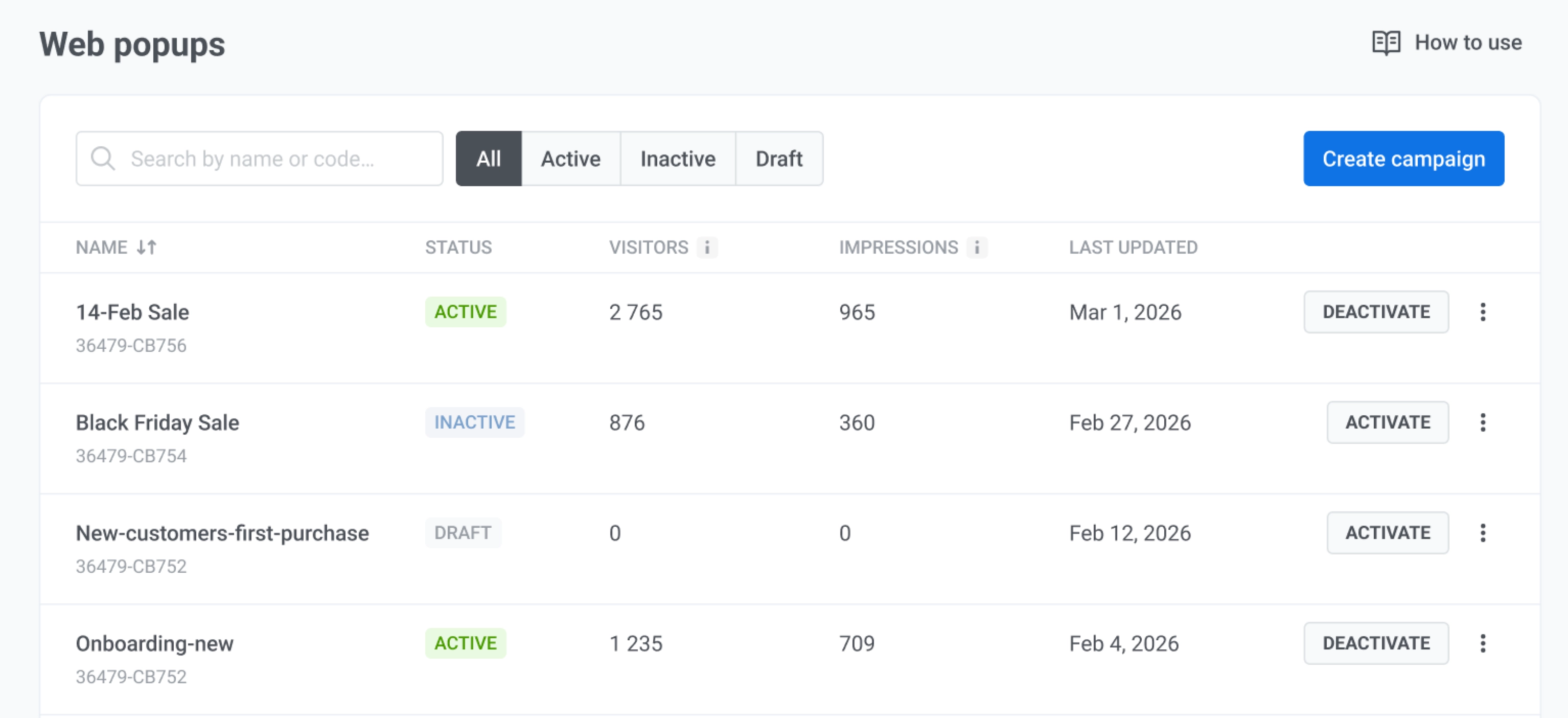
একটি ক্যাম্পেইন খুঁজতে, তার নাম বা কোড দিয়ে অনুসন্ধান করুন। তালিকাটি ছোট করতে, স্ট্যাটাস (All, Draft, Active, বা Inactive) এবং টাইপ (All types, Web popups, বা Inline blocks) অনুযায়ী ফিল্টার করুন।
আপনার ক্যাম্পেইন নিরীক্ষণ করুন
Anchor link toটেবিলে, আপনি প্রতিটি ওয়েব ক্যাম্পেইন কীভাবে পারফর্ম করছে তা পর্যালোচনা করতে পারেন। একটি ক্যাম্পেইন লাইভ আছে কিনা তা দেখতে Status পরীক্ষা করুন।
কলামগুলো নিম্নলিখিত রিপোর্ট করে:
- Name: ক্যাম্পেইনের নাম। এর নিচে ক্যাম্পেইনের টাইপ (Popup বা Inline block) এবং ক্যাম্পেইন কোড।
- Visits: কতগুলো পেজ লোডে ক্যাম্পেইনটি দেখানোর জন্য প্রস্তুত হয়েছে, একই ভিজিটরের পুনরাবৃত্ত ভিজিট সহ। একটি Popup ভিজিট গণনা করে যখনই ভিজিটর এর সেটিংসের সাথে মেলে, ডিসপ্লে বিলম্ব শেষ হওয়ার আগেই। একটি Inline ক্যাম্পেইন ভিজিট গণনা করে যখনই এর ব্লক পেজে স্থাপন করা হয়।
- Impressions: ভিজিটররা আসলে কতবার ক্যাম্পেইনটি দেখেছেন, পুনরাবৃত্ত ভিউ সহ। একটি Popup দেখানো হলে গণনা করা হয়, আর একটি Inline ক্যাম্পেইন স্ক্রল করে দৃশ্যমান হলে।
- Interactions: ভিজিটররা কতবার কন্টেন্টের লিঙ্ক ও বোতামে ক্লিক করেছেন বা একটি ওয়েব ফর্ম সাবমিট করেছেন, পুনরাবৃত্ত ক্লিক সহ। ✕ দিয়ে ক্যাম্পেইন বন্ধ করা গণনা করা হয় না। কোনো ক্লিক নেই এমন ক্যাম্পেইনে 0 দেখায়।
ক্যাম্পেইনের পরিসংখ্যান খুলতে এর নামে ক্লিক করুন।
একটি ক্যাম্পেইনে ব্যবস্থা নিন
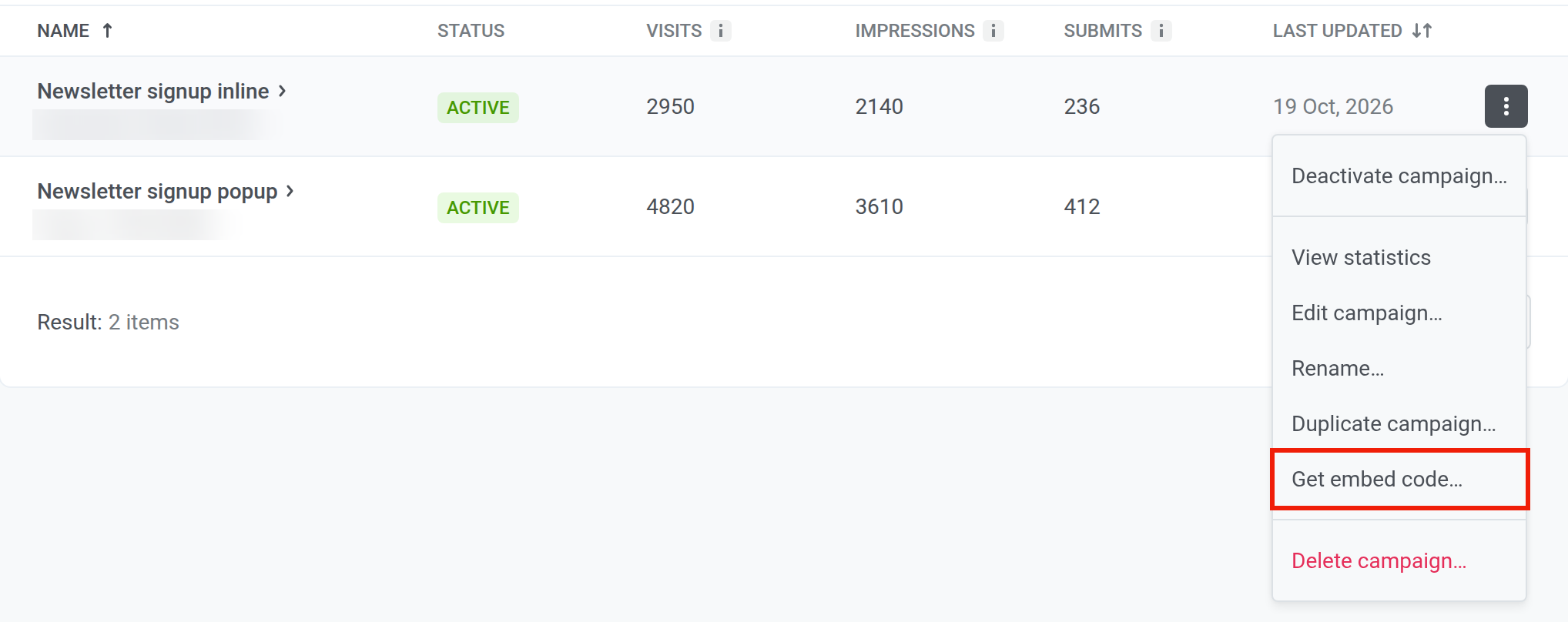
Anchor link toঅ্যাকশন মেনু খুলতে ক্যাম্পেইনের সারির তিনটি ডটে ক্লিক করুন:
- ক্যাম্পেইন চালু বা বন্ধ করতে Activate campaign… বা Deactivate campaign… বেছে নিন এবং ডায়ালগে নিশ্চিত করুন।
- ক্যাম্পেইনের পরিসংখ্যান খুলতে View statistics বেছে নিন।
- কন্টেন্ট, অডিয়েন্স, বা ডিসপ্লে সেটিংস পরিবর্তন করতে Edit campaign… বেছে নিন।
- সম্পূর্ণ এডিটর না খুলে শুধুমাত্র ক্যাম্পেইনের নাম পরিবর্তন করতে Rename… বেছে নিন।
- একটি সূচনা বিন্দু হিসাবে সেটিংস কপি করতে Duplicate campaign… বেছে নিন।
- আপনার পেজে যে এলিমেন্ট যোগ করতে হবে তা দেখতে একটি Inline ক্যাম্পেইনে Get embed code… বেছে নিন।
- ক্যাম্পেইনটি সরাতে Delete campaign… বেছে নিন। এই ক্রিয়াটি পূর্বাবস্থায় ফেরানো যাবে না।
ক্যাম্পেইনের ফলাফল ট্র্যাক করুন
Anchor link toক্যাম্পেইনটি কতবার একটি পেজে লোড হয়েছে এবং দেখা হয়েছে তা জানতে Campaigns → Web campaigns থেকে ক্যাম্পেইনের পরিসংখ্যান খুলুন। একটি ওয়েব ফর্মের জন্য, পরিসংখ্যান সাবমিট, ব্যর্থ সাবমিশন এবং আপনি এক্সপোর্ট করতে পারেন এমন সাবস্ক্রাইবারদেরও দেখায়।