অনুবাদ ইম্পোর্ট এবং এক্সপোর্ট করুন
AI Translate দিয়ে অনুবাদ তৈরি করার পরিবর্তে, একটি অনুবাদ বিক্রেতা, একটি স্প্রেডশীট, বা অন্য Pushwoosh প্রিসেট থেকে আপনার নিজস্ব অনুবাদ আনুন।
Content → Push presets খুলুন, প্রিসেটটি খুলুন, তারপর Push presets editor এর ভাষা নির্বাচকের পাশে Import বা Export ব্যবহার করুন।

- Export: বর্তমান শিরোনাম, উপশিরোনাম, এবং প্রতিটি ভাষার জন্য বার্তা একটি CSV হিসাবে ডাউনলোড করুন অন্য কোথাও অনুবাদ করতে বা অন্য প্রিসেটে পুনরায় ব্যবহার করতে।
- Import: এই প্রিসেটে অনুবাদ প্রয়োগ করতে একটি CSV বা JSON ফাইল আপলোড করুন।
বর্তমান বিষয়বস্তু এক্সপোর্ট করুন
Anchor link toপ্রিসেটের শিরোনাম, উপশিরোনাম, এবং প্রতিটি ভাষার জন্য বার্তা ডাউনলোড করতে Export ক্লিক করুন, যার মধ্যে ডিফল্ট ভাষাও রয়েছে, একটি CSV ফাইল হিসাবে। ডাউনলোড করা ফাইলের নাম welcome-series-translations.csv (প্রিসেটের নাম, স্লাগিফাইড, তারপর -translations.csv) এর মতো দেখাবে।
ফাইলটি এইরকম দেখায়:
| language | title | subtitle | message |
|---|---|---|---|
| default | Welcome to our app! | Thanks for installing. | |
| es | ¡Bienvenido a nuestra app! | Gracias por instalar. | |
| de | Willkommen in unserer App! | Danke fürs Installieren. |
প্রিসেটে অনুবাদ ইম্পোর্ট করুন
Anchor link toফাইলটি প্রস্তুত করুন
Anchor link toসম্পাদনা করার পরে Export থেকে প্রাপ্ত CSV ব্যবহার করুন, অথবা একই লেআউটের সাথে মেলে এমন একটি ফাইল তৈরি করুন। Import .json ফাইলও গ্রহণ করে।
- language: প্রয়োজনীয় হেডার কলাম। প্রতিটি কোড ভাষা নির্বাচক-এ যেভাবে প্রদর্শিত হয় সেভাবে লিখুন, উদাহরণস্বরূপ, প্রথাগত চীনা ভাষার জন্য
zh-Hant। অক্ষরের কেস কোনো ব্যাপার না (ESএবংesউভয়ই কাজ করে)। যদি ইম্পোর্ট প্রিভিউতে এমন কোনো কোড তালিকাভুক্ত হয় যা Pushwoosh চিনতে পারে না, তবে ফাইলে এটি ঠিক করুন এবং আবার ইম্পোর্ট করুন। কোডটি বৈধ না হওয়া পর্যন্ত সেই ভাষাটি কাউকে পাঠানো হবে না। - title, subtitle, এবং message: ঐচ্ছিক। কলামগুলি যেকোনো ক্রমে থাকতে পারে। আপনি যদি কোনো কলাম বাদ দেন, তবে প্রতিটি সারির জন্য সেটিকে ফাঁকা হিসাবে গণ্য করা হবে, যেমন আপনি রাখা একটি কলামের একটি খালি সেল। প্রতিটি পরবর্তী সারি একটি ভাষার জন্য।
CSV-এর পরিবর্তে একটি JSON ফাইল ব্যবহার করুন
Anchor link toযদি আপনার বিক্রেতা বা দল ইতিমধ্যে একটি .json ফাইল পাঠায়, Import সেটিও গ্রহণ করে। আপনি যদি Export থেকে প্রাপ্ত CSV নিয়ে কাজ করেন তবে আপনার JSON-এর প্রয়োজন নেই।
-
CSV-এর মতো একই ক্ষেত্র:
title,subtitle, এবংmessage, ভাষা কোড দ্বারা গোষ্ঠীবদ্ধ:{"default": { "title": "Welcome to our app!", "message": "Thanks for installing." },"es": { "title": "¡Bienvenido a nuestra app!", "message": "Gracias por instalar." }} -
একই আকার যা Presets API
localizedTitle,localizedSubtitle, এবংlocalizedContent-এর জন্য ব্যবহার করে (এগুলি CSV কলামtitle,subtitle, এবংmessage-এর সাথে মেলে)। আপনি যদি ইতিমধ্যে API-এর মাধ্যমে প্রিসেট এক্সপোর্ট করেন তবে এটি কার্যকর:{"localizedTitle": { "default": "Welcome to our app!", "es": "¡Bienvenido a nuestra app!" },"localizedContent": { "default": "Thanks for installing.", "es": "Gracias por instalar." }}
ফাইলটি ইম্পোর্ট করুন
Anchor link to- ভাষা নির্বাচকের পাশে Import ক্লিক করুন।
- একটি
.csvবা.jsonফাইল নির্বাচন করুন। প্রিভিউতে দেখা যাবে কতগুলি ভাষা প্রয়োগ করা হবে, তার মধ্যে কতগুলি এই প্রিসেটের জন্য নতুন, এবং কতগুলি এড়িয়ে যাওয়া হয়েছে। - যদি আপনি চান যে ফাইলটি বিদ্যমান অনুবাদগুলি প্রতিস্থাপন করুক, তবেই Overwrite languages that already have text চেক করুন। খালি ভাষাগুলি পূরণ করতে এবং আপনার ইতিমধ্যে লেখা টেক্সট পরিবর্তন না করে নতুন ভাষা যোগ করতে এটি আনচেকড রাখুন।
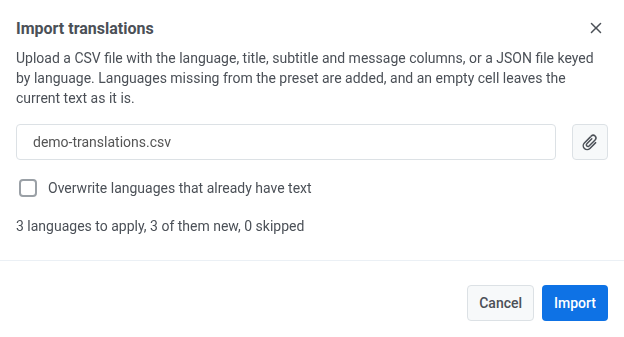
- Import ক্লিক করুন।
ইম্পোর্টের পরে, ভাষা নির্বাচককে ফাইল থেকে একটি ভাষায় পরিবর্তন করুন এবং নিশ্চিত করুন যে শিরোনাম এবং বার্তা ঠিক দেখাচ্ছে।
যদি Pushwoosh ফাইলটি পড়তে না পারে
Anchor link toপ্রিভিউয়ের পরিবর্তে, আপনি এই বার্তাগুলির মধ্যে একটি দেখতে পাবেন:
| বার্তা | কখন এটি ঘটে |
|---|---|
| ফাইলটি খালি। | ফাইলে কোনো বিষয়বস্তু নেই। |
| ফাইলটি বৈধ JSON নয়। | একটি .json ফাইল (বা { দিয়ে শুরু হওয়া একটি ফাইল) JSON হিসাবে পার্স করা যাচ্ছে না, অথবা এর শীর্ষ স্তরটি একটি অবজেক্ট নয়। |
| CSV ফাইলে “language” কলাম নেই। | একটি CSV ফাইলের হেডার সারিতে language কলামটি অনুপস্থিত। |
| ফাইলে কোনো অনুবাদ নেই। | প্রতিটি সারি, বা প্রতিটি JSON এন্ট্রিতে, একটি ভাষা কোড অনুপস্থিত। |