অনুমোদন এবং বিষয়বস্তুর সংস্করণ
প্রতিবার যখন আপনি একটি পুশ প্রিসেট বা ইমেল টেমপ্লেট সংরক্ষণ করেন, Pushwoosh তার একটি নতুন সংস্করণ রাখে। এটি প্রতিটি অ্যাকাউন্টের জন্য কাজ করে।
বিষয়বস্তু অনুমোদন একটি ঐচ্ছিক অতিরিক্ত পদক্ষেপ। যখন এটি আপনার অ্যাকাউন্টের জন্য চালু থাকে, তখন একজন পর্যালোচক অনুমোদন না করা পর্যন্ত আপনি কোনো সংস্করণ পাঠাতে পারবেন না।
বিষয়বস্তু অনুমোদন চালু থাকুক বা না থাকুক, আপনি সর্বদা সংস্করণগুলি দেখুন, তুলনা করুন এবং পুনরুদ্ধার করুন করতে পারেন।
বিষয়বস্তু অনুমোদন চালু করুন
Anchor link toডিফল্টরূপে, প্রতিটি সংরক্ষিত সংস্করণ স্বয়ংক্রিয়ভাবে অনুমোদিত হয়। বিষয়বস্তু আগের মতোই পাঠানো হতে থাকে।
পাঠানোর আগে একটি পর্যালোচনার প্রয়োজন হলে, আপনার অ্যাকাউন্টের জন্য Require content approval সীমাবদ্ধতা চালু করতে Pushwoosh সহায়তাকে বলুন।
Approve messages অনুমতি প্রদান করুন
Anchor link toপর্যালোচকদের পর্যালোচনা সারি খুলতে এবং জমা দেওয়া সংস্করণগুলি অনুমোদন বা প্রত্যাখ্যান করতে Approve messages অনুমতি প্রয়োজন।
- Users and roles খুলুন।
- একটি রোলে Approve messages যোগ করুন। এটি Messages গ্রুপে Send messages এবং Delete messages এর সাথে থাকে।
আপনি যদি রোল পরিচালনা না করেন, তাহলে পর্যালোচকদের জন্য Approve messages যোগ করতে একজন অ্যাকাউন্ট অ্যাডমিনকে বলুন।
সম্পূর্ণ রোল ম্যাট্রিক্সের জন্য উপলব্ধ অনুমতিসমূহ দেখুন।
অনুমোদনের জন্য বিষয়বস্তু জমা দিন
Anchor link toবিষয়বস্তু অনুমোদন চালু হয়ে গেলে, উভয় সম্পাদক একটি সংস্করণ স্ট্যাটাস (Draft, On approval, Approved, বা Rejected) এবং একটি Submit for approval বোতাম দেখায়। পুশ এবং ইমেলের জন্য এগুলির অবস্থান ভিন্ন।
পুশ প্রিসেট
Anchor link toপুশ বিষয়বস্তু সম্পাদক-এ, Version history বোতামটি Save এর পাশে থাকে। সংস্করণ স্ট্যাটাস এবং Submit for approval নিচের একটি সারিতে একসাথে থাকে।
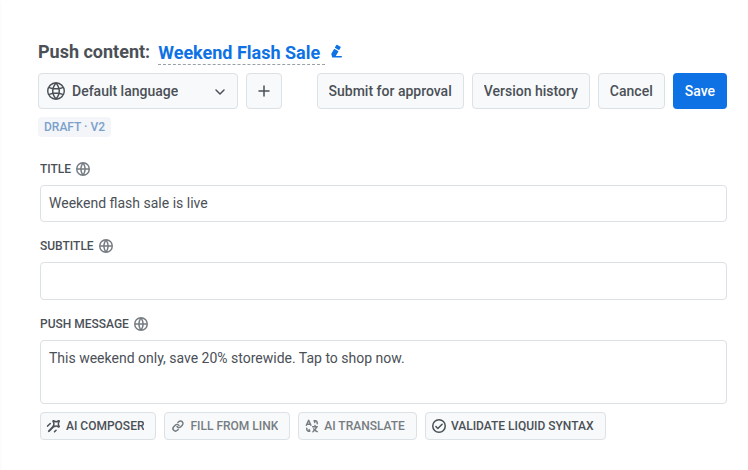
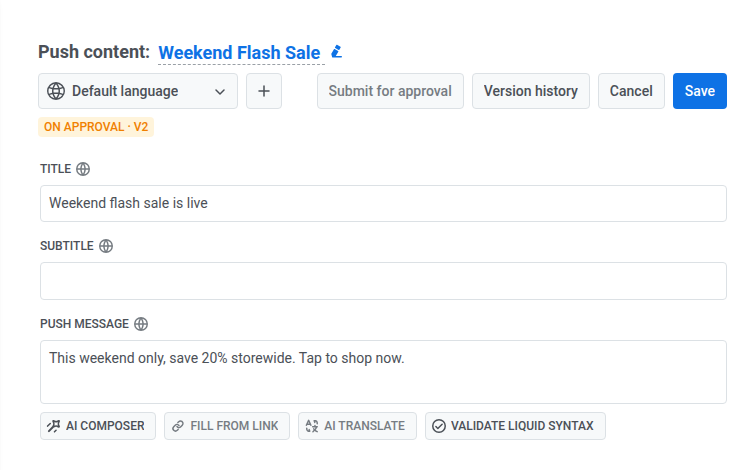
পর্যালোচনার জন্য একটি সংস্করণ জমা দিতে, Submit for approval ক্লিক করুন। স্ট্যাটাসটি On approval-এ পরিবর্তিত হয় এবং সংস্করণটি পর্যালোচকের সারিতে উপস্থিত হয়। Submit for approval অনুপলব্ধ হয়ে যায়। Version history উপলব্ধ থাকে।
ইমেল টেমপ্লেট
Anchor link toইমেল বিষয়বস্তু সম্পাদক (এর AI ট্যাব সহ), সংস্করণ স্ট্যাটাসটি ইমেল শিরোনামের পাশে প্রদর্শিত হয়।
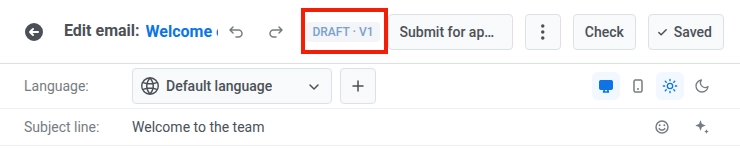
পর্যালোচনার জন্য একটি সংস্করণ জমা দিতে, Submit for approval ক্লিক করুন। স্ট্যাটাসটি On approval-এ পরিবর্তিত হয় এবং সংস্করণটি পর্যালোচকের সারিতে উপস্থিত হয়। সংস্করণটি অনুমোদনের জন্য থাকা অবস্থায় Submit for approval অনুপলব্ধ হয়ে যায়।

যদি একজন পর্যালোচক এটি প্রত্যাখ্যান করেন, স্ট্যাটাসটি Rejected-এ পরিবর্তিত হয় এবং এর দ্বিতীয় লাইনে পর্যালোচকের কারণ দেখায়। বিষয়বস্তু সম্পাদনা করুন এবং পুনরায় জমা দেওয়ার জন্য আবার Submit for approval ক্লিক করুন।
অনুমোদিত বিষয়বস্তু সম্পাদনা করলে কী হয়
Anchor link toআপনি যদি একটি পুশ প্রিসেট বা ইমেল টেমপ্লেট সম্পাদনা করেন যা Approved, তার স্ট্যাটাস Draft-এ পরিবর্তিত হয় এবং একটি নতুন সংস্করণ নম্বর দেখায়, উদাহরণস্বরূপ Draft · v4। সেই বিষয়বস্তুর উপর অনুমোদনের জন্য অপেক্ষারত যেকোনো অনুরোধ বাতিল হয়ে যায়।
মুলতুবি থাকা অনুমোদনগুলি পর্যালোচনা করুন
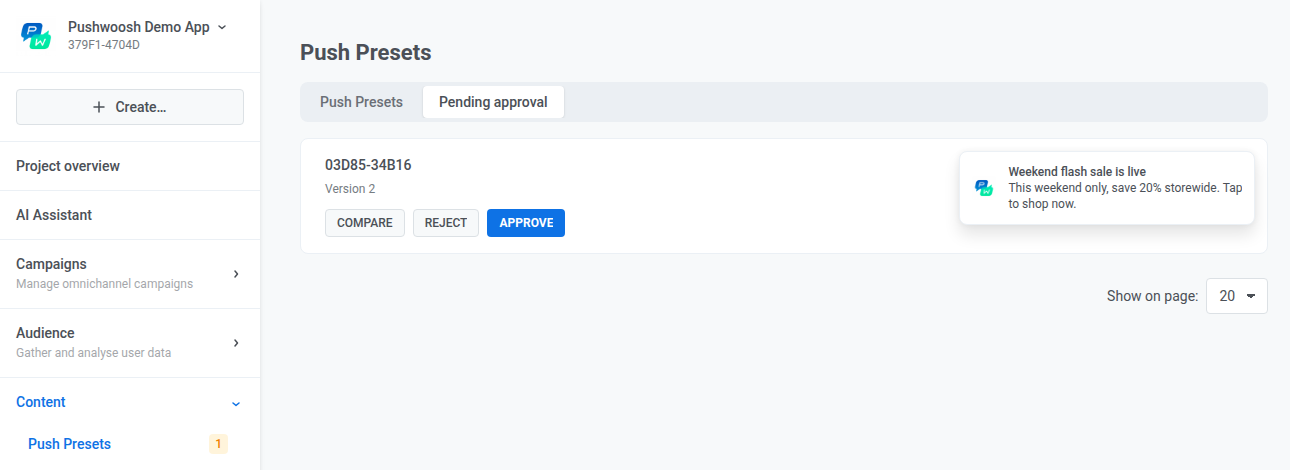
Anchor link toContent খুলুন, Push Presets বা Email content নির্বাচন করুন, তারপর Pending approval ট্যাবটি খুলুন। বাম মেনুতে সেই আইটেমের পাশের সংখ্যাটি হল কতগুলি সংস্করণ অপেক্ষা করছে।
সারিতে কী অন্তর্ভুক্ত থাকে তা চ্যানেলের উপর নির্ভর করে:
- পুশ প্রিসেট: আপনি এখন যে প্রকল্পটি খুলেছেন তাতে অপেক্ষারত সংস্করণগুলি। অন্য প্রকল্পের সংস্করণগুলি এখানে প্রদর্শিত হয় না।
- ইমেল বিষয়বস্তু: অ্যাকাউন্টের প্রতিটি প্রকল্পে অপেক্ষারত সংস্করণগুলি। ইমেল কার্ডগুলিতে Open template বোতামও অন্তর্ভুক্ত থাকে।
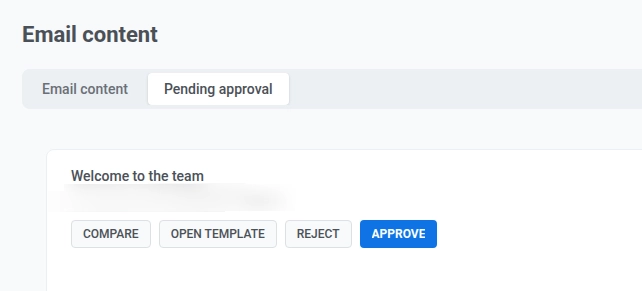
প্রতিটি মুলতুবি থাকা কার্ডে নীচের ক্রিয়াগুলি রয়েছে।
তুলনা করুন
Anchor link toপূর্ববর্তী সংস্করণ এবং এই সংস্করণটির পাশাপাশি একটি ভিউ খুলতে Compare ক্লিক করুন। অনুমোদন বা প্রত্যাখ্যান করার আগে কী পরিবর্তন হয়েছে তা পরীক্ষা করতে এটি ব্যবহার করুন।
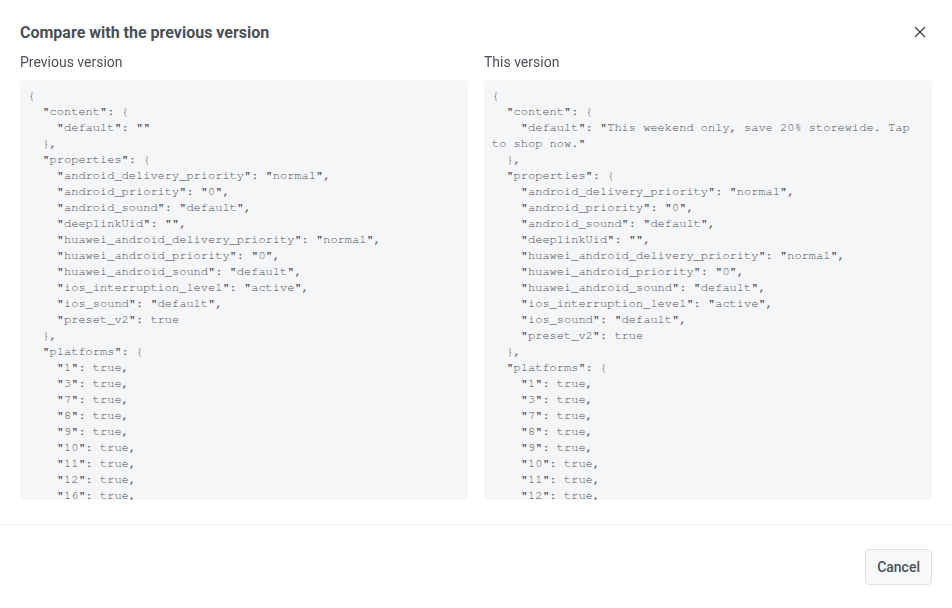
টেমপ্লেট খুলুন
Anchor link toশুধুমাত্র ইমেল কার্ডগুলিতে, সেই টেমপ্লেটটি ইমেল বিষয়বস্তু সম্পাদকে খুলতে Open template ক্লিক করুন। যখন আপনার শুধুমাত্র কার্ড প্রিভিউ নয়, সম্পূর্ণ সম্পাদক ভিউ প্রয়োজন তখন এটি ব্যবহার করুন।
প্রত্যাখ্যান করুন
Anchor link toসংস্করণটি প্রত্যাখ্যান করতে Reject ক্লিক করুন। একটি কারণ প্রয়োজন। কারণটি তালিকার কার্ডে এবং সম্পাদকের সংস্করণ স্ট্যাটাসে প্রদর্শিত হয়, যাতে সম্পাদক দেখতে পারেন কেন এটি প্রত্যাখ্যান করা হয়েছিল এবং এটি ঠিক করার পরে পুনরায় জমা দিতে পারেন।
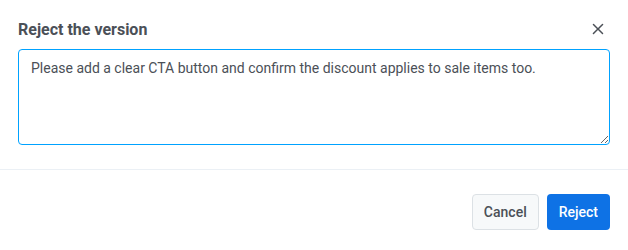
অনুমোদন করুন
Anchor link toসংস্করণটি গ্রহণ করতে Approve ক্লিক করুন। এর স্ট্যাটাস Approved হয়ে যায়, এটি মুলতুবি থাকা সারি থেকে বেরিয়ে যায় এবং এটি পাঠানো যেতে পারে।
আপনি যখন অননুমোদিত বিষয়বস্তু পাঠানোর চেষ্টা করেন তখন কী হয়
Anchor link toবিষয়বস্তু অনুমোদন চালু থাকলে, শুধুমাত্র একটি Approved সংস্করণ পাঠানো যেতে পারে। Draft, On approval, বা Rejected অবস্থায় থাকা যেকোনো কিছু ব্লক করা হয়।
- এককালীন পুশ এবং এককালীন ইমেল। অননুমোদিত বিষয়বস্তু এখনও বিষয়বস্তু ড্রপডাউনে প্রদর্শিত হয়, কিন্তু আপনি এটি নির্বাচন করতে পারবেন না। এককালীন ইমেল ফর্মটিও একইভাবে আচরণ করে।
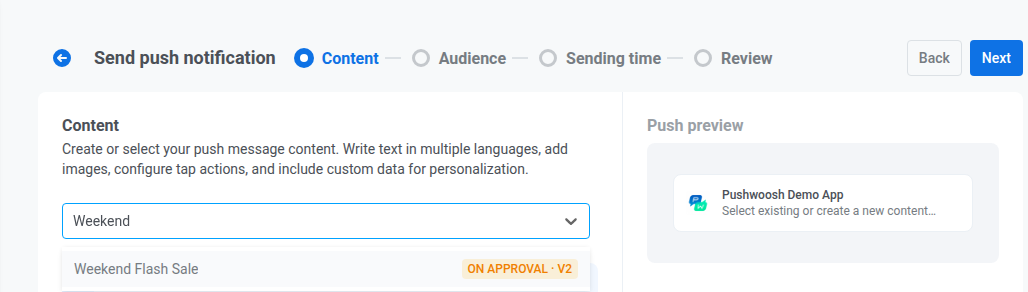
- Customer Journey। Send Push এবং Send Email Journey এলিমেন্টে, বিষয়বস্তু ড্রপডাউন প্রতিটি বিকল্পের পাশে একই সংস্করণ স্ট্যাটাস দেখায়, এবং যে কোনো বিকল্প যা Approved নয় তা নিষ্ক্রিয় থাকে। যদি পূর্বে নির্বাচিত একটি প্রিসেট বা টেমপ্লেট Approved থাকা বন্ধ হয়ে যায় (উদাহরণস্বরূপ, পরবর্তী সম্পাদনা একটি নতুন Draft সংস্করণ তৈরি করেছে), ড্রপডাউনের নীচে একটি নোট প্রদর্শিত হয়: “This content is not approved and cannot be sent.”
একটি Journey চালু করা বা পুনরায় শুরু করা প্রতিটি পুশ প্রিসেট এবং ইমেল টেমপ্লেটও পরীক্ষা করে যা এটি পাঠাবে। যদি তাদের মধ্যে কোনোটি Approved না হয়, তাহলে প্রি-লঞ্চ চেক Content is not approved and cannot be sent দিয়ে পয়েন্টটি ফ্ল্যাগ করে। আপনি এটি ঠিক না করা পর্যন্ত বা অনুমোদিত বিষয়বস্তু নির্বাচন না করা পর্যন্ত Journey চালু বা পুনরায় শুরু করা যাবে না।
এটি শুধুমাত্র সেই বিষয়বস্তু ধরে যা চালু বা পুনরায় শুরু করার আগে থেকেই অননুমোদিত। যদি Journey চলার সময় বিষয়বস্তু Approved থাকা বন্ধ হয়ে যায়, তাহলে ভ্রমণকারী একটি জেনেরিক অভ্যন্তরীণ ত্রুটির পরিবর্তে Content not approved ড্রপ-অফ কারণ পায়। একটি Send Push এলিমেন্ট Journey-কে বিরতি দেয়। Send Email শুধুমাত্র সেই ভ্রমণকারীকে ড্রপ করে এবং Journey চলতে থাকে।
আপনি যদি সরাসরি API কল করেন, createMessage (পুশ) বা createEmailMessage (ইমেল) একটি অননুমোদিত সংস্করণকে 210 ত্রুটি কোড দিয়ে প্রত্যাখ্যান করে। একটি প্রিসেট-ভিত্তিক প্রেরণ Preset content is not approved বার্তা পায়। একটি লেনদেনমূলক ইমেল যা শুধুমাত্র টেমপ্লেট কোড দ্বারা পাঠানো হয়, কোনো প্রিসেট ছাড়াই, তার পরিবর্তে Email Template content is not approved পায়।
এককালীন পাঠানোর জন্য বিষয়বস্তু তৈরি করা
Anchor link toআপনি এখনও পুশ প্রিসেট এবং ইমেল টেমপ্লেট তৈরি করতে পারেন। বিষয়বস্তু অনুমোদন চালু থাকলে, আপনি শুধু এককালীন পুশ বা এককালীন ইমেল ফর্ম থেকে সেগুলি তৈরি করতে পারবেন না। পরিবর্তে:
- Content → Push presets বা Content → Email content এর অধীনে প্রিসেট বা টেমপ্লেট তৈরি করুন।
- এটি অনুমোদনের জন্য জমা দিন এবং এর স্ট্যাটাস Approved না হওয়া পর্যন্ত অপেক্ষা করুন।
- এককালীন ফর্মটি খুলুন এবং ড্রপডাউন থেকে সেই অনুমোদিত বিষয়বস্তুটি নির্বাচন করুন।
বিষয়বস্তু পরীক্ষা করা
Anchor link toবিষয়বস্তু অনুমোদন চালু থাকলে, পুশ বিষয়বস্তু সম্পাদকে টেস্ট পুশ নোটিফিকেশন লুকানো থাকে, এবং ইমেল বিষয়বস্তু সম্পাদকে Test email লুকানো থাকে। এটি প্রতিটি সংস্করণ স্ট্যাটাসের জন্য প্রযোজ্য।
সংস্করণগুলি দেখুন, তুলনা করুন এবং পুনরুদ্ধার করুন
Anchor link toপ্রতিটি পুশ প্রিসেট এবং ইমেল টেমপ্লেট তার সংস্করণ ইতিহাসে শেষ ২০টি সংস্করণ রাখে। আপনার অ্যাকাউন্টের জন্য বিষয়বস্তু অনুমোদন চালু থাকুক বা না থাকুক, আপনি এই ইতিহাস খুলতে পারেন।
অনুমোদনের জন্য অপেক্ষারত একটি সংস্করণ ইতিহাসে থেকে যায় এমনকি যদি আপনার কাছে ইতিমধ্যে ২০টি অন্য সংস্করণ থাকে। নতুনগুলির জন্য জায়গা তৈরি করতে এটি বাদ দেওয়া হয় না।
পুশ বিষয়বস্তু সম্পাদক বা ইমেল বিষয়বস্তু সম্পাদক থেকে, Save এর পাশে Version history খুলুন যাতে:
- তুলনা করুন দুটি সংস্করণ পাশাপাশি রেখে তাদের মধ্যে কী পরিবর্তন হয়েছে তা দেখতে।
- একটি পূর্ববর্তী সংস্করণ পুনরুদ্ধার করুন। আপনি Save ক্লিক না করা পর্যন্ত কিছুই সংরক্ষিত হয় না।
- পুশ প্রিসেট: সংস্করণের টেক্সট পুনরুদ্ধার করে। মিডিয়া, অ্যাকশন এবং সেটিংস সম্পাদকে যেমন আছে তেমনই থাকে।
- ইমেল টেমপ্লেট: HTML বিষয়বস্তু, লোকেল ভ্যারিয়েন্ট এবং থিম পুনরুদ্ধার করে। এটি Settings ট্যাব থেকে ইমেল-ব্যাপী স্টাইলিং এবং ফুটার পুনরুদ্ধার করে না।