Viber
Customer Journey-তে Viber মেসেজ পাঠাতে Viber এলিমেন্ট ব্যবহার করুন। Viber-কে ক্যানভাসে টেনে আনুন, তারপর নিচে কন্টেন্ট এবং ডেলিভারি সেটিংস বেছে নিন।
মেসেজ কন্টেন্ট নির্বাচন করুন
Anchor link toমেসেজ কন্টেন্ট কীভাবে সংজ্ঞায়িত করবেন তা বেছে নিন।
Template
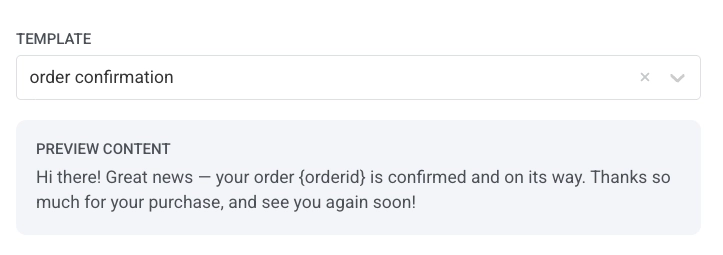
Anchor link toএকটি অনুমোদিত Viber মেসেজ টেমপ্লেট নির্বাচন করুন। Viber টেমপ্লেটগুলি সরাসরি Rakuten Viber দ্বারা তৈরি এবং অনুমোদিত হয়, Pushwoosh-এ নয়। একটি অনুমোদিত টেমপ্লেট দিয়ে পাঠানো মেসেজগুলি নিম্ন Transactional হারে বিল করা হয়।
টেমপ্লেট তালিকায়, একটি অনুমোদিত টেমপ্লেট সংযুক্ত রাখতে একটি Transactional template বেছে নিন, অথবা এর টেক্সট, ইমেজ, এবং বোতাম সম্পাদনাযোগ্য Freeform কন্টেন্ট হিসাবে লোড করতে একটি Promo template বেছে নিন। একটি প্রোমো টেমপ্লেট লোড হওয়ার পরে, একটি ইমেজ এবং একটি বোতাম যোগ করুন-এর অধীনে ইমেজ এবং বোতাম সেট করুন।
Freeform
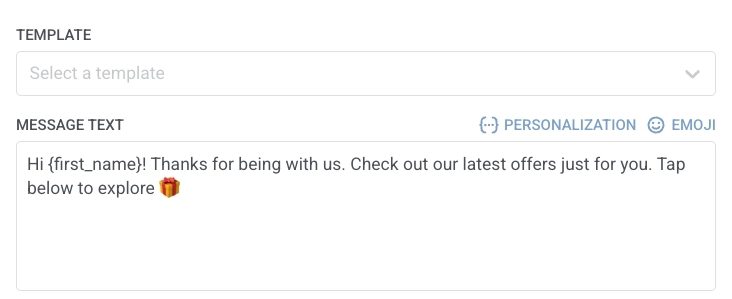
Anchor link toসরাসরি মেসেজ ফিল্ডে প্লেইন-টেক্সট কন্টেন্ট লিখুন। Freeform মেসেজগুলিতে টেমপ্লেট অনুমোদনের প্রয়োজন হয় না, তবে Promotional হারে বিল করা হয়।
ট্রানজ্যাকশনাল এবং OTP মেসেজের জন্য Rakuten Viber একটি অনুমোদিত টেমপ্লেট প্রয়োজন করে। এই মেসেজগুলির জন্য পাঠানো Freeform কন্টেন্ট Promotional হারে বিল করা হয়।
একটি ইমেজ এবং একটি বোতাম যোগ করুন
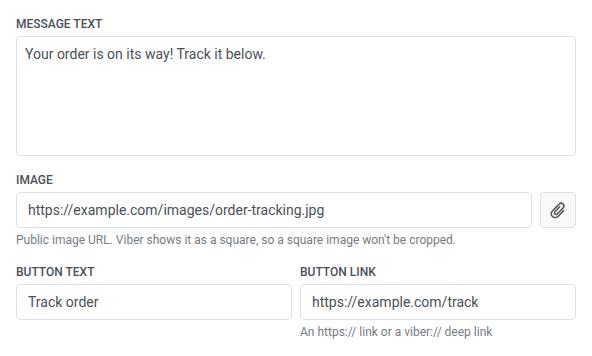
Anchor link toFreeform কন্টেন্টে (শুরু থেকে টাইপ করা বা একটি প্রোমো টেমপ্লেট থেকে লোড করা), আপনার প্রয়োজন হলে একটি ইমেজ এবং একটি বোতাম যোগ করুন:
- Image:
http://বাhttps://দিয়ে শুরু হওয়া একটি সর্বজনীন ইমেজ URL লিখুন, অথবা আপনার মিডিয়া লাইব্রেরি থেকে একটি JPG বা PNG বেছে নিতে ফিল্ডের পাশের অ্যাটাচমেন্ট আইকনে ক্লিক করুন (10 MB পর্যন্ত, লাইব্রেরির নিজস্ব সীমা)। Viber ইমেজটিকে একটি বর্গক্ষেত্র হিসাবে দেখায়, তাই একটি বর্গাকার ইমেজ ক্রপ করা হবে না। - Button text: 30 অক্ষর পর্যন্ত লিখুন। এর জন্য মেসেজ টেক্সট এবং একটি বোতাম লিঙ্ক প্রয়োজন। একটি বোতাম একা প্রদর্শিত হতে পারে না।
- Button link: একটি
http://বাhttps://URL, একটিviber://ডিপ লিঙ্ক, বা একটি Omni টোকেন (একটি প্লেসহোল্ডার যা আপনার Viber প্রদানকারী পাঠানোর সময় সমাধান করে, যেমন{lp-100}) লিখুন।
ইভেন্ট অ্যাট্রিবিউট দিয়ে মেসেজ পার্সোনালাইজ করুন
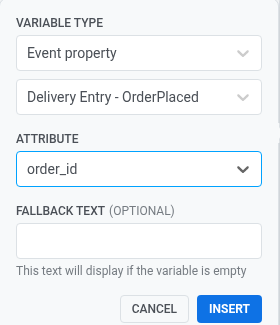
Anchor link toযখন আপনার Template-এ প্লেসহোল্ডার থাকে (উদাহরণস্বরূপ একটি অর্ডার আইডি বা একটি যাচাইকরণ কোড), প্রতিটি ম্যাপ করুন যাতে প্রতিটি প্রাপক তাদের নিজস্ব মান দেখেন।
ভেরিয়েবল পিকার খুলতে একটি প্লেসহোল্ডারে ক্লিক করুন। Variable type-কে Event property-তে সেট করুন, ইভেন্ট বেছে নিন, তারপর সেই Attribute বেছে নিন যা মান সরবরাহ করে। ঐচ্ছিকভাবে মান অনুপস্থিত থাকলে তার জন্য Fallback text যোগ করুন। আপনি API-ভিত্তিক journey এন্ট্রিতে অ্যাট্রিবিউট থেকেও প্লেসহোল্ডার ম্যাপ করতে পারেন। আরও জানুন
মেসেজ টাইপ সেট করুন
Anchor link toMarketing message বা Transactional message বেছে নিন। মেসেজ টাইপ ডেলিভারি নিয়ম সেট করে। এটি Template বা Freeform থেকে Viber হার পরিবর্তন করে না।
- Marketing message: ক্যাম্পেইন এবং প্রোমোর জন্য ব্যবহার করুন। ফ্রিকোয়েন্সি ক্যাপিং প্রযোজ্য। কন্ট্রোল গ্রুপ-এর ব্যবহারকারীরা মেসেজ পান না।
- Transactional message: অপারেশনাল বা পরিষেবা মেসেজের জন্য ব্যবহার করুন। ফ্রিকোয়েন্সি ক্যাপিং প্রযোজ্য নয়। কন্ট্রোল গ্রুপ-এর ব্যবহারকারীরা তবুও মেসেজ পান।
কোনো মেসেজ টাইপ আগে থেকে নির্বাচিত থাকে না। আপনি একটি বেছে না নেওয়া পর্যন্ত এলিমেন্টটি একটি মেসেজের ধরন নির্বাচন করা হয়নি সতর্কতা দেখায়। যদি এলিমেন্টটিতে শুধুমাত্র একটি Audience-based entry থেকে পৌঁছানো যায়, তবে Marketing message একটি ডিফল্ট ব্যাজ সহ দেখানো হয়। মেসেজটি পরিষেবা-সংক্রান্ত হলে Transactional message বেছে নিন।
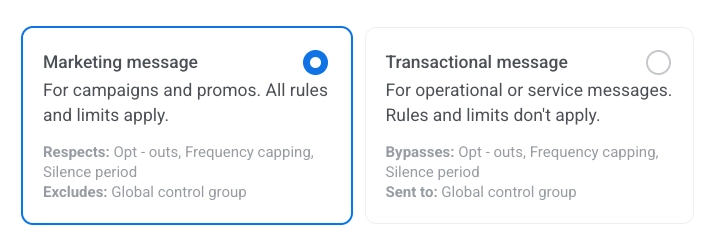
মেসেজ টাইপ কীভাবে ডেলিভারিকে প্রভাবিত করে তা জানুন।
ফ্রিকোয়েন্সি ক্যাপিং সেট করুন
Anchor link toব্যবহারকারীরা কত ঘন ঘন Viber মেসেজ পান তা সীমিত করতে, অতিরিক্ত মেসেজিং প্রতিরোধ করতে এবং churn কমাতে Frequency capping ব্যবহার করুন। নিম্নলিখিত বিকল্পগুলির মধ্যে একটি বেছে নিন:
-
Use Global frequency capping settings
আপনার Global frequency capping সেটিংস-এ কনফিগার করা প্রজেক্ট-ব্যাপী সীমা প্রয়োগ করুন।
উদাহরণস্বরূপ, যদি গ্লোবাল সীমা 9 দিনে 3টি Viber মেসেজে সেট করা থাকে, তাহলে এই সীমা অতিক্রমকারী অতিরিক্ত মেসেজগুলি বাদ দেওয়া হবে।
-
Ignore Global frequency capping
ব্যবহারকারী চ্যানেলের মেসেজ সীমা অতিক্রম করলেও এই মেসেজটি পাবেন। অতিরিক্ত মেসেজিং এড়াতে এই বিকল্পটি সতর্কতার সাথে ব্যবহার করুন।
-
Use custom frequency capping
এই মেসেজের জন্য একটি কাস্টম মেসেজ সীমা সেট করুন। যদি ব্যবহারকারী এই কাস্টম সীমা অতিক্রম করেন, তাহলে মেসেজটি বাদ দেওয়া হবে, এবং ব্যবহারকারী পরবর্তী ধাপে এগিয়ে যাবেন।
এই কাস্টম সীমার জন্য একটি গণনা মোড বেছে নিন: রোলিং উইন্ডো বা ক্যালেন্ডার দিন।
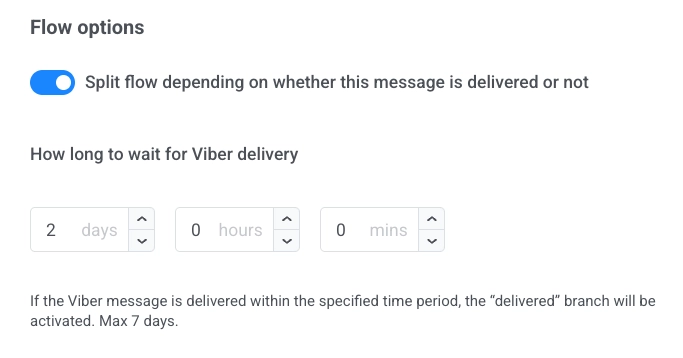
ডেলিভারি স্ট্যাটাস অনুযায়ী ফ্লো বিভক্ত করুন
Anchor link toViber ডেলিভারি স্ট্যাটাস অনুযায়ী journey বিভক্ত করতে:
- Split flow depending on whether this message is delivered or not সক্রিয় করুন।
- ডেলিভারির জন্য কতক্ষণ অপেক্ষা করতে হবে (সর্বোচ্চ 7 দিন) সেট করুন।
যদি অপেক্ষার সময়ের মধ্যে মেসেজ ডেলিভার হয়, ব্যবহারকারীরা delivered শাখা অনুসরণ করেন। অন্যথায়, তারা not delivered শাখা অনুসরণ করেন।
ভাউচার ব্যবহার করুন
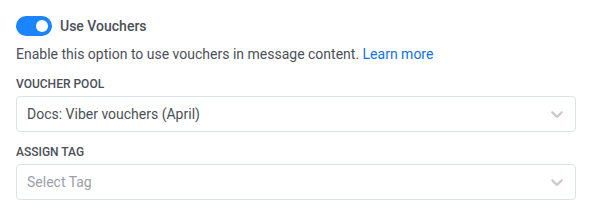
Anchor link toViber মেসেজে একটি পুল থেকে একটি অনন্য ভাউচার কোড অন্তর্ভুক্ত করতে:
- নিশ্চিত করুন যে আপনার Viber মেসেজ কন্টেন্টে
{{voucher}}প্লেসহোল্ডার অন্তর্ভুক্ত রয়েছে। - Viber মেসেজ ধাপে, Use Vouchers ON-এ টগল করুন।
- আপনার ভাউচার কোড ধারণকারী উপযুক্ত Voucher Pool নির্বাচন করুন। নিশ্চিত করুন যে পুলটি আগে থেকে তৈরি করা হয়েছে।
- (ঐচ্ছিক) ভাউচার পাওয়া ব্যবহারকারীদের একটি ট্যাগ প্রয়োগ করতে Assign Tag ফিল্ড ব্যবহার করুন। এটি সেগমেন্টেশন এবং রিপোর্টিং-এ সাহায্য করে।
Viber এলিমেন্ট কনফিগার করার পরে, আপনার সেটিংস প্রয়োগ করতে Save-এ ক্লিক করুন।