একটি ক্লাউড পেজ তৈরি করুন
একটি ক্লাউড পেজ তৈরি এবং প্রকাশ করতে এই গাইডটি ব্যবহার করুন। একটি ক্লাউড পেজ হল একটি পাবলিক ওয়েব পেজ যা আপনি Pushwoosh-এ প্রোমো ক্যাম্পেইন, লিড ফর্ম, কুইজ এবং অন্যান্য ক্লিক-থ্রু ল্যান্ডিং পেজের জন্য তৈরি করেন।
শুরু করার আগে
Anchor link to- ক্লাউড পেজ অনুরোধের ভিত্তিতে উপলব্ধ। আপনার প্রজেক্টের জন্য এটি সক্ষম করতে Pushwoosh সাপোর্ট এর সাথে যোগাযোগ করুন।
- পেজের প্রধান অ্যাকশনের পরে ব্যবহারকারীদের কোথায় রিডাইরেক্ট করা হবে তা ঠিক করুন। রিডাইরেক্টটি আপনার নিয়ন্ত্রণের যেকোনো URL হতে পারে, যেমন একটি ধন্যবাদ পেজ, একটি ফলাফলের পেজ, অন্য একটি ক্লাউড পেজ, বা অন্য কোনো ক্যাম্পেইন URL। পরীক্ষা করার আগে সেই URL প্রস্তুত করুন।
একটি পেজ তৈরি করুন
Anchor link to- Content → Cloud Pages-এ যান।
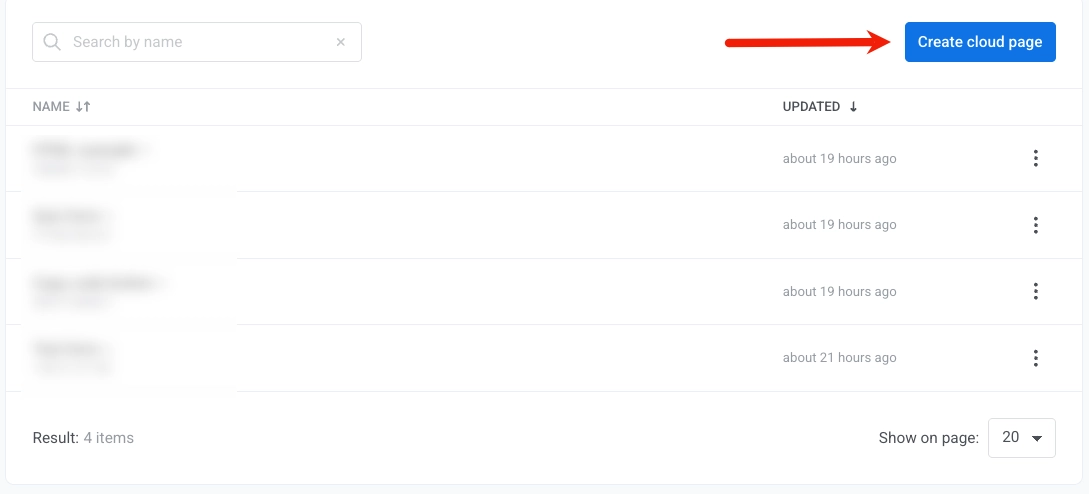
- Create cloud page-এ ক্লিক করুন। এটি সরাসরি পেজ এডিটর খুলবে, যেখানে নাম, রিডাইরেক্ট এবং বিষয়বস্তু সবই এক স্ক্রিনে থাকে।
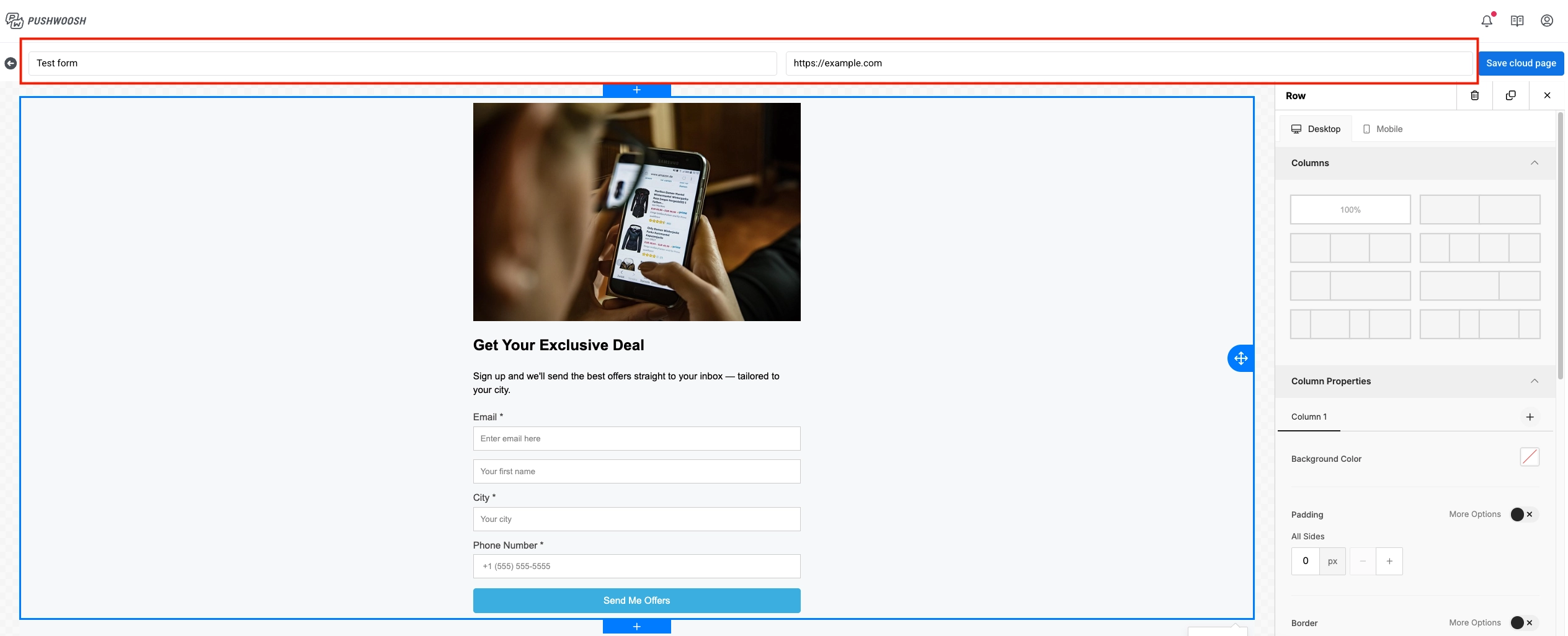
- Create page: এর পাশের পেজের নামে ক্লিক করুন এবং একটি নাম লিখুন।
- After submit, redirect to-তে URL যোগ করুন। এই ফিল্ডটি আবশ্যক। পেজে একটি অ্যাকশন সম্পন্ন করার পরে ব্যবহারকারীরা কোথায় যাবে তা নির্ধারণ করতে এটি ব্যবহার করুন, যেমন একটি ধন্যবাদ পেজ বা অন্য কোনো ক্যাম্পেইন পেজ।
- এর পাশের ড্রপডাউনে, একজন বিদ্যমান কন্ট্যাক্ট আবার ফর্ম জমা দিলে কী হবে তা বেছে নিন:
- Update existing user (ডিফল্ট): জমা দেওয়া মান দিয়ে কন্ট্যাক্ট প্রোফাইল ফিল্ড আপডেট করে।
- Skip tags for existing user: ব্যবহারকারী যে ডিভাইস থেকে জমা দেয় তা রেজিস্টার করে, কিন্তু কন্ট্যাক্ট প্রোফাইলে বিদ্যমান ট্যাগ আপডেট করে না।
- Show error for existing user: এককালীন সাইনআপ যেমন এক্সক্লুসিভ অফার বা ওয়েবিনারের জন্য। যদি কন্ট্যাক্টটি ইতিমধ্যে বিদ্যমান থাকে, তাহলে জমাটি প্রত্যাখ্যান করা হয়, প্রোফাইল আপডেট করা হয় না, এবং ব্যবহারকারীকে ফর্মে ফিরিয়ে নিয়ে যাওয়া হয় এবং একটি ত্রুটি বার্তা দেখানো হয়।
পেজের বিষয়বস্তু তৈরি করুন
Anchor link toবেশিরভাগ লিড পেজের জন্য একটি Form ব্লক প্রয়োজন। বেসিক লেআউট যোগ করার পরে একটি লিড বা সাবমিশন ফর্ম তৈরি করুন অনুসরণ করুন। যদি আপনার শুধুমাত্র বিষয়বস্তু এবং একটি বোতামের প্রয়োজন হয়, আপনি ফর্ম বিভাগটি এড়িয়ে যেতে পারেন।
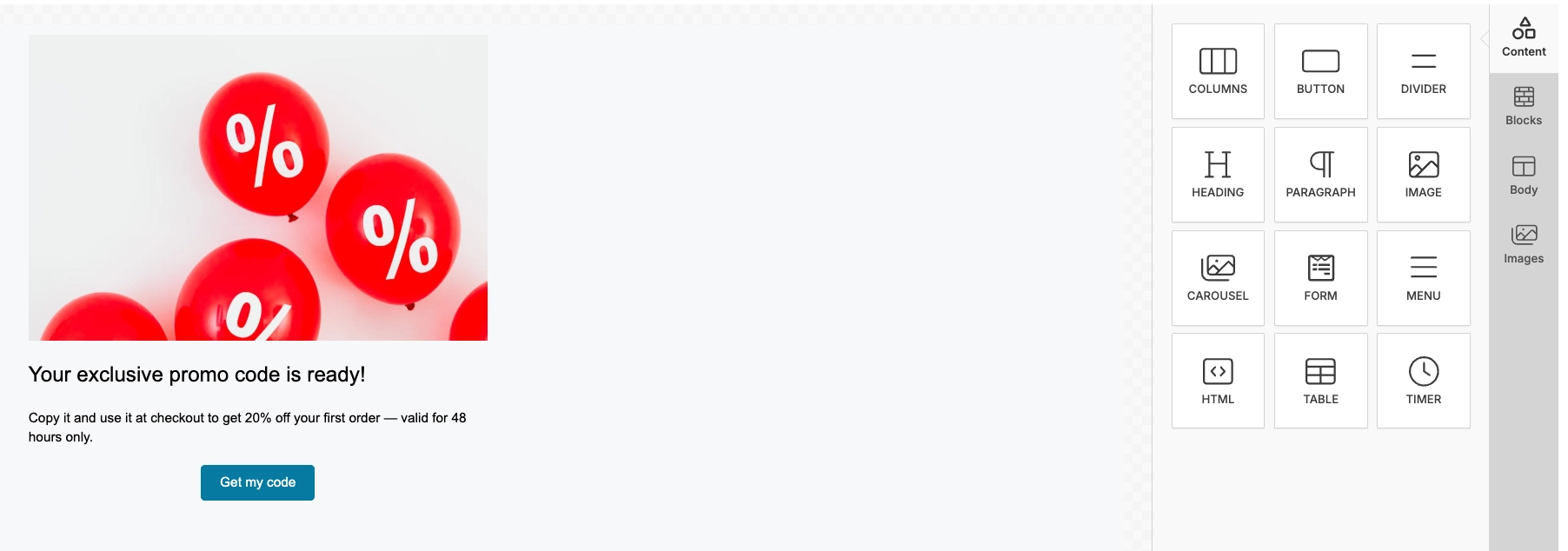
- ডানদিকের Blocks প্যানেল থেকে, ক্যানভাসে ব্লক ক্লিক করুন বা টেনে আনুন।
- বেশিরভাগ ব্লক ইমেল এডিটরের মতোই। সেগুলি কনফিগার করতে, ইমেল এডিটর ব্লক গাইড দেখুন।
- Group: যখন আপনি একাধিক ব্লক একসাথে সরাতে, লুকাতে বা স্টাইল করতে চান (শেয়ার্ড ব্যাকগ্রাউন্ড এবং স্পেসিং), অথবা Direction: Horizontal দিয়ে স্ট্যাক করার পরিবর্তে একটি সারিতে সাজাতে চান, তখন ব্লকগুলিকে একটি গ্রুপে ফেলুন। Layers প্যানেলে গ্রুপ থেকে ব্লক যোগ বা অপসারণ করতে সেগুলিকে টেনে আনুন।
- Form: নিচে একটি লিড বা সাবমিশন ফর্ম তৈরি করুন দেখুন।
- ক্যানভাসে ব্লকের বিষয়বস্তু সম্পাদনা করুন।
- আপনার প্রয়োজনীয় প্রতিটি ব্লকের জন্য পুনরাবৃত্তি করুন।
- Save-এ ক্লিক করুন।
একটি লিড বা সাবমিশন ফর্ম তৈরি করুন
Anchor link toকন্ট্যাক্ট ডিটেইলস এবং সেগমেন্টেশনের জন্য আপনার প্রয়োজনীয় অন্যান্য মান সংগ্রহ করতে একটি ফর্ম যোগ করুন। একটি Tag name হল কন্ট্যাক্টে সংরক্ষিত ফিল্ডের নাম। একটি স্পষ্ট নাম ব্যবহার করুন যেমন email বা fitness_goal যাতে আপনি পরে সেগমেন্ট এবং User Explorer-এ সেই মান খুঁজে পেতে পারেন।
- Blocks থেকে, একটি Form ব্লক যোগ করুন।
- Form প্যানেলে, Fields এর অধীনে, Add field-এ ক্লিক করুন।

-
ফিল্ড তালিকায়, ফিল্ডের সেটিংস খুলতে তার সম্পাদনা (পেন্সিল) আইকনে ক্লিক করুন।
-
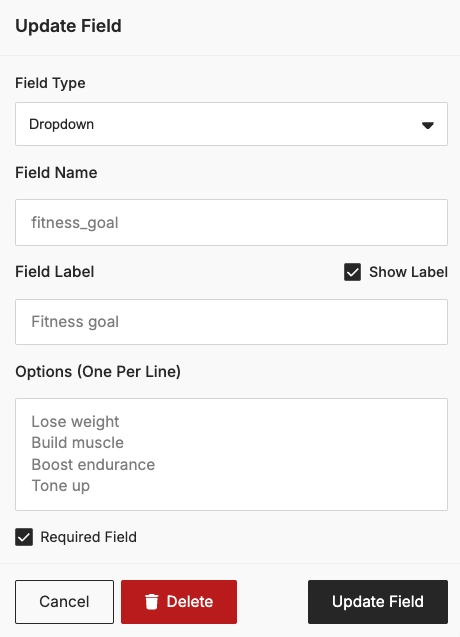
ফিল্ড সেটিংসে, ফিল্ডটি কনফিগার করুন:
- Tag name: কন্ট্যাক্টে সংরক্ষিত নাম (উদাহরণস্বরূপ
fitness_goal) - Type: ইনপুটের ধরন (উদাহরণস্বরূপ Text, Phone, বা Dropdown)
- Label এবং Placeholder
- Options (one per line): যদি Type হয় Dropdown, তাহলে প্রতি লাইনে একটি করে পছন্দ লিখুন
- Required: ব্যবহারকারীদের জমা দেওয়ার আগে এই ফিল্ডটি পূরণ করতে হলে এটি সক্ষম করুন
ফিল্ডটি মুছে ফেলতে, Remove field-এ ক্লিক করুন।
- Tag name: কন্ট্যাক্টে সংরক্ষিত নাম (উদাহরণস্বরূপ
-
আপনার প্রয়োজনীয় প্রতিটি ফিল্ডের জন্য ২-৪ ধাপ পুনরাবৃত্তি করুন।
-
Submit button এর অধীনে, Label সেট করুন। ঐচ্ছিকভাবে Background, Text color, এবং Corner radius সামঞ্জস্য করুন।

- Save-এ ক্লিক করুন।
ফর্ম জমা দেওয়ার পরে কী হয়
Anchor link toজমা দেওয়ার পরে, Pushwoosh কন্ট্যাক্ট তৈরি বা আপডেট করে এবং ব্যবহারকারীকে আপনার রিডাইরেক্ট URL-এ পাঠায়। নীচের বিবরণগুলি আপনাকে User Explorer-এ ফলাফল যাচাই করতে এবং Customer Journey-তে জমা ব্যবহার করতে সাহায্য করবে। এগুলি এডিটরে অতিরিক্ত সেটআপ ধাপ নয়।
কন্ট্যাক্ট প্রোফাইল এবং ডিভাইস
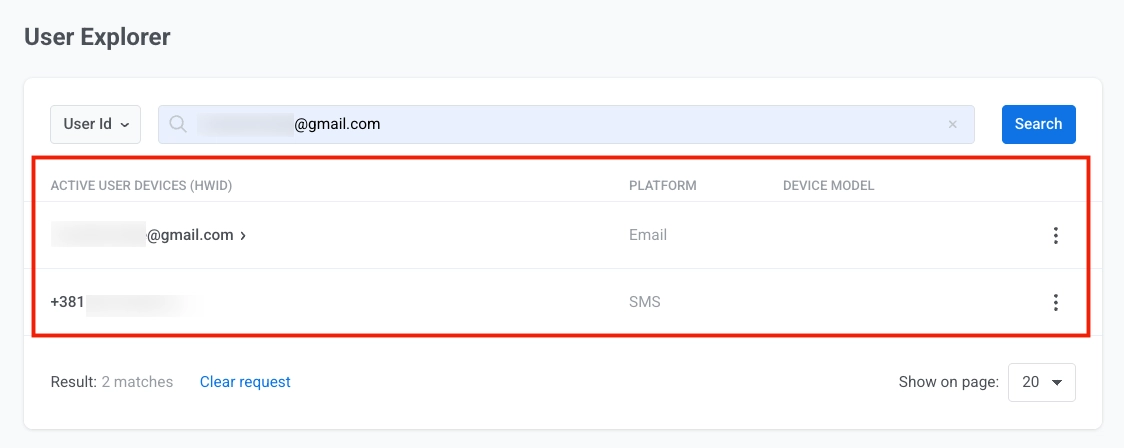
Anchor link toযখন একজন ব্যবহারকারী ফর্ম জমা দেয়, Pushwoosh User Explorer-এ একটি কন্ট্যাক্ট প্রোফাইল তৈরি বা আপডেট করে।
উদাহরণস্বরূপ, যদি ফর্মে একটি ইমেল ফিল্ড এবং একটি ফোন ফিল্ড অন্তর্ভুক্ত থাকে, Pushwoosh একটি Email ডিভাইস এবং একটি SMS ডিভাইস রেজিস্টার করে। উভয় ডিভাইস একটি User ID এর অধীনে লিঙ্ক করা থাকে।
ট্যাগ
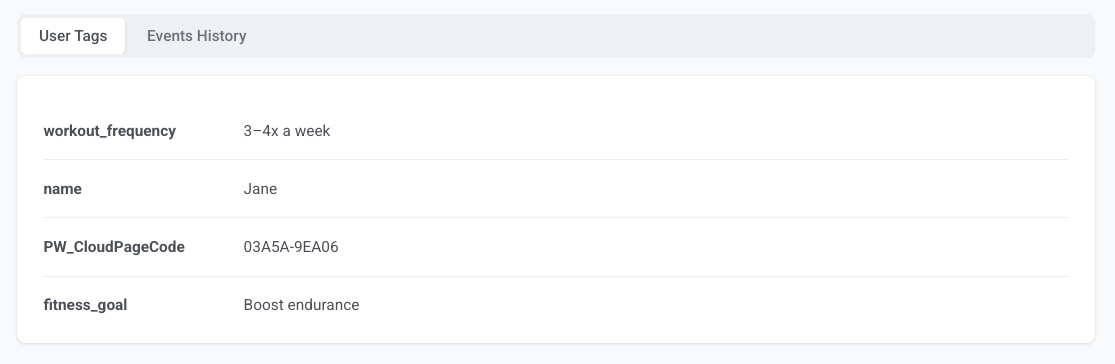
Anchor link toঅন্যান্য সমস্ত ফিল্ড ফিল্ডের নাম অনুসারে কাস্টম ট্যাগ হিসাবে সংরক্ষিত হয়। উদাহরণস্বরূপ, যদি আপনার ফর্মে fitness_goal এবং workout_frequency ফিল্ড থাকে, তাহলে কন্ট্যাক্ট প্রোফাইলে fitness_goal = Boost endurance এবং workout_frequency = 3–4x a week এর মতো ট্যাগ দেখাবে।
পেজ কোডটি PW_CloudPageCode ট্যাগে সংরক্ষিত হয়।
ইভেন্ট
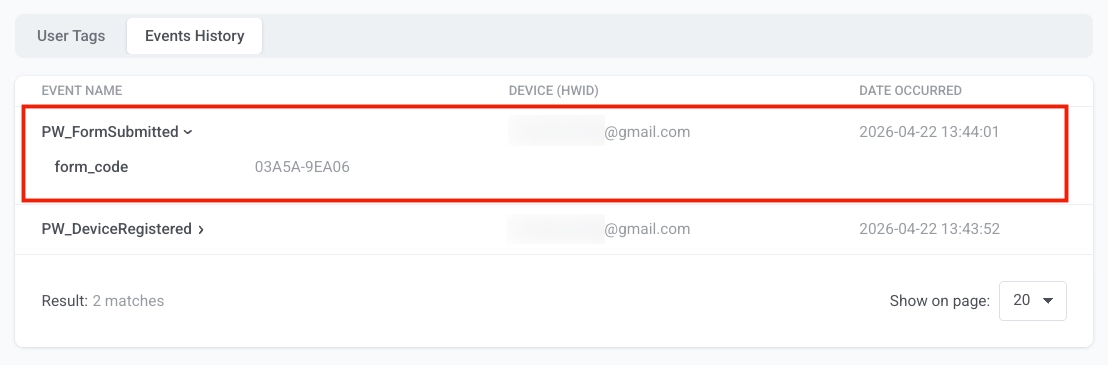
Anchor link toPushwoosh প্রতিটি ফর্ম জমা দেওয়ার সময় PW_FormSubmitted ফায়ার করে। আপনি এটি User Explorer-এর কন্ট্যাক্ট প্রোফাইলের Events History ট্যাবে দেখতে পারেন। ইভেন্টটিতে একটি form_code অ্যাট্রিবিউট অন্তর্ভুক্ত থাকে যা সনাক্ত করে যে কোন ক্লাউড পেজ থেকে জমাটি এসেছে, এবং এটি কখন ঘটেছে তার একটি টাইমস্ট্যাম্প।
স্বাগত ক্রম, ফলো-আপ ফ্লো এবং অন্যান্য অটোমেশন শুরু করতে Customer Journey-তে এটি একটি ট্রিগার হিসাবে ব্যবহার করুন। উদাহরণস্বরূপ, আপনি একটি জার্নি তৈরি করতে পারেন যা একজন ব্যবহারকারী একটি ফিটনেস কুইজ ফর্ম জমা দেওয়ার সাথে সাথে একটি স্বাগত ইমেল পাঠায়, তারপর ২৪ ঘন্টা পরে একটি ব্যক্তিগতকৃত ওয়ার্কআউট প্ল্যান দিয়ে ফলো-আপ করে।
পেজটি পরীক্ষা করুন
Anchor link toআপনি পেজটি সংরক্ষণ করার পরে, এটি তার URL এর মাধ্যমে সর্বজনীনভাবে অ্যাক্সেসযোগ্য হয়ে যায়। ডিফল্ট ফর্ম্যাট হল https://cloud-pages.svc-nue.pushwoosh.com/cloud-pages/v1/page/<page-code>।
- এডিটরের ব্যাক কন্ট্রোল ব্যবহার করে Content → Cloud Pages-এ ফিরে যান।
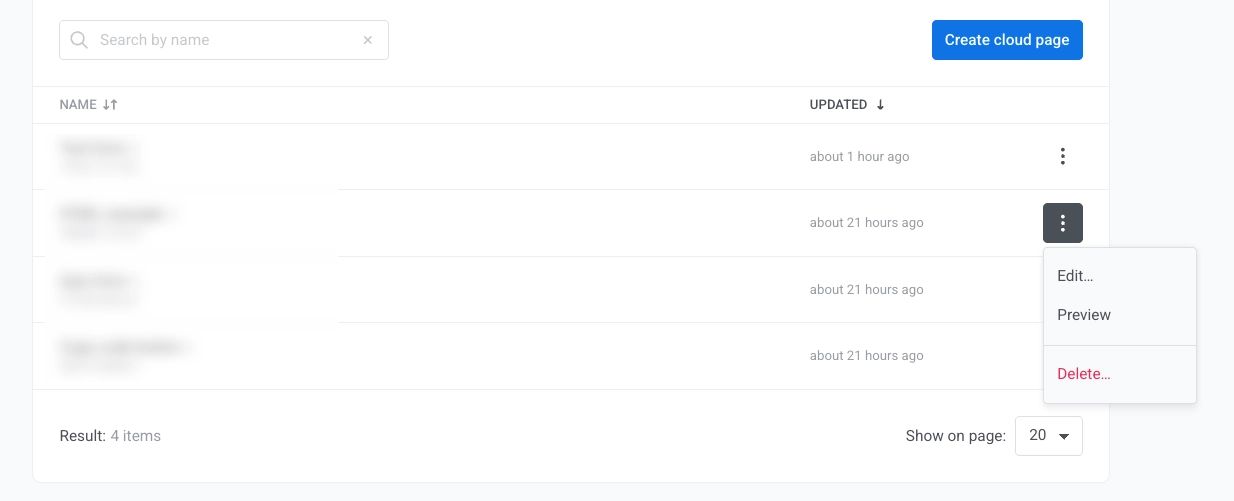
- পেজ তালিকায়, পেজ অ্যাকশন মেনু খুলুন এবং Preview-এ ক্লিক করুন।
- প্রিভিউ খুললে ব্রাউজারের ঠিকানা বার থেকে পাবলিক URL কপি করুন। সেই URL একটি মেসেজ CTA, Customer Journey, বা বিজ্ঞাপনে ব্যবহার করুন।
- যাচাই করুন যে পেজের বিষয়বস্তু সঠিকভাবে লোড হচ্ছে এবং প্রত্যাশিতভাবে প্রদর্শিত হচ্ছে।
- যদি আপনার পেজে একটি ফর্ম থাকে, তাহলে পরীক্ষার ডেটা দিয়ে ফর্মটি পূরণ করুন এবং সাবমিট বোতামে ক্লিক করুন। একটি পরিষ্কারভাবে নামকরণ করা পরীক্ষার ইমেল ব্যবহার করুন যাতে আপনি পরে User Explorer-এ সেই কন্ট্যাক্টটি খুঁজে পেতে বা সরাতে পারেন।
- নিশ্চিত করুন যে রিডাইরেক্টটি প্রত্যাশিত পেজ খোলে।
- User Explorer খুলুন এবং নিশ্চিত করুন যে জমা দেওয়া ব্যবহারকারীর ডেটা এবং ট্যাগগুলি প্রদর্শিত হচ্ছে।
একটি পেজ সম্পাদনা বা মুছুন
Anchor link toসমস্ত ক্লাউড পেজ Content → Cloud Pages-এ তালিকাভুক্ত থাকে, যেখানে আপনি সেগুলি পরিচালনা এবং সম্পাদনা করতে পারেন।
- Content → Cloud Pages-এ যান।
- পেজ অ্যাকশন মেনু খুলুন।
- পেজটি Edit বা Delete করতে ক্লিক করুন।