নির্দিষ্ট ব্যবহারকারীদের ইন-অ্যাপ কন্টেন্ট দেখান
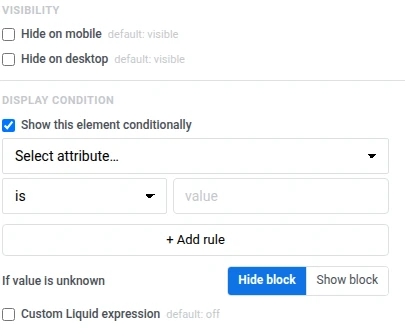
বিল্ট-ইন এডিটর-এর প্রতিটি ব্লকে, এবং এর ভিতরের প্রতিটি উপাদানে, ডান প্যানেলে দুটি সেটিংস রয়েছে যা নিয়ন্ত্রণ করে কে এটি দেখতে পাবে: ভিজিবিলিটি এবং ডিসপ্লে কন্ডিশন।
ডিভাইস অনুযায়ী কন্টেন্ট দেখান বা লুকান
Anchor link toএকটি ব্লক বা উপাদানের সেটিংস খুলুন এবং ভিজিবিলিটি-এর অধীনে মোবাইলে লুকান বা ডেস্কটপে লুকান ব্যবহার করুন যাতে এটি শুধুমাত্র একটি প্রিভিউ প্রস্থে দেখানো যায়, যা টপ বারের ফোন/ডেস্কটপ টগল-এর ফোন (360, 390, 393, বা 430 px) এবং ট্যাবলেট (768px) প্রস্থের সাথে মিলে যায়।
নির্দিষ্ট ব্যবহারকারীদের কন্টেন্ট দেখান
Anchor link toএকটি ডিসপ্লে কন্ডিশন নির্দিষ্ট ব্যবহারকারীদের জন্য তাদের ট্যাগ এর উপর ভিত্তি করে একটি ব্লক দেখায় বা লুকায়। প্রতিটি ব্যবহারকারী একই ইন-অ্যাপ টেমপ্লেট পায়, কিন্তু প্রত্যেকে শুধুমাত্র তাদের জন্য নির্ধারিত ব্লকগুলো দেখতে পায়।
আপনি ক্যানভাসের যেকোনো ব্লক বা উপাদানে একটি ডিসপ্লে কন্ডিশন যোগ করতে পারেন।
একটি ডিসপ্লে কন্ডিশন সেট করতে:
- ক্যানভাসে ব্লক বা উপাদানটি নির্বাচন করুন।
- ডান প্যানেলে ডিসপ্লে কন্ডিশন-এর অধীনে, এই ব্লকটি শর্তসাপেক্ষে দেখান চালু করুন (এই উপাদানটি শর্তসাপেক্ষে দেখান যদি আপনি একটি ব্লকের ভিতরে একটি উপাদান নির্বাচন করে থাকেন)।
- একটি ট্যাগ, একটি অপারেটর, এবং একটি মান বাছুন (উদাহরণস্বরূপ, is এবং true)।
- আরও নিয়ম যোগ করতে + নিয়ম যোগ করুন-এ ক্লিক করুন।
- যদি মান অজানা থাকে-এর অধীনে, ব্লক লুকান বা ব্লক দেখান বাছুন। এটি নিয়ন্ত্রণ করে যে যখন কোনো ব্যবহারকারীর জন্য ট্যাগের কোনো মান না থাকে তখন কী ঘটবে।
উদাহরণ পরিস্থিতি: নিষ্ক্রিয় ব্যবহারকারীদের জন্য উইন-ব্যাক অফার
Anchor link toএকটি উইন-ব্যাক অফার যা শুধুমাত্র সেইসব ব্যবহারকারীদের জন্য প্রদর্শিত হয় যারা বেশ কিছুদিন ধরে কেনাকাটা করেননি, যাতে সক্রিয় ক্রেতারা এমন কোনো ছাড় দেখতে না পান যা তাদের প্রয়োজন নেই।
| শর্ত | ব্যবহারকারী যা দেখে |
|---|---|
RFM Recency ≥ 90 | উইন-ব্যাক কার্ড ব্লক, একটি ডিসকাউন্ট অফার সহ |
| অন্য কিছু | কার্ড ব্লকটি লুকানো থাকে |
এই পরিস্থিতি সেট আপ করতে:
- উইন-ব্যাক অফার সহ একটি কার্ড ব্লক যোগ করুন (ছবি, শিরোনাম, এবং একটি ডিসকাউন্ট কোড বোতাম)।
- ক্যানভাসে কার্ডটি নির্বাচন করুন, এবং ডিসপ্লে কন্ডিশন-এর অধীনে, এই ব্লকটি শর্তসাপেক্ষে দেখান চালু করুন।
- নিয়মটি
RFM Recency≥90-তে সেট করুন। - যদি মান অজানা থাকে-এর অধীনে, ব্লক লুকান বাছুন — নতুন ব্যবহারকারীদের যাদের কোনো ক্রয়ের ইতিহাস নেই, তাদের নিষ্ক্রিয় ব্যবহারকারীদের জন্য তৈরি উইন-ব্যাক বার্তা দেখা উচিত নয়।
একজন ব্যবহারকারী যিনি ১২০ দিন আগে শেষ অর্ডার করেছিলেন তিনি অফারটি দেখতে পান। একজন ব্যবহারকারী যিনি গত সপ্তাহে অর্ডার করেছেন, বা যার এখনো কোনো অর্ডারের ইতিহাস নেই, তিনি ব্লকটি কখনো দেখতে পান না।
একটি কাস্টম লিকুইড শর্ত লিখুন
Anchor link toযখন নিয়ম নির্মাতা যথেষ্ট নয়, তখন শর্তটি নিজে লিকুইড-এ লিখুন।
- ক্যানভাসে ব্লক বা উপাদানটি নির্বাচন করুন।
- ডিসপ্লে কন্ডিশন-এর অধীনে, কাস্টম লিকুইড এক্সপ্রেশন চালু করুন।
- আপনার শর্ত টাইপ করুন। উদাহরণস্বরূপ, জার্মানির ব্যবহারকারী বা ভিআইপি গ্রাহকদের একটি ব্লক দেখানোর জন্য:
Country == "DE" or VIPএকটি কাস্টম এক্সপ্রেশন এর উপরের নির্মাতাতে সেট করা যেকোনো নিয়মকে প্রতিস্থাপন করে।
স্পেস সহ ট্যাগের নামগুলি স্বয়ংক্রিয়ভাবে রূপান্তরিত হয়। উদাহরণস্বরূপ, Last Order হয়ে যায় LastOrder।