Set up a custom tracking domain
এই বিষয়বস্তু এখনও আপনার ভাষায় উপলব্ধ নয়।
Back to Email setup overview.
The Click Tracking Domain (CTD) is the domain part of a tracked link URL shown in an email message. It combines a subdomain with your main domain, for example, click.yourdomain.com. The subdomain is created in your domain’s DNS settings with your domain provider, usually by adding a CNAME record. With a CTD, you can wrap email links for click tracking on your own subdomain and keep deliverability and deep links working as expected.
A CTD only changes which domain those tracked links use. It doesn’t change what’s tracked: click statistics and the click map work the same with or without one.
To set up a custom tracking domain:
- Decide which subdomain you will use as your CTD (for example,
click.yourdomain.com). - In Pushwoosh, open Settings, select Configure platforms, and click Platform settings next to Emails.
- On the Email channel configuration page, scroll to Custom tracking domain and select Enable.
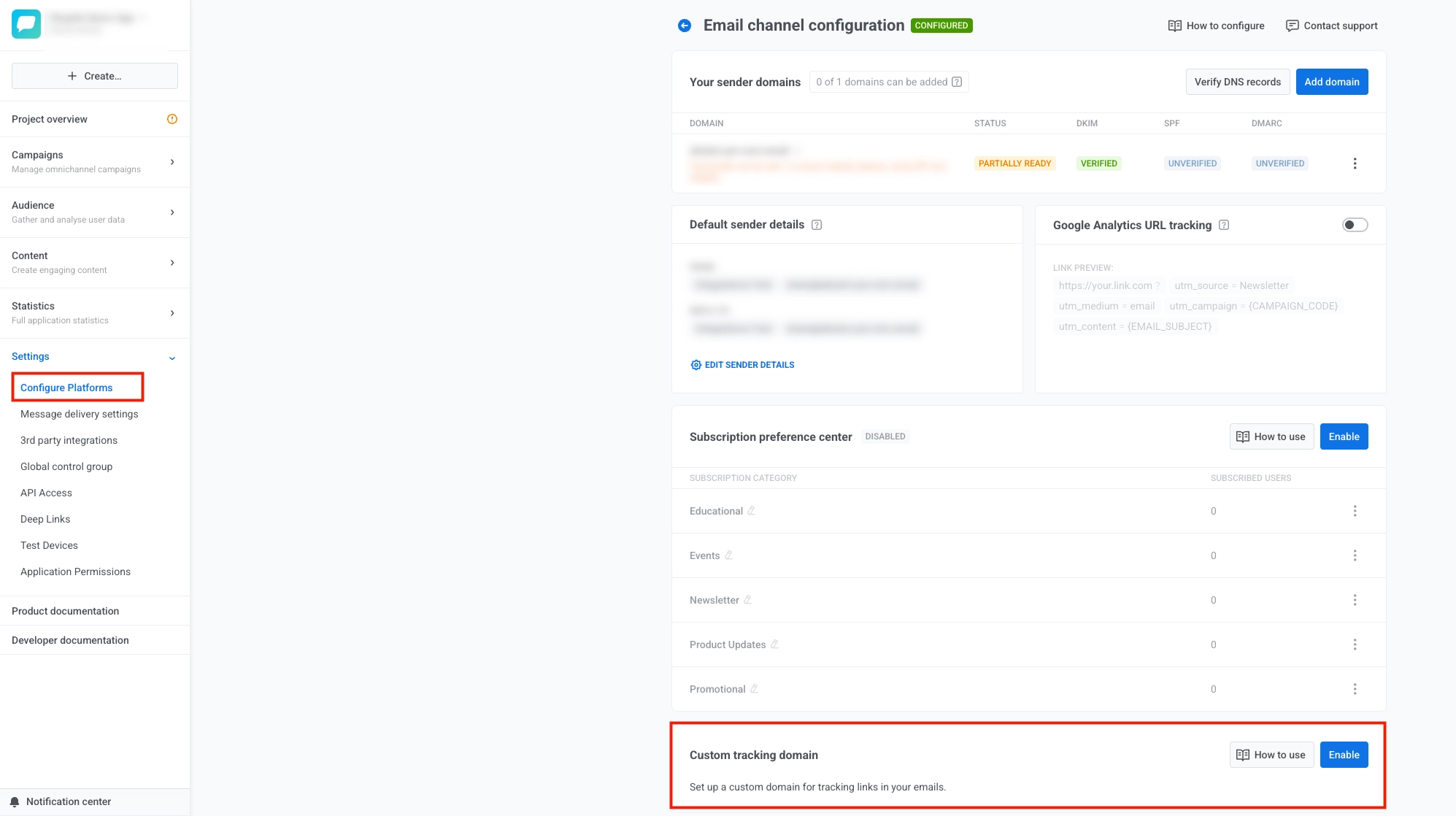
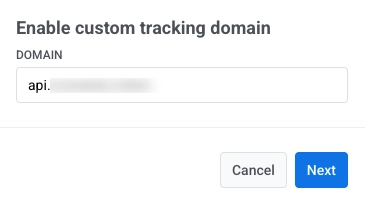
- Enter your CTD in the Domain field and select Next.
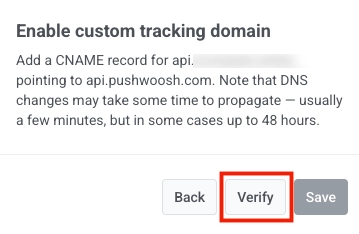
- Outside Pushwoosh, open the service where you manage public DNS for the domain of your CTD (typically your domain registrar, a DNS host, or your hosting account). In its DNS or zone editor for that domain, add the CNAME Pushwoosh shows on this step so your CTD points to
api.pushwoosh.com.
- In Pushwoosh, select Verify.
-
When verification succeeds, select Save.
-
If you need to change the Domain or DNS record, select Back and adjust the earlier steps.
-
After you click Save, your CTD appears on the Custom tracking domain card in Email channel configuration.

To disable it later, select ... next to your CTD, then select Disable custom tracking domain… and confirm with Disable.