How to read the Errors tab
이 콘텐츠는 아직 귀하의 언어로 제공되지 않습니다.
The Errors tab is on the Message stats page of a message, next to Overview and Timeline. It lists the sends that failed, so you can see why some recipients didn’t get the message.
What the Errors tab shows
Anchor link toFailed sends are grouped by platform, for example iOS, Android, or Email. All groups are open when you open the tab. Click a platform to collapse or expand it.
- Platform row: how many messages were sent on this platform, how many failed, and the share of failed sends.
- Error rows: one row per error, shown as its name and code, for example Invalid To Phone Number (1001), with a short description under it. Each row has its own count and share.
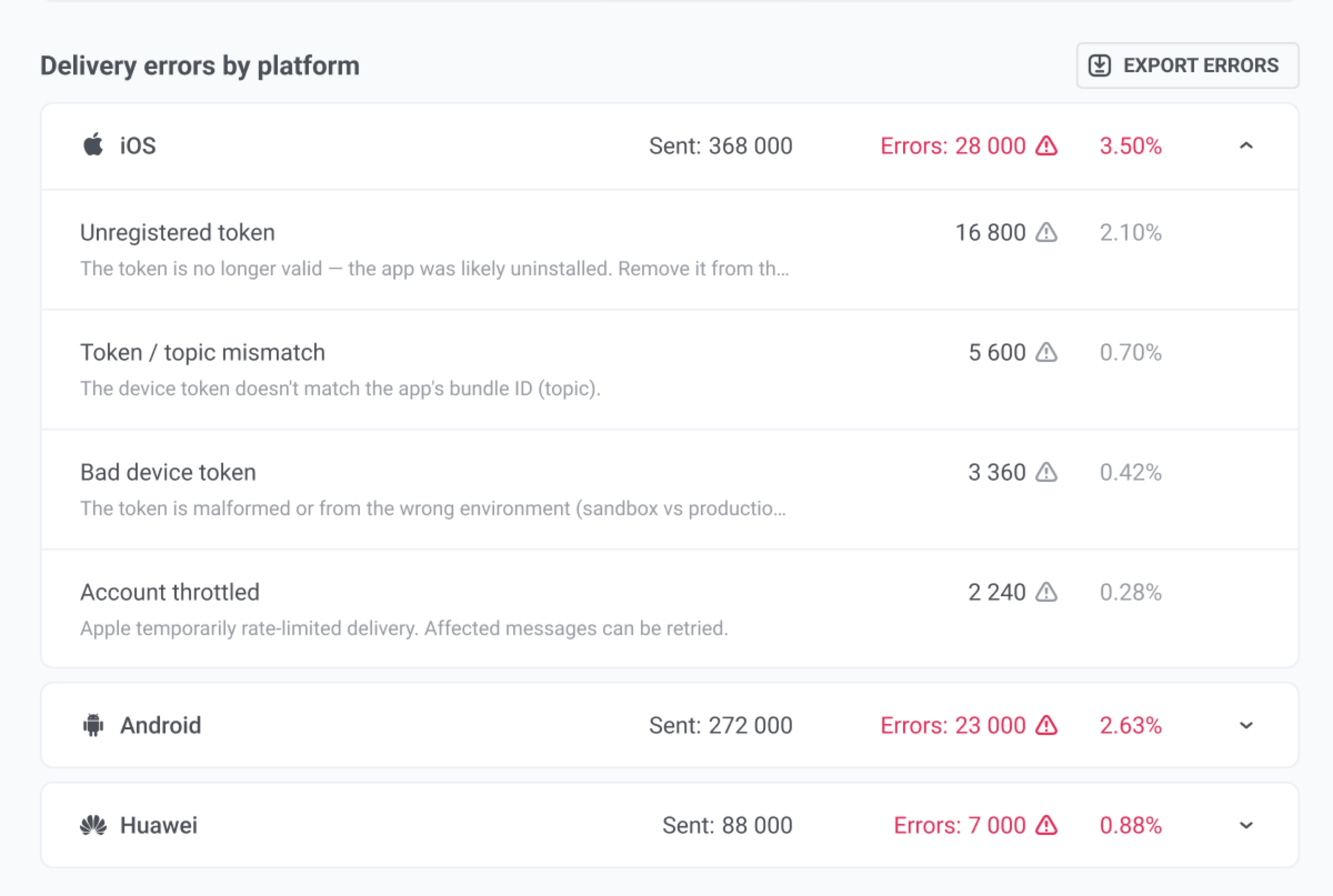
The red badge on the tab is the total number of failed sends, Processing errors included. To find out what an error code means and how to fix it, open the page for its platform under Sending errors.
Error codes and categories
Anchor link toPushwoosh sorts every error into one of the error categories. The tab shows a category name only for errors that have no code, for example Unclassified error. For an error with a code, look the code up on its platform page.
Processing errors
Anchor link toProcessing errors are failures on the Pushwoosh side, before the message reaches the delivery platform. The Errors tab lists them together with other errors. On the Overview tab, the funnel shows them in their own row, not under rejected sends.
Export errors
Anchor link to- To export recipients for one error, click the download icon next to that error.
- To export every error on the tab in one file, click Export errors.
Exporting errors requires the Personal data permission in your role.
When the tab is empty
Anchor link toThe tab shows No delivery errors for this message in two cases:
- Nothing failed. There are no errors to list.
- The message failed before it was sent (status FAIL). Nothing was sent, so there is nothing to list. It doesn’t mean the message was delivered. The reason is shown on the Overview tab. See Why a message failed.
Error categories
Anchor link toEach category below says what went wrong and what to do.
| Category | What it means | What to do |
|---|---|---|
| Invalid or expired token | The app install can no longer receive pushes (app deleted, push turned off, or similar). | Common on large audiences. Compare with earlier sends of a similar size. Dig deeper only if the share jumps a lot. |
| No push token | This device was never set up to receive pushes on this platform. | Ask your development team to check that the app registers devices for push. You cannot fix this from Message stats. |
| Device not found | The device is not in your Pushwoosh audience. | Often follows segment filters or audience cleanup. Check who was targeted. |
| Platform disabled | This platform is turned off in the app settings. | Turn the platform on in app configuration, or remove it from the send. |
| Provider quota exceeded | Apple, Google, or another delivery platform limited the send. | Slow down or split the send. Check with Support if it keeps happening. |
| Invalid message content | The message content was rejected (empty or invalid). | Open the preset or message text and fix empty or broken content. |
| Invalid platform configuration | App credentials for this platform are wrong or outdated (certificates, keys, and similar). | Check platform setup in the Control Panel, or ask Support / your developers to renew credentials. |
| Provider error | The delivery platform reported a problem, or the code was not recognized. | A few cases are usually fine. Many cases: contact Pushwoosh Support with the message date and Message code. |
| Processing error | Something failed on the Pushwoosh side while sending. | Contact Pushwoosh Support. |
| Unclassified error | The error did not fit a known group. | Should be rare. If you see many, contact Support with the message date and Message code. |