Manage unsubscribes
이 콘텐츠는 아직 귀하의 언어로 제공되지 않습니다.
Users go through the unsubscribe flow after they click the unsubscribe link in an email. Add the link in the drag and drop editor or the HTML code editor, then choose which steps users see.
Set up the unsubscribe flow
Anchor link toThe unsubscribe flow defines which steps users go through after clicking the unsubscribe link. Its two optional steps are the Confirmation and Survey pages.
- Go to Settings > Preference Center and switch to the Subscription pages tab.
- Click Unsubscribe flow.
- In Edit unsubscribe flow, turn the steps on or off:
- Confirm before unsubscribing: shows the Confirmation page before the unsubscribe is applied. On by default.
- Unsubscribe reason survey: shows the Survey page after the unsubscribe is applied. Off by default.
- Click Apply.
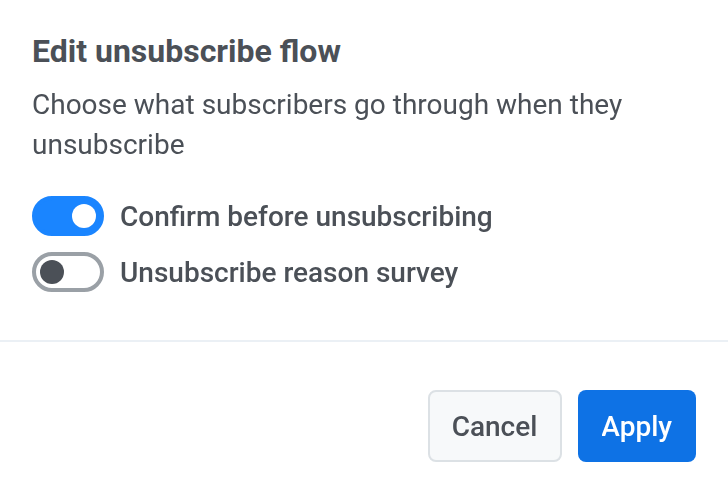
After you apply the flow:
- To change the text or design of the Confirmation or Survey page, see Customize subscription pages.
- To see what users go through at each step, read What happens when a user clicks the unsubscribe link.
What happens when a user clicks the unsubscribe link
Anchor link toWhen a user clicks the Unsubscribe link in an email, they are unsubscribed only from the category assigned to that email (e.g., Newsletter). The pages they see depend on your unsubscribe flow:
- Confirmation (on by default). The user confirms that they want to unsubscribe. Nothing changes until they click the confirm button.
- Survey (off by default). After the unsubscribe is applied, the user can tell you why they left. The answer is saved to the
Unsubscribe Reasontag. - Unsubscribed from category. The final page confirms they will no longer receive emails from that category.
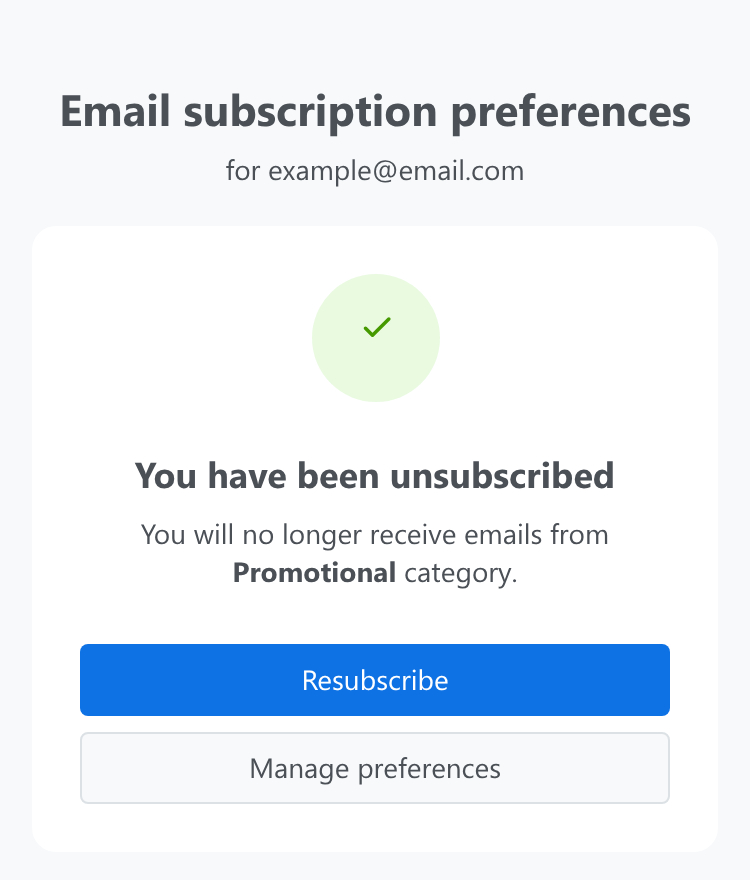
On the final page, users can click:
- Resubscribe to opt back into that category. They see the Resubscribed to category page.
- Manage preferences to open the preference center and adjust all their email preferences.
The default flow works automatically, and no additional setup is required. To change the text, design, or buttons of any of these pages, see Customize subscription pages.
If the preference center is disabled, the unsubscribe link opts users out of all marketing emails, not one category. The Confirmation and Survey steps still follow your unsubscribe flow.
Collect unsubscribe reasons
Anchor link toTurn on the survey to learn why users unsubscribe. To edit the survey page, see the Survey block.
When you turn on the survey, Pushwoosh creates the Unsubscribe Reason string tag in your account. Each answer is written to this tag on the user’s email profile:
- If the user picks an option, the tag stores the option text in the page’s default language, even if the user saw a translated page.
- If the user picks Other and types an answer, the tag stores the typed text (up to 500 characters).
- If the user clicks Skip or leaves the page, nothing is stored. The unsubscribe is already applied.
To see the collected answers, click View stats on the Survey tile. You can also segment users by the Unsubscribe Reason tag, for example, to analyze churn reasons.
Other ways to unsubscribe
Anchor link toUsers can also opt out of all marketing emails in two ways:
- Click Unsubscribe from all in the preference center.
- Use the unsubscribe button of their email client.
Both set the Unsubscribed Emails tag to true. Learn more