패스키 설정
패스키(Passkeys)를 사용하면 비밀번호 없이 Pushwoosh에 로그인할 수 있습니다. 비밀번호를 입력하거나 SMS 코드를 기다리는 대신, Touch ID, Face ID, Windows Hello 또는 기기 PIN으로 액세스를 확인합니다.
패스키의 이점은 무엇인가요?
Anchor link to- 피싱 방지 로그인: 패스키는 올바른 도메인에서만 작동하므로 가짜 로그인 페이지에서는 사용할 수 없습니다.
- 서버에 공유 비밀 없음: Pushwoosh는 공개 키만 저장하며, 이 키만으로는 로그인할 수 없습니다.
- 더 빠른 로그인 흐름: 패스키 로그인의 경우, 비밀번호와 SMS 코드를 입력하는 대신 Touch ID, Face ID, Windows Hello 또는 기기 PIN으로 액세스를 확인합니다.
- SMS 코드보다 뛰어난 보호: 패스키는 전화번호에 연결되어 있지 않아 SIM 스와핑 위험을 줄입니다.
Pushwoosh에서 패스키 활성화하기
Anchor link to패스키를 추가하려면:
-
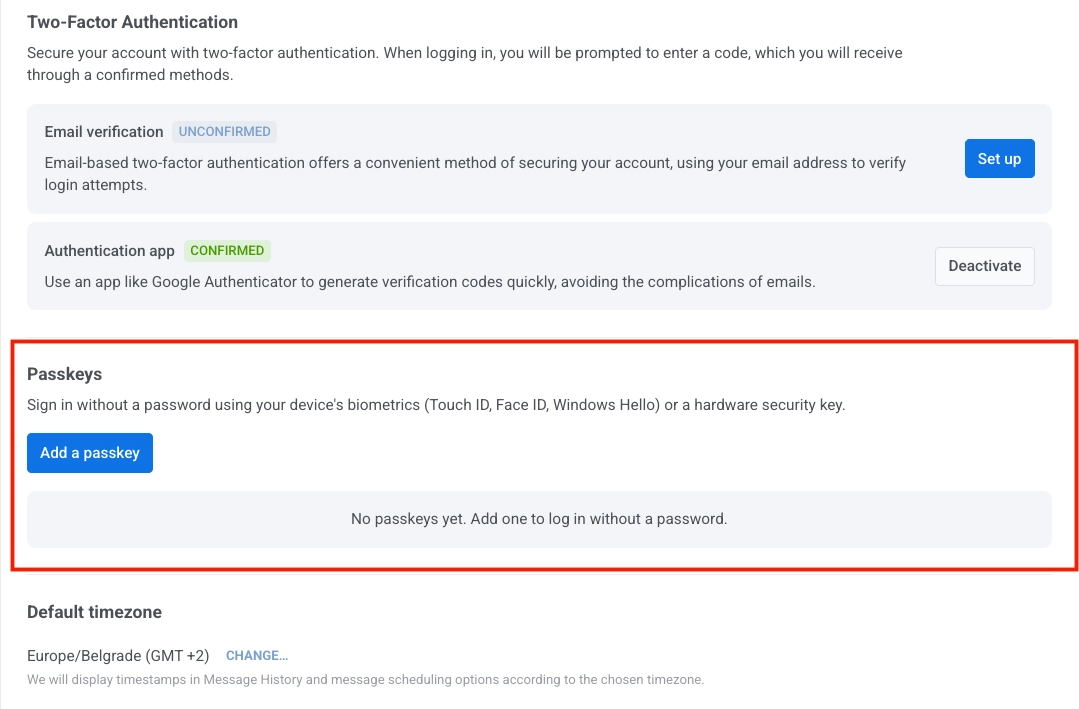
My Account > Account settings로 이동합니다.
-
Passkeys 섹션에서 Add a passkey를 클릭합니다.
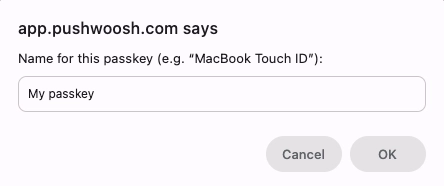
- 패스키의 이름을 입력한 다음 OK를 클릭합니다.
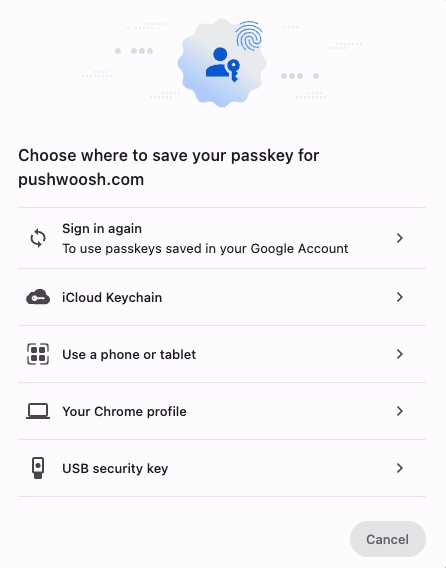
- 패스키를 저장할 위치를 선택합니다.
패스키 저장 옵션
Anchor link to패스키를 저장할 때 여러 저장 옵션 중에서 선택할 수 있습니다.
- 다시 로그인(Google 계정): Google 계정에 연결된 기기 간에 패스키를 저장하고 동기화합니다. 다른 기기에서의 사용 가능 여부는 Google 계정 및 Chrome 동기화 설정에 따라 다릅니다. 일반적으로 Chrome으로 로그인하고 Google 비밀번호 관리자를 사용할 때 사용됩니다.
- iCloud 키체인: Mac, iPhone, iPad를 포함한 Apple 기기 간에 패스키를 저장하고 동기화합니다. 일반적으로 주 기기가 Apple 생태계에 있을 때 사용됩니다.
- 휴대폰 또는 태블릿 사용: QR 코드를 스캔하여 근처의 모바일 기기를 패스키 제공자로 사용할 수 있습니다. 데스크톱에 패스키를 저장하지 않고 로그인해야 할 때 사용합니다.
- 내 Chrome 프로필: 이 기기의 현재 Chrome 프로필에 패스키를 저장합니다. 다른 기기에서의 사용 가능 여부는 Chrome 및 Google 비밀번호 관리자 동기화 설정에 따라 다릅니다.
- USB 보안 키: YubiKey와 같은 물리적 FIDO 보안 키에 패스키를 저장합니다. 일반적으로 보안 수준이 높은 환경이나 하드웨어 기반 인증이 필요한 경우에 사용됩니다.
패스키 사용 가능 여부는 브라우저, 운영 체제 및 선택한 패스키 제공자 설정에 따라 다릅니다.
-
선택한 저장 옵션에 대해 표시되는 확인 단계를 완료합니다. 예를 들어, iCloud 키체인을 선택하면 Touch ID로 확인합니다.
-
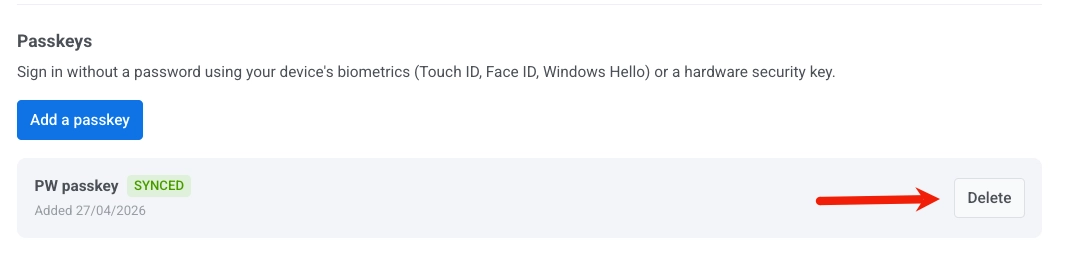
Account settings로 돌아가서 새 패스키가 Passkeys 목록에 Synced 상태로 표시되는지 확인합니다.
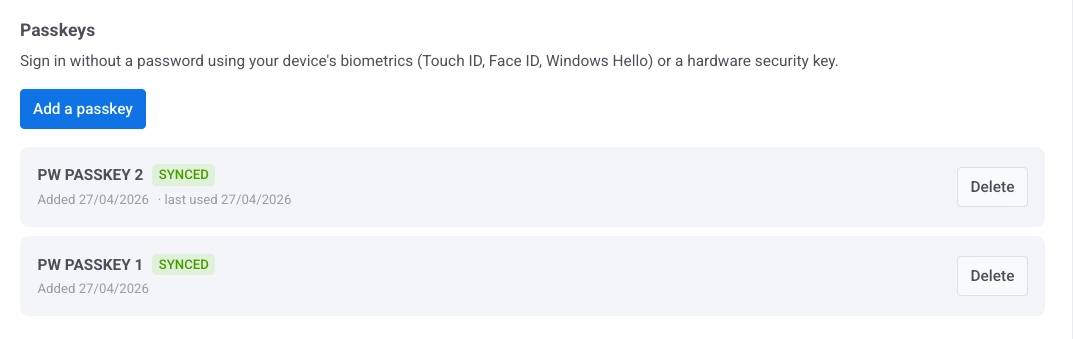
패스키에 오류 상태가 표시되면 저장 단계가 성공적으로 완료되지 않은 것입니다. Add a passkey를 클릭하고 다시 시도하세요.
패스키 삭제하기
Anchor link to- My Account > Account settings로 이동합니다.
- Passkeys 섹션에서 제거하려는 패스키를 찾습니다.
- 옆에 있는 Delete를 클릭합니다.
패스키로 로그인하기
Anchor link toPushwoosh에 로그인할 때 패스키는 두 가지 방법으로 사용할 수 있습니다:
- 패스키를 사용할 수 있는 경우, 사용자 이름이나 이메일을 입력할 때 브라우저가 자동으로 제안할 수 있습니다.
- 제안이 나타나지 않으면 사용자 이름이나 이메일을 입력하고 Sign in을 클릭한 다음 Sign In With Passkey를 클릭합니다.
생체 인식 또는 기기 PIN으로 기기에서 로그인을 확인합니다.