바운스 및 전달 오류
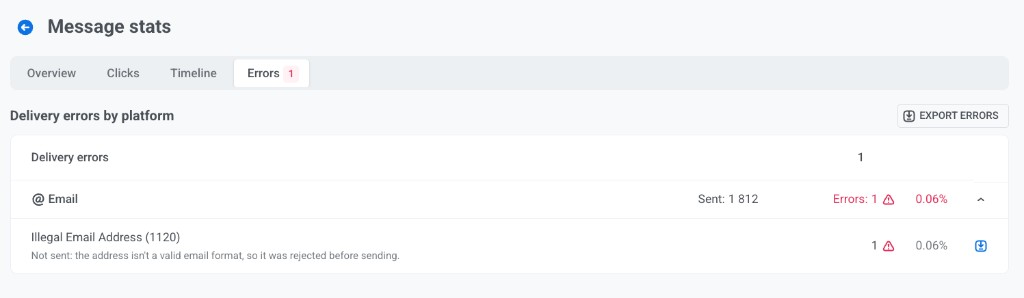
오류 탭을 사용하여 일부 수신자에게 이 이메일이 실패한 이유를 확인하세요. 탭의 빨간색 배지는 거부된 전송과 처리 오류의 총합을 보여줍니다. 이 탭으로 이동하려면 이메일의 상세 통계를 열고 오류를 클릭하세요. 이 페이지에서는 이메일에만 해당하는 내용을 다룹니다. 모든 채널에 공통인 오류 그룹은 Errors 탭 읽는 방법을 참조하세요.
플랫폼별 전달 오류
Anchor link to플랫폼별 전달 오류는 각 플랫폼(이메일의 경우, @ Email)의 전송 수, 실패 수 및 오류율을 보여줍니다.
- 플랫폼을 확장하여 각 오류 코드, 간단한 설명 및 수를 확인하세요.
- 전체 목록을 다운로드하려면 오류 내보내기를 클릭하거나, 한 오류 행의 다운로드 아이콘을 사용하세요. 두 내보내기 모두 역할에 Personal data 권한이 필요합니다.
- 이메일의 경우 오류 내보내기 파일에는 반송된 주소도 나열되며, 주소당 한 행에 이 이메일에서의 마지막 바운스가 표시됩니다. 이 행에서
reason에는 바운스 이유가 들어 있고, 파일 끝의bounce_type(hard또는soft),smtp_code,provider열이 채워집니다. 이메일에 전송 오류 없이 바운스만 있는 경우에도 버튼을 사용할 수 있습니다. 한 오류 행의 파일에는 바운스가 포함되지 않습니다.
이유별 바운스
Anchor link to바운스 블록은 이 이메일에서 반송된 주소를 수신자의 메일 서버가 제시한 이유에 따라 그룹화합니다. 하드 바운스와 소프트 바운스는 따로 나열되며, 가장 많은 이유가 먼저 표시됩니다. 이 블록은 이메일에 이유가 있는 바운스가 하나 이상 있을 때만 나타납니다. 블록이 없으면 위의 오류 행을 확인하세요.
이 블록에는 다음 열이 표시됩니다.
| 열 | 내용 |
|---|---|
| 이유 | 바운스 이유. |
| 주소 | 이 이유를 받은 주소 수. 각 주소는 이 이메일에서의 마지막 바운스를 기준으로 한 번만 집계됩니다. |
| 상위 SMTP 코드 | 이 이유에 해당하는 SMTP 코드(5.1.1과 같이 수신자의 메일 서버가 반환하는 상태 코드) 최대 3개. 가장 흔한 코드가 먼저 표시되며, 코드별 주소 수가 함께 표시됩니다. |
| 제공업체 | 제공업체 응답에 표시된 응답을 반환한 서비스. |
| 제공업체 응답 | 이 주소들 대부분이 받은 응답. 전체 텍스트를 보려면 마우스를 가져가세요. 응답에 포함된 수신자 주소는 마스킹됩니다. |
아래 표는 각 이유와 그에 대한 조치를 설명합니다.
| 이유 | 의미 | 조치 |
|---|---|---|
| 주소가 존재하지 않음 | 수신자의 메일 서버가 주소가 존재하지 않는다고 알립니다. | 목록에서 제거하세요. 다시 활성화해도 도움이 되지 않습니다. |
| 사서함 비활성 | 사서함이 비활성화되었습니다. | 목록에서 제거하세요. |
| 사서함 가득 참 | 사서함이 할당량을 초과했습니다. 보통 일시적입니다. | 조치가 필요 없습니다. 나중에 주소가 다시 작동할 수 있습니다. |
| 차단됨: 발신자 평판 | 제공업체가 발신 도메인 또는 IP 주소를 제한합니다. | 전송량을 줄이고, 불만 비율을 확인하고, 발신 도메인의 SPF, DKIM, DMARC를 확인하세요. |
| 스팸으로 거부됨 | 제공업체가 이메일을 스팸으로 거부했습니다. | 콘텐츠와 링크를 확인하세요. |
| 전달 실패 | 연결 또는 DNS 문제 등으로 수신자의 서버에 연결할 수 없어 전달 시간이 초과되었습니다. | 반복적인 실패를 주시하세요. |
| 기타 | Pushwoosh가 제공업체의 응답을 분류할 수 없었습니다. | SMTP 코드와 제공업체 응답을 확인하세요. |
같은 이유가 두 그룹 모두에 나타날 수 있습니다. 예를 들어 사서함 가득 참은 제공업체에 따라 하드 바운스 또는 소프트 바운스를 반환할 수 있습니다. Pushwoosh가 주소를 억제할지는 이유가 아니라 바운스 유형에 따라 결정됩니다. 볼 수 있는 이메일 오류 유형을 참조하세요.
볼 수 있는 이메일 오류 유형
Anchor link to아래 표는 @ Email을 확장할 때 나타날 수 있는 반송, 불만 및 억제 이름을 설명합니다. 발신자 및 SMTP 코드는 이메일 오류를 참조하세요.
Pushwoosh가 이메일을 보냈지만 수신자의 메일 서버가 거부했습니다: 하드 바운스, 소프트 바운스, 스팸 불만 또는 미확인 바운스. 하드 바운스 및 불만의 경우 Pushwoosh는 주소를 자동으로 억제하여 다시 이메일을 보내지 않도록 합니다. 소프트 바운스 및 미확인 바운스는 주소를 억제하지 않습니다.
| 오류 | 설명 | 다음 조치 |
|---|---|---|
| Hard Bounce General | 특정 이유 없이 영구적으로 거부되었습니다. | Pushwoosh가 주소를 억제 목록에 추가합니다. 다시 이메일이 전송되지 않습니다. 하드 바운스 비율이 요금제의 하드 바운스 비율 한도(기본값 5%)를 초과하면 Pushwoosh는 프로젝트의 이메일 전송을 일시 중지하고 이메일 데이터베이스를 확인합니다. |
| Hard Bounce Mailbox Full | 받은 편지함이 할당량을 초과하여 서버가 영구적으로 거부했습니다. | Pushwoosh가 주소를 억제 목록에 추가합니다. |
| Hard Bounce Inactive Mailbox | 사서함이 닫혔거나 버려졌습니다. | Pushwoosh가 주소를 억제 목록에 추가합니다. |
| Hard Bounce Suppressed | 수신 제공업체가 이전의 영구적인 실패 후 이미 이 주소를 억제했습니다. | Pushwoosh도 억제 목록에 추가합니다. |
| Hard Bounce Undetermined | 알 수 없는 이유로 영구적으로 거부되었습니다. | Pushwoosh가 주소를 억제 목록에 추가합니다. |
| Soft Bounce General | 특정 이유 없이 일시적으로 거부되었습니다. | 아무것도 억제되지 않습니다. Pushwoosh는 다음 전송 시 재시도합니다. |
| Soft Bounce Attachment Rejected | 수신자의 서버가 첨부 파일 제한으로 인해 이메일을 차단했습니다. | 아무것도 억제되지 않습니다. 첨부 파일 없이 보내보세요. |
| Soft Bounce Spam | 수신자의 서버가 이메일을 스팸으로 표시했습니다. | 아무것도 억제되지 않습니다. 콘텐츠와 발신자 인증을 검토하세요. |
| Soft Bounce Message Too Large | 이메일이 수신자의 크기 제한을 초과했습니다. | 아무것도 억제되지 않습니다. 이미지 크기를 줄이거나 템플릿을 단순화하세요. |
| Soft Bounce Content Rejected | 수신자의 서버가 메시지 콘텐츠를 거부했습니다. | 아무것도 억제되지 않습니다. 스팸 트리거 및 정책 위반에 대해 이메일을 검토하세요. |
| Soft Bounce Mailbox Full | 수신자의 받은 편지함이 현재 가득 찼습니다. | 아무것도 억제되지 않습니다. 공간이 확보되면 전달이 성공할 수 있습니다. |
| Soft Bounce Undetermined | 알 수 없는 이유로 일시적으로 거부되었습니다. | 아무것도 억제되지 않습니다. 반복적인 실패를 주시하세요. |
| Soft Bounce Timeout | 수신자의 서버가 응답하는 데 너무 오래 걸렸습니다. | 아무것도 억제되지 않습니다. Pushwoosh는 다음 전송 시 재시도합니다. |
| Complaint General | 이 주소에 대해 불만이 보고되었습니다. | Pushwoosh는 수신자를 구독 취소하고 주소를 영구적으로 억제합니다. |
| Complaint Abuse | 수신자가 이메일을 스팸으로 표시했습니다. | Pushwoosh는 수신자를 구독 취소하고 주소를 영구적으로 억제합니다. 불만은 발신자 평판에 가장 큰 해를 끼칩니다. 불만 비율을 Gmail과 같은 메일박스 제공업체가 기대하는 수준인 전송된 이메일의 0.1% 미만으로 유지하세요. 불만 비율이 요금제의 불만 비율 한도(기본값 1%)에 도달하면 Pushwoosh는 프로젝트의 이메일 전송을 일시 중지하고 이메일 내용을 확인하도록 요청합니다. |
| Bounce Undetermined | 서버가 이메일을 수락했지만 전달을 확인하지 않았습니다. 결과는 알 수 없습니다. | 주소가 억제되지 않습니다. 반복 발생을 모니터링하세요. |
Pushwoosh는 이러한 이메일을 전혀 보내지 않았습니다. 주소가 이전의 반송, 불만 또는 구독 취소로 인해 이미 억제 목록에 있었거나 주소 자체가 유효하지 않습니다.
| 오류 | 설명 |
|---|---|
| Illegal email address | 주소가 유효한 이메일 형식이 아니므로 전송 전에 거부되었습니다. |
| Email is bounced | 주소가 이전의 영구적인 반송 후 억제되었습니다. |
| Email complaint | 주소가 이전의 스팸 불만 후 억제되었습니다. |
| Email is unsubscribed | 수신자가 마케팅 이메일을 거부했습니다. 거래 이메일은 여전히 이 주소로 전달됩니다. |
이러한 문제를 예방하고 전달성을 개선하는 방법을 알아보려면 이메일 전달성 모범 사례를 참조하세요.