App Inbox 프리셋
App Inbox 프리셋을 사용하면 일회성 Inbox 전송과 App Inbox journey 요소에서 동일한 inbox 메시지를 재사용할 수 있으므로, 캠페인마다 레이아웃, 문구, 미디어를 다시 만들 필요가 없습니다. 같은 페이지에서 앱의 inbox를 탭으로 나눌 수도 있습니다.
App Inbox 프리셋 만들기
Anchor link to- Content > Inbox content로 이동합니다.
- Create를 클릭합니다.
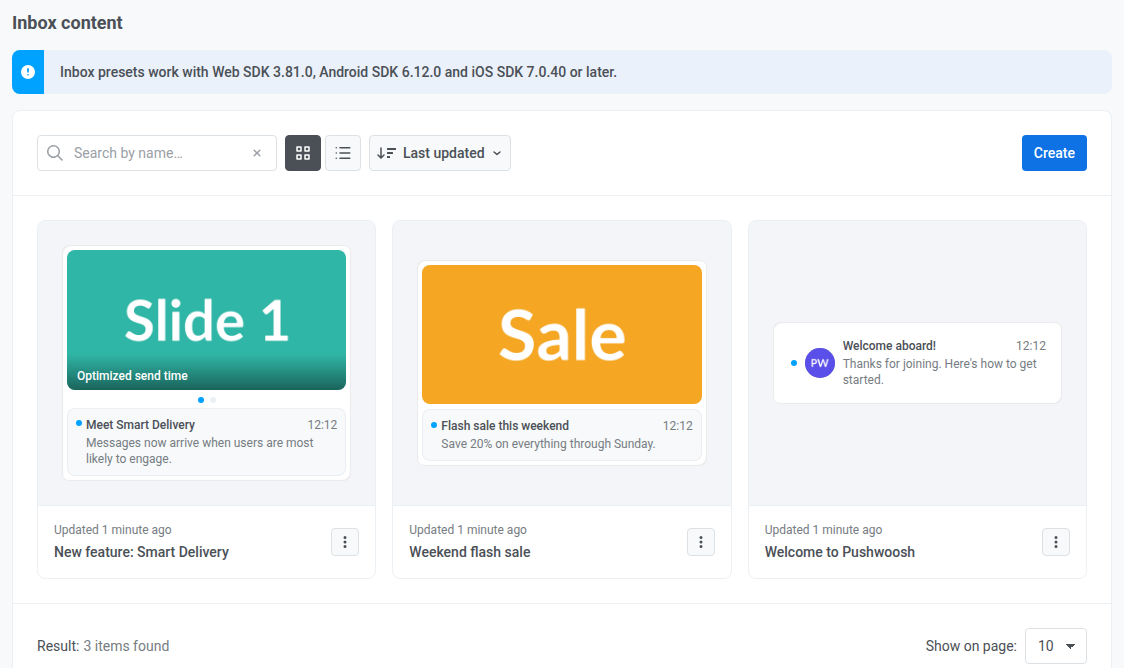
- 이름을 바꾸려면 상단의 Inbox content: 옆에 있는 프리셋 이름을 클릭합니다.
언어 추가
Anchor link to푸시 프리셋과 동일한 방식으로 같은 프리셋을 여러 언어로 만들 수 있습니다:
- 먼저 기본 언어 콘텐츠를 작성합니다.
- Default language 옆의 + 아이콘을 클릭합니다.
- 필요한 언어를 선택합니다.
레이아웃 유형 선택
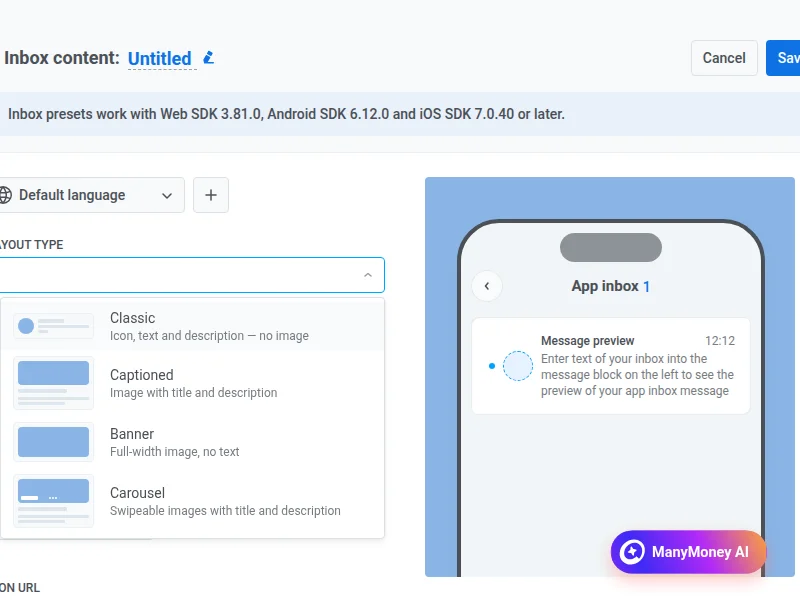
Anchor link toLayout type에서 inbox 목록에 카드가 어떻게 보일지 선택합니다. 각 옵션은 미디어와 텍스트의 조합이 다릅니다:
- Classic: Title 및 Message 옆의 작은 아이콘. 큰 이미지 없음.
- Captioned: 아래에 Title 및 Message가 있는 하나의 큰 이미지.
- Banner: 전체 너비 이미지만. 목록에 Title 또는 Message 없음.
- Carousel: 사용자가 스와이프할 수 있는 여러 이미지. 공유되는 Title 및 Message와 각 슬라이드의 선택적 캡션.
Classic
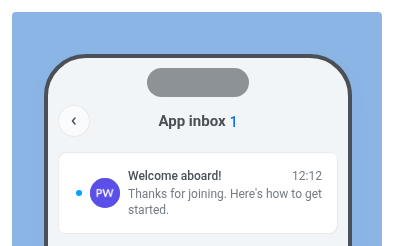
Anchor link toClassic은 간결한 목록 행입니다. 왼쪽에 아이콘, 그 옆에 Title과 Message가 있습니다.
- inbox 목록에 표시할 텍스트로 Title과 Message를 설정합니다.
- Icon URL을 URL로 설정하거나 미디어 스토리지에서 이미지를 선택합니다. 가능하면 1:1 종횡비를 사용하세요.
Captioned
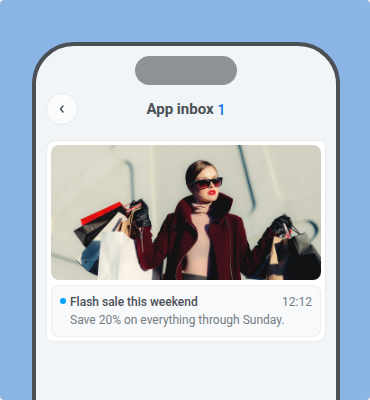
Anchor link toCaptioned는 아래에 텍스트가 있는 하나의 대표 이미지입니다.
- Title과 Message를 설정합니다.
- Image URL을 URL로 설정하거나 미디어 스토리지에서 이미지를 선택합니다. 가능하면 1:2 종횡비를 사용하세요.
Banner
Anchor link toBanner는 이미지 전용 레이아웃입니다. Title이나 Message 없이 전체 너비 이미지만 표시됩니다. Image URL만 설정합니다(URL 또는 미디어 스토리지). 가능하면 1:2 종횡비를 사용하세요.
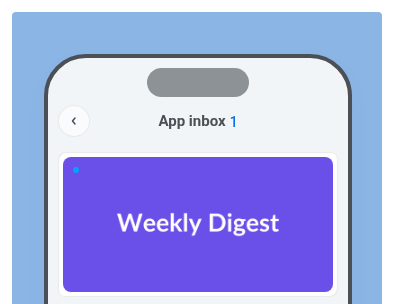
Carousel
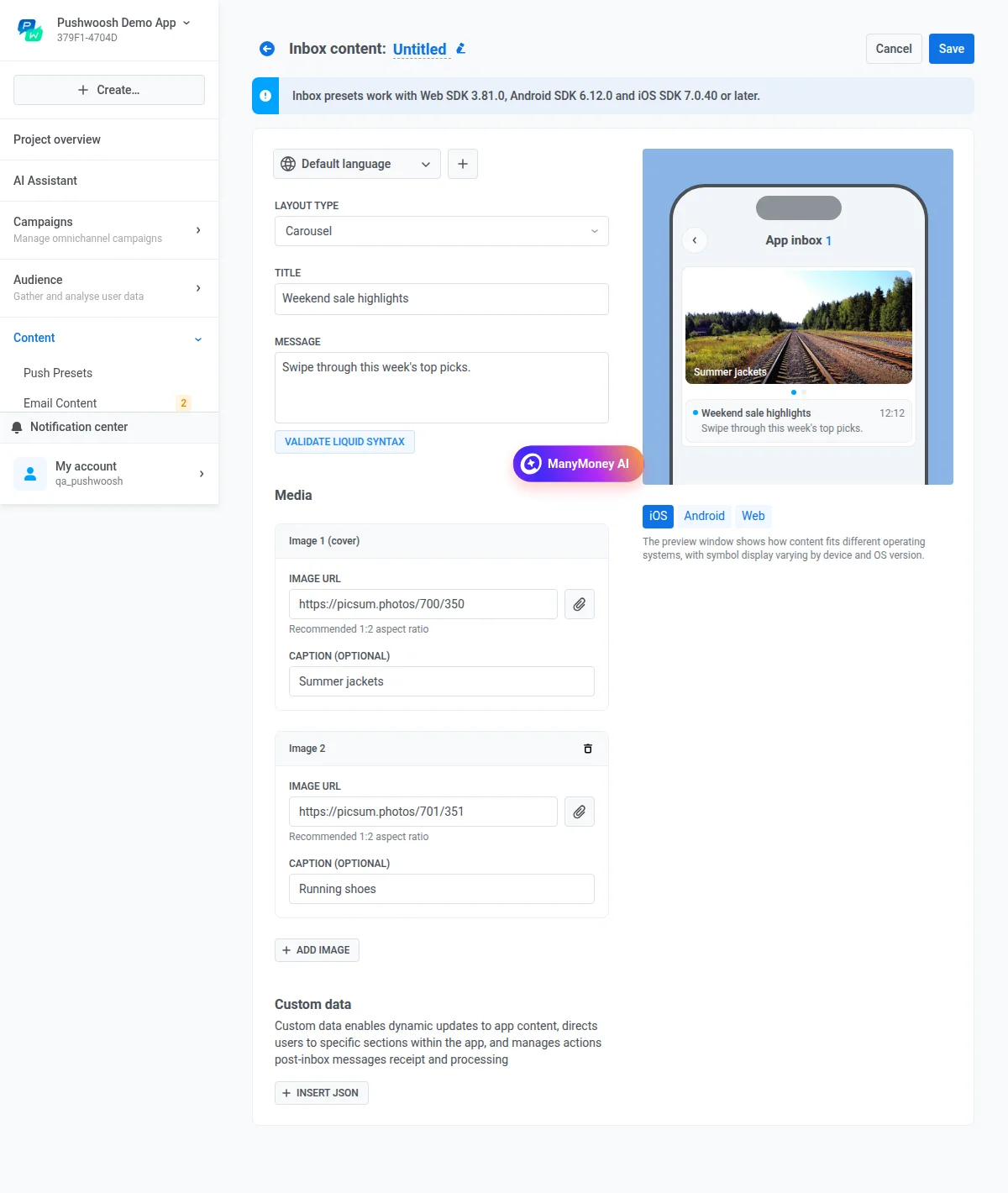
Anchor link toCarousel은 여러 이미지로 구성된 카드로, 사용자는 슬라이드 사이를 스와이프합니다. Title과 Message는 카드 전체에 적용되며, 각 슬라이드에는 자체 Caption이 있을 수 있습니다.
- Title과 Message를 설정합니다.
- Media에서 각 슬라이드의 Image URL을 설정합니다.
- 선택 사항: 각 슬라이드에 Caption을 설정합니다.
- 슬라이드를 추가하려면 Add image를 클릭합니다.
Liquid 구문 검증
Anchor link to메시지에 Liquid templates를 사용하는 경우, 저장하기 전에 Validate Liquid Syntax를 클릭하여 구문 오류를 확인합니다.
사용자 지정 데이터 추가
Anchor link to앱에 화면을 열거나, 캠페인 id를 전달하거나, 사용자가 메시지를 연 후 로직을 실행하는 등 표시되는 inbox 텍스트 이상이 필요할 때 사용자 지정 데이터를 사용합니다. Pushwoosh는 푸시 프리셋의 Custom Data와 마찬가지로 이 JSON을 메시지와 함께 SDK로 보냅니다.
Insert JSON을 클릭하고 키-값 쌍이 있는 JSON 객체를 입력합니다.
미리보기
Anchor link to메시지가 inbox 목록에서 어떻게 보이는지 확인하려면 (읽지 않은 수와 함께) App inbox로 표시된 미리보기를 확인합니다. 각 플랫폼을 확인하려면 iOS, Android, Web 탭을 전환합니다.
테스트 메시지 보내기
Anchor link to프리셋을 사용하기 전에 실제 기기에서 메시지를 확인하려면 테스트 기기로 보내세요.
- 미리보기 아래의 앱 인박스 메시지 테스트를 클릭합니다.
- 앱 인박스 콘텐츠 테스트에서 앱의 기기 중 테스트용으로 표시된 기기 수를 확인합니다.
- 보내기를 클릭합니다.
테스트는 미리보기에서 어떤 플랫폼 탭을 선택했든 앱의 모든 테스트 기기로 전송됩니다. 편집기에 있는 그대로의 콘텐츠를 사용하므로 프리셋을 먼저 저장할 필요가 없습니다. 액션은 메시지를 보낼 때 설정되므로 테스트 메시지에는 클릭 시 액션이 없습니다.
프리셋을 저장하려면 프리셋 이름 옆의 Save를 클릭합니다. 저장된 프리셋은 Content > Inbox content 아래에 나타납니다. 이를 일회성 Inbox 메시지와 App Inbox journey 요소에서 사용하세요.
프리셋 삭제
Anchor link to여러 프리셋을 한 번에 삭제하려면:
- Content > Inbox content로 이동합니다.
- 일괄 작업 → 삭제… 메뉴를 클릭합니다.
- 프리셋을 선택합니다.
- 목록 위의 삭제 버튼을 클릭합니다.
journey에서 사용 중인 프리셋은 건너뜁니다. 삭제된 프리셋은 복원할 수 없습니다.
inbox 탭 설정
Anchor link toinbox 탭은 앱의 inbox를 Offers, News 같은 주제별로 최대 세 개까지 나눕니다. 메시지는 다음과 같이 표시됩니다:
- 탭으로 보낸 메시지는 해당 탭과 All에 표시됩니다.
- 탭 없이 보낸 메시지는 All에만 표시됩니다.
- 탭을 추가하기 전까지 inbox는 하나의 목록입니다.
탭 추가
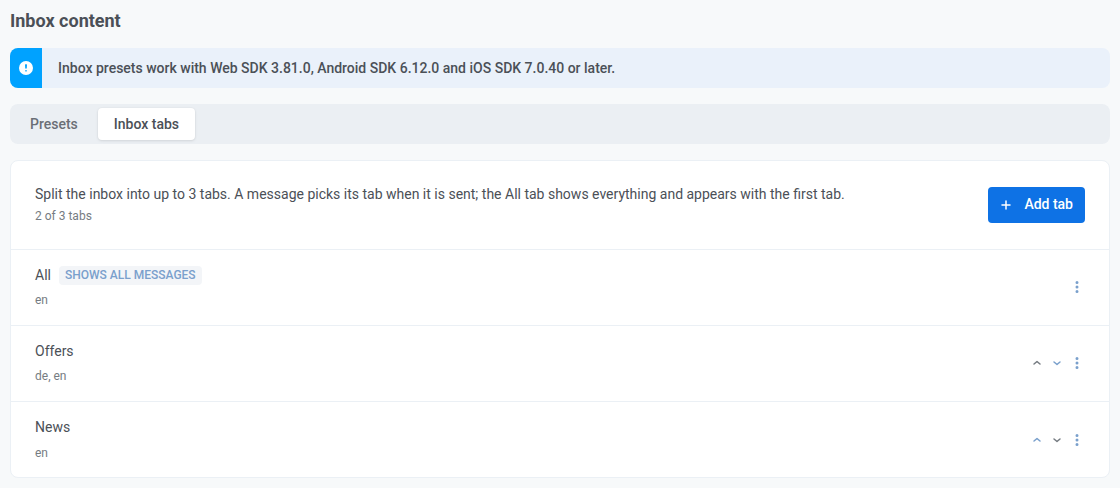
Anchor link toInbox tabs 설정에서 탭을 추가합니다. 앱에는 All 외에 최대 세 개의 탭을 만들 수 있습니다.
- Content > Inbox content로 이동합니다.
- Inbox tabs를 클릭합니다.
- Add tab을 클릭합니다.
- Title에 탭 이름을 최대 32자로 입력합니다.
- 이름을 번역하려면 Title 위의 언어 선택기에서 언어를 추가하고 언어별로 이름을 입력합니다.
- Save를 클릭합니다.
사용자의 언어에 번역이 없으면 사용자에게 Default 이름이 표시됩니다.
처음 추가한 탭은 Shows all messages로 표시된 All도 함께 만듭니다. All은 항상 첫 번째에 있으며, 제목은 편집할 수 있지만 이동하거나 삭제할 수는 없습니다.
메시지의 탭을 선택하는 방법은 일회성 Inbox 메시지와 App Inbox journey 요소를 참조하세요.
탭 변경, 순서 변경 또는 삭제
Anchor link to탭의 행에서 탭을 변경합니다:
- 탭 이름이나 번역을 바꾸려면 해당 행의 작업 메뉴(⋮)를 열고 Edit를 클릭합니다.
- 순서를 바꾸려면 탭 행의 위쪽 또는 아래쪽 화살표를 클릭합니다.
- 탭을 삭제하려면 해당 행의 작업 메뉴(⋮)를 열고 **Delete…**를 클릭한 다음 확인합니다. 이미 탭에 있던 메시지는 inbox에 남아 All에만 표시됩니다. 삭제된 탭은 복원할 수 없습니다. All 외의 마지막 탭을 삭제하면 All도 삭제되고 inbox는 다시 하나의 목록이 됩니다.