Singular 연동
연동 개요
Anchor link toSingular는 마케팅 분석 및 어트리뷰션 플랫폼입니다. Pushwoosh와 연결하여 푸시 캠페인에서 발생한 앱 열기를 어트리뷰션하고 다른 마케팅 채널과 함께 Singular에서 푸시 성과를 측정하세요. 또한 Singular에서 Pushwoosh로 어트리뷰션 데이터를 포스트백을 통해 전송하고 이를 세분화 및 메시징에 사용할 수 있습니다.
사용 사례
Anchor link to- 푸시 알림 어트리뷰션: 사용자가 알림을 탭할 때 Singular에서 Pushwoosh 푸시 캠페인으로 인한 앱 열기를 어트리뷰션합니다.
- 캠페인 성과 분석: Singular 분석 대시보드에서 푸시 캠페인 결과를 다른 마케팅 채널과 비교합니다.
- ROI 최적화: Singular에서 가장 성과가 좋은 푸시 캠페인을 식별하고 그 인사이트를 Pushwoosh에서 새로운 캠페인을 계획할 때 적용합니다.
- Pushwoosh에서의 세분화: Singular 포스트백에서 얻은 설치 및 인앱 이벤트 데이터를 사용하여 Pushwoosh에서 세그먼트를 구축하고 캠페인을 개인화합니다.
전제 조건
Anchor link to- 활성화된 Pushwoosh 계정
- 활성화된 Singular 계정
- 앱에 통합된 Singular SDK
- Pushwoosh 계정의 Application Code 및 API Access Token
연동 유형
Anchor link to- 소스 (Pushwoosh → Singular): 어트리뷰션 데이터는 기기의 푸시 페이로드에서 Singular 트래킹 링크를 통해 Singular로 전달됩니다.
- 대상 (Singular → Pushwoosh): Singular는 포스트백을 통해 Pushwoosh로 어트리뷰션 데이터를 전송합니다. Pushwoosh는 이를 태그 및 이벤트로 저장하여 세분화 및 분석에 사용합니다.
작동 방식
Anchor link to푸시 어트리뷰션 (Pushwoosh → Singular)
Anchor link to- Pushwoosh는 Singular 트래킹 링크를 딥 링크로 포함한 푸시를 전달합니다.
- 사용자가 알림을 탭합니다.
- 앱이 링크를 Singular SDK로 전달합니다.
- Singular는 해당 앱 열기를 푸시 캠페인에 어트리뷰션된 것으로 기록합니다.
포스트백 (Singular → Pushwoosh)
Anchor link to- 사용자가 앱을 설치하거나, 추적된 링크에서 재참여하거나, Singular가 어트리뷰션하는 인앱 이벤트를 트리거합니다.
- Singular는 어트리뷰션 데이터와 함께 Pushwoosh로 포스트백을 전송합니다.
- Pushwoosh는 데이터를 사용자 프로필에 태그 및 이벤트로 저장합니다.
- 이 데이터를 Pushwoosh에서 세분화, 분석 및 캠페인에 사용합니다.
애플리케이션 링크 구성
Anchor link toPushwoosh와 Singular 연동을 시작하려면 Singular에서 파트너 링크를 생성하세요. 이 단계는 포스트백, 푸시 어트리뷰션 또는 둘 다를 사용하는 경우에 필요합니다.
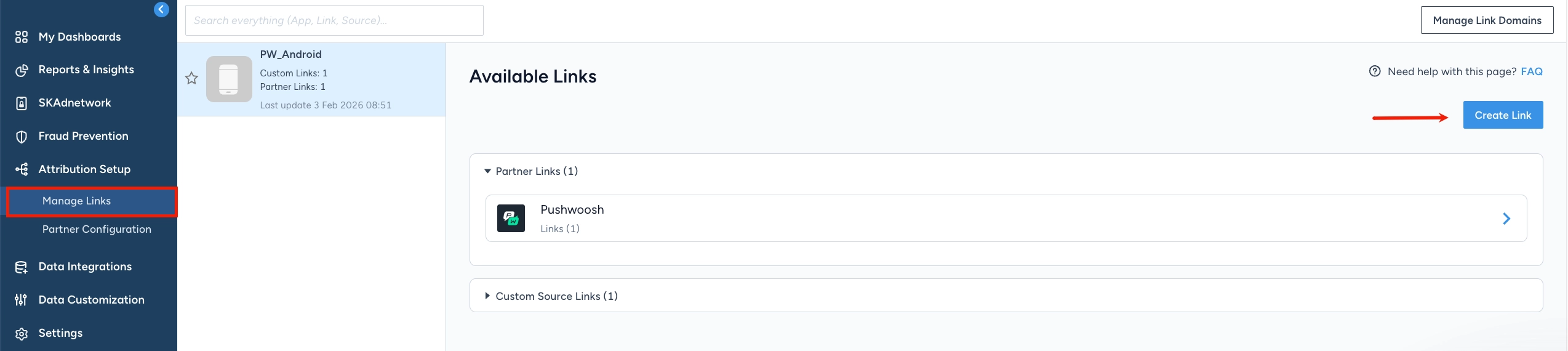
- Singular 계정에서 Attribution Setup → Manage Links로 이동합니다.
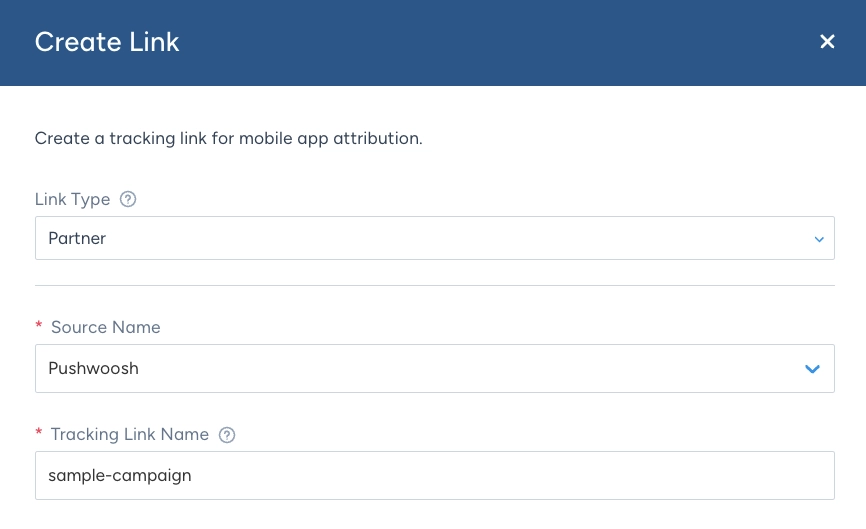
- Link Type → Partner를 선택하고 Source Name으로 Pushwoosh를 선택합니다. Singular 분석에서 이 링크를 식별할 수 있도록 Tracking Link Name을 입력합니다. 보고서에는 Tracker Name으로 표시됩니다.
-
Link Settings and Redirects에서 이 링크가 어떤 앱을 위한 것인지, 사용자가 탭했을 때 어디로 이동할지 정의합니다. 자세히 알아보기.
-
Attribution Settings에서 링크에 대한 어트리뷰션 방법과 기간을 구성합니다. 자세히 알아보기.
-
Generate를 클릭합니다.
-
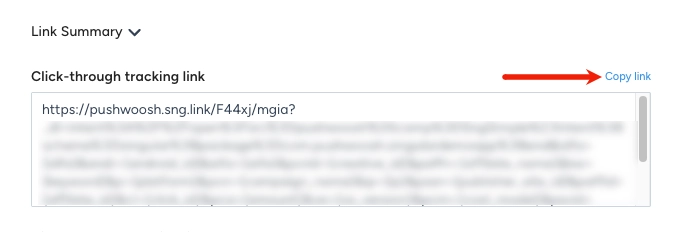
Link Summary에서 생성된 링크를 검토합니다. 푸시 어트리뷰션 설정을 하는 경우, Click-through tracking link를 복사합니다. 이 링크를 Pushwoosh에서 사용하게 됩니다.
Pushwoosh에서 푸시 어트리뷰션 설정
Anchor link toSingular 트래킹 링크를 푸시 알림에 추가하세요.
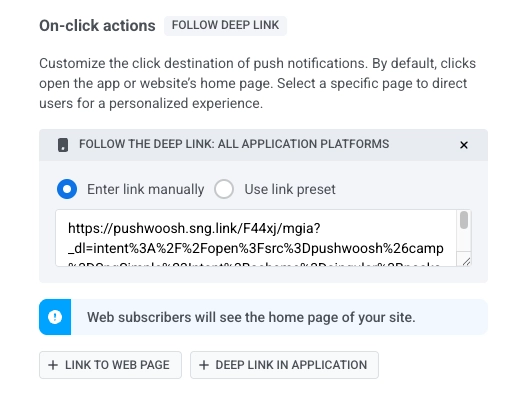
Link Summary에서 복사한 Click-through tracking link를 Push preset의 On-click actions → Deep link in application에 붙여넣습니다.
포스트백 구성
Anchor link toSingular는 사용자가 어디에서 왔는지, 앱에서 무엇을 하는지에 대한 어트리뷰션 데이터를 수집합니다. 포스트백을 사용하면 해당 데이터를 Pushwoosh로 자동으로 전송할 수 있습니다.
예를 들어, Singular가 특정 광고 캠페인에서 사용자가 앱을 설치했다고 기록하면, Pushwoosh는 이를 태그나 이벤트로 받을 수 있습니다. 그런 다음 해당 캠페인의 사용자 세그먼트를 만들어 Pushwoosh에서 타겟 푸시를 보낼 수 있습니다.
- Singular에서 Partner Configuration으로 이동합니다.
- 새 구성을 만들거나 기존 구성을 편집합니다.

- Pushwoosh Application Code와 API Access Token을 입력합니다.
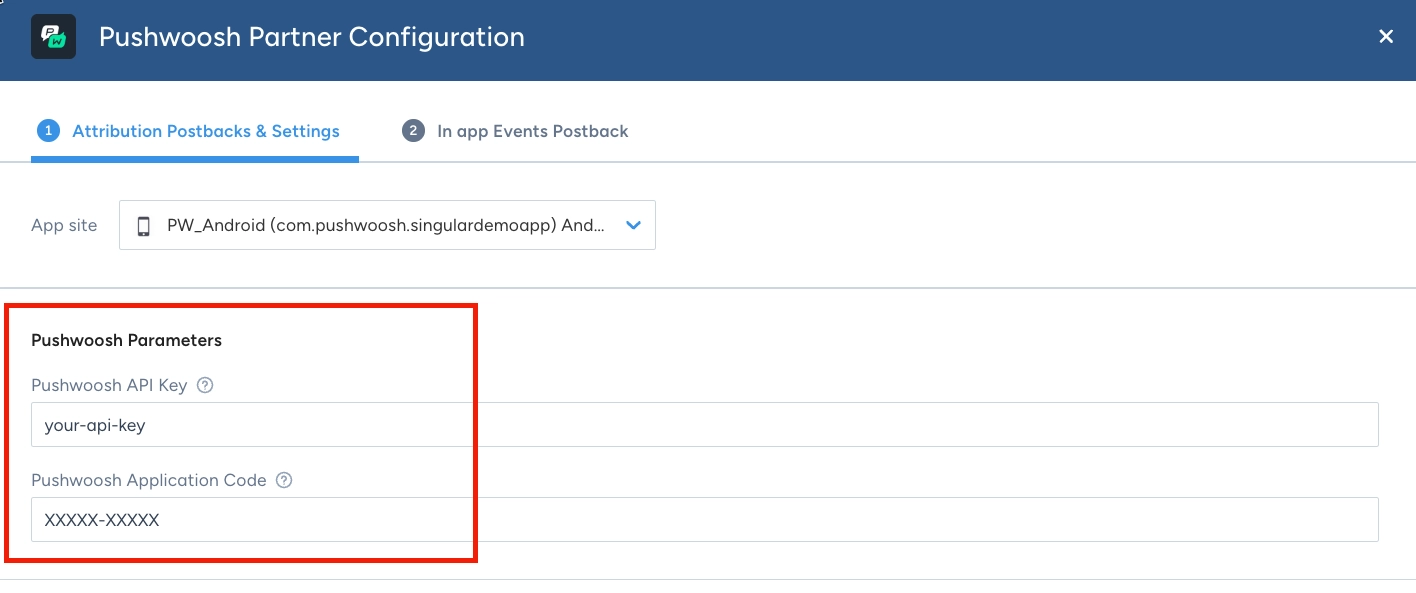
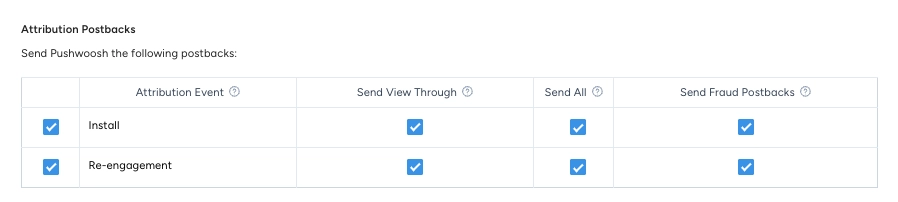
- Attribution Postbacks에서 Singular가 Pushwoosh로 보낼 이벤트를 선택합니다:
- Install: Singular에서 어트리뷰션된 새로운 앱 설치. Pushwoosh는 이 데이터를 사용하여 사용자가 어디에서 왔는지 기록합니다.
- Re-engagement: 추적된 링크에 어트리뷰션된 앱 열기. Pushwoosh에서 세분화를 위해 재참여 소스 데이터가 필요한 경우 이 옵션을 활성화하세요.
Singular 도움말 센터에서 파트너 설정 및 포스트백 구성 방법을 알아보세요.
-
Attribution Windows Settings의 Installs에서, 사용자가 트래킹 링크를 클릭하거나 광고를 본 후 Singular가 설치를 Pushwoosh에 귀속시키는 것을 중단하기까지 얼마나 기다릴 수 있는지 선택합니다. 자세히 알아보기.
-
Re-engagements에서, 클릭 또는 광고 조회 후 Singular가 앱 열기를 Pushwoosh에 귀속시키는 것을 중단하기까지 얼마나 기다릴 수 있는지 선택합니다. Override app level inactivity window for this partner를 활성화하여 해당 앱 열기가 재참여로 간주되기 전에 사용자가 비활성 상태여야 하는 기간을 설정합니다. 자세히 알아보기.
-
In app Events Postback 탭을 열고 Pushwoosh가 받아야 할 이벤트(예: 세션의 경우
__SESSION__*)를 추가합니다. 모든 소스의 사용자를 포함하려면 Send All을 활성화합니다. -
구성을 저장합니다.
Pushwoosh가 받는 데이터
Anchor link to저장 후, Singular는 구성된 이벤트가 발생할 때 포스트백을 보냅니다. Pushwoosh는 각 포스트백을 사용자 프로필의 기기 태그와 하나의 이벤트로 처리합니다.
Pushwoosh는 일치하는 기기에 다음 태그를 쓰거나 업데이트합니다:
| 태그 | 소스 |
|---|---|
| OS Version | 기기 OS 버전 |
| Application Version | 앱 버전 |
| Device Model | 기기 모델 |
| Country | 어트리뷰션 국가 |
| City | 어트리뷰션 도시 |
Pushwoosh는 사용자 프로필에 하나의 이벤트를 기록합니다. 이벤트 이름은 포스트백 유형에 따라 다릅니다:
- 인앱 이벤트: 구성한 Singular 이벤트 이름 (예: 세션 이벤트).
- 설치 또는 어트리뷰션 포스트백: 포스트백에 이벤트 이름이 없는 경우, Pushwoosh는
Singular Attribution Event를 기록합니다. 새로 어트리뷰션된 사용자의 세그먼트를 만들 때 이 이벤트 이름을 사용하세요.
캠페인 및 수익 데이터는 이벤트 속성으로 이벤트와 함께 전달됩니다. Pushwoosh에서 이를 기반으로 세분화하고 필터링할 수 있습니다:
| 속성 | 설명 |
|---|---|
| Campaign name / Campaign ID | 어트리뷰션된 캠페인 |
| Subcampaign name / Subcampaign ID | 어트리뷰션된 하위 캠페인 |
| Creative name / Creative ID | 어트리뷰션된 크리에이티브 |
| Amount / Revenue / Currency | 이벤트의 금전적 가치 (있는 경우) |
| Country / City | 이벤트와 함께 보고된 위치 |
포스트백 확인
Anchor link toSingular가 구성된 이벤트에 대한 포스트백을 보낸 후, Pushwoosh가 이를 수신했는지 확인하세요:
- Audience → Events를 열고 이벤트가 나타나는지 확인합니다.
- User Explorer에서 사용자 프로필을 열고 Events history로 이동합니다. 해당 사용자에 대해 이벤트와 그 속성(예: Campaign name)이 기록되었는지 확인합니다.
- 이벤트는 보통 몇 분 내에 나타납니다.
문제 해결
Anchor link toSingular 트래킹 링크가 캡처되지 않음
Anchor link to- Click-through tracking link가 Custom Data가 아닌 On-click actions → Deep link in application에 설정되어 있는지 확인하세요.
- Singular SDK가 푸시 알림 페이로드를 처리하도록 구성되었는지 확인하세요. Android 및 iOS 가이드를 참조하세요.
딥 링크가 앱을 열지만 홈 화면으로 이동함
Anchor link to- Singular 트래킹 링크 내의
_dl매개변수가 올바르게 URL 인코딩되었는지 확인하세요. - 앱의 딥 링크 핸들러가 사용된 스킴(예:
myapp://)에 대해 올바르게 등록되었는지 확인하세요. - Android에서는
AndroidManifest.xml에서 올바른Activity가 딥 링크 스킴에 대한 인텐트 필터를 가지고 있는지 확인하세요.
Singular에 어트리뷰션이 표시되지만 잘못된 캠페인으로 기록됨
Anchor link to- Singular SDK 가이드에 설명된 대로, Singular SDK가 초기화 전이나 도중에 푸시 페이로드를 처리하는지 확인하세요.
- 이 캠페인에 대해 Link Summary의 올바른 Click-through tracking link를 사용하고 있는지 확인하세요.
웜 스타트 (앱이 이미 열려 있음): 어트리뷰션이 기록되지 않음
Anchor link to- Singular SDK 가이드에 설명된 대로, 앱이 백그라운드에서 이미 실행 중일 때 푸시 알림 탭을 처리하는지 확인하세요.
- 이것이 웜 스타트에 대한 어트리뷰션 누락의 가장 일반적인 원인입니다.