Figma 통합
Figma용 Pushwoosh 플러그인은 디자인 파일의 프레임을 Pushwoosh 애플리케이션의 미디어 스토리지로 바로 보냅니다. 푸시 이미지, 인앱 배너, 이메일 헤더를 파일 내보내기, 다운로드, 재업로드 없이 Figma에서 콘텐츠로 가져올 수 있습니다.
플러그인은 Figma 에디터와 Dev Mode(개발자가 디자인을 검사하는 Figma 모드)에서 작동합니다.
통합 개요
Anchor link to통합 유형
Anchor link to대상: Figma에서 내보낸 이미지가 Pushwoosh 미디어 스토리지로 전송됩니다.
전제 조건
Anchor link to- Pushwoosh 계정. 계정에서 플러그인을 사용할 수 없는 경우 고객 성공 관리자 또는 Pushwoosh 지원팀에 문의하세요.
- 이미지를 보낼 Pushwoosh 애플리케이션에 대한 액세스 권한. 플러그인은 Control Panel에서 열 수 있는 애플리케이션만 표시합니다.
- Figma 계정과 Figma Community의 Pushwoosh 플러그인.
통합 작동 방식
Anchor link to각 Pushwoosh 사용자는 자신의 로그인으로 플러그인을 연결합니다. 플러그인에서 로그인을 시작하면 플러그인이 짧은 코드를 표시합니다. Pushwoosh Control Panel에 해당 코드를 입력하고 액세스를 허용합니다. 그 후부터 플러그인은 사용자를 대신해 다음 두 가지 작업을 할 수 있습니다.
- 애플리케이션 목록 보기
- 해당 애플리케이션의 미디어 스토리지에 이미지 업로드
플러그인은 Pushwoosh 비밀번호를 받지 않으며, 계정의 다른 어떤 것도 읽거나 변경할 수 없습니다.
플러그인 연결
Anchor link to-
Figma Community에서 Pushwoosh 플러그인을 열고 디자인 파일에서 실행합니다.
-
Region에서 Europe (app.pushwoosh.com) 리전을 선택합니다.
-
Sign in to Pushwoosh를 클릭합니다. 플러그인이 10분 동안 유효한 코드를 표시합니다.
-
Open Pushwoosh를 클릭합니다. Control Panel이 코드 입력 양식이 이미 열린 상태로 3rd-party integrations 페이지에서 열립니다.
양식이 열리지 않으면(예: 이 브라우저에서 Control Panel을 사용한 적이 없는 경우) Settings > 3rd-party integrations로 이동하여 Figma 카드에서 Enter code를 클릭합니다.

-
플러그인의 코드를 입력하고 Continue를 클릭합니다.
-
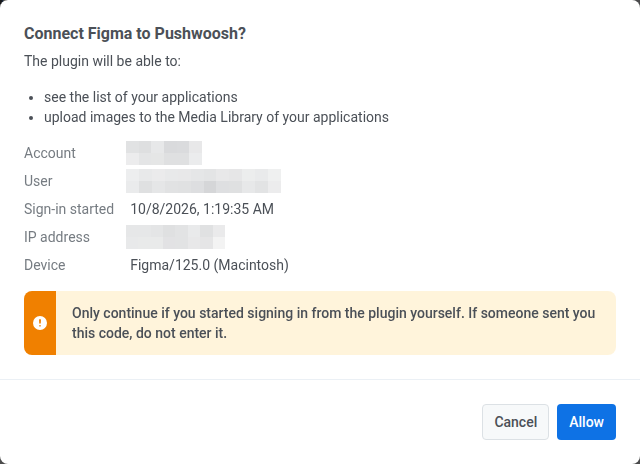
로그인 요청의 세부 정보를 확인합니다: 플러그인이 연결되는 계정과 사용자, 로그인이 시작된 시간, IP 주소, 기기. 플러그인에서 직접 로그인을 시작한 경우에만 Allow를 클릭합니다.
-
Figma로 돌아갑니다. 플러그인이 자동으로 로그인하고 계정 이름과 이메일을 표시합니다.
코드가 작동하지 않는 경우:
- Allow를 클릭하기 전에 코드가 만료되면 플러그인이 이를 알려 줍니다. Sign in to Pushwoosh를 다시 클릭하여 새 코드를 받으세요.
- 잘못된 코드를 다섯 번 입력하면 Control Panel이 최대 10분 동안 코드를 받지 않습니다. 기다린 다음 플러그인에서 Sign in to Pushwoosh를 클릭하여 새 코드를 받으세요.
미디어 스토리지로 프레임 보내기
Anchor link to-
Figma 캔버스에서 프레임을 하나 이상 선택합니다. 그룹이나 컴포넌트 같은 다른 레이어도 선택할 수 있습니다.
-
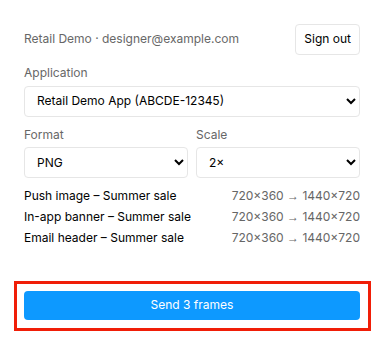
Application에서 이미지를 보낼 애플리케이션을 선택합니다. 목록이 비어 있으면 아직 어떤 애플리케이션에도 액세스 권한이 없는 것입니다. 계정 관리자에게 액세스 권한을 요청하세요.
-
Format에서 PNG 또는 JPG를 선택합니다.
-
Scale에서 1×, 2×, 3× 중 하나를 선택합니다. 선택한 각 프레임이 Figma에서의 크기와 내보낸 이미지의 크기와 함께 목록에 표시됩니다(예:
720×360 → 1440×720). -
Send를 클릭합니다. 버튼에 전송될 프레임 수가 표시됩니다(예: Send 3 frames).
업로드가 완료되면 모든 프레임이 선택한 애플리케이션의 미디어 스토리지에 나타납니다. 이미지를 콘텐츠에 바로 붙여 넣으려면 플러그인에서 프레임 옆의 Copy URL을 클릭합니다.
이미지 제한
Anchor link to미디어 스토리지는 최대 25메가픽셀, 10MB의 이미지를 허용합니다. 플러그인은 보내기 전에 두 가지를 모두 확인합니다.
- 25메가픽셀: 이 제한은 스케일 적용 후 내보낸 이미지에 적용됩니다. 이보다 커지는 프레임은 목록에 표시되며(예:
over 25 MP, use 2×) 전송되지 않습니다. 더 작은 스케일을 선택하면 보낼 수 있습니다. - 10MB: 10MB보다 큰 PNG는 대신 JPG로 전송됩니다. 10MB보다 큰 JPG는 전송되지 않습니다.
JPG는 투명도를 지원하지 않으므로 프레임의 투명한 영역은 흰색이 됩니다.
업데이트된 프레임 보내기
Anchor link to프레임을 변경한 후 같은 애플리케이션으로 다시 보내면, 플러그인은 이를 이전에 보낸 이미지의 새 버전으로 업로드합니다. 버튼에 이 내용이 표시되고(예: Send 3 frames (1 as new version)), 목록에서 해당 프레임에 new version 표시가 붙습니다.
미디어 스토리지는 이전 버전 대신 새 버전을 표시합니다. 새 버전에는 고유한 URL이 있으므로 URL을 다시 복사하고 이미지가 바뀌어야 하는 콘텐츠를 업데이트하세요.
미디어 스토리지에서 이미지를 삭제하면 최신 버전만 제거되고 이전 버전이 그 자리를 대신합니다. 원본 이미지 삭제를 참조하세요.
다음과 같은 경우 프레임은 새 버전이 아닌 새 이미지로 전송됩니다.
- 프레임의 복사본을 보내거나 다른 Figma 파일의 같은 프레임을 보내는 경우
- 다른 애플리케이션으로 보내는 경우
- 이전 이미지가 미디어 스토리지에서 삭제된 경우
연결 관리
Anchor link to플러그인에서 로그인할 때마다 내 로그인 아래에 별도의 연결이 생성됩니다. 연결이 하나 이상 있으면 Figma 카드가 Connected services로 이동하고 연결된 기기 수를 표시합니다.
연결을 확인하거나 제거하려면:
-
Settings > 3rd-party integrations로 이동합니다.
-
Figma 카드에서 Manage를 클릭합니다.
-
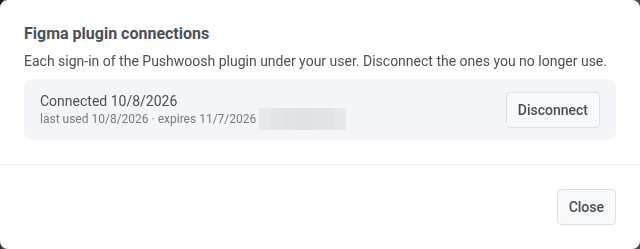
목록을 검토합니다. 각 연결에는 연결된 시간, 마지막으로 사용된 시간, 만료 시간, IP 주소가 표시됩니다.
-
더 이상 사용하지 않는 연결 옆의 Disconnect를 클릭합니다. 해당 기기의 플러그인은 즉시 작동을 멈추고 다시 로그인해야 합니다.
연결은 30일 동안 사용하지 않으면 만료되며, 어떤 경우에도 허용한 날로부터 90일 후에 만료됩니다. 그 후에는 플러그인에서 다시 로그인하세요.
팀원이 내 연결로 이미지를 보낼 수 있나요?
Anchor link to아니요. 각 팀원은 자신의 Pushwoosh 로그인으로 플러그인을 연결하며, 각 연결은 해당 사용자가 액세스할 수 있는 애플리케이션만 볼 수 있습니다. 한 연결을 해제해도 다른 사람의 연결에는 영향을 주지 않습니다.
어떤 형식과 크기로 보낼 수 있나요?
Anchor link toPNG 또는 JPG이며, 1×, 2× 또는 3×로 내보낼 수 있습니다. 각 이미지는 스케일 적용 후 최대 25메가픽셀, 최대 10MB까지 가능합니다.