Facebook Messenger
Facebook Messenger 요소를 사용하면 Customer Journey의 일부로 사용자에게 Facebook Messenger 메시지를 보낼 수 있습니다.
Customer Journey Builder에서 채널 요소 중 Facebook Messenger 요소를 추가하고, Entry 뒤에 연결한 다음, 요소를 열어 아래 설정을 구성하세요.
Entry 트리거
Anchor link to누군가 연결된 Facebook 페이지와 상호 작용하면 Pushwoosh는 Journey를 시작하는 데 사용할 수 있는 이벤트를 기록합니다:
- 사용자가 메시지를 보냄 (
PW_FBMessengerReceived): 사용자가 보낸 모든 텍스트 후에 Journey가 시작되어야 할 때 사용합니다. - 사용자가 메뉴, 빠른 답장 또는 추천 링크를 탭함 (
PW_FBMessengerStarted): 동일한 사람에게 여러 번 발생할 수 있습니다. 첫 접촉뿐만 아니라 해당 특정 작업을 중심으로 로직을 구축하세요.
Journey에서 Trigger-based Entry를 추가하고 설정을 연 다음, 이러한 이벤트 중 하나를 선택하세요. Entry 요소 구성 방법 알아보기
메시지 내용 선택
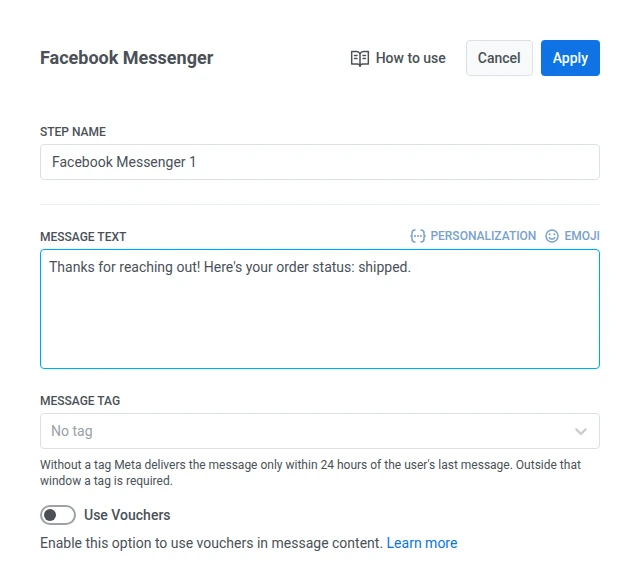
Anchor link to메시지 필드에 일반 텍스트 내용을 직접 입력하세요.
24시간 창 외부에서 메시지 태그 사용
Anchor link to사용자가 페이지에 메시지를 보낸 경우, 해당 메시지가 열리는 24시간 창 내에서 맞춤 콘텐츠로 응답할 수 있습니다. 해당 창 내에서 보내는 경우 메시지 태그를 태그 없음으로 설정해 두세요.
해당 창 외부에서는 Meta가 승인된 사용 사례 중 하나와 일치하는 메시지 태그를 요구합니다:
- CONFIRMED_EVENT_UPDATE: 수신자가 참석 예정인 이벤트에 대한 알림 또는 업데이트입니다.
- POST_PURCHASE_UPDATE: 수신자가 이미 한 구매와 관련된 업데이트입니다.
- ACCOUNT_UPDATE: 수신자 계정 변경에 대한 비정기적인 업데이트입니다.
- HUMAN_AGENT: 수신자에게 응답하는 상담원의 메시지입니다.
메시지의 실제 이유와 일치하는 태그를 선택하세요. Meta는 잘못된 태그를 사용하는 전송을 거부할 수 있습니다.
바우처 사용
Anchor link to미리 정의된 풀에서 바우처 코드를 첨부하여 Facebook Messenger 메시지를 개인화할 수 있습니다. 이는 프로모션, 할인 및 로열티 인센티브에 유용합니다. 이를 위해 메시지 텍스트에 {{voucher}} 플레이스홀더를 포함하세요.
바우처 풀을 미리 추가하세요. 바우처에 대해 자세히 알아보기
Facebook Messenger 메시지에 바우처를 포함하려면:
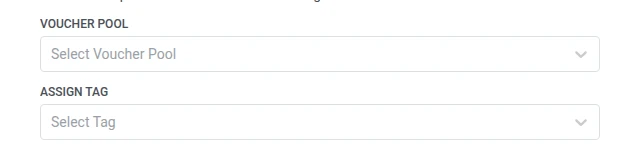
- Facebook Messenger 요소에서 바우처 사용을 ON으로 전환합니다.
- 바우처 풀 필드에서 사용 가능한 바우처 코드가 포함된 풀을 선택합니다.
- (선택 사항) 태그 할당 필드를 사용하여 바우처를 받는 사용자에게 태그를 적용합니다. 이 태그는 세분화 또는 보고에 사용할 수 있습니다.
제한 사항
Anchor link to- 템플릿, 버튼 또는 미디어 첨부 파일이 없는 일반 텍스트만 가능합니다.
- 특정 발신 메신저 메시지 하나가 읽혔는지 확인할 수 없습니다. Meta는 메시지별이 아닌 특정 시간까지 대화가 읽혔다고만 보고합니다.
- 채널은 Meta가 연결된 페이지에 대한 Meta 앱의 메신저 권한을 승인한 후에만 전달됩니다.
Facebook Messenger 요소를 구성한 후 적용을 클릭하여 설정을 저장하세요. 나머지 캔버스가 준비되면 Journey를 시작하세요.