App Inbox
App Inbox 채널 요소를 사용하여 push를 거치지 않고 journey에서 사용자의 인앱 인박스에 메시지를 직접 배치하세요. App Inbox 작동 방식 알아보기.
Channels에서 App Inbox 요소를 캔버스로 드래그한 다음 클릭하여 설정을 엽니다.
App Inbox 콘텐츠 선택 또는 생성
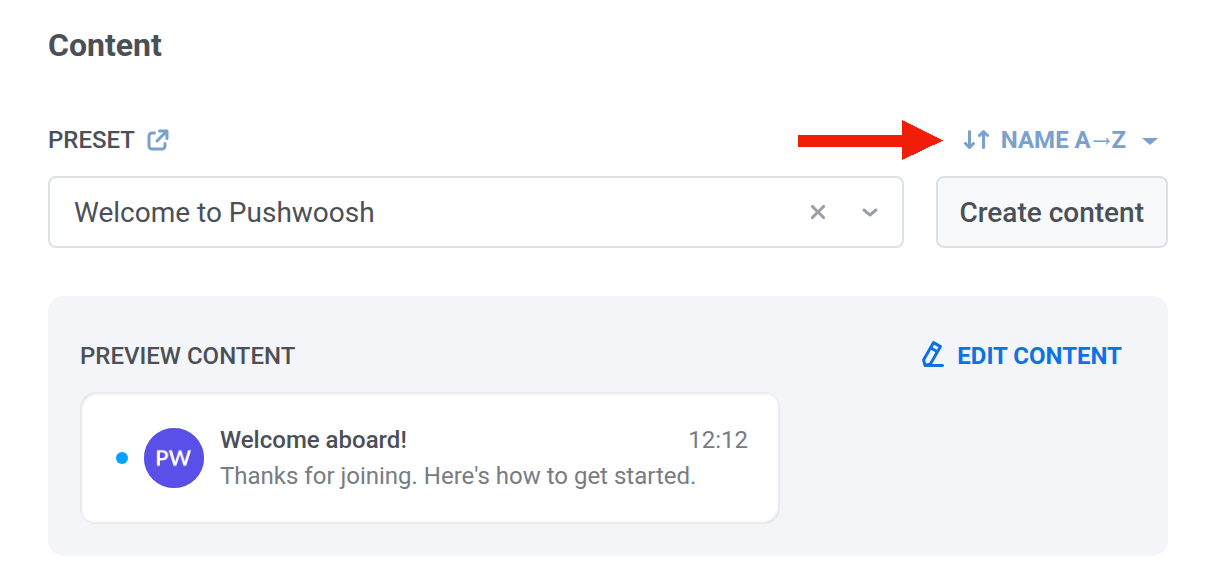
Anchor link toPreset에서 기존 App Inbox 프리셋을 선택하거나 Create content를 클릭하여 편집기를 엽니다. Edit content는 선택한 프리셋에 대해 동일한 편집기를 엽니다. 필드는 Inbox Presets와 일치합니다: 레이아웃 유형, 제목, 메시지, 미디어 등.
드롭다운에서 프리셋 순서를 변경하려면 드롭다운 위의 정렬 버튼을 클릭합니다. 다른 순서를 선택하기 전까지 드롭다운은 이름 A→Z 순으로 정렬되며, Pushwoosh는 선택한 순서를 기억하여 일회성 메시지와 journey 모두에서 모든 App Inbox 프리셋 드롭다운에 사용합니다.
메시지 유형 설정
Anchor link to이 요소에 대해 Marketing message 또는 Transactional message를 선택합니다.
- Marketing message: 빈도 제한을 준수합니다. 전역 제어 그룹을 제외합니다.
- Transactional message: 빈도 제한을 우회합니다. 전역 제어 그룹에도 전송됩니다.
미리 선택된 메시지 유형은 없습니다. 유형을 선택하기 전까지 요소에 Message type not selected 경고가 표시됩니다. 요소에 Audience-based entry에서만 도달하는 경우 Marketing message에 Default 배지가 표시됩니다. 서비스 메시지인 경우 Transactional message를 선택하세요.

클릭 시 작업 설정
Anchor link toOn click actions에서 사용자가 메시지를 탭했을 때 발생할 동작을 선택합니다.
Mobile:
- No action on click: 사용자가 탭해도 아무것도 열리지 않습니다.
- Open Deep link: 앱에서 딥링크를 엽니다.
- Open URL in browser: 기기 브라우저에서 URL을 엽니다.
- Show in-app content: 선택한 인앱 메시지를 표시합니다. 인앱 목록은 정렬 버튼으로 다른 순서를 선택할 때까지 최신순 순으로 정렬됩니다.
Web:
- No action on click: 사용자가 탭해도 아무것도 열리지 않습니다.
- Open URL in browser: 브라우저에서 URL을 엽니다.
- Show web pop-up: 선택한 웹 팝업을 표시합니다. 목록은 정렬 버튼으로 다른 순서를 선택할 때까지 최근 업데이트순 기준으로 표시됩니다.
만료 설정
Anchor link toExpires에서 메시지가 인박스에 유지되는 기간을 선택합니다:
- 7 / 14 / 30 / 90일 후, 또는 특정 날짜.
- 더 짧거나 긴 기간이 필요하지 않다면 After 30 days를 그대로 두세요.
해당 시간이 지나면 Pushwoosh는 인박스에서 메시지를 제거합니다.

빈도 제한 설정
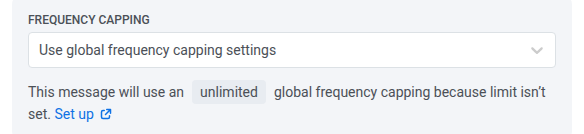
Anchor link toFrequency capping에서 이 사용자가 App Inbox 메시지를 받을 수 있는 빈도를 선택합니다. 제한은 push, 이메일 및 기타 채널과 별개로 App Inbox 빈도 제한 채널에 적용됩니다.
- Use global frequency capping settings: 프로젝트 전체 App Inbox 제한을 적용합니다.
- Send messages without global frequency capping: 사용자가 이미 해당 제한에 도달했더라도 전송합니다. 주의해서 사용하세요.
- Use custom frequency capping: 이 요소에만 제한을 설정합니다.
요소를 구성한 후 Apply를 클릭합니다.
이 지점에서 사용자에게 일어나는 일
Anchor link to이 표는 메시지를 배치할 기기가 없는 경우, 기기가 두 대 이상인 경우, journey를 일시 중지하거나 중지할 때 발생하는 일 등 예외 사례를 다룹니다.
| 시점 | 발생하는 일 |
|---|---|
| 메시지가 인박스에 배치됨 | 사용자는 즉시 다음 단계로 이동합니다(Sent). 먼저 앱을 열 필요가 없습니다. |
| 어떤 기기에도 인박스가 없음 | 이메일 전용 또는 메신저 전용 사용자, 그리고 인박스 플랫폼에 기기가 없는 기타 사용자는 이 단계를 건너뛰고 계속 진행합니다. 통계에는 skipped로 표시됩니다. 사이트에 SDK가 있으면 Web도 집계됩니다. |
| 기기가 두 대 이상 | 메시지는 이를 지원하는 모든 기기의 인박스에 표시됩니다. Sent는 기기별이 아니라 사람별로 한 번 집계됩니다. |
| journey를 일시 중지하거나 종료함 | 이미 인박스에 있는 메시지는 만료될 때까지 유지됩니다. journey를 중지해도 제거되지 않습니다. |