Connect your domain to Gmail Postmaster
이 콘텐츠는 아직 귀하의 언어로 제공되지 않습니다.
Back to Email setup overview.
Connect your sender domain to Gmail Postmaster to see how Gmail treats your emails: how many recipients mark them as spam, why Gmail rejects some of them, and whether the domain meets Gmail’s sender requirements.
Connecting is optional. Emails send the same way without it.
Once the domain is connected and verified, the data appears in How Gmail sees your domain on the Email tab of Project overview.
Before you start, make sure that:
- The domain’s DKIM records and its SPF and DMARC records are verified. Pushwoosh doesn’t connect a domain until they are.
- You can add a TXT record in the domain’s DNS settings, or you have someone who can.
Connect a domain
Anchor link to- Go to Settings > Configure platforms.
- Click Platform settings next to Emails.
- In Your sender domains, click Connect in the Gmail Postmaster column next to the domain. The domain’s DNS records panel opens on the Gmail Postmaster block.
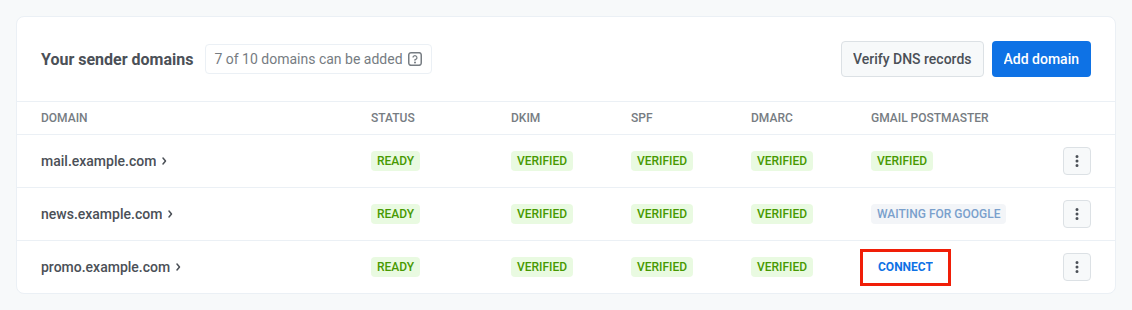
- In the Gmail Postmaster block, click Connect Gmail Postmaster.
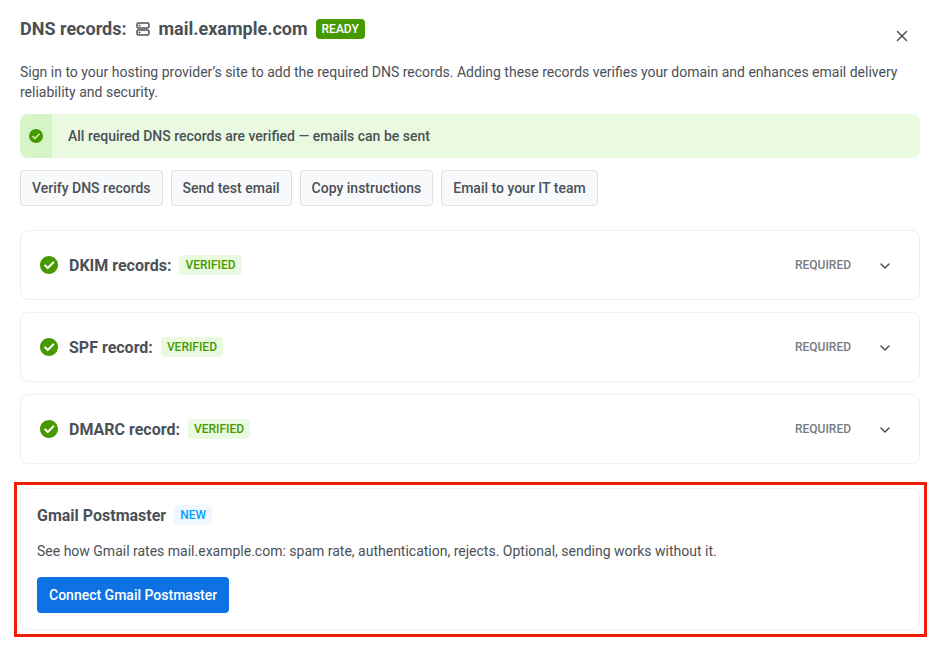
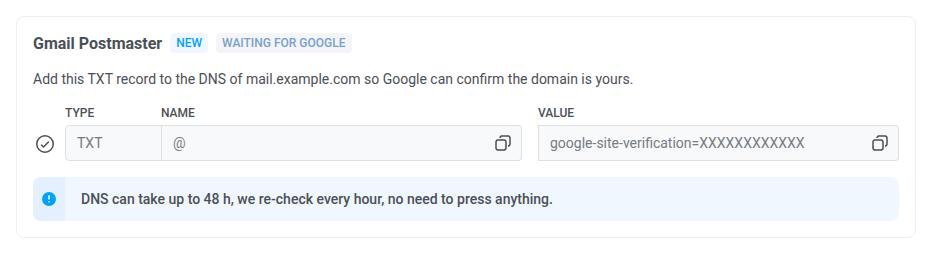
- Copy the TXT record value the block shows. It starts with
google-site-verification=. - In your DNS provider’s settings, add a TXT record with the host
@(the domain itself) and the copied value.
If the domain already has a google-site-verification TXT record, for example from Google Search Console, add the Pushwoosh record next to it. Don’t replace the existing one, because the other service stops working without it.
You don’t need to come back and confirm anything. Pushwoosh checks the record every hour for the first 3 days, then once a day. To check right away after you add the record, click Verify DNS records. DNS changes can take up to 48 hours to reach Google.
Gmail Postmaster statuses
Anchor link toThe Gmail Postmaster column in Your sender domains and the status badge after the Gmail Postmaster title in the block show where the connection stands. Click the status in the column to open the domain’s Gmail Postmaster block.
- Connect in the column, no status badge in the block: the domain isn’t connected. Click Connect Gmail Postmaster in the block to start.
- Waiting for Google: Pushwoosh is waiting for Google to confirm the TXT record. The note under the record says what Pushwoosh sees in your DNS.
- Pushwoosh hasn’t been able to check the record yet. Wait, no action is needed.
- The record is found, and Google hasn’t confirmed it yet. Wait, no action is needed.
- The record isn’t found. Check that the host is
@and that you copied the whole value. - Another
google-site-verificationrecord is found. Add the Pushwoosh record next to it.
- Verified: Google confirmed the domain. Keep the TXT record in DNS. If you remove it, or the domain’s own DNS records stop being verified, the status goes back to Waiting for Google and Gmail data stops updating.
- Not verified: Google didn’t confirm the domain within 30 days, and Pushwoosh stopped checking. Add the record, then click Check again to restart the checks for another 30 days.
Gmail sender requirements
Anchor link toWhen the domain is verified, the block lists three requirements that Gmail checks on top of your DNS records. Each one shows Compliant or Needs work, as Gmail assesses it:
- From: header aligned with SPF or DKIM domain. The domain in the From address matches the domain that SPF or DKIM authenticates. If it needs work, Gmail sees mail whose From domain matches neither.
- One-click unsubscribe: your mail carries a header that lets recipients unsubscribe in one click from the Gmail interface. See List-Unsubscribe header support.
- Honor unsubscribe: mail stops going to people who unsubscribed. If it needs work, Gmail still sees mail going to unsubscribed recipients.
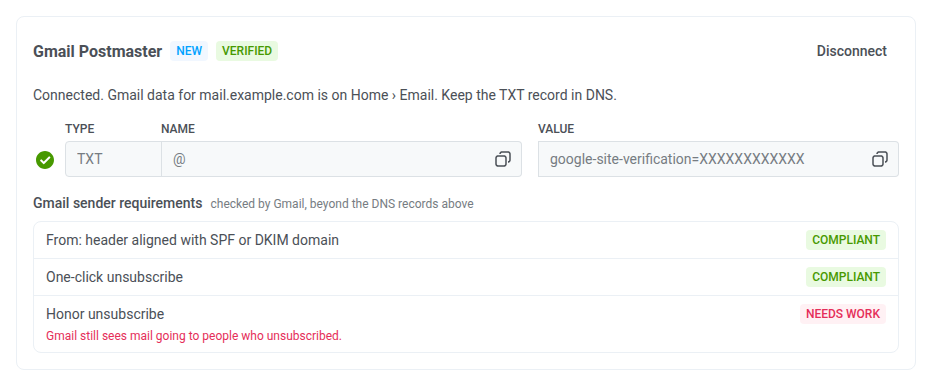
Pushwoosh reads the requirements from Gmail once a day, and only those Gmail has already assessed. Right after verification, the list can stay empty for a day or longer.
Disconnect a domain
Anchor link toYou can disconnect a verified domain.
- In the domain’s Gmail Postmaster block, click Disconnect.
- Confirm by clicking Disconnect in the dialog.
Gmail data for the domain stops updating on Project overview. After that, you can remove the TXT record from DNS. Deleting a sender domain disconnects it from Gmail Postmaster as well.