Отправка сообщений владельцам карт Apple Wallet
Как только пользователь добавляет вашу карту Apple Wallet, Pushwoosh регистрирует ее как подписку на платформу Apple Wallet, привязанную к этому User ID. Карты доступны на iPhone и Apple Watch.
Связаться с владельцами карт можно несколькими способами: отправить разовое пуш-уведомление, отправить обновление карты, автоматизировать сообщения из Customer Journey или уведомить владельцев конкретной карты через API.
Отправка разового пуш-уведомления владельцам карт
Anchor link toОтправьте отдельное пуш-уведомление одному владельцу карты или более широкой аудитории. Оно появится на экране блокировки как сообщение на карте.
-
Откройте редактор разовых пуш-уведомлений. Либо нажмите Send message в Campaigns → Wallet Passes → Apple Wallet, либо перейдите в Campaigns → One-Time Messages и нажмите Send message → One-time push.
-
На шаге Content напишите сообщение или выберите пресет.
-
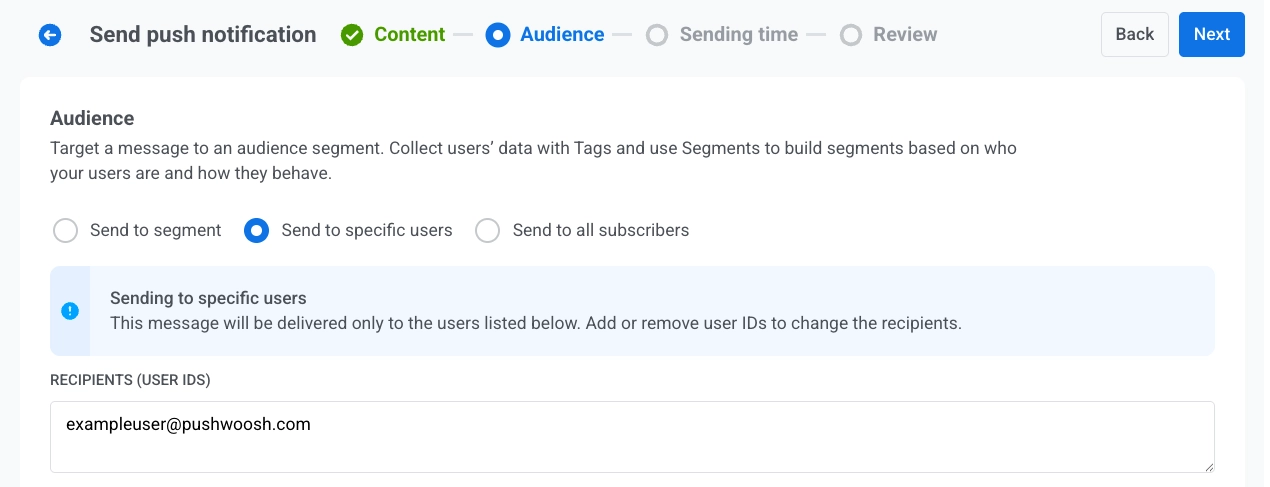
На шаге Audience укажите, кто получит сообщение. Настройки по умолчанию зависят от того, где вы открыли редактор:
- Из ‘Send message’ на карте: выбрана опция Send to specific users, а в поле Recipients (User IDs) уже указан User ID владельца этой карты. Отправьте как есть, чтобы связаться с этим одним владельцем, или измените аудиторию:
- Добавьте больше User ID в поле Recipients (User IDs)
- Переключитесь на Send to segment
- Выберите Send to all subscribers
- Из One-Time Messages: настройте аудиторию как для обычного разового пуш-уведомления: Send to specific users, Send to segment или Send to all subscribers.
- Из ‘Send message’ на карте: выбрана опция Send to specific users, а в поле Recipients (User IDs) уже указан User ID владельца этой карты. Отправьте как есть, чтобы связаться с этим одним владельцем, или измените аудиторию:
- В разделе Target platforms выберите Apple Wallet.
- Отправьте или запланируйте отправку сообщения.
Отправка обновления карты
Anchor link toРедактирование и сохранение карты переподписывает ее и уведомляет каждое устройство, на которое она была добавлена. iOS загружает новую версию в фоновом режиме. Чтобы оповестить владельцев о конкретном изменении, установите Change message для поля, чтобы iOS показало его на экране блокировки.
- В Campaigns → Wallet Passes → Apple Wallet найдите карту и нажмите Edit в меню действий.
- Измените необходимые поля и добавьте сообщение об изменении для любого поля, о котором вы хотите оповестить владельцев.
- Нажмите Save.
Каждое устройство, на которое была добавлена карта, получит обновление. Поля без сообщения об изменении обновляются без уведомления.
Автоматизация сообщений из Customer Journey
Anchor link toОтправляйте сообщения автоматически на основе событий или сегментов.
Journey с входом по триггеру
Anchor link to- Создайте Customer Journey и добавьте элемент Trigger-based entry.
- Выберите событие, которое должно запускать Journey. Если вы еще этого не сделали, сначала создайте кастомное событие в Панели управления, например
RewardAvailable. - Добавьте и настройте элемент пуш-уведомления. Включите опцию Send by User ID, чтобы пуш-уведомление доставлялось на все устройства, привязанные к пользователю, включая сохраненную карту.
- Завершите настройку и активируйте Journey.
Когда срабатывает событие входа, Pushwoosh отправляет пуш-уведомление на все устройства, привязанные к пользователю. Владельцы карт получают его как сообщение на экране блокировки на карте. Пользователи без карты Apple Wallet получают его на другие свои устройства.
Пример: Уведомить пользователя о доступности вознаграждения
POST https://api.pushwoosh.com/json/1.3/postEvent
{ "request": { "application": "XXXXX-XXXXX", "userId": "u12345", "event": "RewardAvailable", "attributes": { "reward": "Free coffee", "expires": "2026-07-01" } }}Имя event должно совпадать с событием, созданным в вашей Панели управления.
Другие способы построения Journey
Anchor link toОписанный выше процесс на основе триггера — это один из вариантов. В зависимости от того, что должно запускать Journey, выберите другой элемент входа:
- Audience-based entry: запуск Journey для целого сегмента, а не по одному событию. Запустите его один раз, по расписанию или периодически (например, каждую неделю для всех, у кого есть активная карта), при этом новые пользователи будут входить в Journey по мере присоединения к сегменту.
- API-based entry: запуск Journey по бизнес-событию, которое происходит вне приложения, например, задержка рейса или смена выхода на посадку. Ваша внешняя система вызывает шаблон запроса элемента входа и передает фильтр для таргетинга на нужных пользователей, например, на всех, у кого при выпуске карты был установлен тег
flightNumber = SU1234. Хорошо подходит для посадочных талонов и билетов на мероприятия.
Уведомление владельцев конкретной карты через API
Anchor link toЧтобы отправить сообщение всем, кто сохранил одну конкретную карту, вызовите метод Update a pass. Он обновит карту и уведомит устройства.