Create your project
All marketing automation in Pushwoosh is conducted within projects. Usually, one project is enough to work with one app on multiple platforms. If you have several different apps, you can create a separate project for each app.
Creating a project takes one form. Right after it, Pushwoosh offers to set up your brand and your email footer, so the first emails and in-app messages you build already carry your colors, logo, and legal details.
Create your first project
Anchor link toAfter you sign up and answer the onboarding questions, Pushwoosh opens the Just one final step left form. Fill it in the same way as when creating any other project, then click Save and continue to open the setup steps.
Create a new project
Anchor link to-
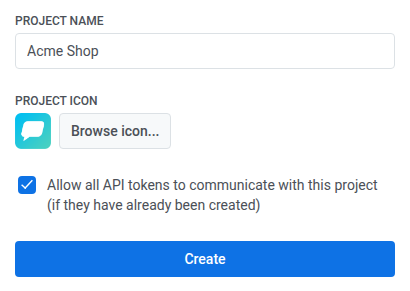
Go to Projects and click Create project.

-
Enter the Project name.
-
Optionally, click Browse icon… and upload a PNG, JPG, or GIF icon of up to 0.5 MB. The icon is shown next to the app name in push notifications.
-
Keep Allow all API tokens to communicate with this project selected to let your existing API tokens send messages and modify device data in this project. Clear it if you want to grant access to each token separately.
-
Click Create.
Pushwoosh creates the project and opens the setup steps.
Set up your brand and email footer
Anchor link toRight after you create a project, Pushwoosh walks you through up to two steps:
- Brand, shown for every new project.
- Email footer, shown only when the project is likely to send email.
You can skip either step. The setup doesn’t offer a skipped step again, and each step below says where to set it up later. If you leave before finishing, Pushwoosh returns you to the first unfinished step the next time you open the project’s overview. When all steps are done or skipped, the project overview opens.
Set up your brand
Anchor link toThe brand you set here is saved to the project’s Brand book, so the email, in-app, and cloud page editors start from your colors, fonts, logo, and tone of voice.
-
Under Build from your website, enter your site’s domain and click Scan site. Pushwoosh shows the colors, fonts, logo, and tone of voice it found on the site.
If the scan fails, Pushwoosh shows the error below Derive brand. Fix the domain and scan again, or use your own materials as described next.
To build the brand from your own materials, describe the brand in Brand voice, click Attach files to add a logo image or brand documents, and click Derive brand.
-
Check Brand voice and edit it if the text doesn’t sound like your brand.
-
Click Apply brand to save the brand to the Brand book.
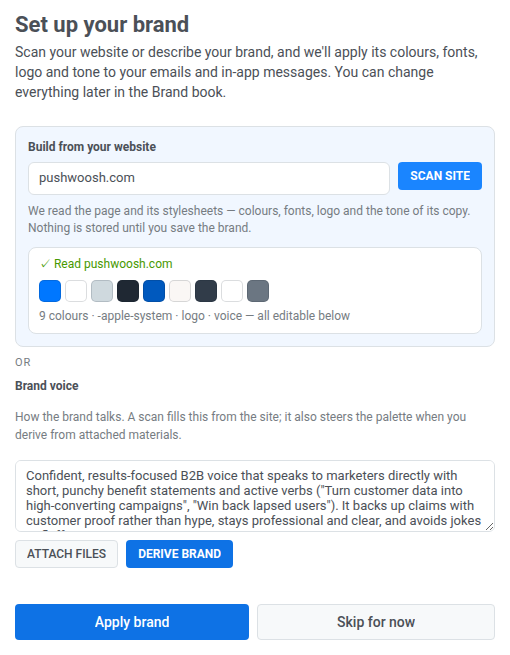
If you click Skip for now, nothing is saved. You can build the brand from your website in Brand book later.
Add your email footer
Anchor link toEvery email needs the sender’s legal details in its footer. This step saves them as the project’s default footer, which new emails start from.
The step appears only if you have the Domain and email verification permission and at least one of these is true:
- Your account is on the free Email plan.
- The project already has an email sending domain.
- You’re creating your first project and chose Email among the channels in the onboarding questions.
If you scanned your site in the brand step, the fields are already filled from it, and the step says so. A scan fills only what the site shows, so check every field and fill in any that stay empty before saving.
- Enter the Company name. It’s required.
- Enter the Address. It’s required.
- Optionally, add the Privacy policy link, Terms link, and Contact link. Each link must start with
https://,http://, ormailto:. - Click Save footer.
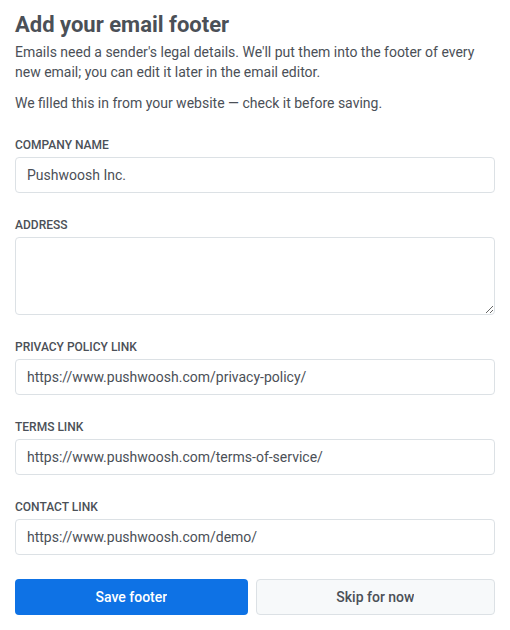
If you click Skip for now, nothing is saved. You can set the footer later in any email in the Drag & drop editor. Fill in the footer and click Save as project default.
The saved footer shows the company name, the address on one line, a copyright line (© and the current year followed by the company name), and the links you added. New emails you create in the Drag & drop editor get this footer automatically, unless they already have a footer of their own, for example from the template you started with. Emails created before you saved the footer keep their own. To switch one to the project footer, open its footer settings and click Load from project.
Project configuration
Anchor link toMobile configuration
Anchor link toiOS configuration
Anchor link to- iOS certificate-based configuration
- iOS token-based configuration
- Apple Wallet pass configuration for iOS
Android Firebase configuration
Anchor link toHuawei configuration
Anchor link toWeb configuration
Anchor link to- Configure web platforms using these instructions
Email configuration
Anchor link toSMS configuration
Anchor link toFollow this guide to set up the SMS platform.
WhatsApp configuration
Anchor link toFollow this guide to set up the WhatsApp platform.
Apple Wallet configuration
Anchor link toFollow this guide to set up Apple Wallet passes.
Google Wallet configuration
Anchor link toFollow this guide to set up Google Wallet passes.
Project settings
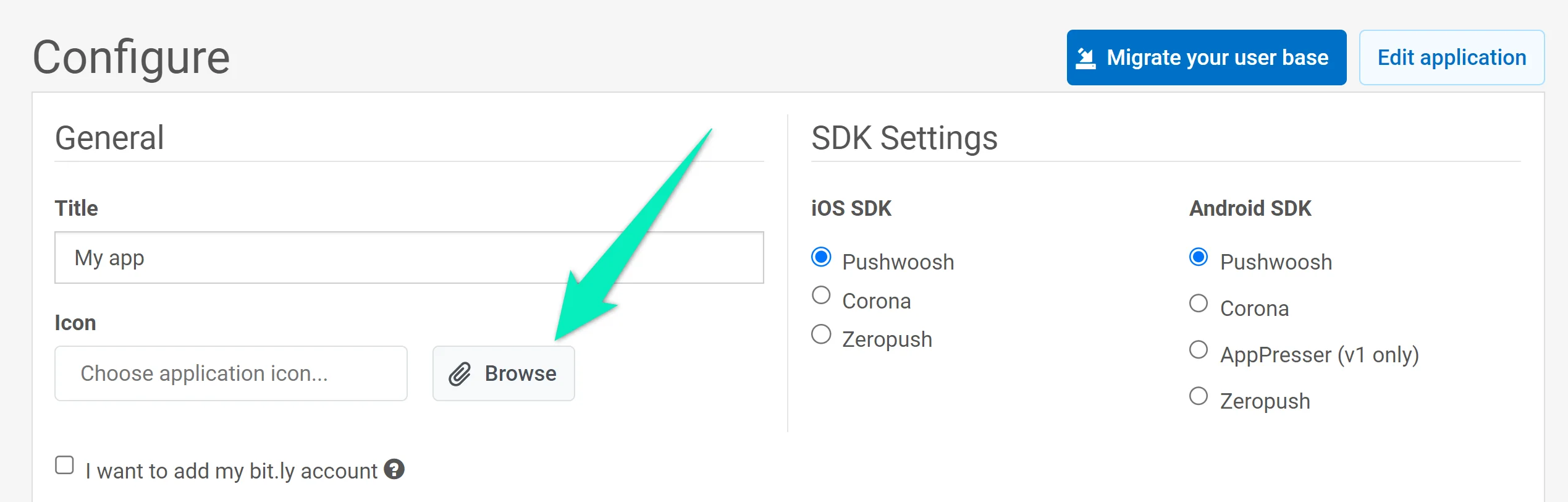
Anchor link toTo access project settings, go to the Configure platforms section and click Edit project:
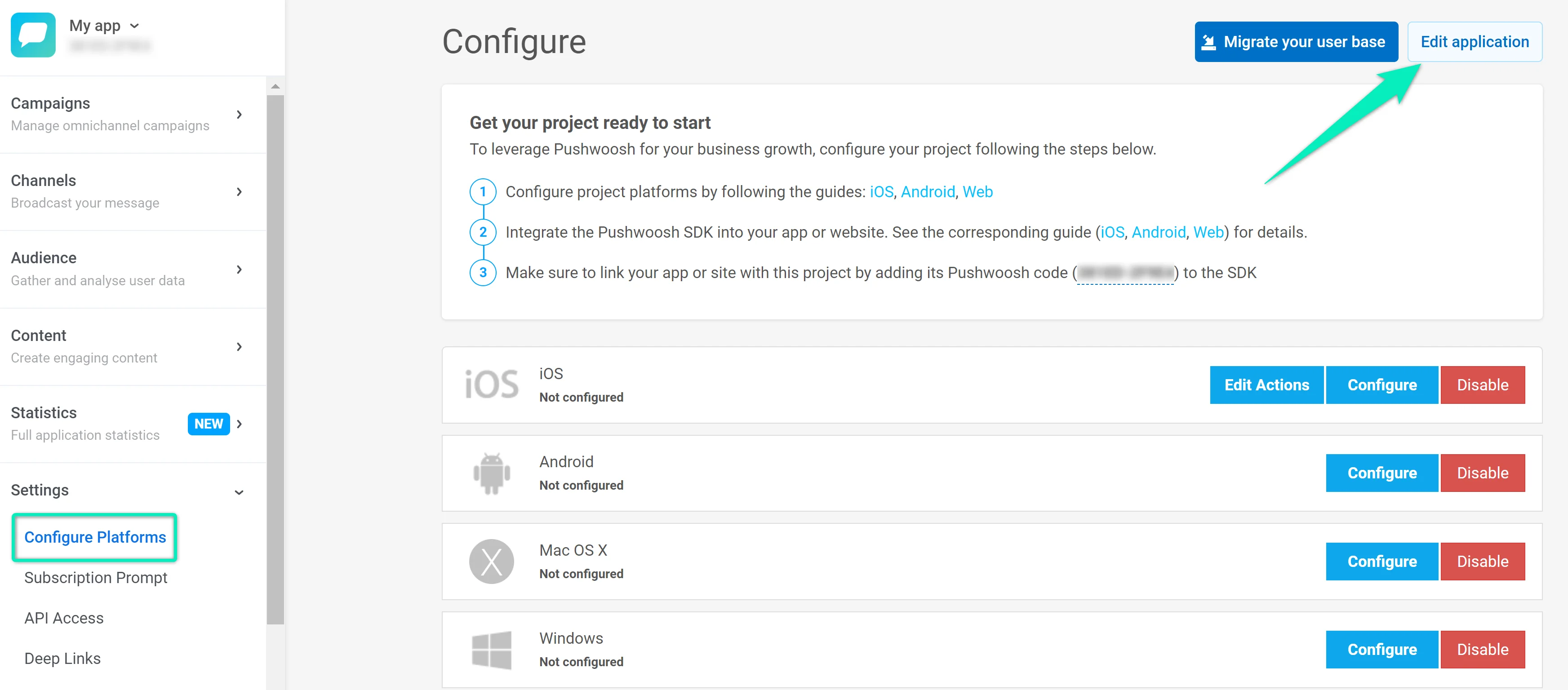
The Edit project dialog lets you change the following:
- Title: Update the project name in the TITLE field.
- Icon: Click Browse… next to the current icon to upload a new image (preferably no larger than 512×512 px and 1 MB). The icon is shown next to the app name in push notifications.
- Bit.ly: Check I want to add my bit.ly account, then enter your bit.ly access token in the ACCESS TOKEN field. Using your own account ensures links in your messages are shortened and sent within your shortener limits.
- Email Notification Settings: Check I want to receive Daily Application Performance Emails to get daily performance reports. Reports are sent for apps with 50 or more subscribers. The recipient email is shown below the checkbox. You can unsubscribe at any time.
Click Save to apply your changes or Cancel to discard them.