Mixpanel integration
Mixpanel is a tool that helps you understand how your users interact with your app. Being integrated with Pushwoosh, it allows building sophisticated audience segments and using these segments for exceptionally relevant and perfectly targeted communications.
To import the segments you build in Mixpanel to Pushwoosh, you have to integrate both tools in a few steps:
- Integrate Pushwoosh SDK
- Configure platforms in Pushwoosh
- Set the integration in Mixpanel
1. Integrate Pushwoosh SDK
Anchor link toFirst, integrate the Pushwoosh SDK into your mobile or web project:
2. Configure platforms in Pushwoosh
Anchor link toConfigure platforms for sending messages via Pushwoosh following the guides for instructions:
3. Configure Pushwoosh for Mixpanel
Anchor link toGet your Pushwoosh project’s credentials
Anchor link toFor setting the integration, you’ll need the app code and API access token of the Pushwoosh project.
App code
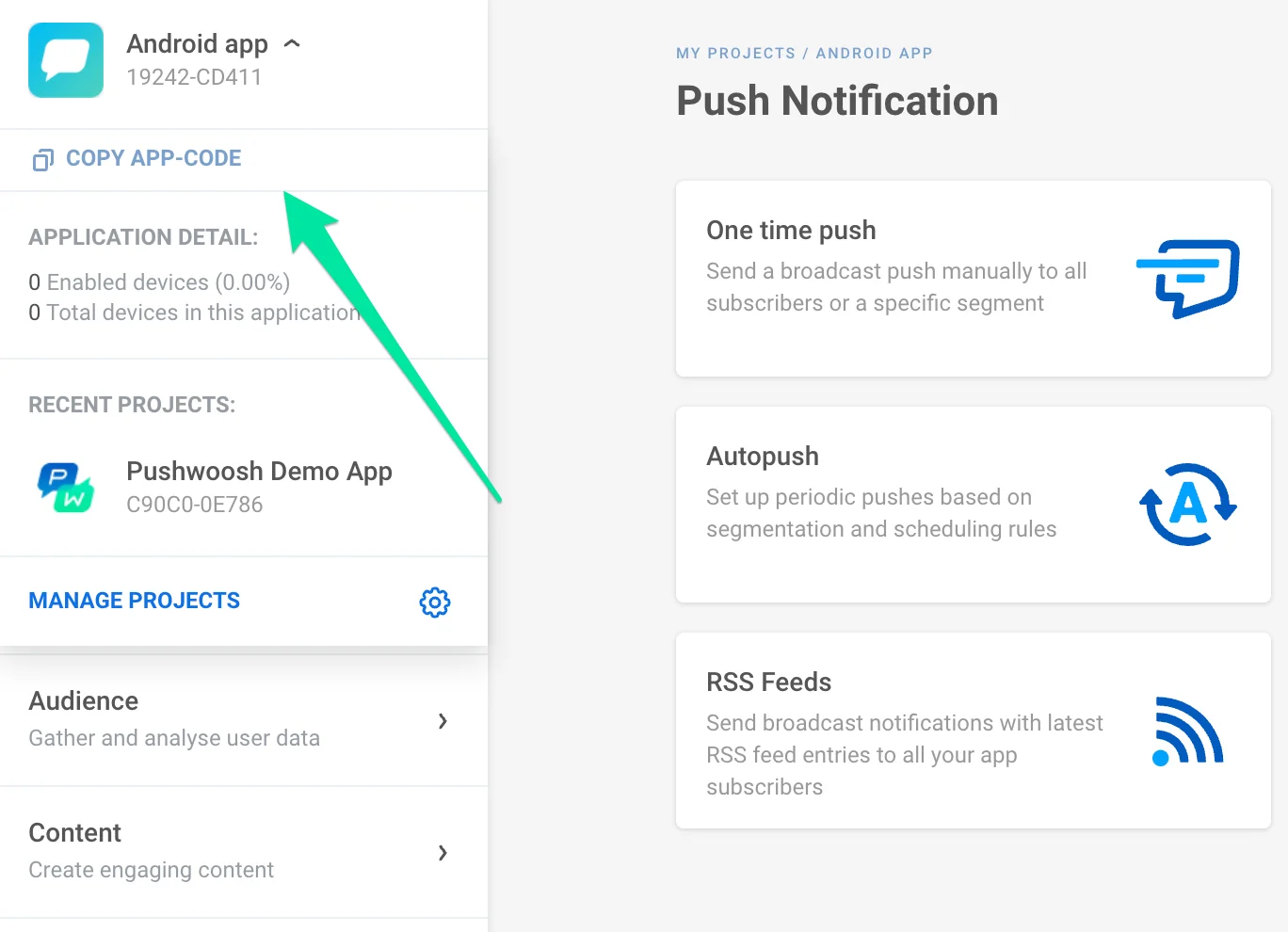
Anchor link toGo to the project you’re going to import segments to, click its name in the top left and copy the app code.
Auth token
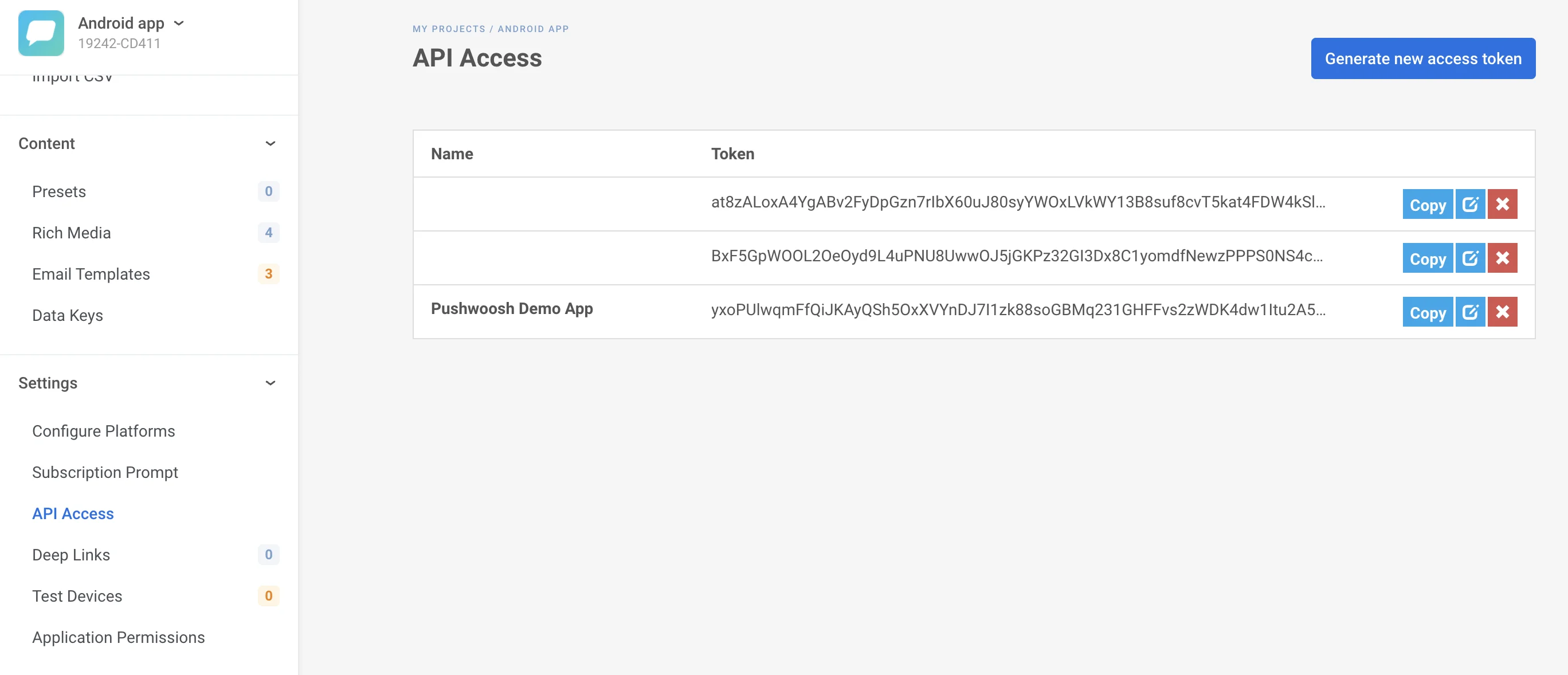
Anchor link toGo to Settings -> API Access and copy the API auth token applicable to the project you’ve chosen.
Set Pushwoosh integration in Mixpanel
Anchor link to- Log in to Mixpanel.
- Go to Data Management -> Integrations -> Pushwoosh.
- Click Connect.
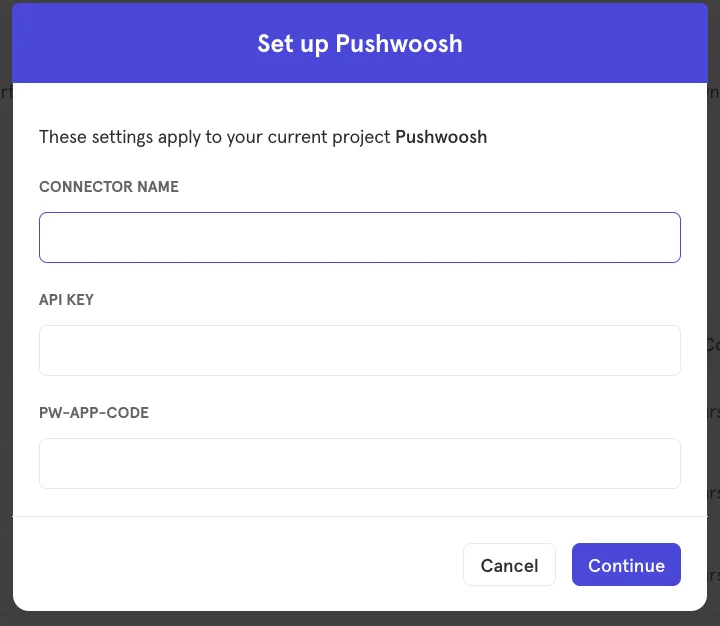
- In the window opened, set the Connector name, then paste the Pushwoosh API Access Token and App Code you’ve copied at previous step.
-
To match Mixpanel User with Pushwoosh User, set the $pushwoosh_user_id user profile property with UserIDs or HWIDs collected from Pushwoosh. Please refer to Mixpanel docs for more detail.
If a cohort member has no Pushwoosh user ID, Pushwoosh uses the member’s Mixpanel distinct ID instead. Members with neither are skipped.
4. Test your integration
Anchor link toTo export Mixpanel cohorts to your Pushwoosh account:
- Open your cohorts: Data Management -> Cohorts.
- Search for the cohort you’d like to export. Click the ”…” button next to the cohort you’d like to export. In the context menu opened, select Export to -> Pushwoosh.
- Then, specify whether the cohort should be sent to Pushwoosh one time or be synced dynamically at predefined intervals, updating the Pushwoosh segment to the most current set of users from Mixpanel.
- Once everything’s set up, the cohort you’ve exported will appear in the Segments (Filters) section of your Pushwoosh Control Panel as
Mixpanel_<cohort name>.
How cohorts appear in Pushwoosh
Anchor link toPushwoosh creates one segment for each cohort you export and keeps it in sync as follows:
- Pushwoosh creates a segment named
Mixpanel_<cohort name>the first time it receives cohort members that can be matched. If none of the members in a sync have a Pushwoosh user ID or a Mixpanel distinct ID, no segment is created. - Cohort membership is stored as the cohort ID in the CSV import tag of each matched user. For Mixpanel cohorts this is a list tag that can hold several cohort IDs. The segment selects users whose CSV import tag contains that ID.
- With dynamic sync, Mixpanel sends users who joined or left the cohort, and Pushwoosh adds or removes the cohort ID accordingly.
- A one-time export (full sync) only adds users. If you export the cohort again, users who left it in the meantime stay in the Pushwoosh segment. To keep the segment current, choose synced dynamically in step 3 of Test your integration.
- Pushwoosh finds the segment by name. If you rename the cohort in Mixpanel, the next sync creates a new
Mixpanel_<new name>segment, and the old one stays in Pushwoosh. If you don’t need the old segment, delete it manually. See Delete segment. Deleting a segment pauses the journeys that use it and cancels messages scheduled to it.