Media storage
The Media storage is your project’s built-in image library. Upload images, import free stock photos, or generate images with AI. Then reuse them in push notifications, web push, emails, in-app messages, Cloud Pages, and other content, directly in the editor or via a stable URL.
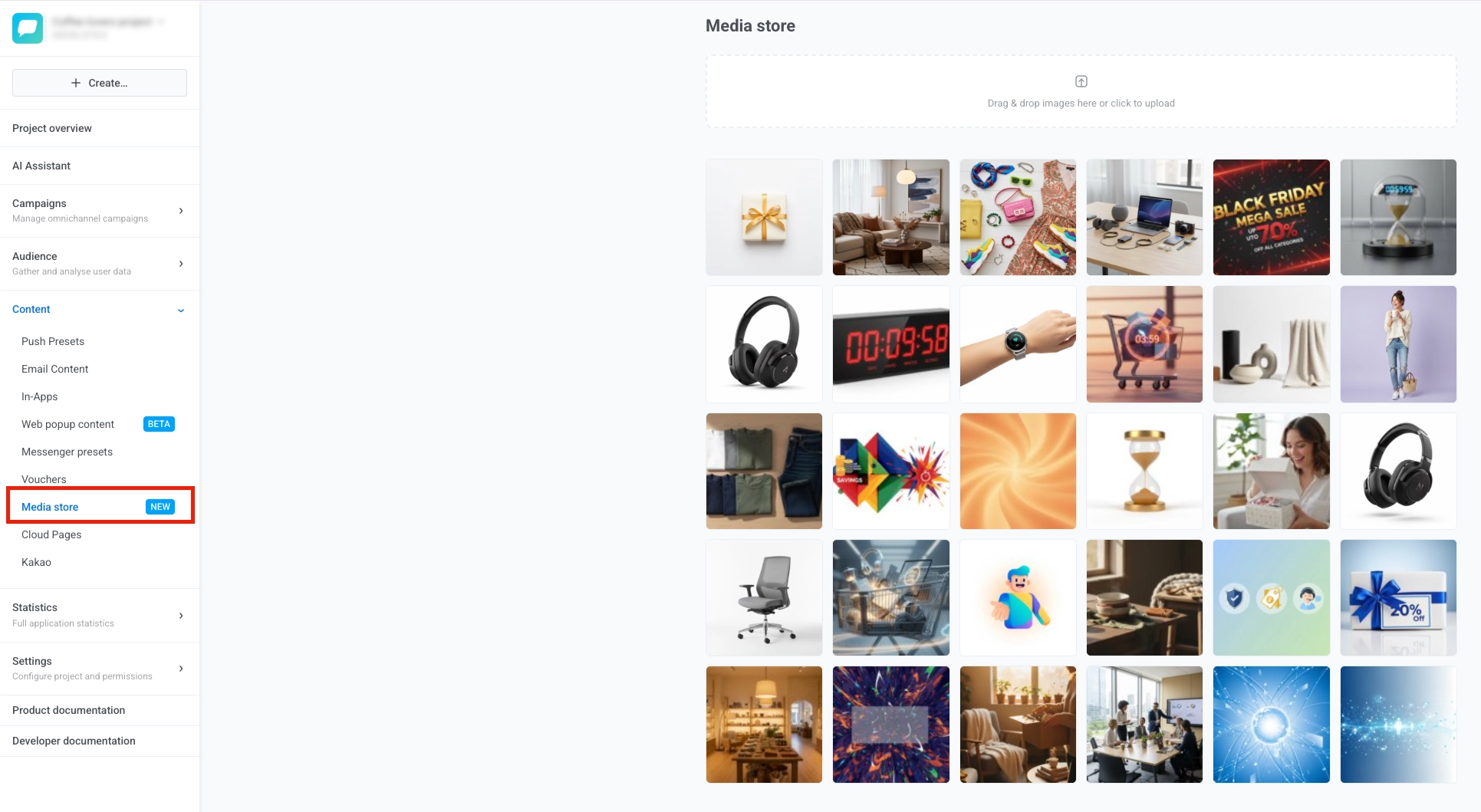
To open the Media storage, go to Content > Media storage in the Pushwoosh Control Panel. The page has three tabs:
- Library: the images already stored in the project.
- Stock photos: search free photos from Pexels and save them to the library.
- Generate with AI: describe an image and save the result to the library.
Who can add and delete images
Anchor link toTo add images (upload, stock import, AI generation), create crops, or delete images, you need the Modify applications permission for the project. With view-only access you can browse the library and pick images, but not change the library. See Multi-login accounts.
Upload images
Anchor link toTo upload images to the Media storage:
- Drag and drop one or more image files onto the upload area.
- Click the upload area to open the file picker and select images from your device.

When the upload finishes, your images appear in the grid below with the most recent first, and you can click Previous or Next to browse older pages if needed.
Compress PNG images on upload
Anchor link toPNG compression makes PNG images smaller when they are added to the library. Pushwoosh reduces the number of colors in the image and keeps transparency. The compression is lossy, but the difference is usually not visible. It’s turned off by default and is set separately for each project.
To change this setting, you need the Modify applications permission for the project.
To turn on PNG compression:
- On the Media storage page, click Settings in the upper-right corner, to the right of the page title.
- In the Media storage settings window, turn on Compress PNG images on upload.
- Click Save.
With the setting on, Pushwoosh compresses every new PNG after it passes the size limits. This covers:
- PNG files you upload from your device.
- PNG images sent from Figma and imported from Canva.
- Crops of PNG and WebP images, because those crops are saved as PNG.
Pushwoosh stores JPG, WebP, and GIF files as they are. It doesn’t compress animated PNGs or images already in the library.
If a PNG can’t be compressed, Pushwoosh stores the original file and the upload still succeeds.
When you upload PNGs from your device, the confirmation message shows the percentage and the amount of space that compression saved, for example Image uploaded. PNG compressed: saved 63% (81.2 KB). For a batch, the numbers cover only the PNGs that got smaller. The same message appears when you upload images in the image picker of an editor.
Send images from Figma
Anchor link toTo send frames from a Figma file without exporting them first, use the Pushwoosh plugin for Figma. See Figma integration.
Import designs from Canva
Anchor link toTo import pages of your Canva designs, click Import from Canva next to the upload area. After you connect Canva, you can also open stored images in the Canva editor with Edit in Canva and start new designs with Create in Canva. See Canva integration.
Find an image by file name
Anchor link toType part of a file name in the Search by file name field above the grid and press Enter. The search ignores letter case and covers the whole library, not only the current page. Clear the field to show all images again.
Where an image came from
Anchor link toA badge on the tile shows how an image got into the library:
- AI: generated in the Generate with AI tab.
- Pexels: imported from the Stock photos tab.
- Canva: imported or edited with the Canva integration.
- Figma: sent with the Pushwoosh plugin for Figma.
Images uploaded from your device have no badge.
A badge such as 2 ver. means the image has several versions, which appear when a Figma frame is sent again or the image is edited in Canva. The tile shows the latest version. Each version has its own URL, so content that uses an older version keeps showing that version.
Use an older version of an image
Anchor link toTo view all versions of an image and pick one of them:
- Click the N ver. badge on the tile. The Versions panel opens with the latest version, marked current, in the preview.
- Under All versions, click the version you want. The list starts with the newest version. The preview shows the selected version with its size in pixels and file size.
- Click Use this version.
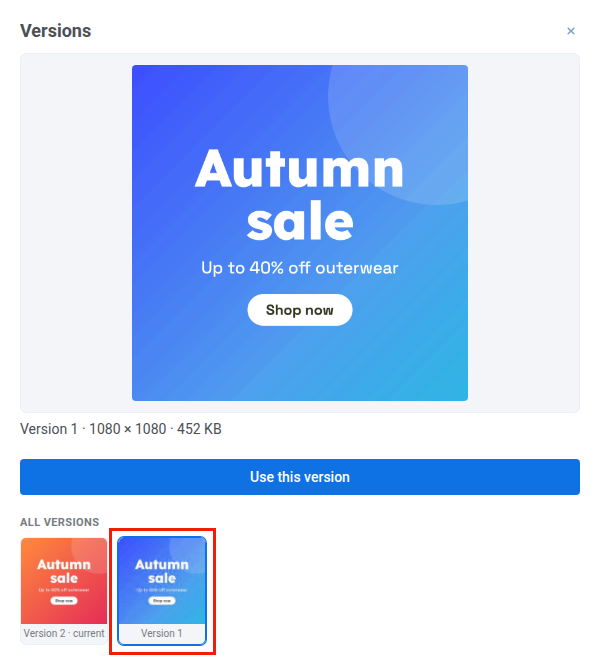
On the Media storage page, Use this version copies the URL of the selected version, the same way as the Select button. In an editor’s image picker, it inserts the selected version into the field.
Add a stock photo from Pexels
Anchor link toThe Stock photos tab searches the free photo library of Pexels. Stock photos don’t count toward the daily AI image limit.
- Open the Stock photos tab.
- Enter what you are looking for, for example
summer sale, and click Search. - Click a photo.
Pushwoosh copies the photo into your library with the Pexels badge. Under each search result, the photographer’s name links to their Pexels profile, and the tab credits Pexels as the photo provider. If nothing matches your query, the tab shows Nothing found — try another query.
If your plan doesn’t include AI images, stock photo search is turned off too. See Daily limit for AI images.
Generate an image with AI
Anchor link toThe Generate with AI tab creates an image from a text description and saves it to your library.
- Open the Generate with AI tab.
- Describe the image, for example
flat-lay of summer picnic essentials on a pastel background. - Choose an aspect ratio. When you open this tab from an editor, the list offers only the ratios that fit the field, so it can be shorter or missing.
- Choose how many images to generate: 1 × image, 2 × image, or 4 × image.
- Click Generate.
Every generated image is saved to the library with the AI badge, whether or not you use it. To get a new result for the same description, click Generate again.
If the project has a Brand book, Pushwoosh adds its colors and tone of voice to the description, so generated images follow your brand style.
Generate an image for a push notification
Anchor link toTo generate an image that fits the message of a push:
- In a push preset that already has a title or text, open the image picker for Banner URL, Icon, or the inbox image.
- Open the Generate with AI tab. The Match the push message checkbox is selected by default.
- Describe the image and click Generate.
With the checkbox selected, Pushwoosh generates an image that illustrates the message. Pushwoosh doesn’t put the message text into the picture unless your description asks for it. In a multi-language preset, the title and text are taken from the default language, or from the first language that has them filled in.
Use your images as a style reference
Anchor link toA style reference is an image from your library that tells the AI which look you want. The generated image takes the colors, lighting, rendering technique, and mood of the references and shows the subject you describe. People, faces, logos, lettering, and scenes from the references are not copied.
- Open the Library tab.
- Select the checkbox on each image you want to use as a reference. You can use up to 10 references.
- Click Use as style. The Generate with AI tab opens and shows the selected images under Style references.
- Describe the image and click Generate.
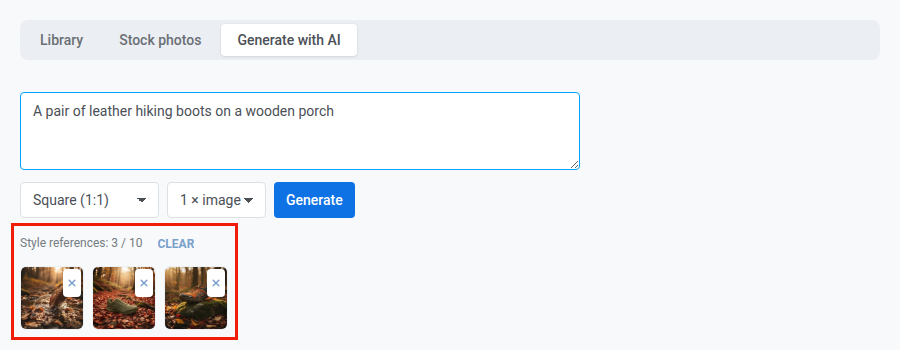
To remove one reference, click the cross on its thumbnail. To remove all of them, click Clear. You can add more images from other library pages until the total reaches 10. If the selection would go over 10, the extra images are not added.
References can only be images from this project’s library. Crops can’t be used as references.
Daily limit for AI images
Anchor link toThe number of AI images is limited per account per day. By default, the limit is:
- 10 images per day on paid plans.
- 2 images per day on free plans.
Each generated image counts toward the limit, so 4 × image uses four. If fewer images are left than you requested, Pushwoosh generates as many as the limit allows. When the limit is reached, generation fails with the message daily limit of N AI images reached, try again tomorrow.
Generation with style references has its own daily limit of requests, five times the image limit. With the default image limit, that is:
- 50 requests per day on paid plans.
- 10 requests per day on free plans.
A request counts once, however many references and images it has. Each generated image still counts toward the image limit. When the request limit is reached, generation with references fails with the message too many generations with style references today, try again tomorrow. Generation without references keeps working.
If your plan doesn’t include AI images, generation and stock photo search fail with the message AI images and stock photos are not available on your plan. To change the limit, contact your Pushwoosh account manager.
Create image crops
Anchor link toA crop is a resized, cropped copy of an original image at a specific aspect ratio. Crops are useful when the same image needs different proportions for different channels or placements.
To create a crop:
- Hover over an image and click the Create crops button. The Create crop panel opens.
- Choose an Aspect ratio that fits the placement where you will use the image. For example, use 2:1 for an Android big picture banner and 3:1 for an Apple Wallet strip or logo image. A frame of that aspect ratio, as large as the image allows, appears in the center of the image.
- Move the frame over the part of the image you want to keep. Drag it with the mouse or on a touchscreen, or click a point on the image to center the frame there. To move it with the keyboard, press Tab until the frame is focused, then press the arrow keys. The frame stops at the edges of the image.
- Set the Size. Choose whether your value defines the Width or the Height, then enter the number of pixels. Pushwoosh calculates the other dimension from the selected aspect ratio.
- For JPEG images, set the JPEG quality value from 1 to 100. A higher value keeps more detail but produces a larger file.
- Click Create crop.
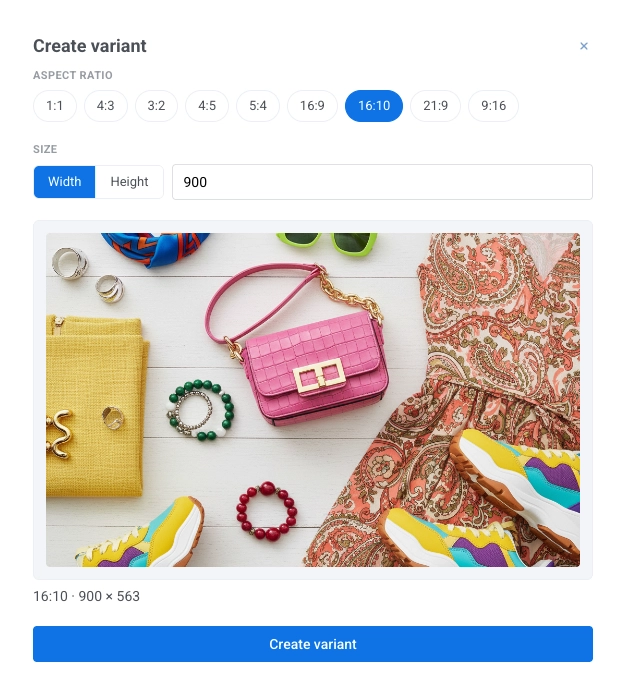
Pushwoosh cuts the crop exactly inside the frame and saves it alongside the original, and the preview switches to the new crop. When you choose another aspect ratio, the frame returns to the center.
A crop is never larger than the original. If the size you set needs more pixels than the original has at that aspect ratio, Pushwoosh saves the crop at the largest size the original allows. For example, a 1:1 crop with a width of 1080 from a 1184×864 image is saved at 864×864.
You can create several crops with the same aspect ratio if their sizes or frame positions differ. If a crop with the same aspect ratio, final size (after it’s reduced to fit the original), and frame position already exists, Pushwoosh opens that crop instead of creating a new one.
View existing crops
Anchor link toThe Existing crops list at the bottom of the Create crop panel shows every crop of the image. To view a crop:
- Hover over the image and click the Create crops button.
- Under Existing crops, click the crop. The preview shows the stored crop with its aspect ratio and size, for example 2:1 · 1024×512.
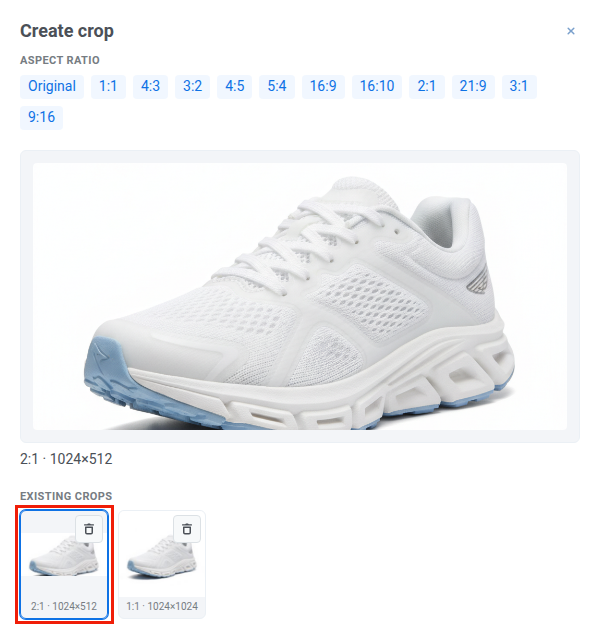
To go back to the original, click Original under Aspect ratio.
Delete images
Anchor link toYou can delete images you no longer need, either an original together with all of its crops, or a single crop on its own.
Delete an original image
Anchor link to- Hover over the image in the grid and click the Delete icon.
- In the confirmation window, click Delete.
If the image has several versions, only the latest version and the crops of that version are deleted, and the tile shows the previous version. To delete an older version, delete the newer versions first.
You can’t delete an image used in a Wallet pass campaign. Remove the image from the campaign first.
Delete a single crop without removing the original
Anchor link to- Hover over the image and click the Create crops button to open the Create crop panel.
- In Existing crops, find the one you want to remove and click its Delete crop button.
- In the confirmation window, click Delete.
Delete multiple images at once
Anchor link toTo remove several original images in one action:
- Check the checkbox on each image you want to delete, or click Select all on page to select every image on the current page.
- Click Delete selected.
- In the confirmation window, click Delete.
Use images in your content
Anchor link toHow you add a Media storage image depends on the content type.
Select an image in the editor
Anchor link toIn the editors listed below, you can pick, find, or generate an image without leaving the editor. The image picker has the Library, Stock photos, and Generate with AI tabs:
- Push notifications and web push content: Banner URL, Icon, Stories, and inbox images. See Add media content in Push presets.
- SMS presets: MMS attachments. MMS accepts only JPG and GIF, so this picker has Library and Stock photos only.
- Push sending form: the inbox icon and WhatsApp media.
- Customer Journey: images in Viber and WhatsApp elements.
- Native in-app messages, Wallet passes, and email ad creatives.
- AI Email Builder, and the same builder for in-app messages and Cloud Pages: the image gallery.
A picker hides the Generate with AI tab when the field doesn’t accept both PNG and JPEG, because a generated image can come in either format. It hides the Stock photos tab when the field doesn’t accept JPEG.
In Wallet pass campaigns, an image picked for the Apple Wallet Logo or Strip slot is cropped to 3:1 automatically when it is wider than that. See Upload campaign images.
Web popups let you pick an image only from the library, without the Stock photos and Generate with AI tabs. See Images and video in Web popup content.
Copy an image URL
Anchor link toCopy a URL from the Media storage and paste it into your content editor.
To copy the URL:
- Hover over the image you want in the Media storage grid.
- Click the Select button (the checkmark icon) on the image.
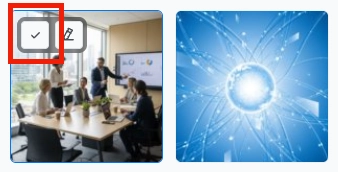
Once the URL is copied to your clipboard, paste it into the editor you are using.
Where you paste it depends on the editor:
- Image URL field: Drag & drop editor and Cloud Page editor — Image block, or in-app editor
- HTML
srcattribute: See Add images in the HTML code editor
Select an original or a crop
Anchor link toTo copy the URL of an original or a crop:
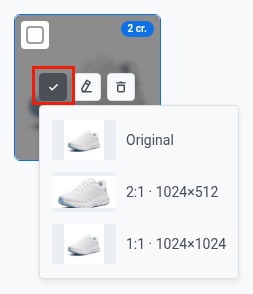
- Hover over the image in the grid. If it has crops, its tile shows a badge with the count (for example, 2 cr.).
- Click the Select button to open the menu. Each item shows a thumbnail of the original or the crop.
- Choose Original to copy the URL of the full-size image, or choose a crop listed by its aspect ratio and size to copy that crop’s URL.